
Turn a design into video
Take a still you have already approved and turn it into video, then finish it with sound, captions and an export.
11 walkthroughsabout 38 min end to endEnds with: An MP4 built from a design you already signed off
- 1
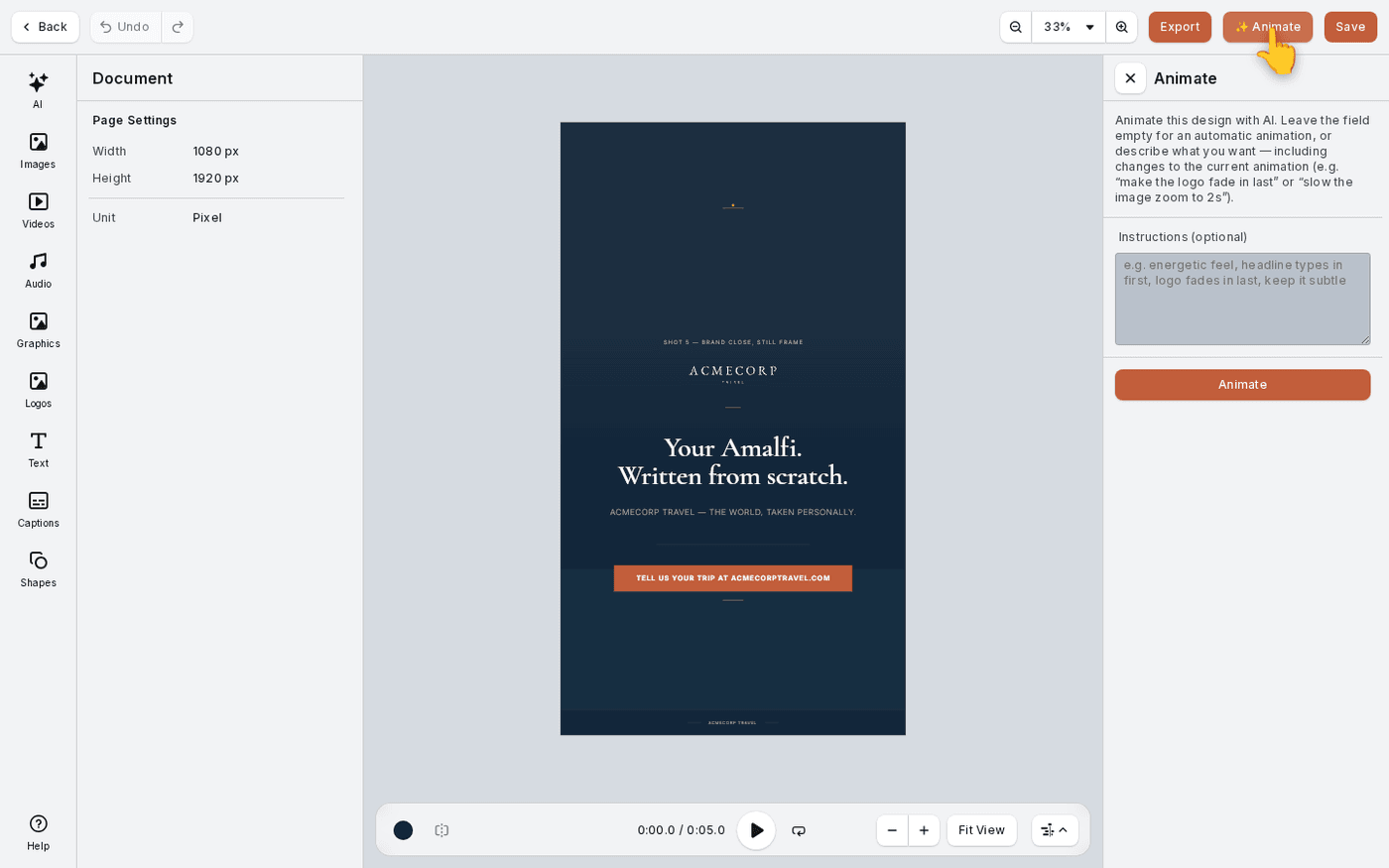 Turn a sketch into a videoAny frame you have already made can become a short video, with your design animated for you.
 - 2
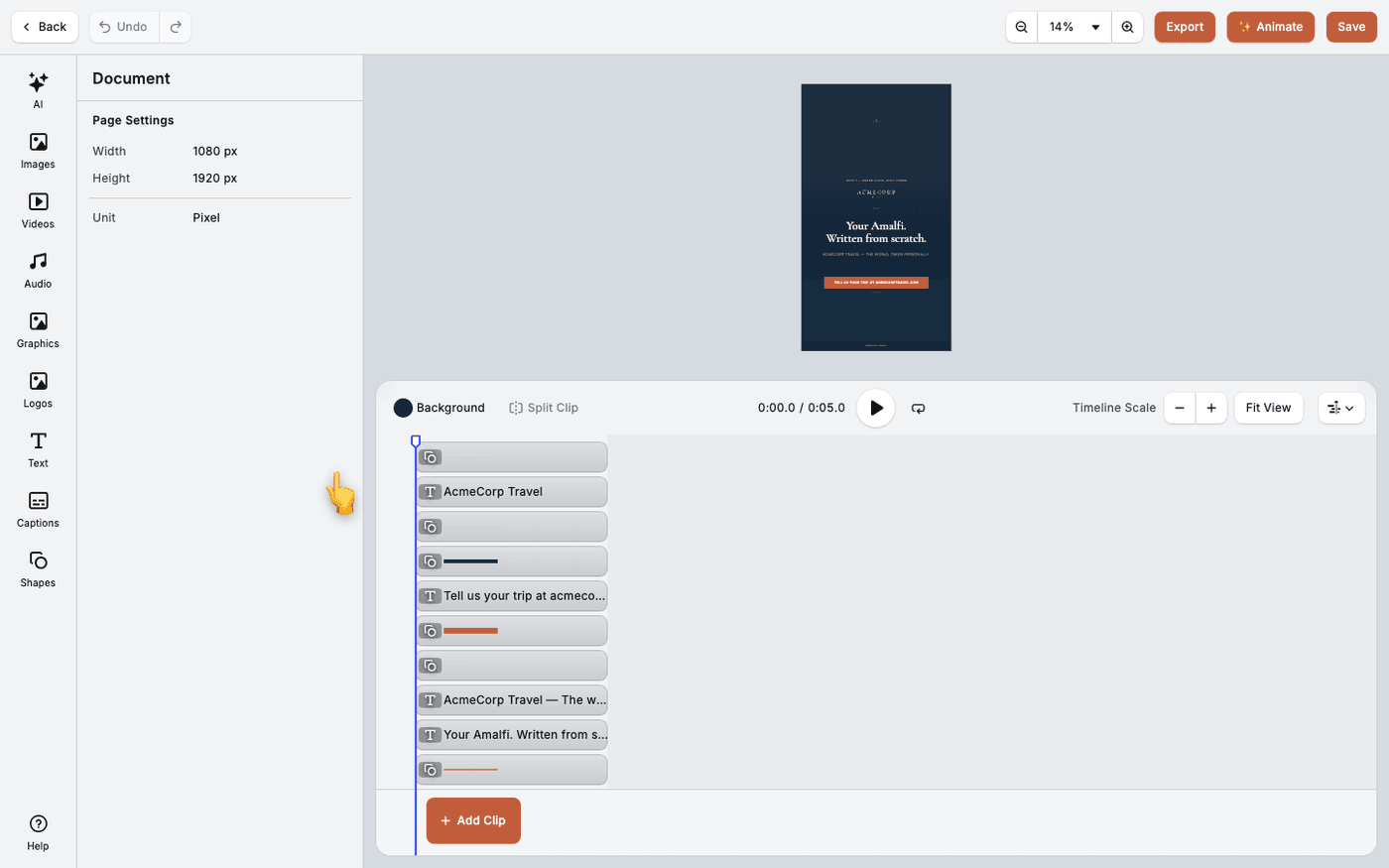 Check these before you edit videoKnow the limits of video in Protaigé before you start, so nothing surprises you halfway through.
 - 3
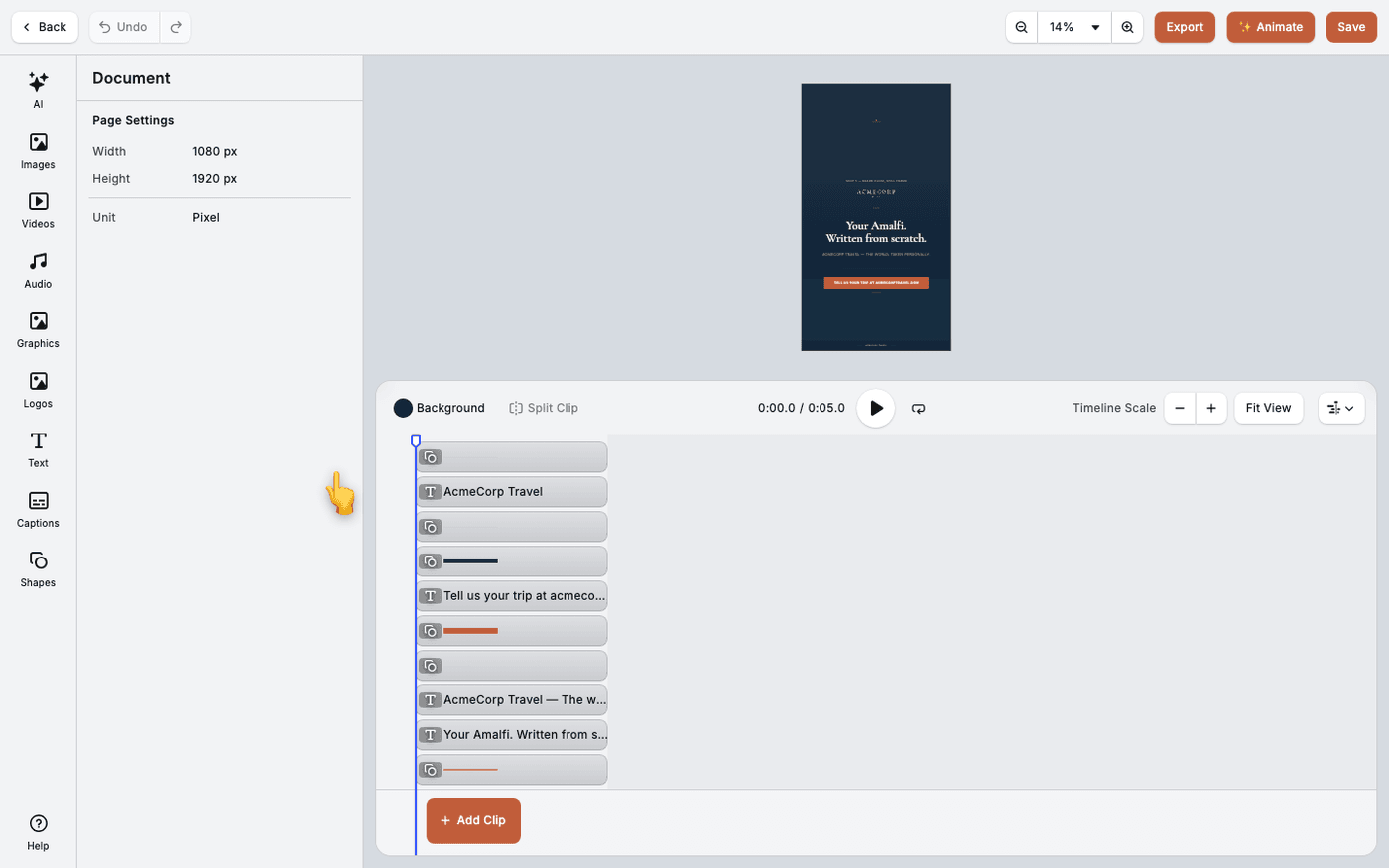 Use the video timelineTrim clips, change their speed and volume, and add new clips, all on the timeline.
 - 4
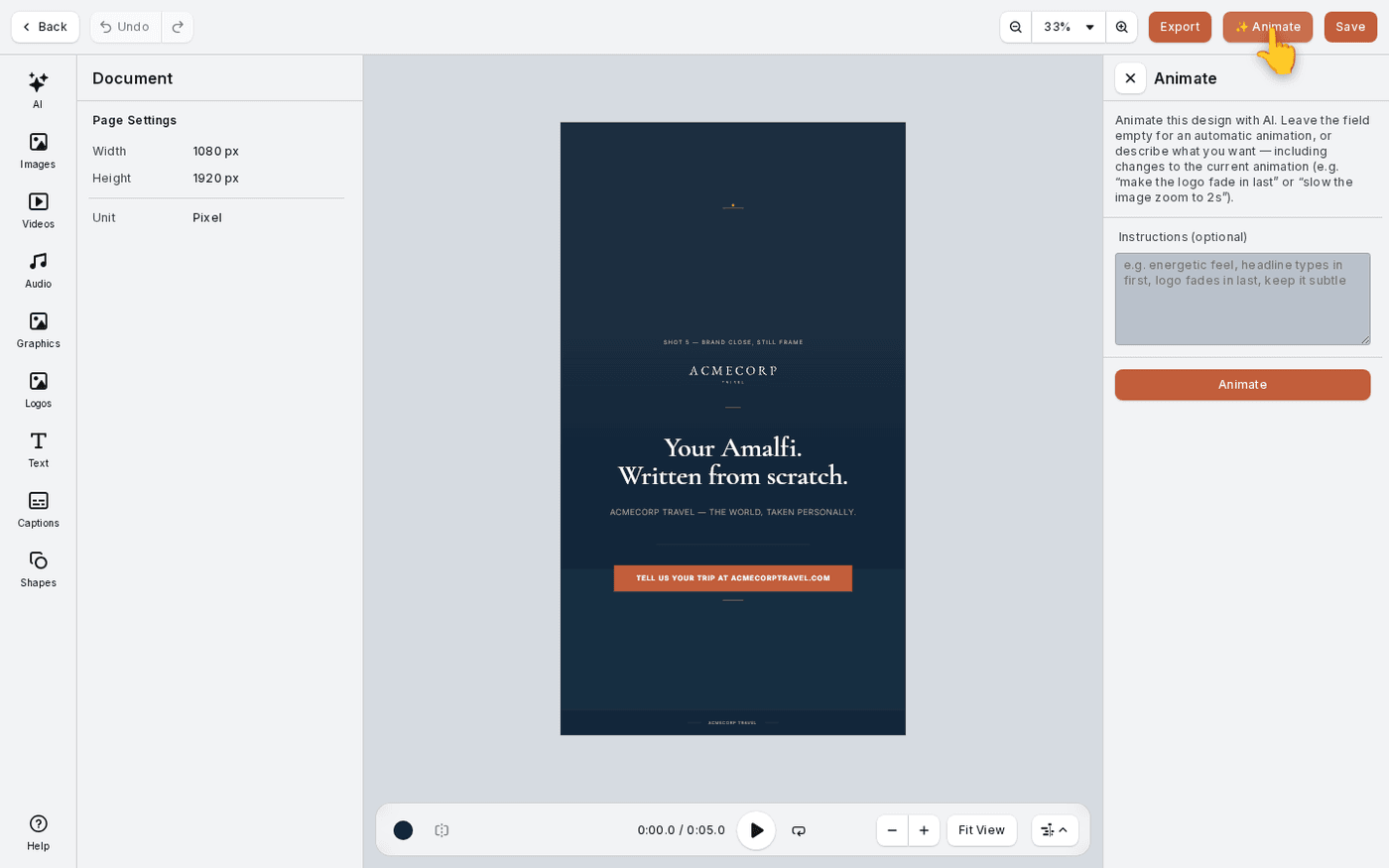 Animate a design into videoTurn a finished still design into a short video with one button. Protaigé decides what moves and when.
 - 5
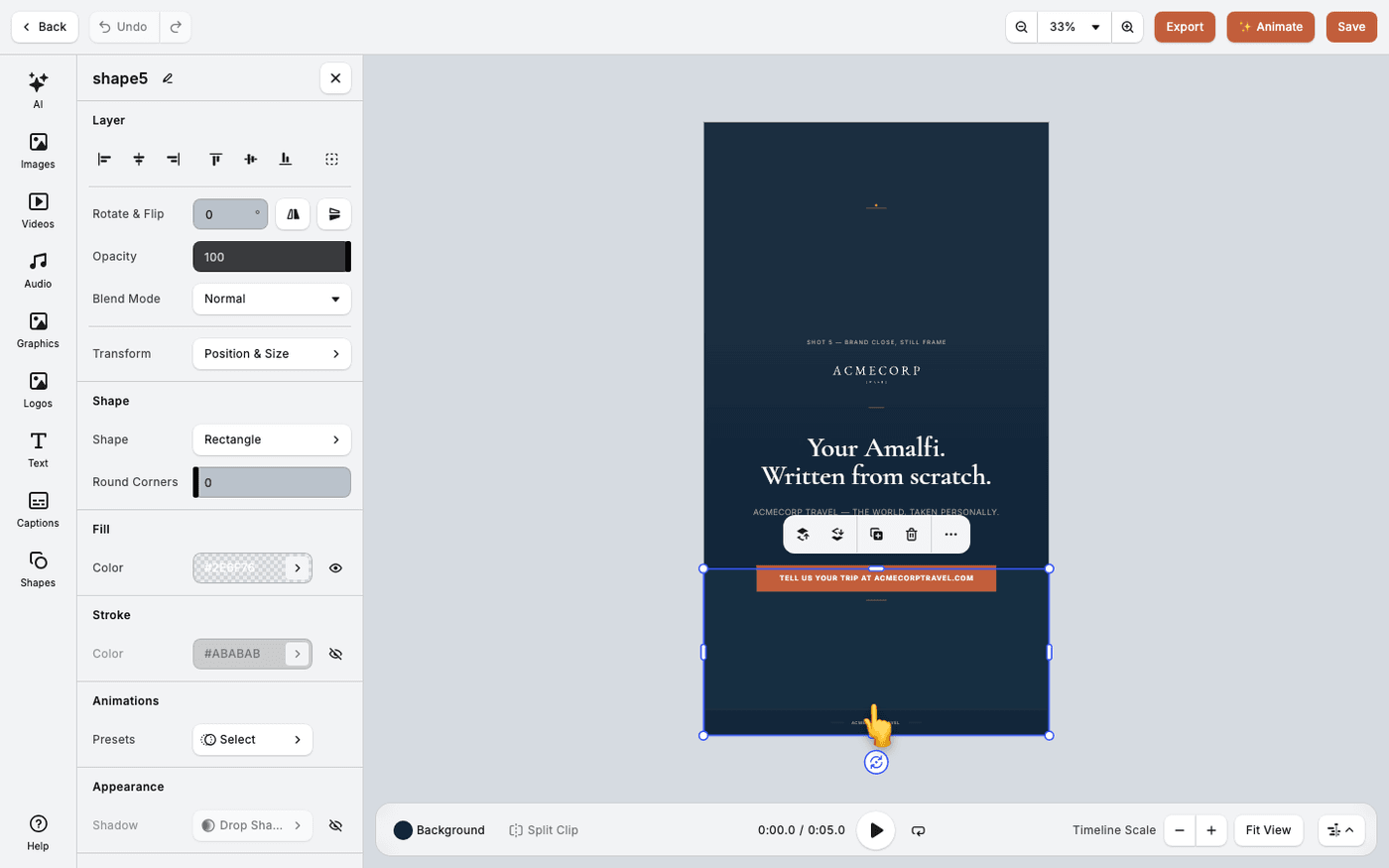 Animate a single element by handGive one text box or image its own entrance, exit and loop when ✨ Animate is not enough.
 - 6
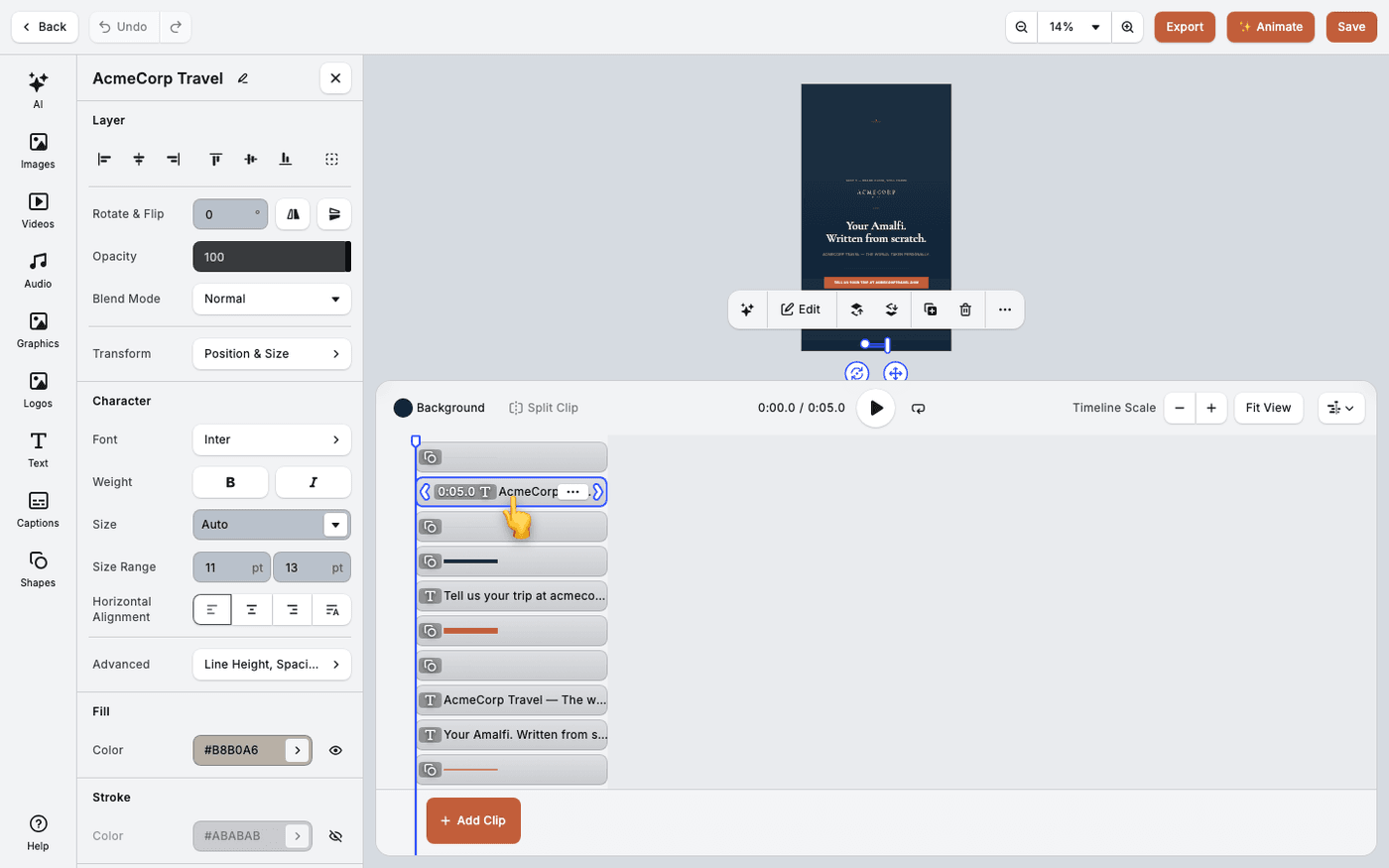 Split and arrange clips on the timelineCut a clip in two at the playhead, stack clips on tracks, and decide what shows in front.
 - 7
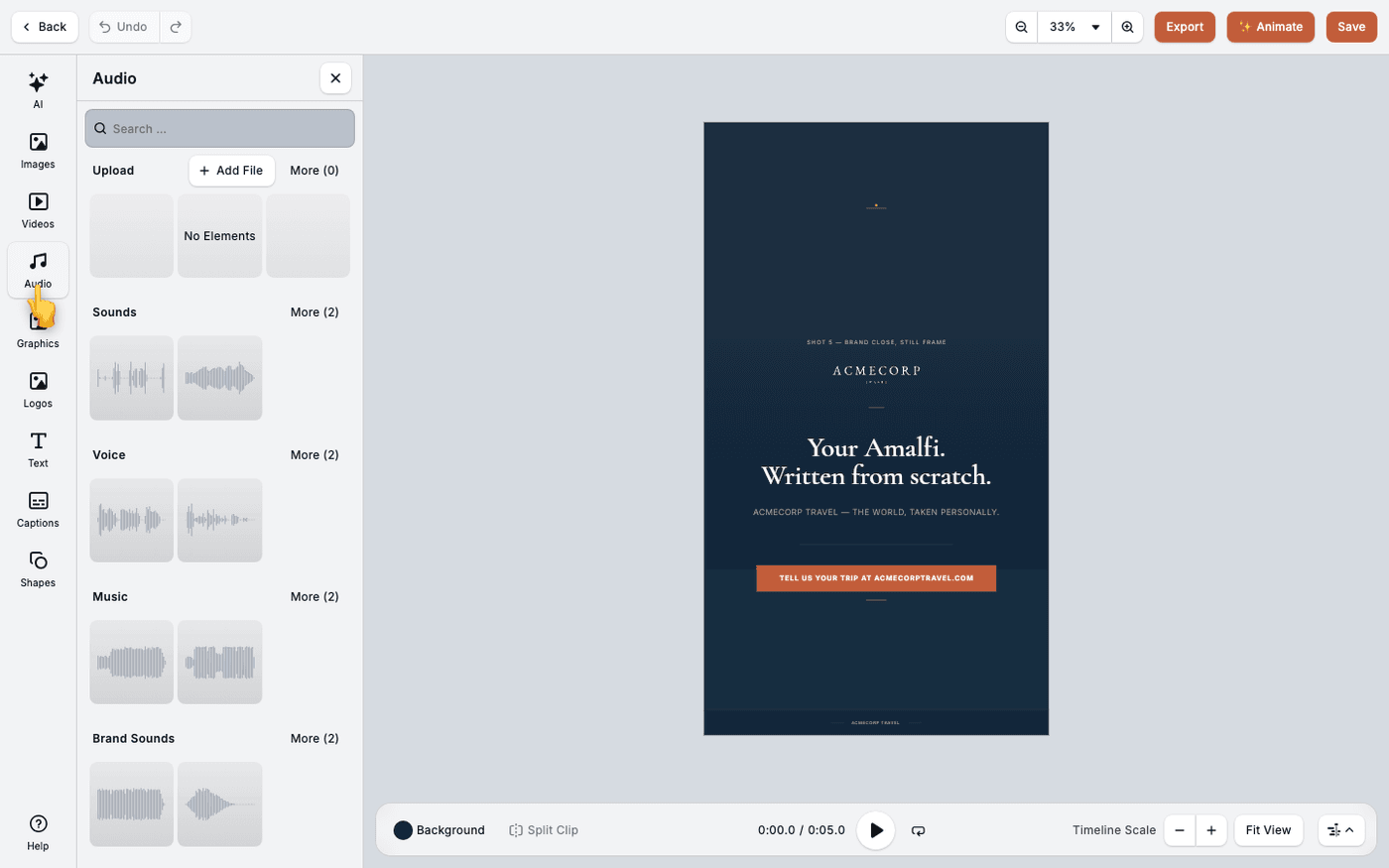 Add sound effects and music to videoAdd sound to your video from generated effects, generated music or your own audio files.
 - 8
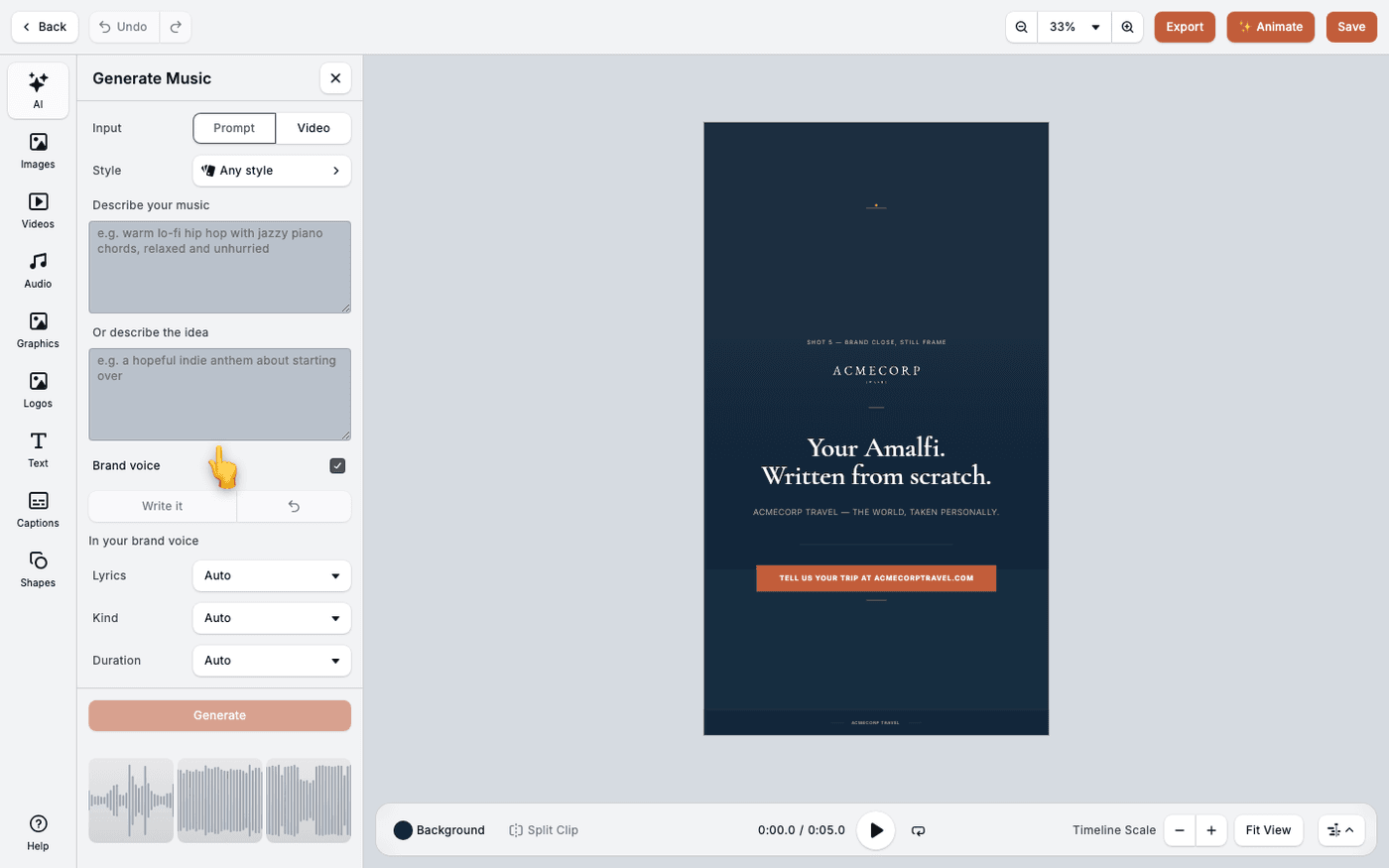 Generate music for videoDescribe the track you want, or let Protaigé score your video, without leaving the editor.
 - 9
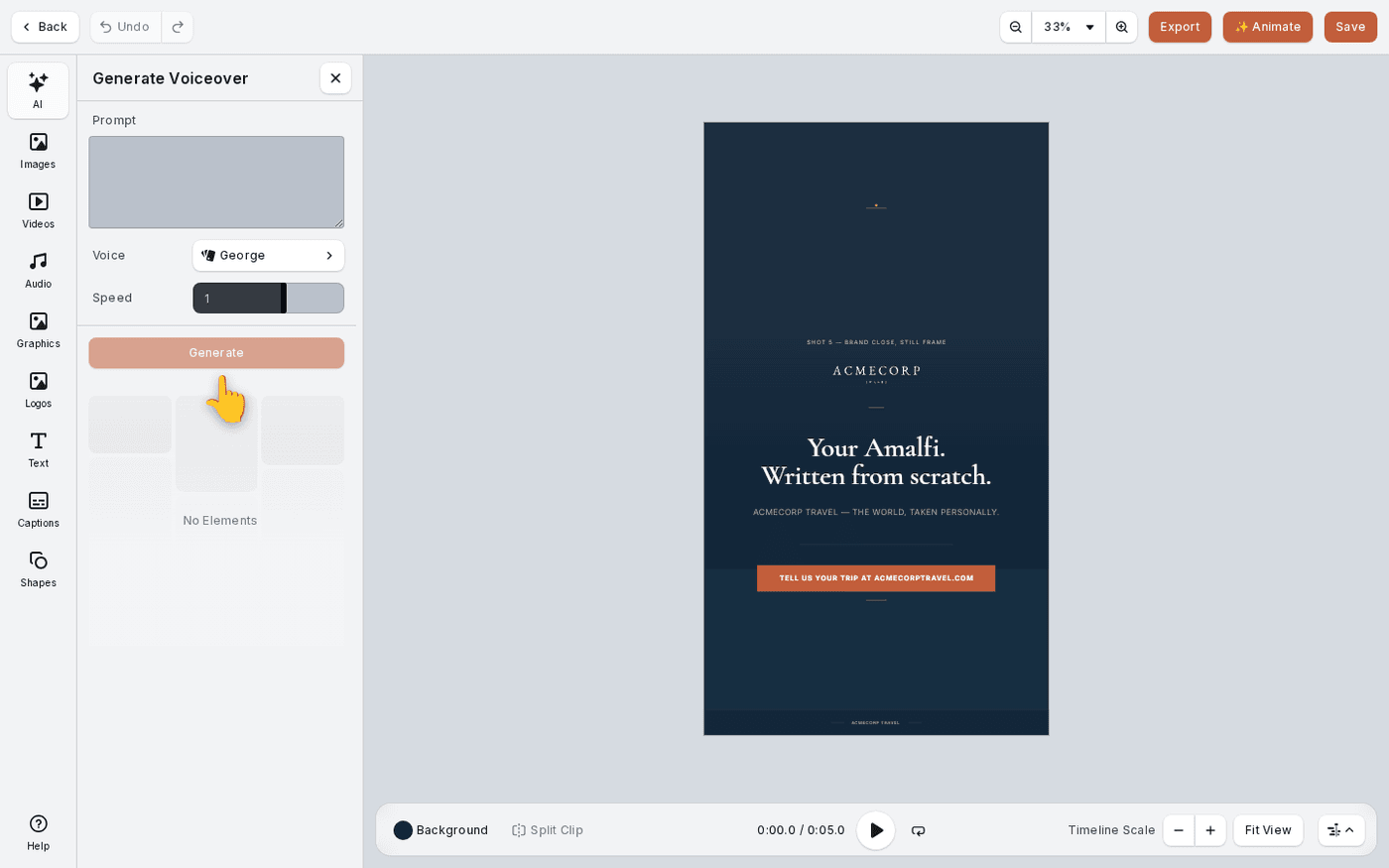 Add a voiceover to videoGive your video a narrator. Type the script, pick a voice, and Protaigé records it for you.
 - 10
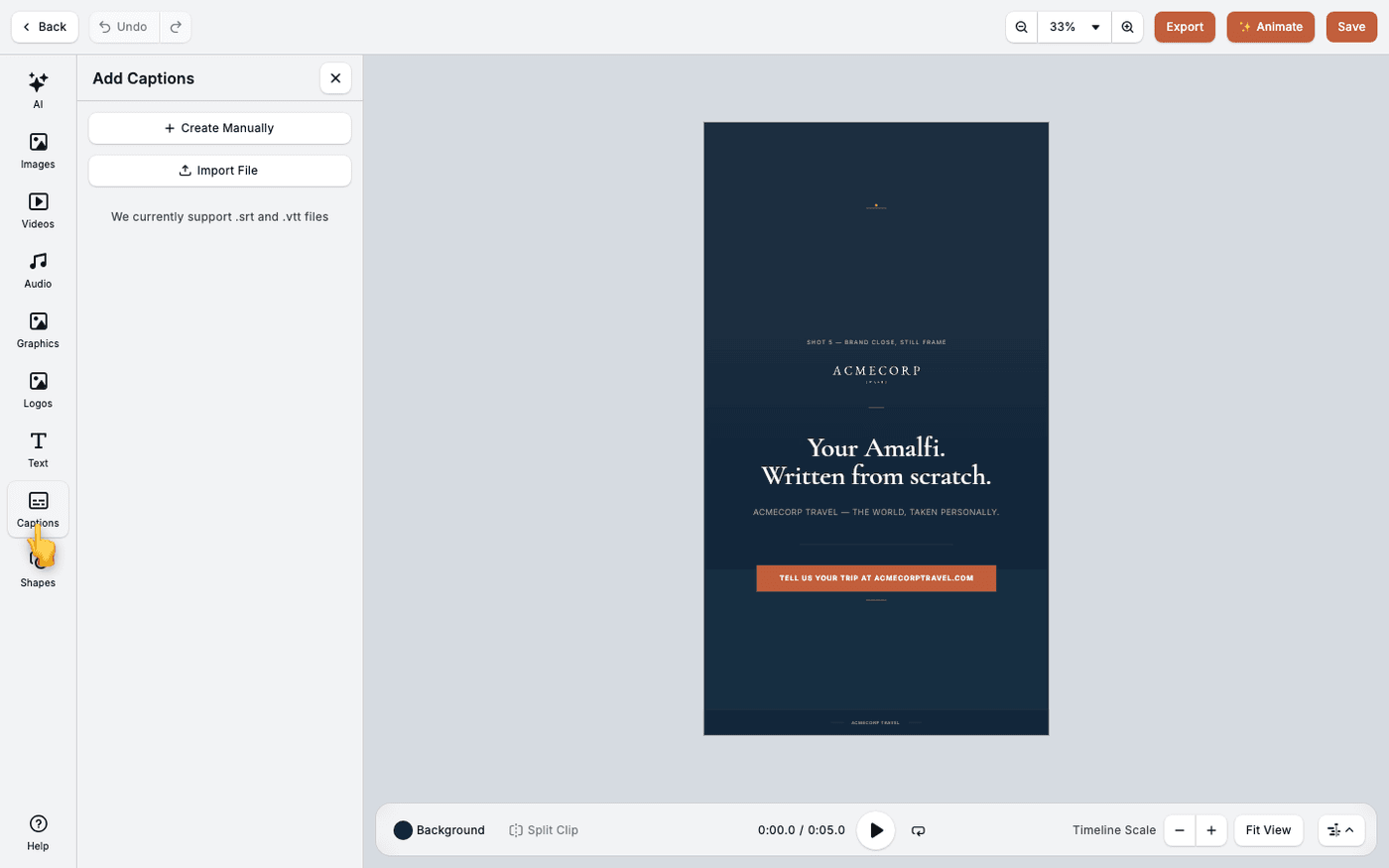 Add captions to videoMost people watch with the sound off. Captions make sure they still get your message.
 - 11
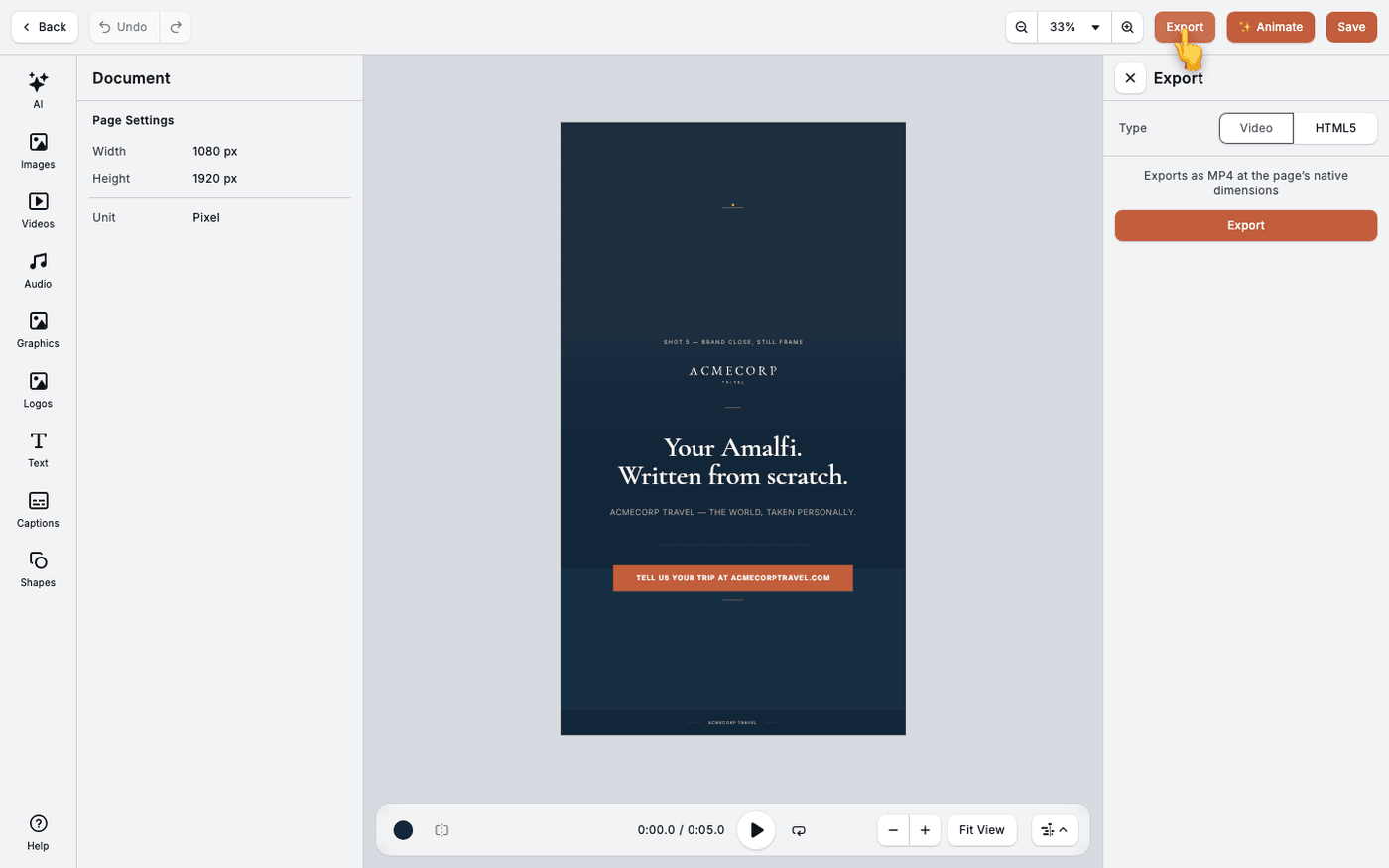 Export a video or an HTML5 bannerGet finished work out of the editor as a video for feeds, or as an HTML5 banner for ad servers.
Other flows
Different destination, same idea.
Set up Brand DNA10 steps · ends with a Brand DNA complete enough to generate fromCreate a campaign from a brief9 steps · ends with a campaign kit ready to export or publishTake a campaign to channel5 steps · ends with Copy written per channel, published, and measuredCreate multiple formats with Sketch7 steps · ends with One idea, published in several placesCreate branded design kits7 steps · ends with Your own templates driving the outputSet up Maia across your channels7 steps · ends with Maia reachable from email, Slack, WhatsApp and your calendar