In short: Sketch Studio → hover a frame → three-dots menu → Create video → Animate → Export.
You do not start a video from scratch. You start from a frame you have already made. The layout you approved is the thing that moves.
That keeps it on brand. The type, the colours and the images are the ones you already signed off. This page takes about three minutes.
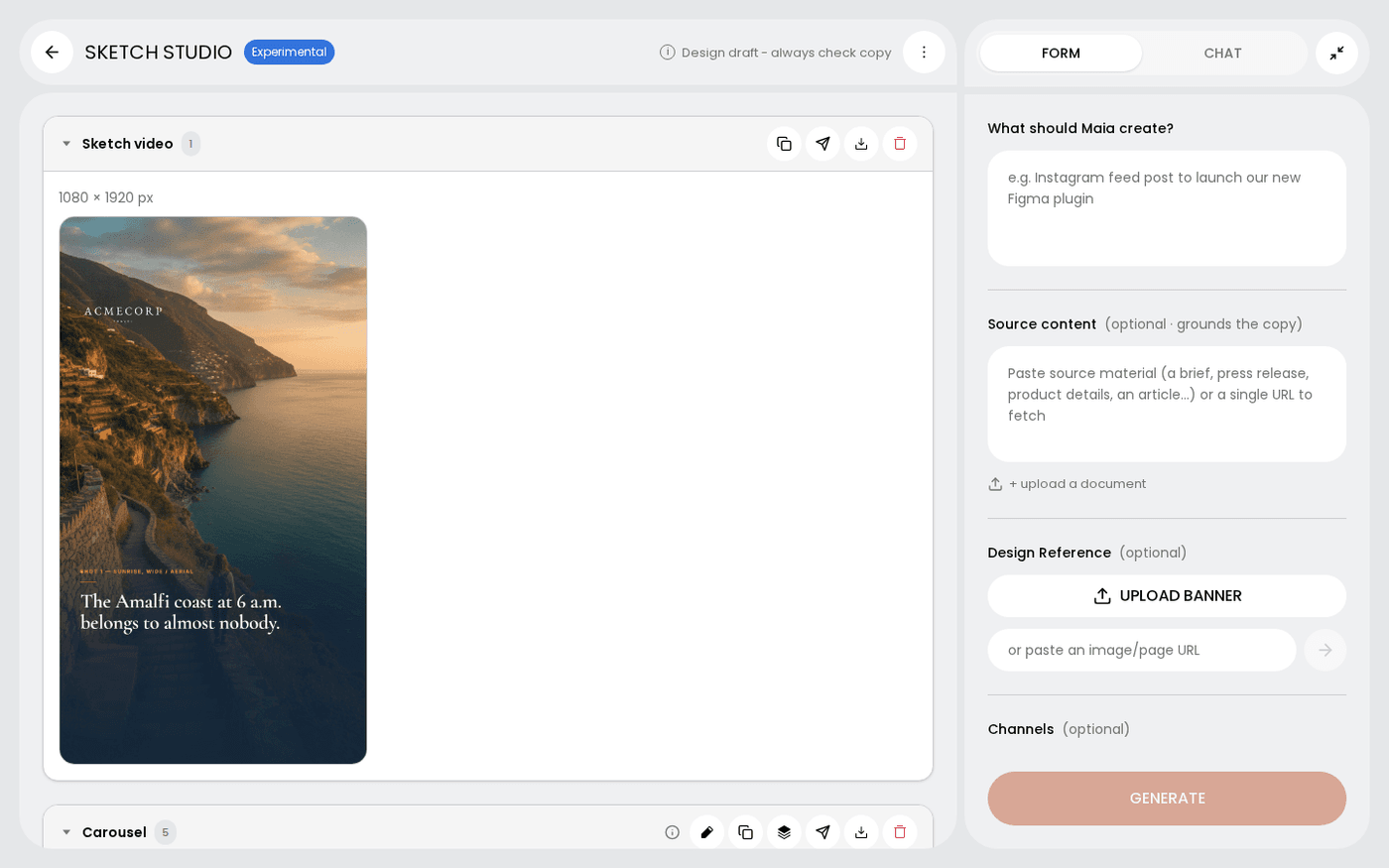
Open the frame's menu and choose Create video
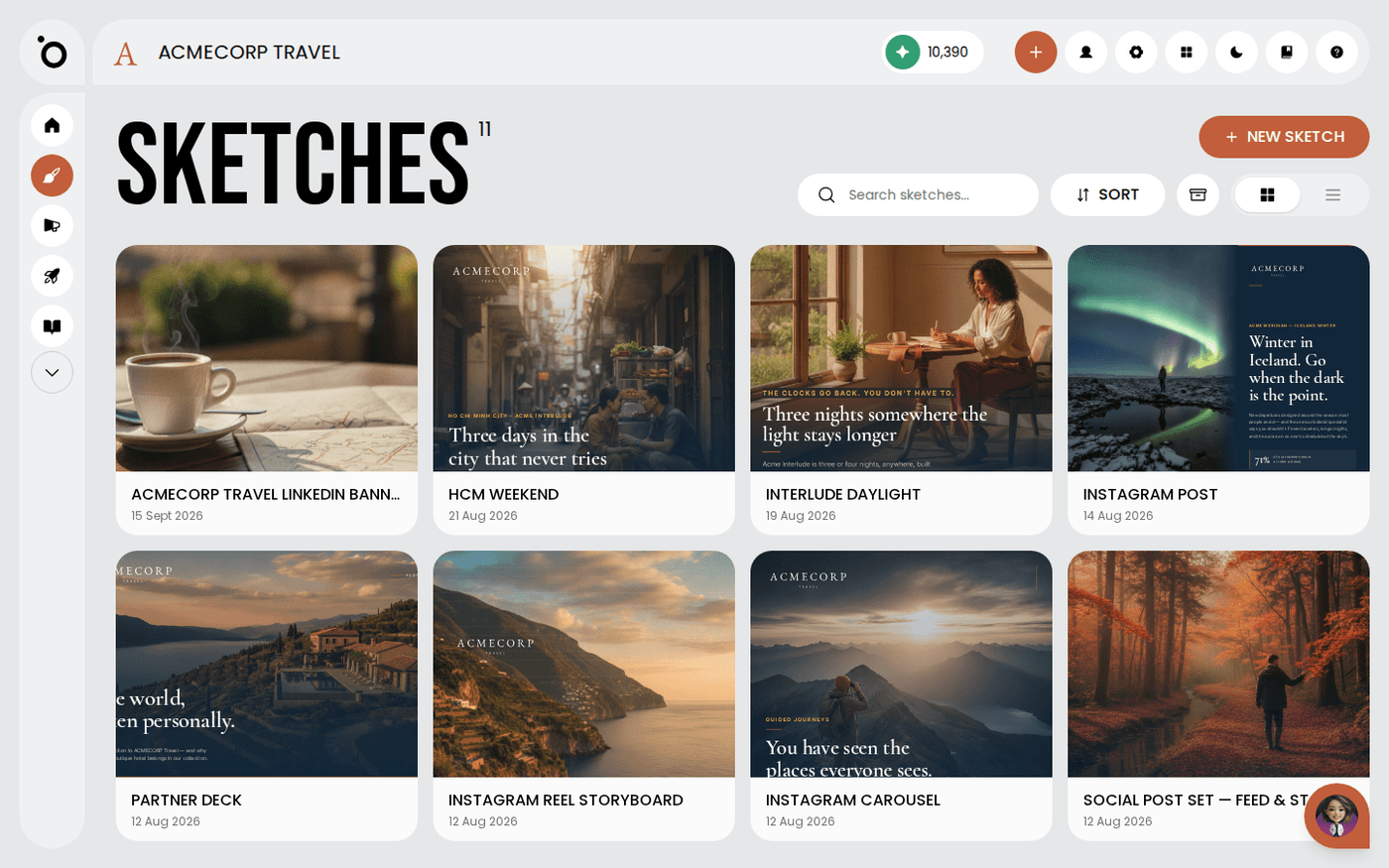
Hover the frame you want to move. Open the three-dots menu and choose Create video. Landing page and email frames do not offer this, because they are web pages, not artboards.
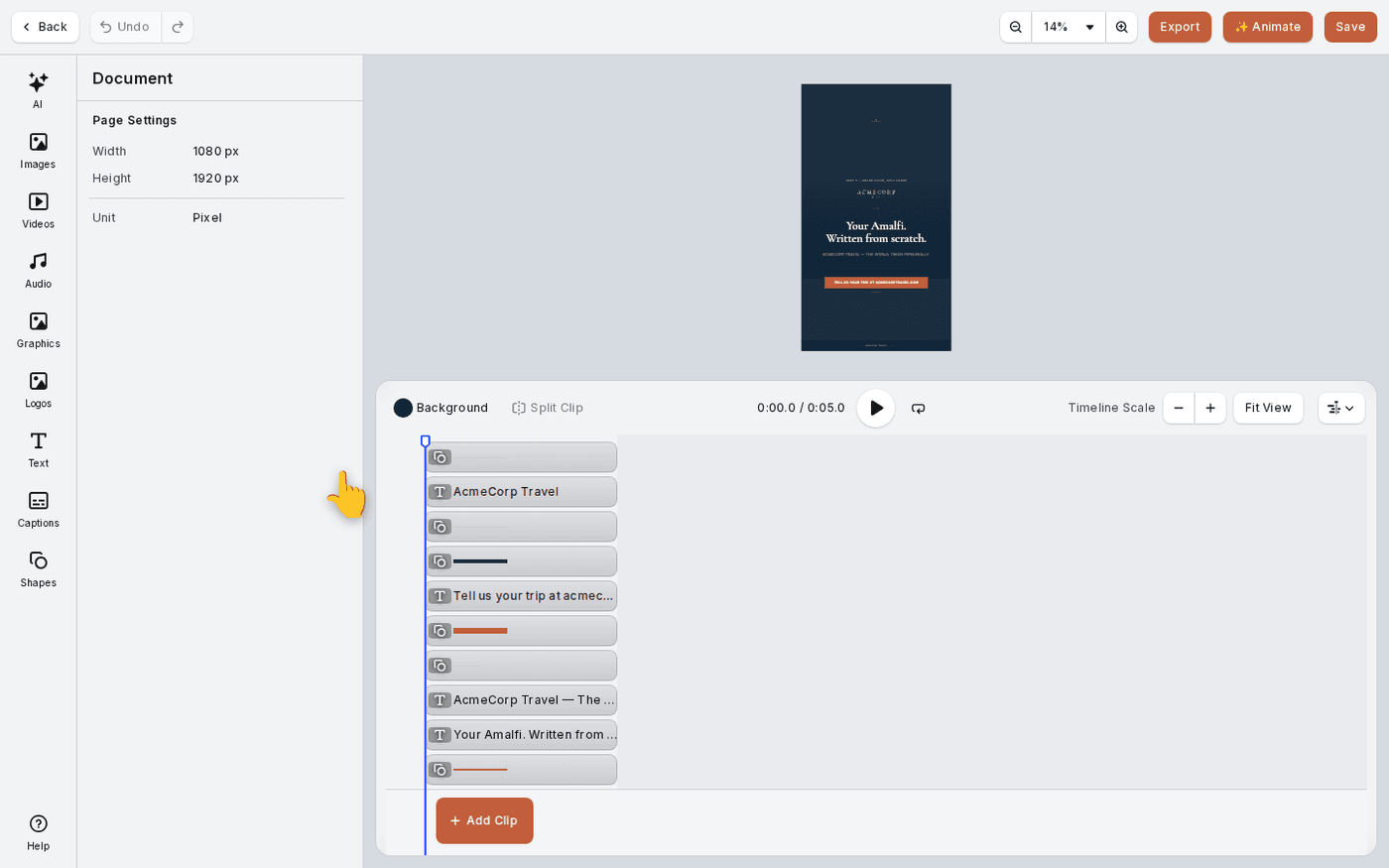
See your frame in the video editor
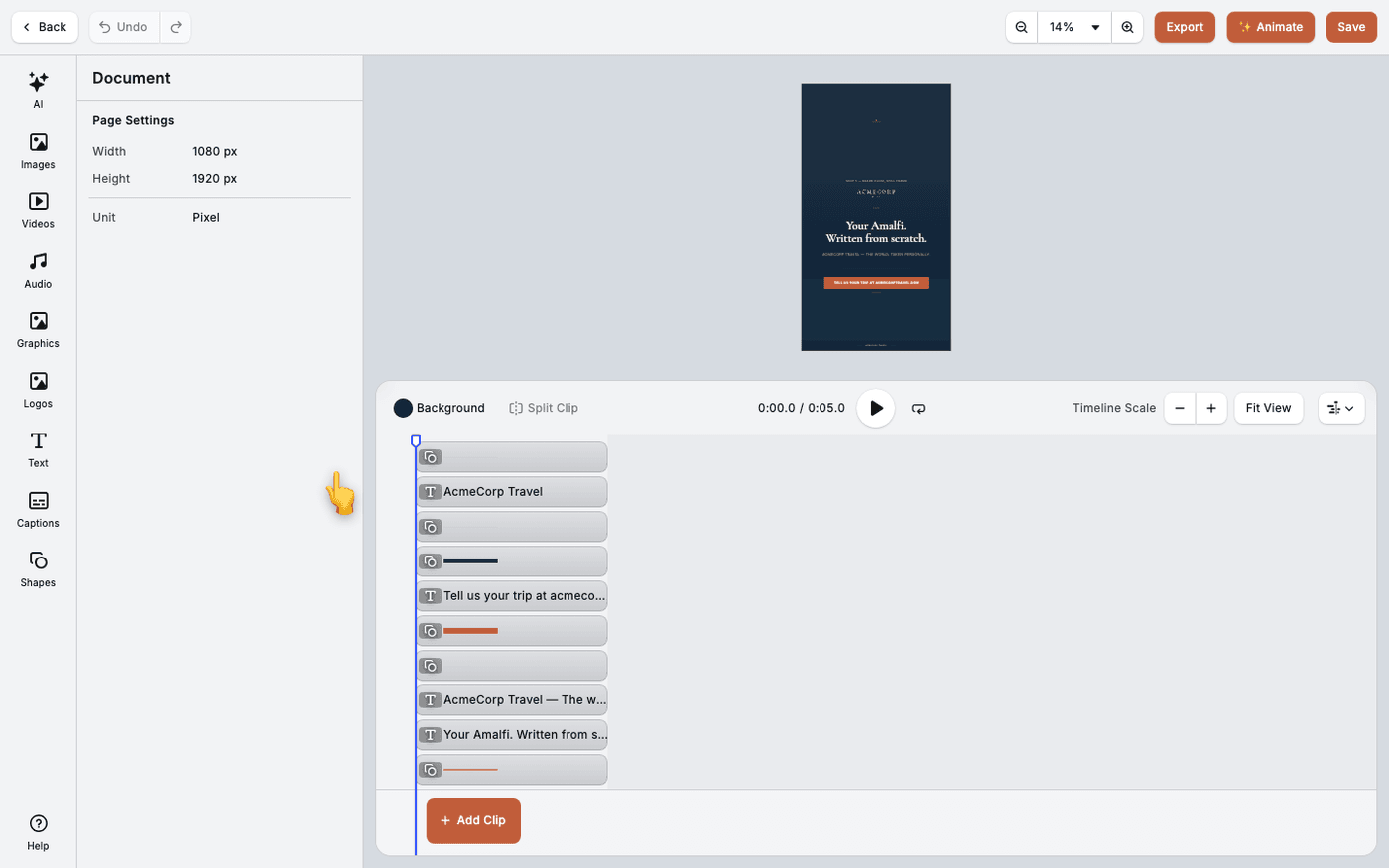
The video editor opens on your frame. Your layout is already split into its parts on the timeline, one track per element. Nothing has been redrawn. The headline is still your headline.
Press Animate
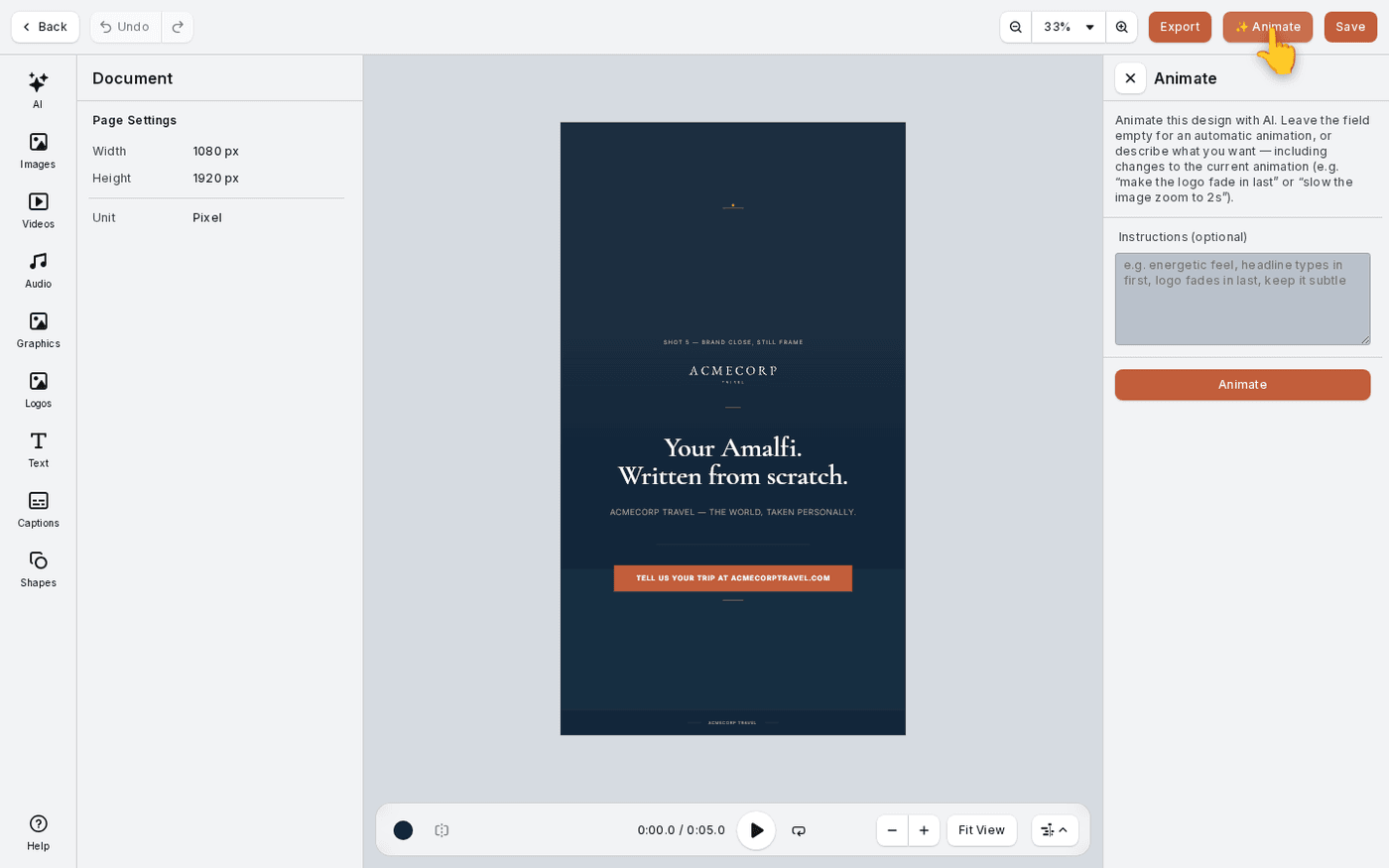
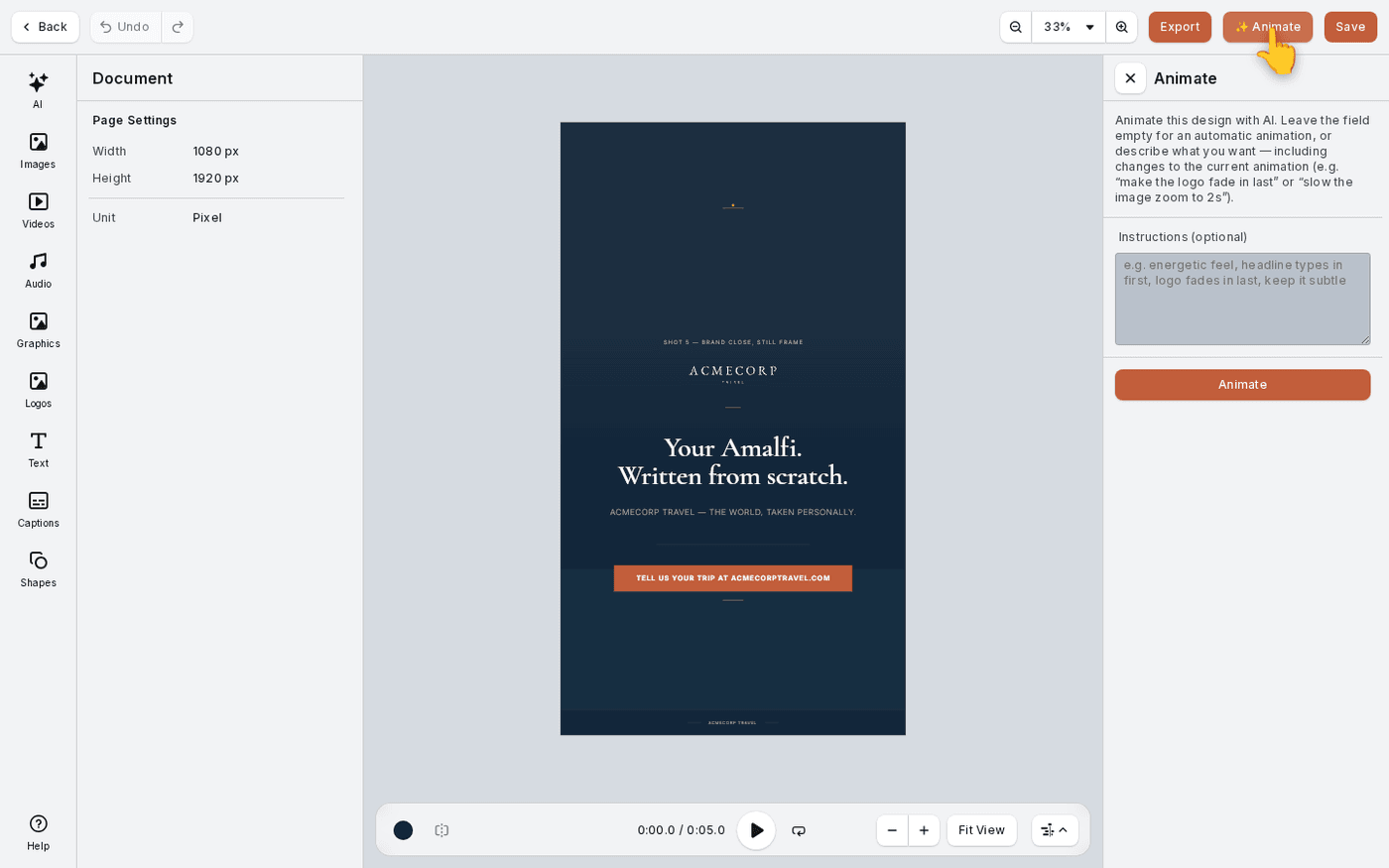
Press Animate in the top bar. A panel opens with an Instructions field. Leave it empty for an automatic animation, or say what you want, for example "keep it subtle, headline first, logo last". Press Animate in the panel to run it.
Play it back, then adjust
The result lands on the timeline as entrance, exit and loop animations on each element. Play it. If you disagree with one element, change it by hand on the timeline. You do not need to run Animate again.
Save, or export
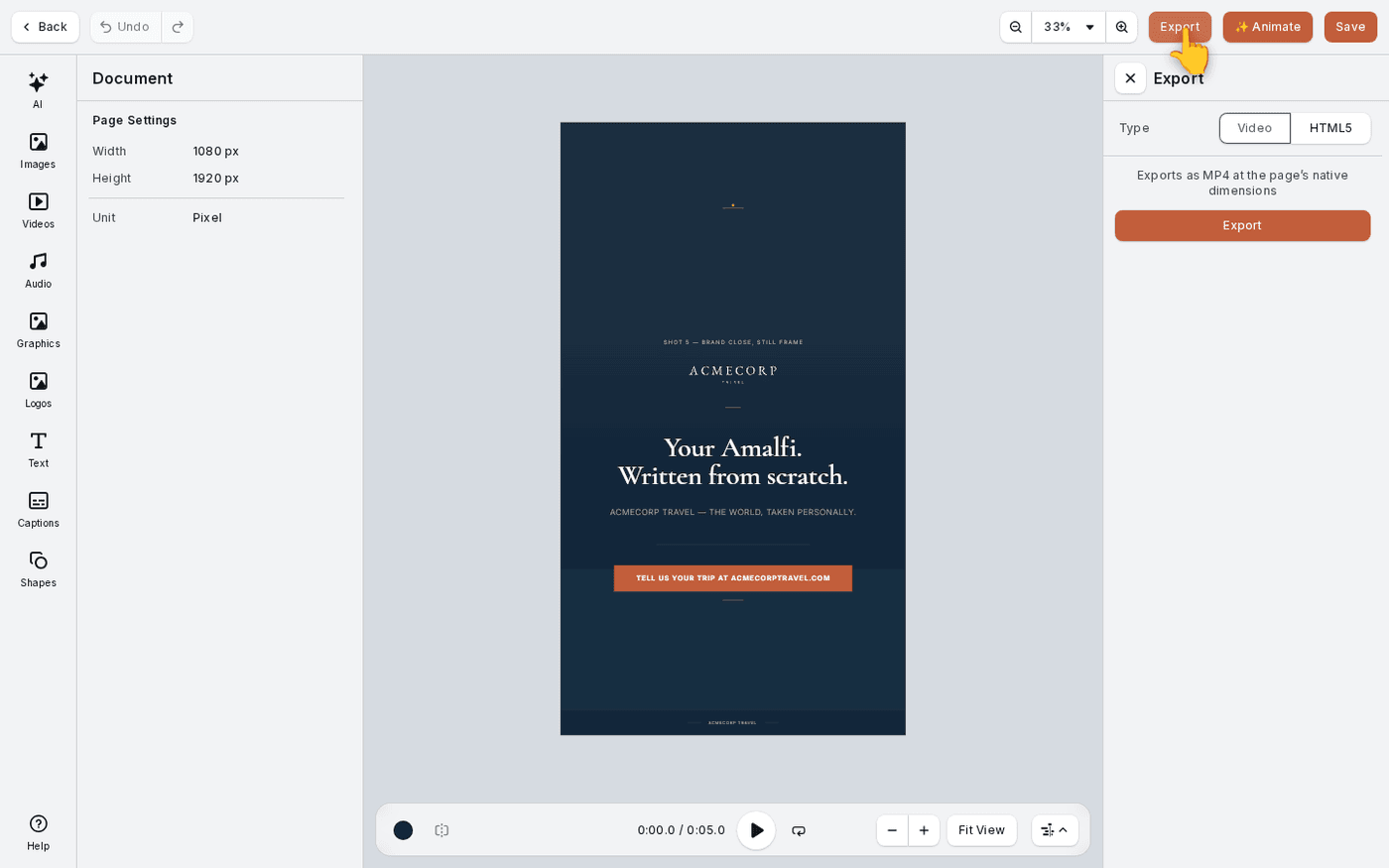
Press Save to keep the video project with the sketch, so you can come back to it. Press Export to render the MP4 at the frame's own size. Both are in the top right.
The video is built from your frame, not from a prompt. To change how it looks, change the design first. The animation follows the layout you built.
Last updated 29 September 2026