In short: Select a clip on the timeline → Fill → Video for Trim, Crop, Volume and Speed.
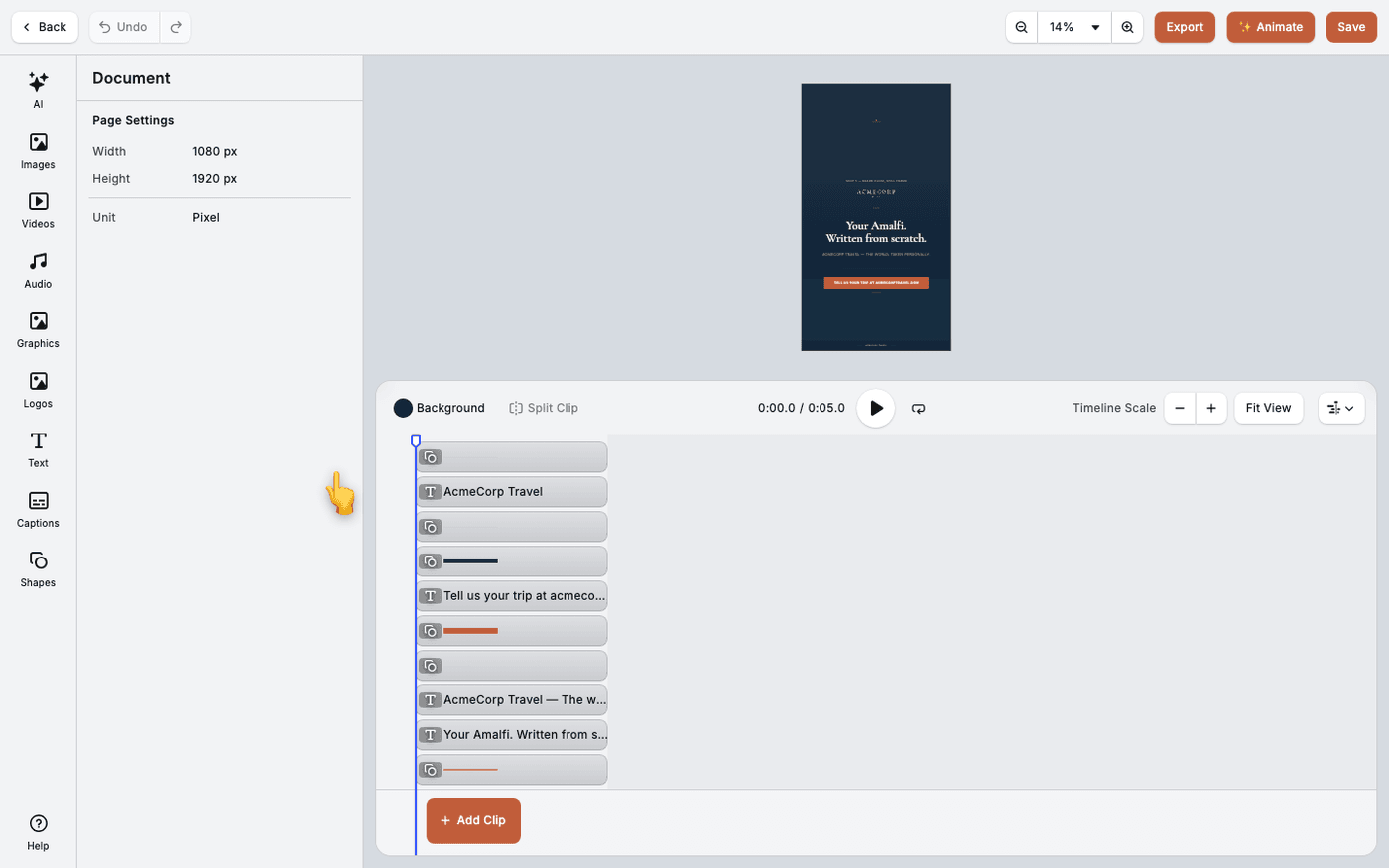
The timeline runs along the bottom of the video editor. It holds your clips, audio and text over time. Select a clip and its controls open in the panel: the footage settings sit together under Fill, then Video.
Trim a clip
Select the clip. Under Fill, then Video, use Trim to set where the clip starts and ends. The source file is not cut, so you can trim it back later. Crop sits beside it.
Change the speed
Speed changes how fast the clip plays. Speeding a slow clip up is often a better fix than trimming it. The duration updates with it.
Set the volume
Volume is set on each clip and track. Lower a music bed and raise a voiceover to balance them.
Animate an element
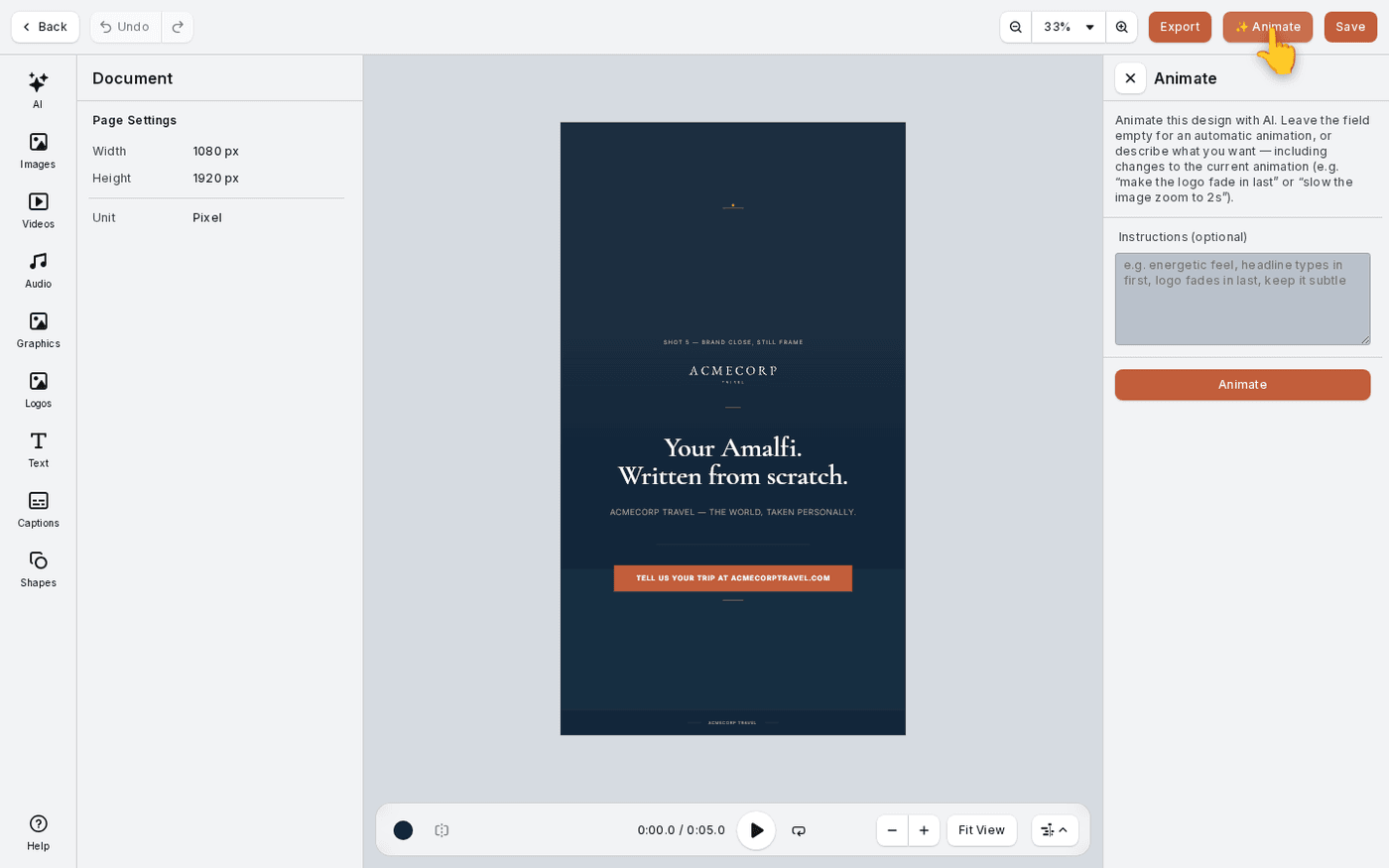
Text and images have their own Animations, so they can move independently of the footage.
Add a clip
Press Add Clip on the timeline. It opens your image and video libraries. A still and a piece of footage can sit on the same track.
See the whole video
Press Fit View to fit the whole timeline on screen.
The page length fits itself to your clips, from one second to 30 seconds. The video is as long as what is on the timeline.
Last updated 1 September 2026