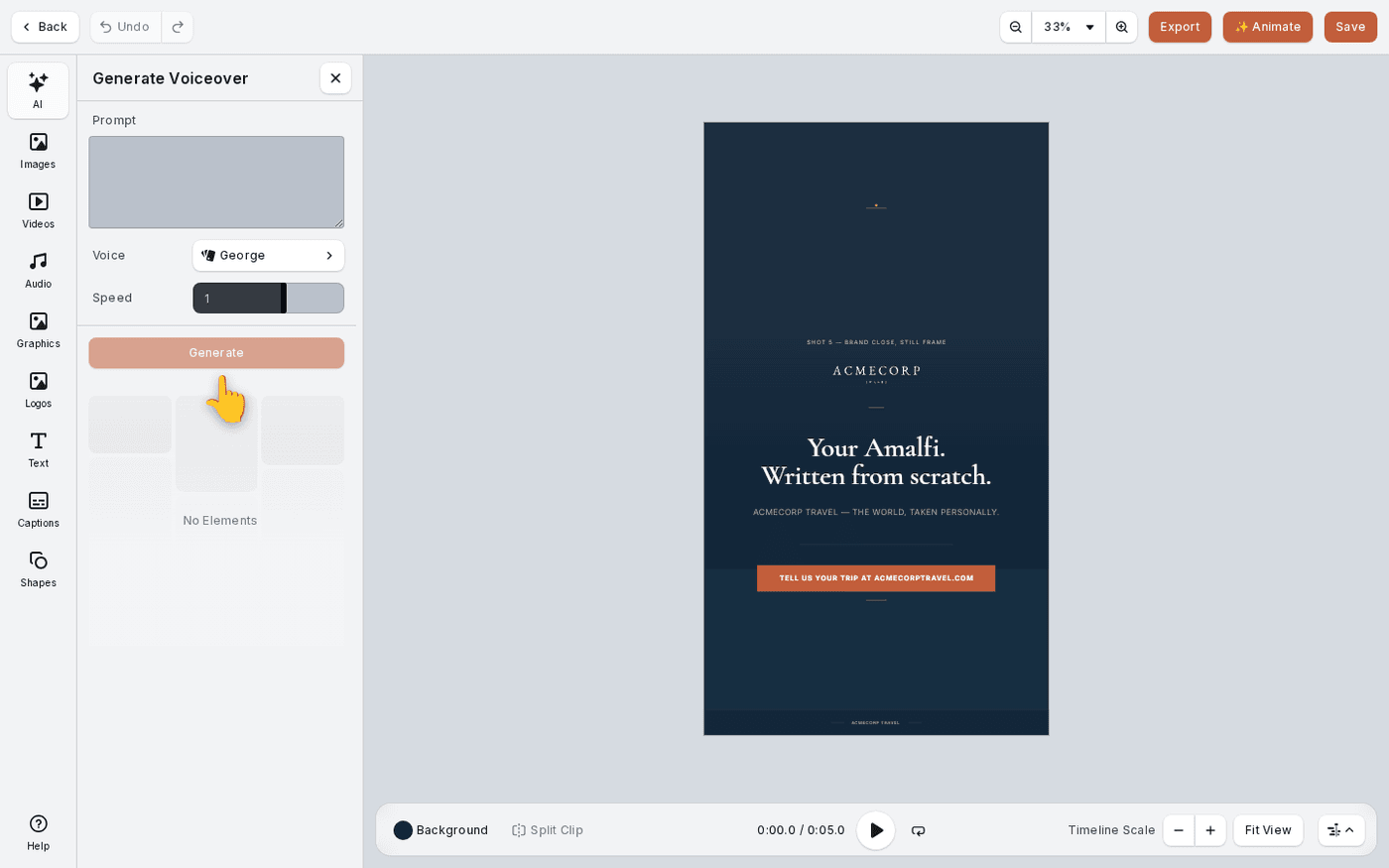
In short: Video editor → AI → Generate Voiceover. Type the script in Prompt, choose a voice, then press Generate.
A voiceover lets your video say more than the text on screen can. Protaigé turns a written script into a spoken track, in a voice you choose. It takes about three minutes.
Open the voiceover panel
In the video editor, press AI at the top of the dock. The dock is the column of tools down the left edge. Choose Generate Voiceover.
Type the script into Prompt
Type the words you want spoken, exactly as they should be read. Add full stops and commas. The voice pauses where the punctuation is.
Choose a voice
Press the Voice row. The picker opens with every voice in the catalogue. Search by name. Any voice you have marked as a favourite sits at the top. Choose one and the picker closes.
Set the speed and generate
Speed starts at 1, which is normal talking pace. Press Generate. The finished track appears under the panel.
Put it on the timeline
Click the finished track. It lands on the timeline at the playhead, the line that marks the current time. Drag it to line up with your visuals. Volume is set on each track, so you can lower a music bed under it.
Use the same voice for every video, so your brand sounds the same each time. If no voice fits, press Request a voice at the bottom of the picker and tell us what you need.
Last updated 6 October 2026