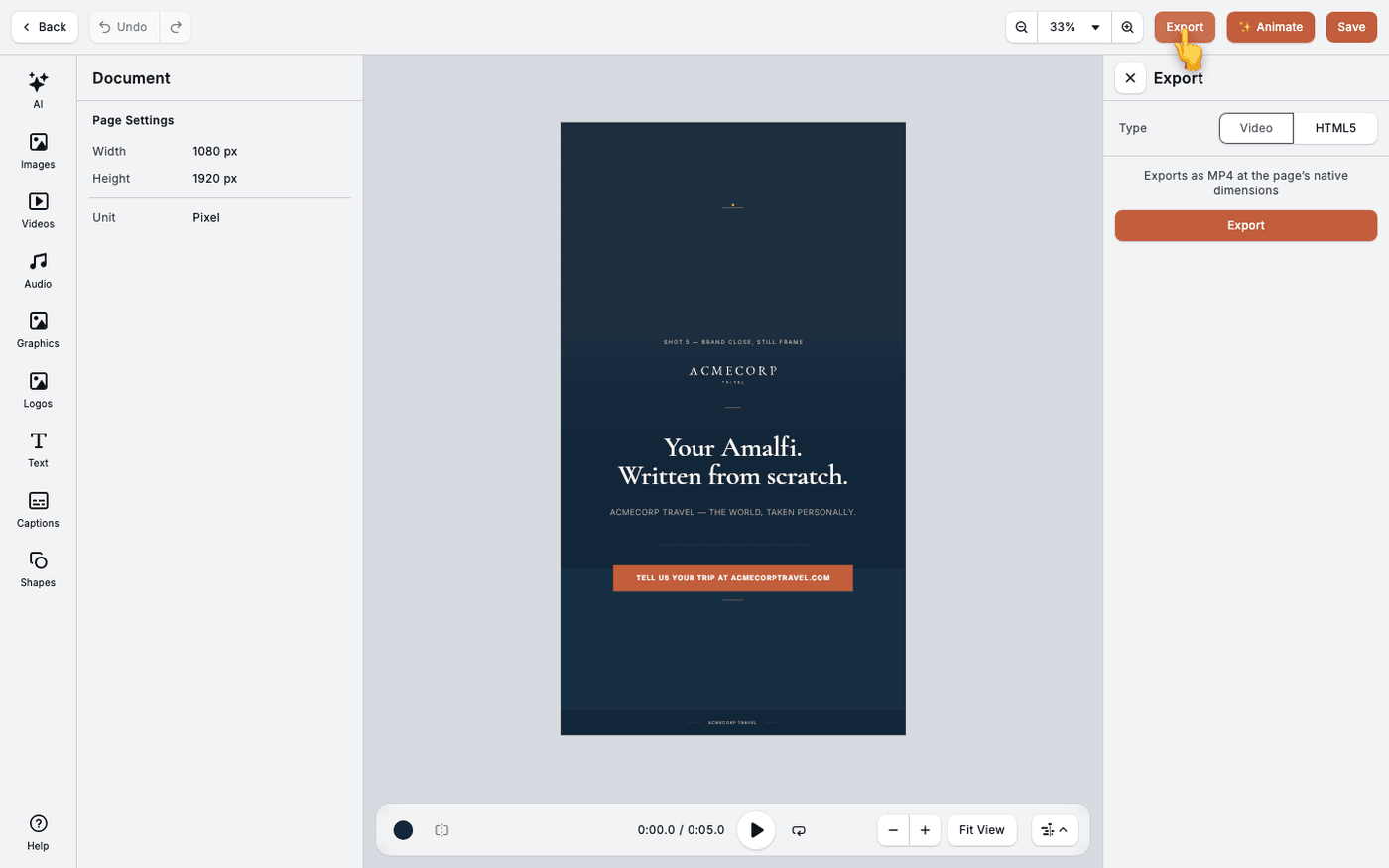
In short: Open the design as video → ✨ Animate → Animate. Clear any Replace embedded elements dialog first.
A finished design already has everything a short video needs: a headline, an image, a call to action. Animate reads the design and works out the order to reveal them. You get a moving version in minutes, with no animation skills.
Finish the design first
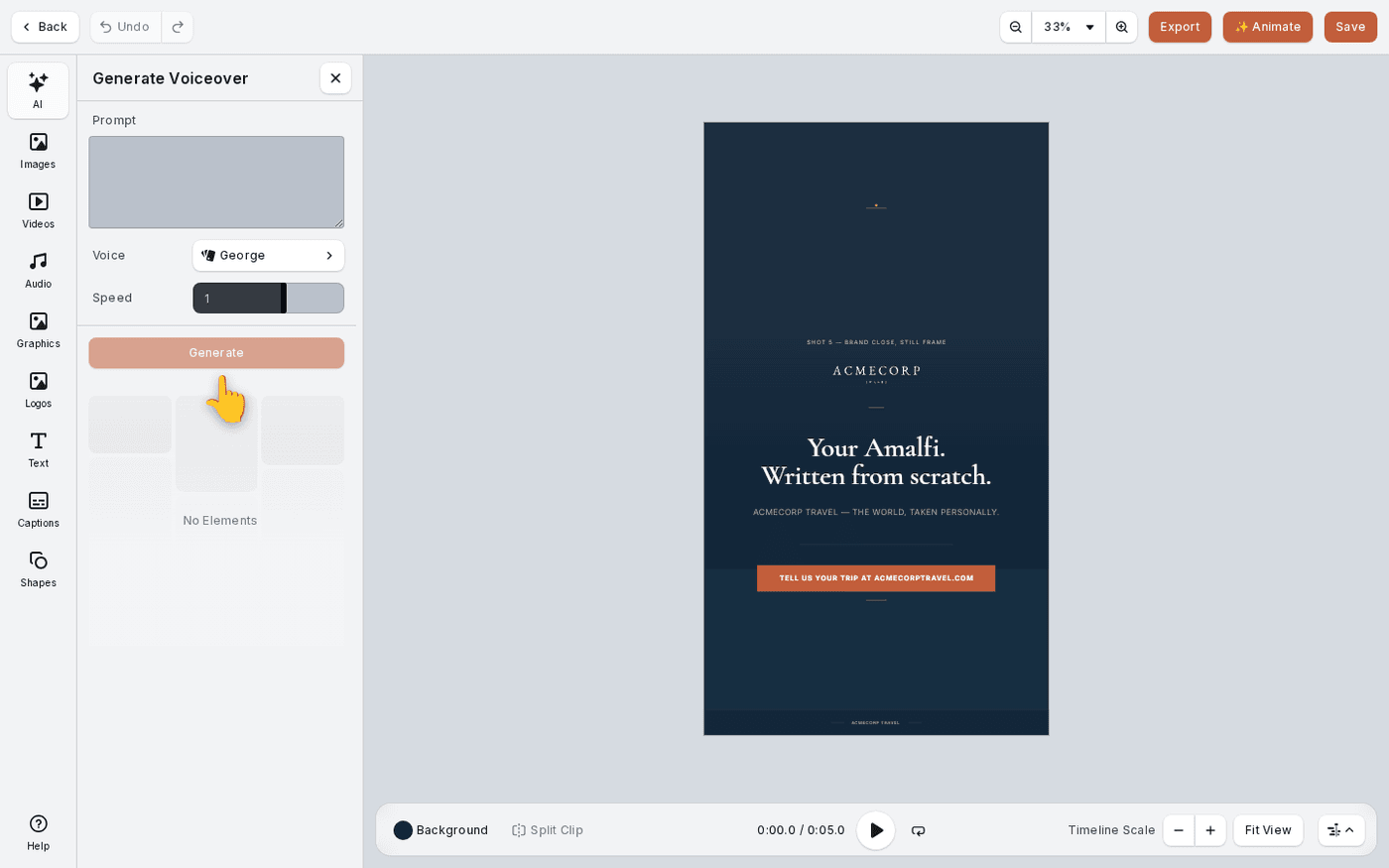
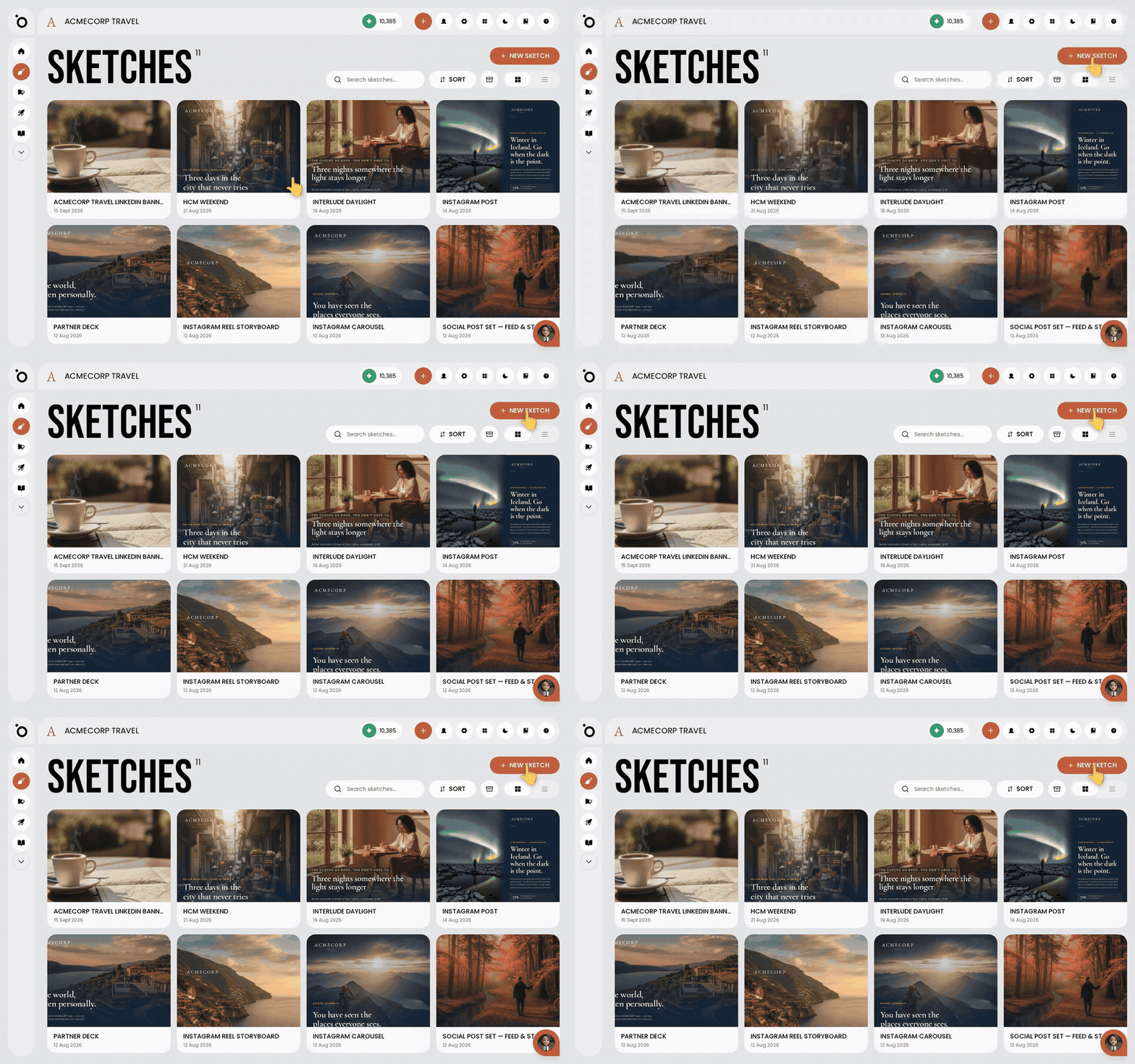
Animate uses what is on the canvas, so finish the layout before you open it as video. Press Create video on a campaign visual or on a Sketch frame. The video editor opens.
Clear the embedded elements dialog
A dialog headed Replace embedded elements before saving may open first. It means some images, video, audio or fonts are still stored inside the original design rather than in a library. The video cannot save until they are replaced. Each row names one element. Press Show to select it on the canvas. Replace an image, video or audio track from the library or an upload. For a font, choose it again from the font list.
Press ✨ Animate
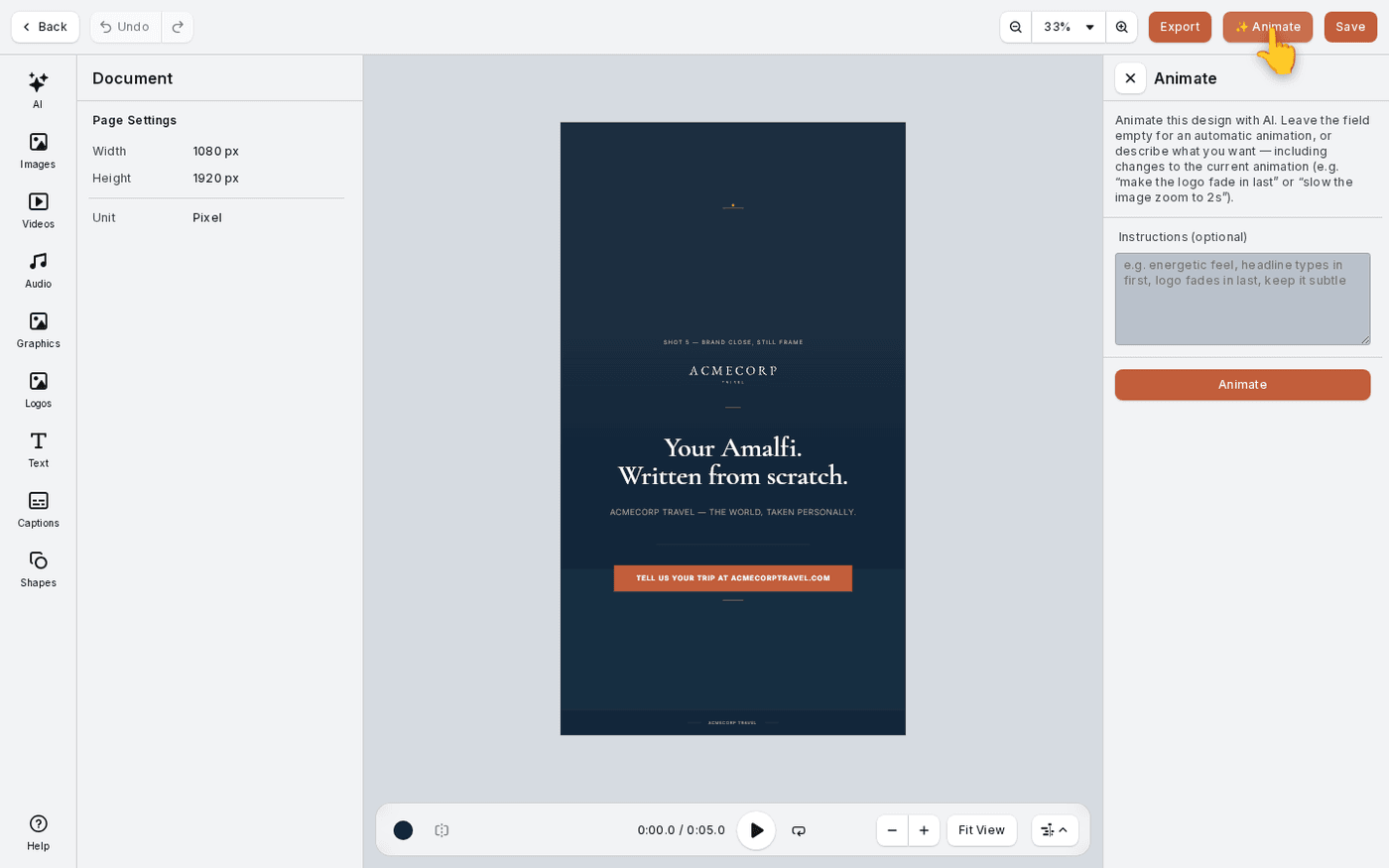
Press ✨ Animate in the top bar. A panel opens with an Instructions (optional) field.
Add instructions if you want
Leave the field empty and Protaigé chooses the motion. Type instructions when you want something specific, for example make the logo fade in last.
Run it and watch
Press Animate at the bottom of the panel. Protaigé builds a timed animation from your layers. Play the timeline to check it. Run it again with new instructions to change it.
If the wrong thing stands out, fix the design rather than the animation. The motion follows the order your layout already gives the eye.
Last updated 29 September 2026