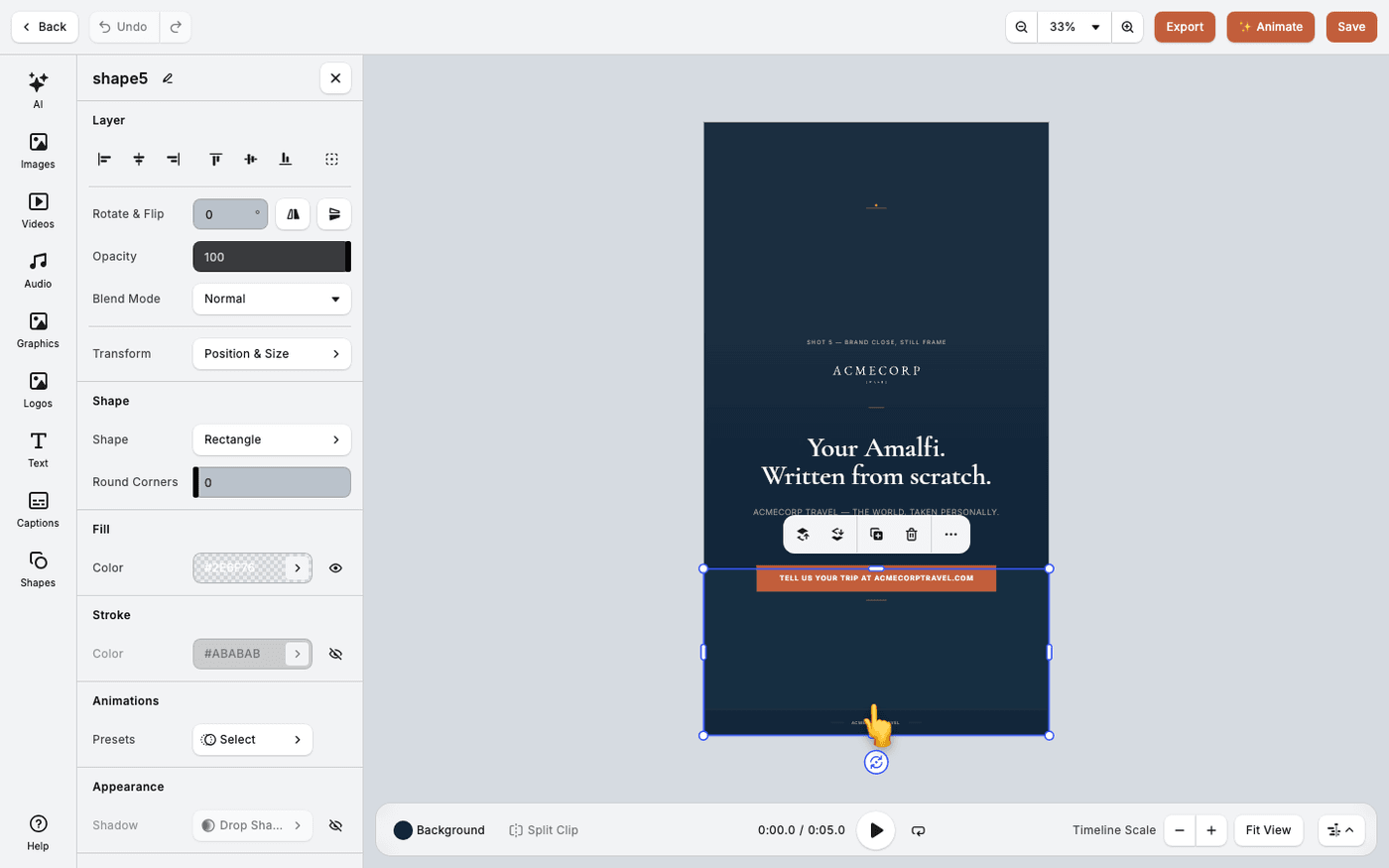
In short: Select an element → Animations. Choose an In animation, an Out animation and a Loop animation.
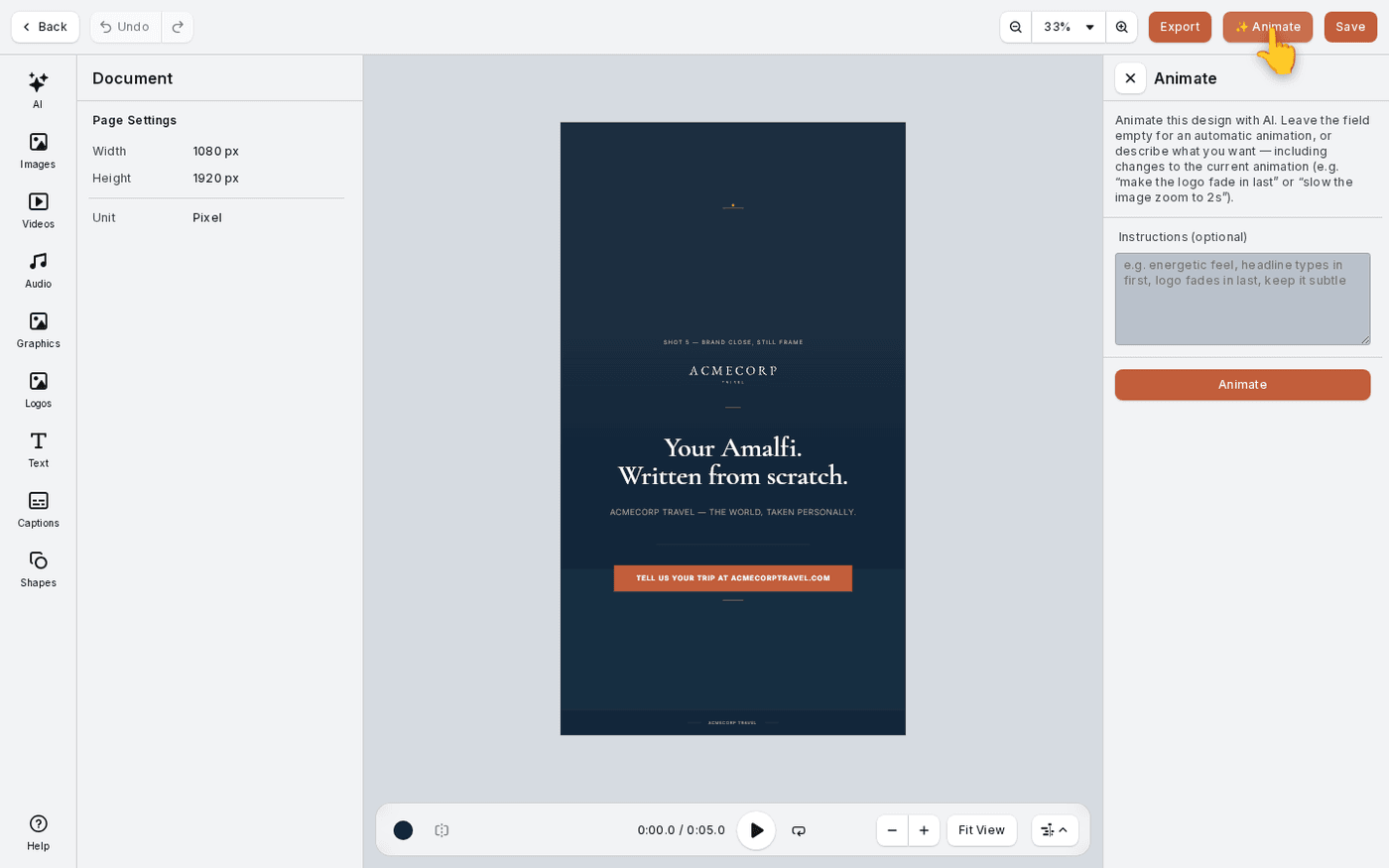
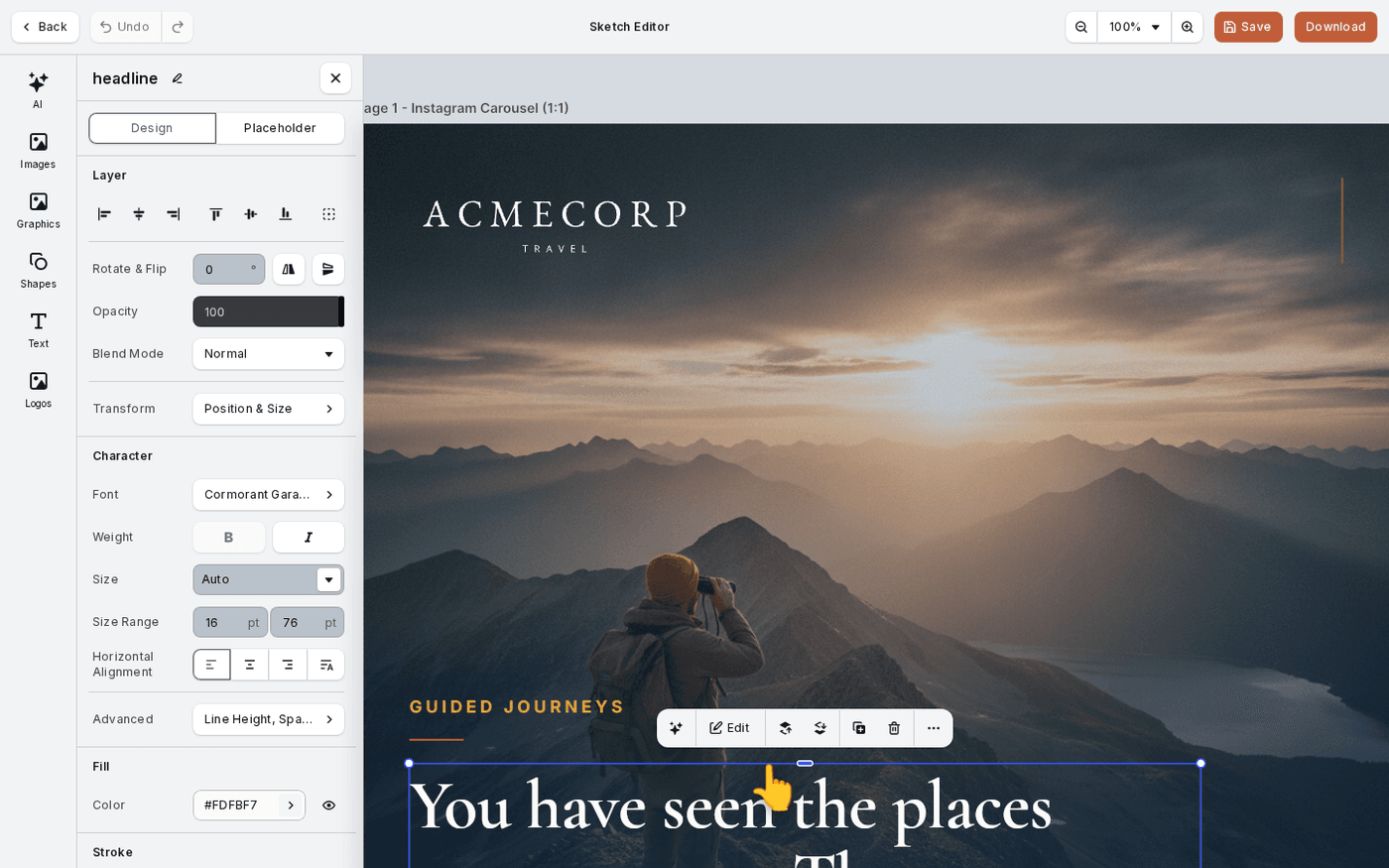
✨ Animate moves the whole design at once. Sometimes you want one element to behave in a particular way. Select it and set its own animations.
Every element has three separate animation slots: In, Out and Loop. In plays when the element appears. Out plays when it leaves. Loop repeats while it is on screen.
Open Animations
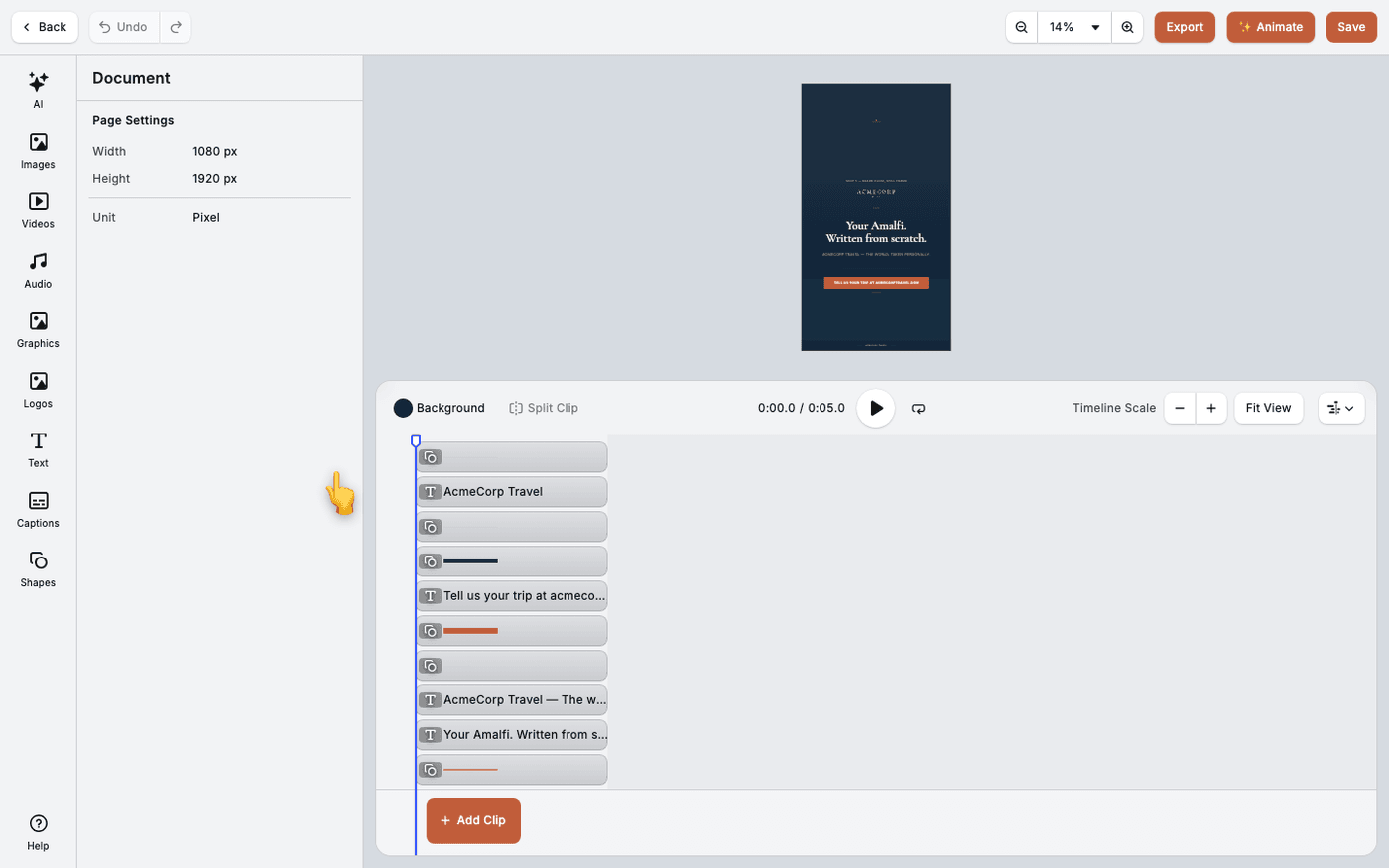
Select the element on the canvas or the timeline. Scroll down the panel that opens to Animations. It has three sections: In Animations, Out Animations and Loop Animations.
Choose an entrance and an exit
Slide, Fade, Blur, Grow, Zoom, Pop, Wipe, Spin and Pan work on any element. Ken Burns Effect is a slow push into a still image, so a photo does not look frozen. Most animations let you set a Direction.
Add a loop, sparingly
Loops run while the element is on screen: Spin, Fade, Blur, Pulsating, Breathing, Jump, Squeeze, Sway and Scale. One looping element looks alive. Three look like a mistake.
Use the text animations
Text has four of its own: Typewriter, Block Swipe, Spread and Merge. Typewriter has a Writing Style setting. Choose Character to reveal one letter at a time, or Word for one word at a time.
Keep entrances short. A viewer should read the text, not wait for it.
Last updated 1 September 2026