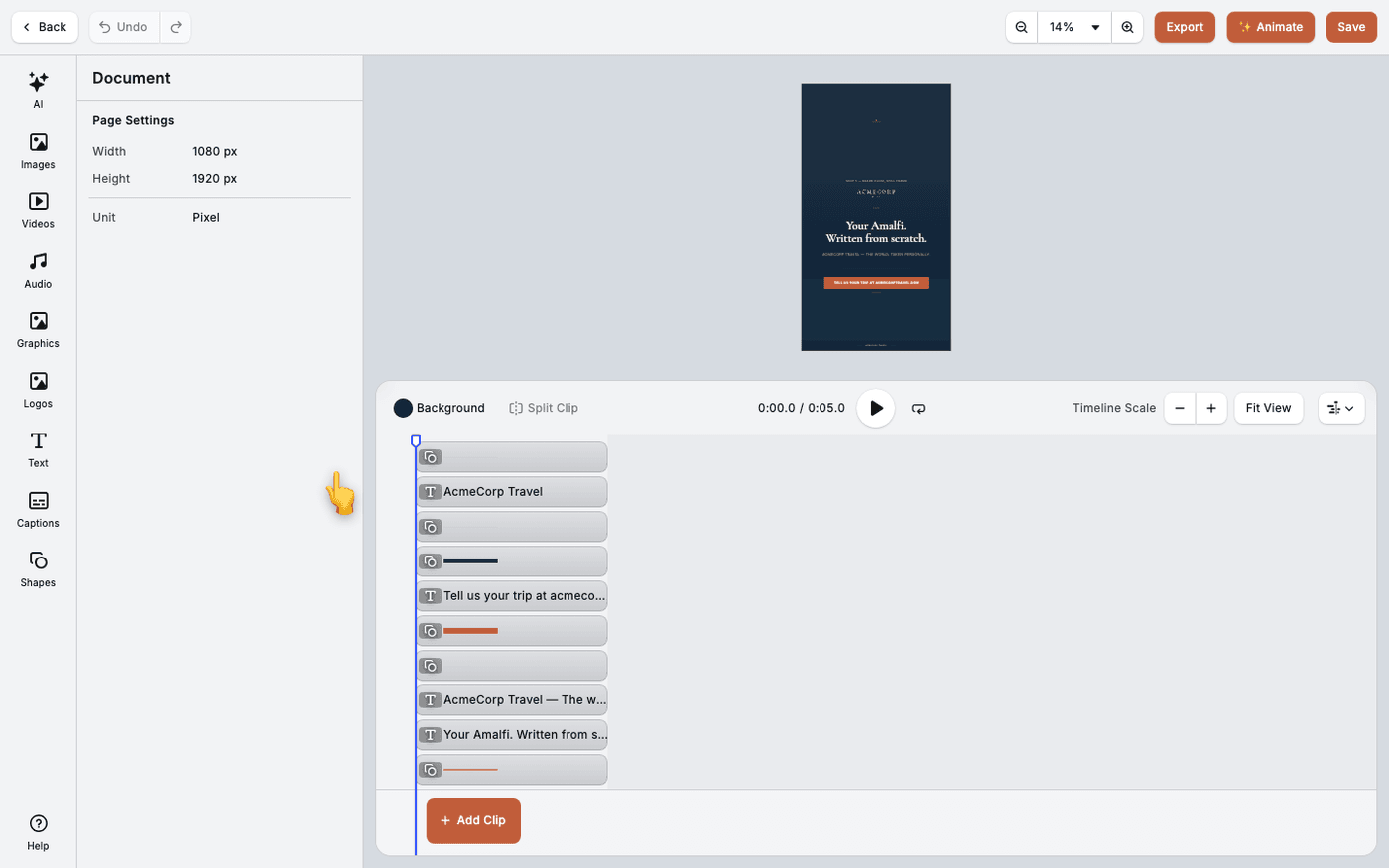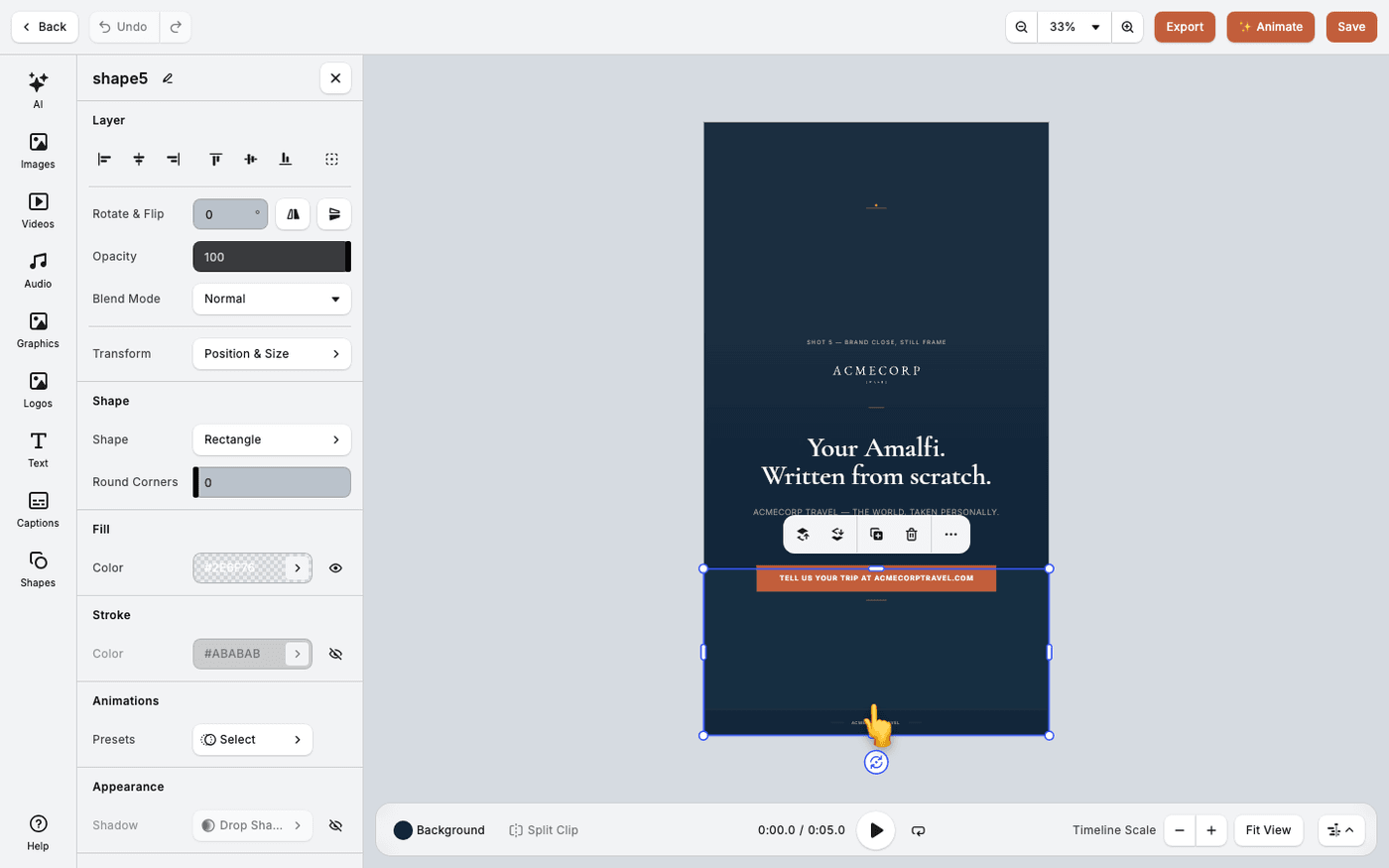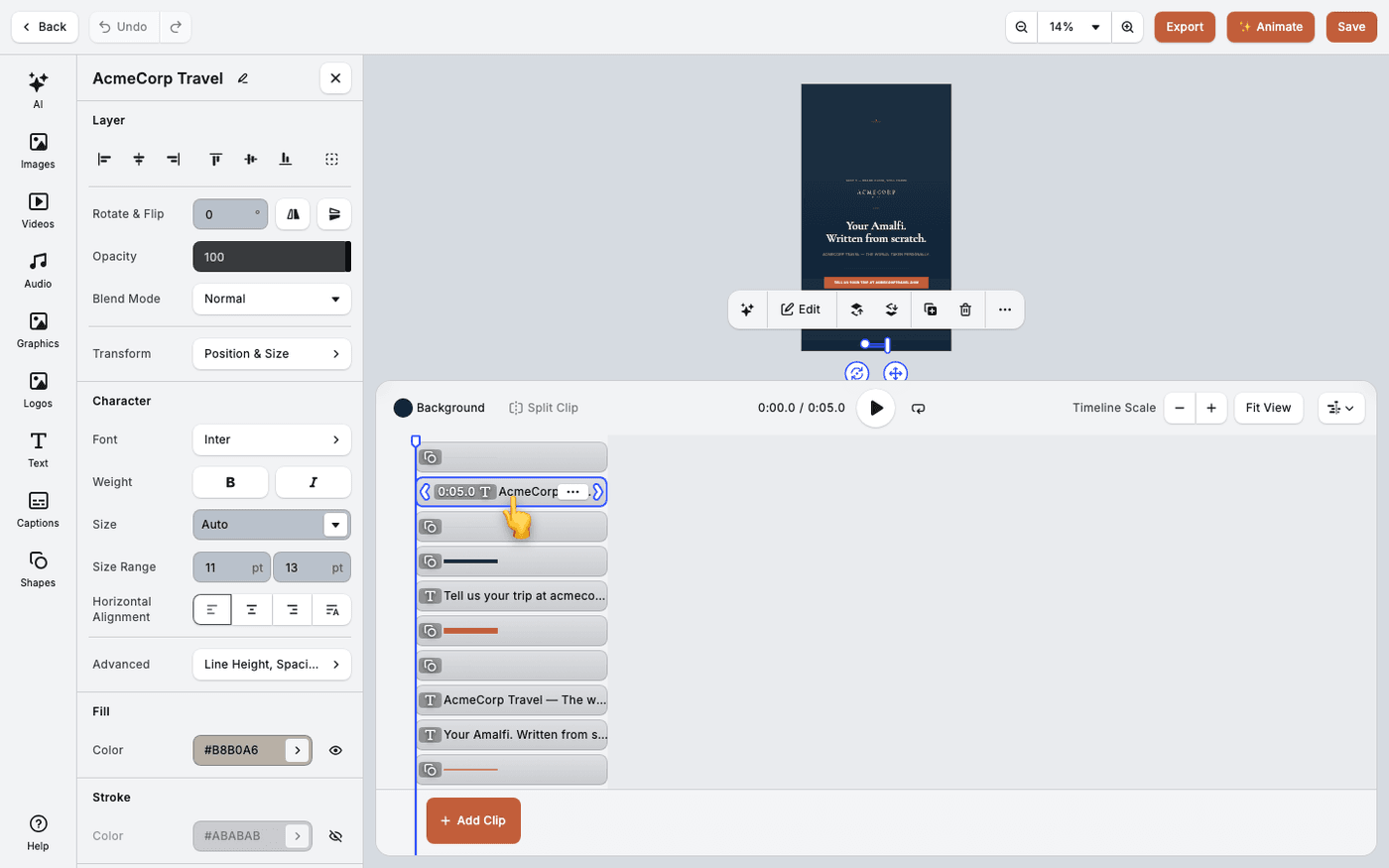
In short: Put the playhead where you want the cut → select the clip → Split Clip.
Trimming shortens a clip from its ends. Splitting cuts it in two. Split when the problem is in the middle of a clip, or when you need to put something in between.
Split at the playhead
Drag the playhead, the line that marks the current time, to the frame you want to cut on. Select the clip and press Split Clip. You get two separate clips. Nothing is deleted, so you can trim each one on its own.
Stack tracks in the right order
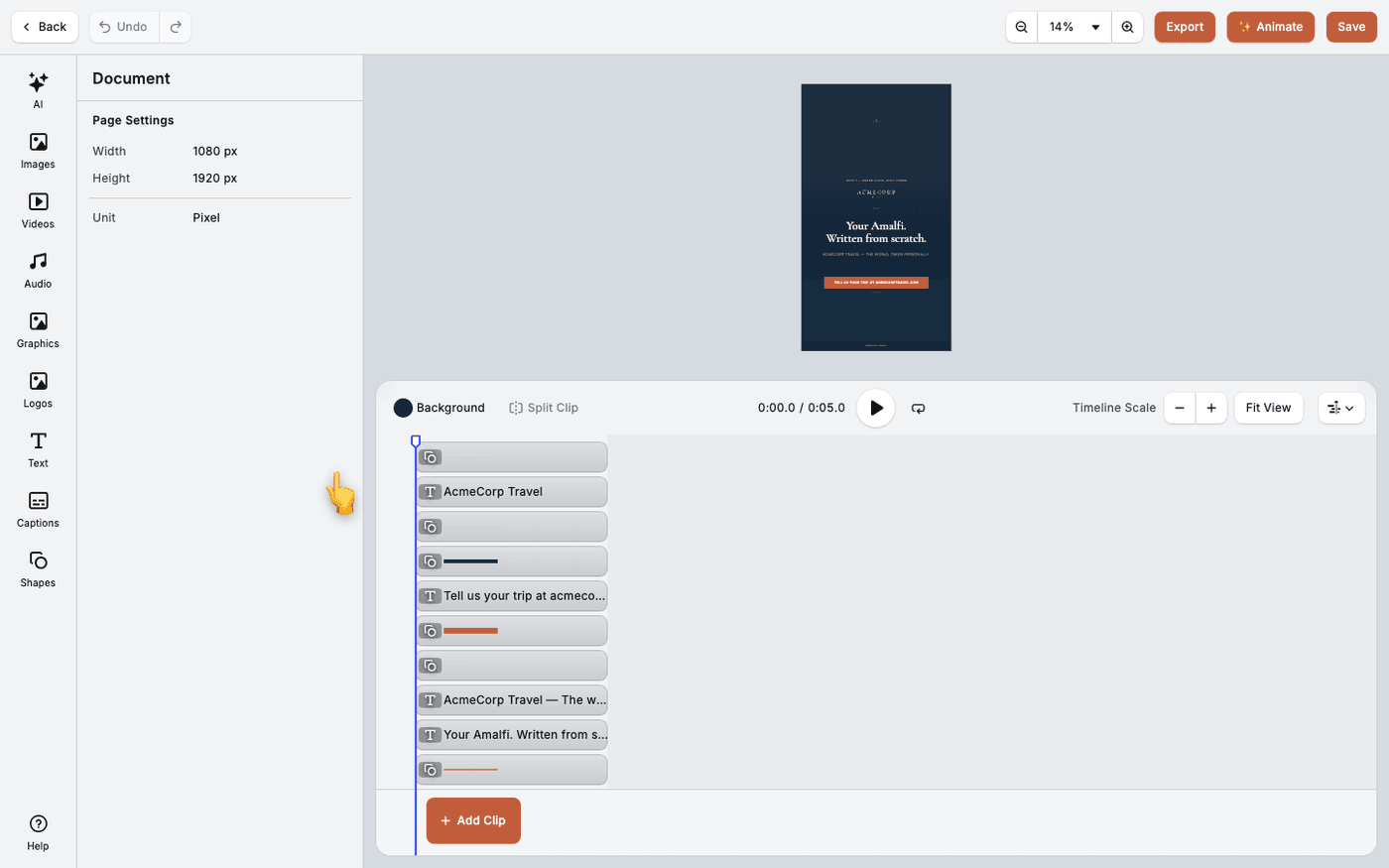
Text and graphics sit on their own tracks above the footage. A track higher in the list shows in front of the tracks below it. Move a track up to bring its contents forward.
Keep one clip per moment on a track
Clips on the same track cannot overlap. Drag a clip and the others make room. To show two things at once, put them on separate tracks.
Leave a gap on purpose, or close it
A gap between clips shows the page background. That is fine for a deliberate pause. Drag the clips together if the gap was an accident.
Turn looping off for a closing shot
A clip shorter than its slot repeats to fill it. Select the clip and press Disable Loop to hold its last frame instead. Enable Loop turns it back on.
There are no built-in transitions between clips. To soften a cut, overlap the two clips on separate tracks. Give one an Out animation and the other an In animation.
Last updated 1 September 2026