The Protaigé Academy
/
Protaigé Academy
/Design kits: Adapting a starter template
Design kits: Adapting a starter template

Design kits: Adapting a starter template

What you'll learn

How to take a starter template and adapt it to your brand

Series
3.5
Section
Brand DNA
Last Updated
Feb 4, 2026 9:19 PM
Status
Live
icon
Previous Tutorial
icon
Next Tutorial

tl;dr Download starter template → Upload to design kits → Make edits in the Visual Editor → Save as template

By adapting a starter template and uploading it into Protaigé, you’ll move from theory to practice. This activity gives you direct experience with the platform’s design workflow: you’ll see how layer names map to editable fields, how the editor handles dynamic content, and how static files become campaign-ready assets.

By the end, you won’t just have a customised template for your brand — you’ll also build confidence in working inside Protaigé, applying the principles covered in earlier tutorials.

Before starting, make sure you’ve completed:

Design kits 101Design kits 101 Design kits: Set up your PSDsDesign kits: Set up your PSDs Design kits: Importing PSDsDesign kits: Importing PSDs Design kits: Fine-tuning your imported filesDesign kits: Fine-tuning your imported files Component Name IndexComponent Name Index
🗄️

Download the starter template here:

A step-by-step guide

image

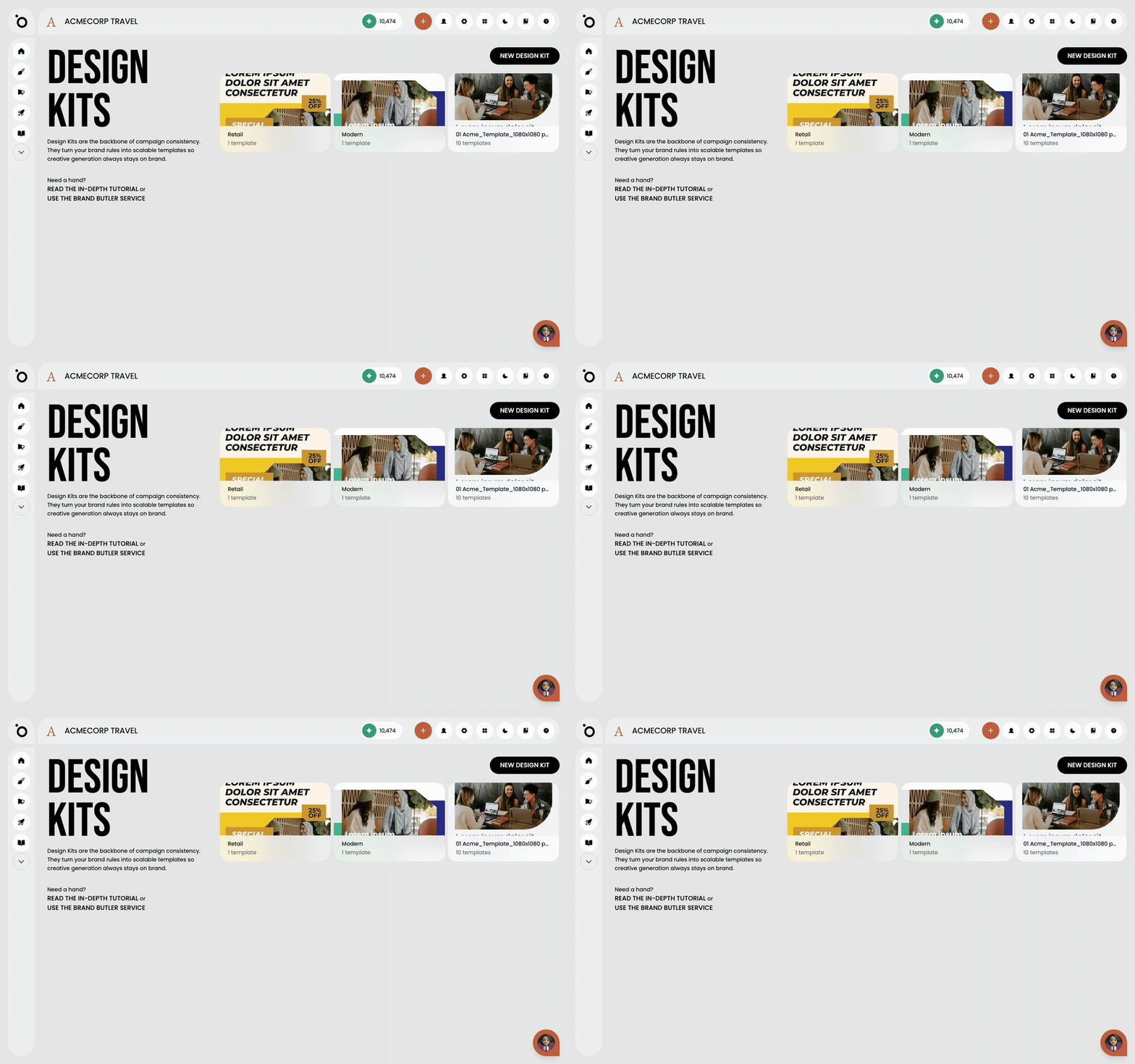
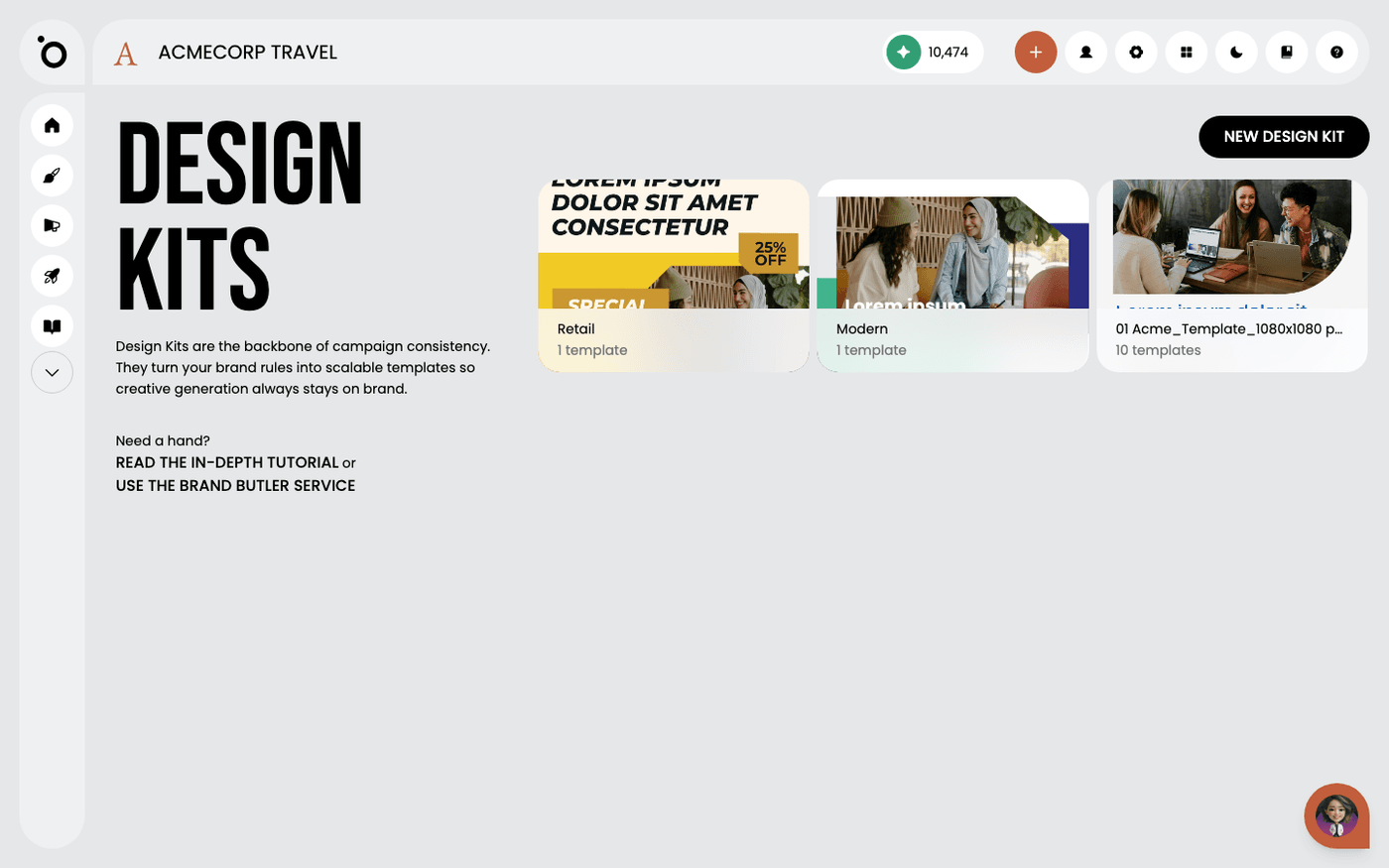
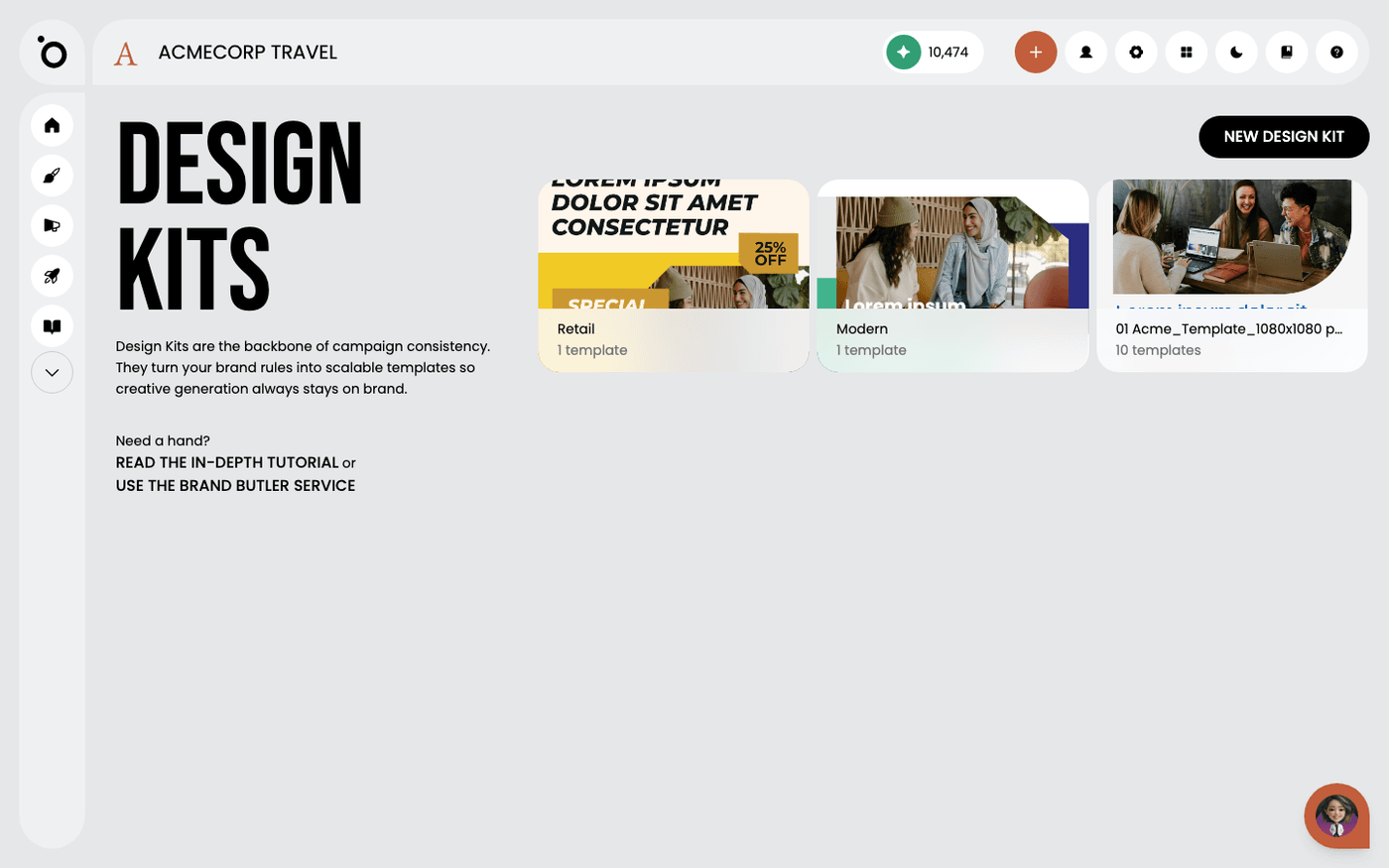
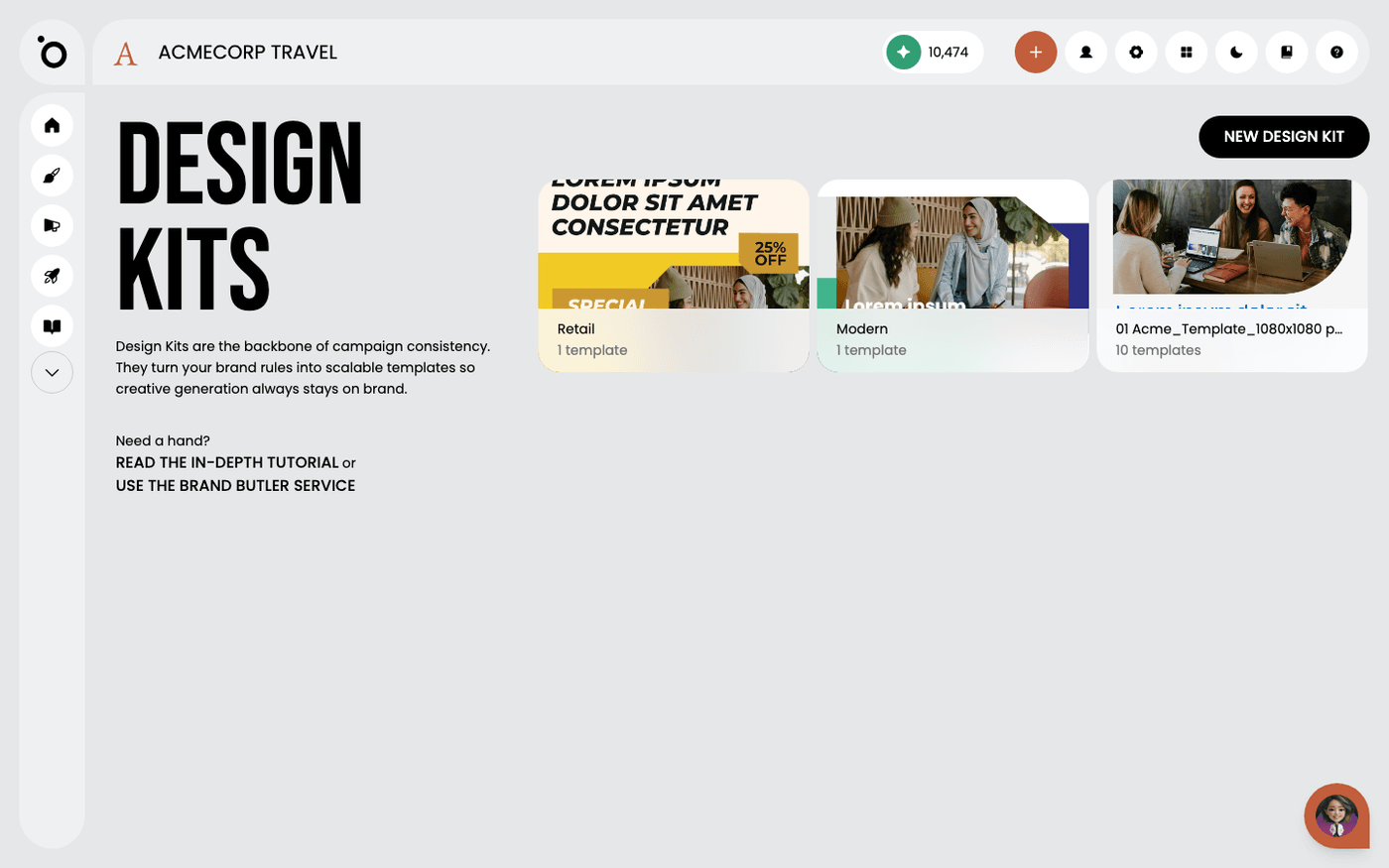
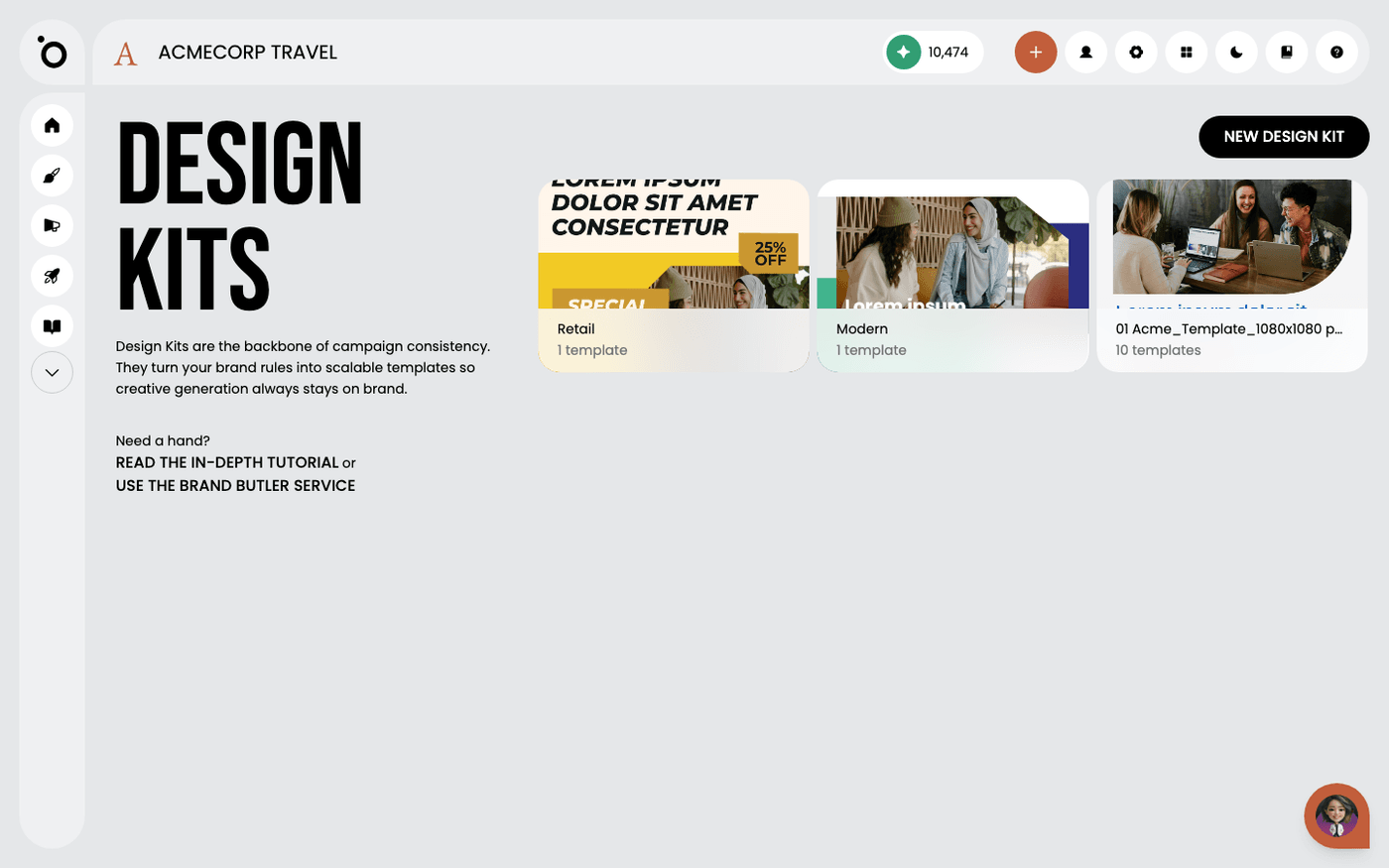
1. Click the DESIGN KITS section to begin managing your design templates.

image

2. Download the starter PSD kit to use as a base for your new design templates.

image

3. Click the download icon to save the starter template ZIP file to your device.

image

4. Extract the downloaded ZIP file.

image

5. Select the template ZIP file to upload it into the DESIGN KITS section.

image

6. Select all the template files to upload them as a single kit.

image

7. Select the 1080x1080 PSD as the parent.

image

8. Define the channels. You can also do this later.

image

9. Click the UPLOAD FILES button to add new templates to your DESIGN KITS library.

image

10. After uploading your kit, select the group to reveal its contents.

image

11. Click Edit to open the visual editor and begin customisation.

image

12. Select the background to change its colour.

image

13. Open the Change Fill colour option.

image

14. Pick one of your brand colours.

image

15. Click on the headline text box to change this to a contrasting colour.

image

16. Edit the colour in the Fill section to update the selected element's appearance.

image

17. Choose a colour.

image

18. Select the h2 text component.

image

19. Select the logo component.

image

20. Click Replace.

image

21. Your Logo assets will be visible here. Replace the placeholder with your own.

image

22. Adjust the fitting or bounding area as required.

image

23. Select the call-to-action button to modify its colour.

image

24. Click the colour input field in Fill to update the button.

image

25. Click the text to update its appearance.

image

26. Pick the black swatch to apply a dark neutral colour to your chosen element.

image

27. Continue to explore all the options available in the visual editor. When you are done, click the Save Design button to finalise your custom template.

icon
Previous Tutorial
icon
Next Tutorial