How to prep your Photoshop files for Protaigé.
TL;DR: Prepping PSDs is all about structure-use correct component names and number sequences to ensure your templates scale.
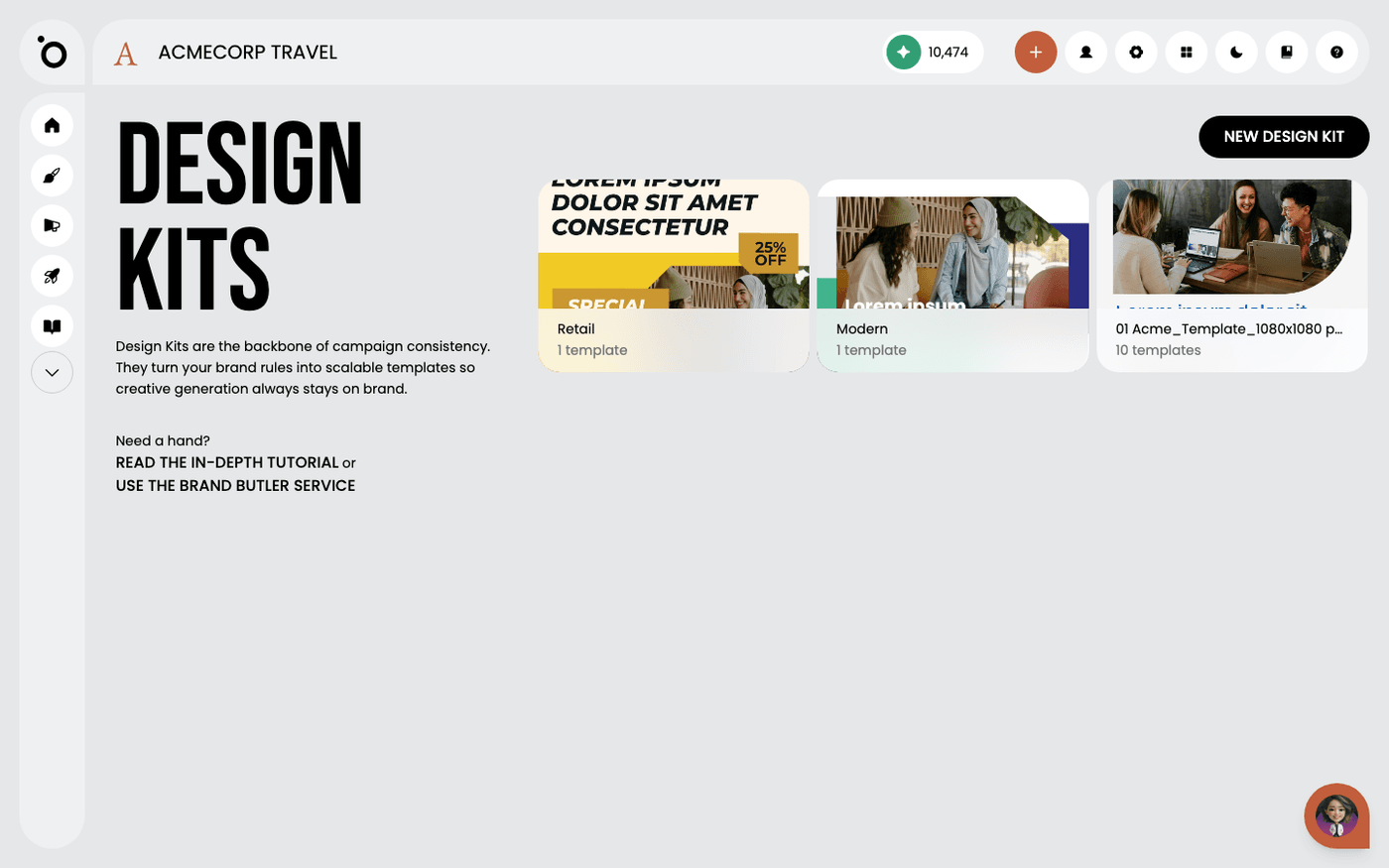
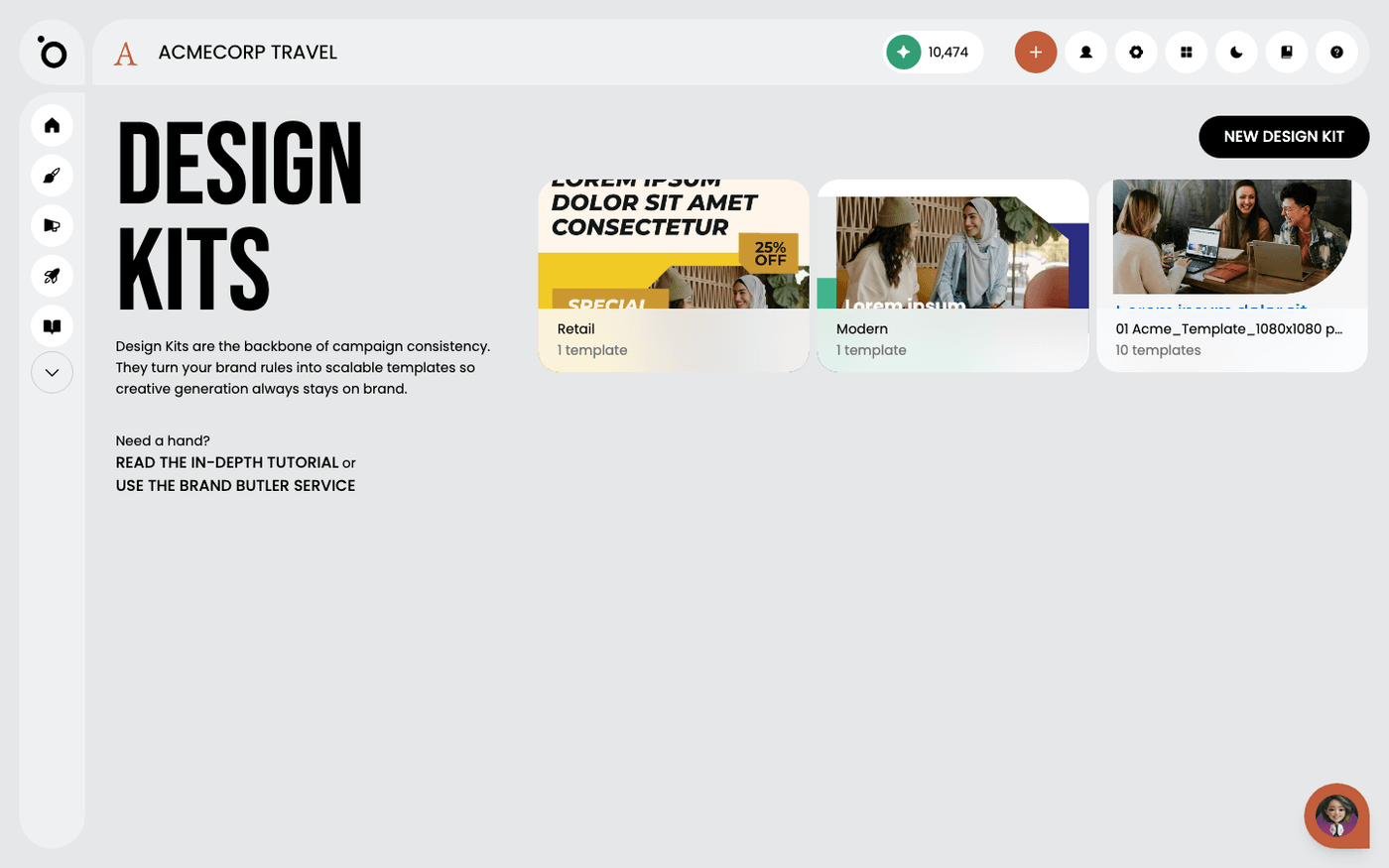
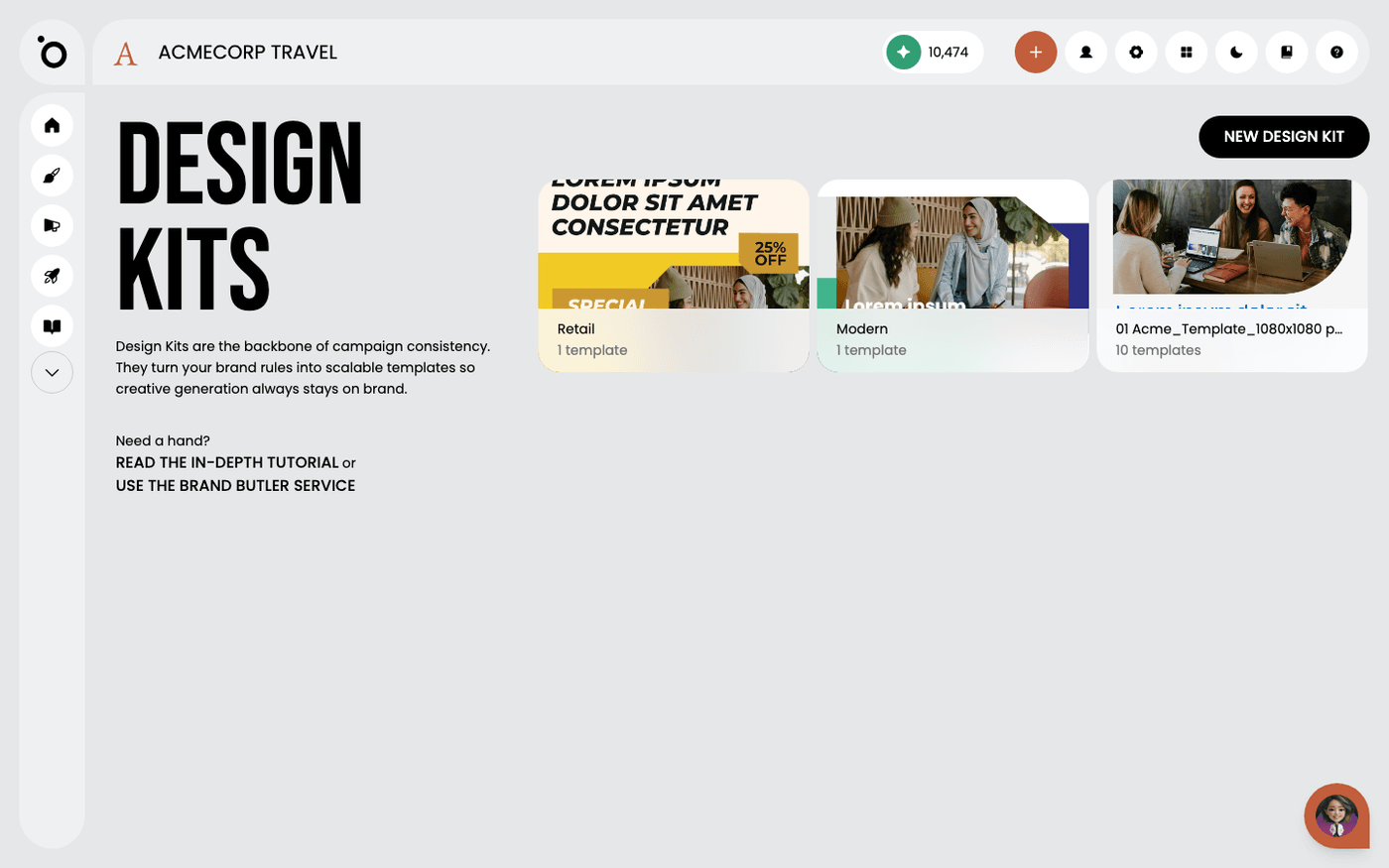
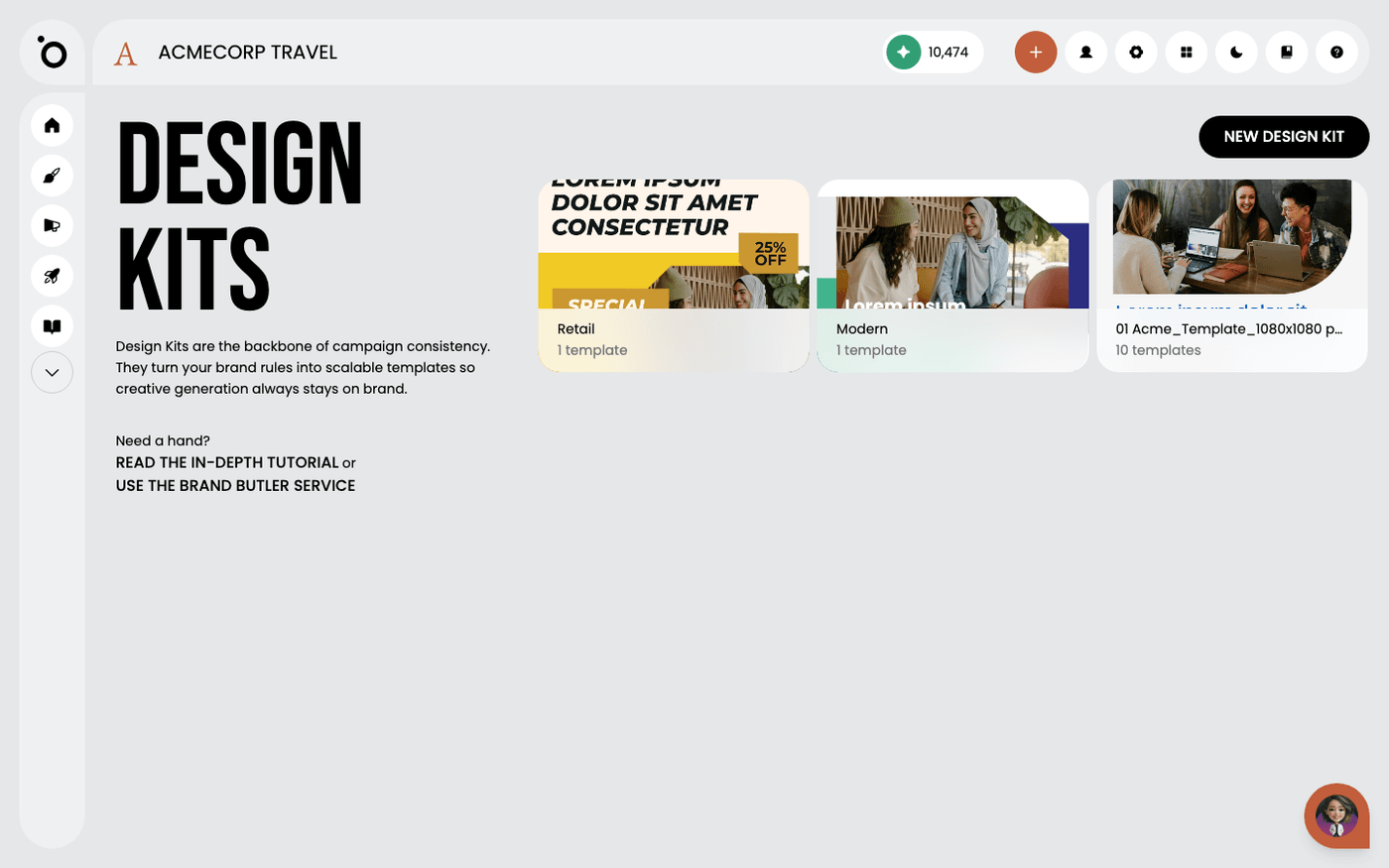
At Protaigé, a Design Kit isn’t just a folder of static templates—it’s a structured design system. When you prep your PSDs with smart component naming, editable zones, and layout constraints, they become scalable, brand-safe templates that power campaigns across every format.
Think of it like setting up dominoes: if each piece is in the right place, the system ensures your assets stay consistent, flexible, and pixel-perfect. Once built properly, a kit lets marketers scale campaigns effortlessly, while giving designers the creative control they need.
To make this seamless, Protaigé’s PSD importer transforms your Photoshop files into dynamic, editable templates. Label components correctly, and you unlock the full power of the platform.
Looking for a 101 on our design system? → Design kits 101
Looking for information on how to name each component? → Component Name Index
Prepping Your PSD in Photoshop
Before you bring your design into Protaigé, it needs to be prepped correctly. Think of it like setting up dominoes—everything has to be in the right spot for it to work perfectly.

Structure Your Layers Properly
Naming is everything. Protaigé reads your layer names and maps them into dynamic, editable components. The index of component names can be found at the bottom of this page.
- Logo Layer: Name it
logo - Headlines:
- Main headline →
h1 - Subheadline →
h2 - Body Copy: Use
shortcopymedium copyorlong copydepending on text length. - CTA Button Text: Name them
cta - Images: Name it simply
image. If the image needs to be confined in a mask, group the image and use a shape mask (no clipping masks or flattened images). - Graphics & Icons:
- Decorative graphics →
graphic - Icons →
icon - Backgrounds: Use
bgand ensure it's a shape layer otherwise it will be imported as an image.
Numbering multiple images
When your design includes a series of similar images—such as speaker headshots, product shots, or event photos—name each image component with a sequential number.
For example: speaker1, speaker2, speaker3 etc.
This ensures Protaigé recognises them as related components.


If you have associated child assets that focus on an individual speaker (e.g. personalised banners or social posts), the system automatically pulls the right image into the correct slot—without manual relinking.

💡 Tip: Always use consistent numbering (speaker1, speaker2, speaker3). Don’t skip numbers or use variations like “speakerA.” Consistent component naming is what enables smooth propagation across assets.
Text Treatment
As long as your brand fonts are uploaded and set in Brand DNA → Fonts, they will render correctly in your templates. Missing fonts will fall back to defaults, which can distort alignment and styling.

Use bounding boxes for text
Bounding boxes let Protaigé resize copy dynamically within a preset range. This ensures your headlines, subheads, and body text adapt to different layouts without breaking.

Use point text when you want fixed sizes
Point text locks the font size. This is useful when you need absolute consistency—like for legal disclaimers, footnotes, or any text that must not resize dynamically.
💡 Tip: Always upload all weights and styles (regular, bold, italic, etc.) into Brand DNA so your text displays consistently across every output.
Keep It Clean
- 🗑️ Delete hidden layers: If they’re in the PSD, they’ll get imported.
- ✅ Use shape fills for backgrounds, image masks, and graphics. Avoid rasterised images for anything you want to edit later.
Index of Component Names
Note: These are not case-sensitive. At some point, these will all be a drop-down selector, but it’s manual for now.
Name | Description of the dynamic component | Type |
H1 | Your main headline. This is the big, bold line that grabs attention. | Text |
H2 | A sub-headline that supports the H1 and adds context. | Text |
Short Copy | One or two short sentences for quick impact. | Text |
Medium Copy | A paragraph or two of copy—enough to explain without overwhelming. | Text |
Long Copy | Extended body text for detail-heavy layouts. | Text |
CTA | The call-to-action text itself—what you want the user to do. | Text |
Offer | Promotional line that highlights a discount, bonus, or incentive. | Text |
Speaker | Speaker name(s) for events. Number them if there are multiple (speaker1, speaker2, etc.). | Text |
Date | The event or promotional date. | Text |
image | The hero image in a banner or layout. | Image |
cta-btn | The visual button that holds your CTA. Can be a colour fill or image. | Image / Fill |
logo | Your primary brand logo. | Image |
bg | The background layer for a banner (colour fill, gradient, or image). | Image / Gradient / Fill |
page | This is the default background fill | Fill |
graphic | Decorative graphics in your design. If you use more than one, number them (graphic1, graphic2, etc.). | Image |
icon | Iconography. Number them if multiple (icon1, icon2, etc.). | Image |
photo | Supporting images or photography that aren’t hero shots. Number them if you have more than one. | Image |
shape | Shapes that aren’t graphics, icons, or buttons—like colour blocks or starbursts. Number as shape1, shape2, etc. | Shape |
⚡ Troubleshooting Common Issues
Problem | Quick Fix |
Images Not Editable | Ensure the layer is named image and uses a shape mask. |
Text Breaking the Layout | Verify that text bounding boxes are appropriately sized to accommodate varying text lengths. Adjust auto-resize settings if necessary. |
Font Not Displaying Correctly | Confirm that all template fonts are uploaded to Brand DNA → Fonts. Missing fonts will default to a fallback, potentially disrupting the design. |
Missing Layers After Import | Check for hidden or locked layers in the PSD before importing. Only visible and unlocked layers are processed. |
Elements Shifting After Import | Ensure all elements are aligned to grids or guides in Photoshop. Misalignment can cause shifts during import. |
Background Imported as Image | Replace image-based backgrounds with shape layers filled with the desired colour. This allows for easier edits and maintains design flexibility. |
Image Swapping Issues | Confirm that images intended for swapping are placed within shape masks, not clipping masks or flattened layers. Test by swapping images to ensure they fit correctly within the designated area. |
Low-Resolution Image Alerts | Use high-quality images to prevent low-DPI warnings. We can handle images up to 4096x4096 pixels during editing, but higher resolutions can be used during export. |
Text Too Close to Edges | Adjust text boxes to ensure content doesn't sit too close to bleed or safety lines, preventing potential cropping issues during printing. |
Browser Compatibility Issues | We supports modern browsers. Ensure you're using the latest version of a supported browser. |