In short: Brand DNA → Videos → Shared or Local tab → Upload. Put finished brand clips in Shared.
Footage works like photos. Videos has two tabs. Shared holds the clips the whole brand uses. Local holds your own clips and work in progress. A clip in the wrong tab is the one nobody can find when a campaign needs it.
Choose the tab
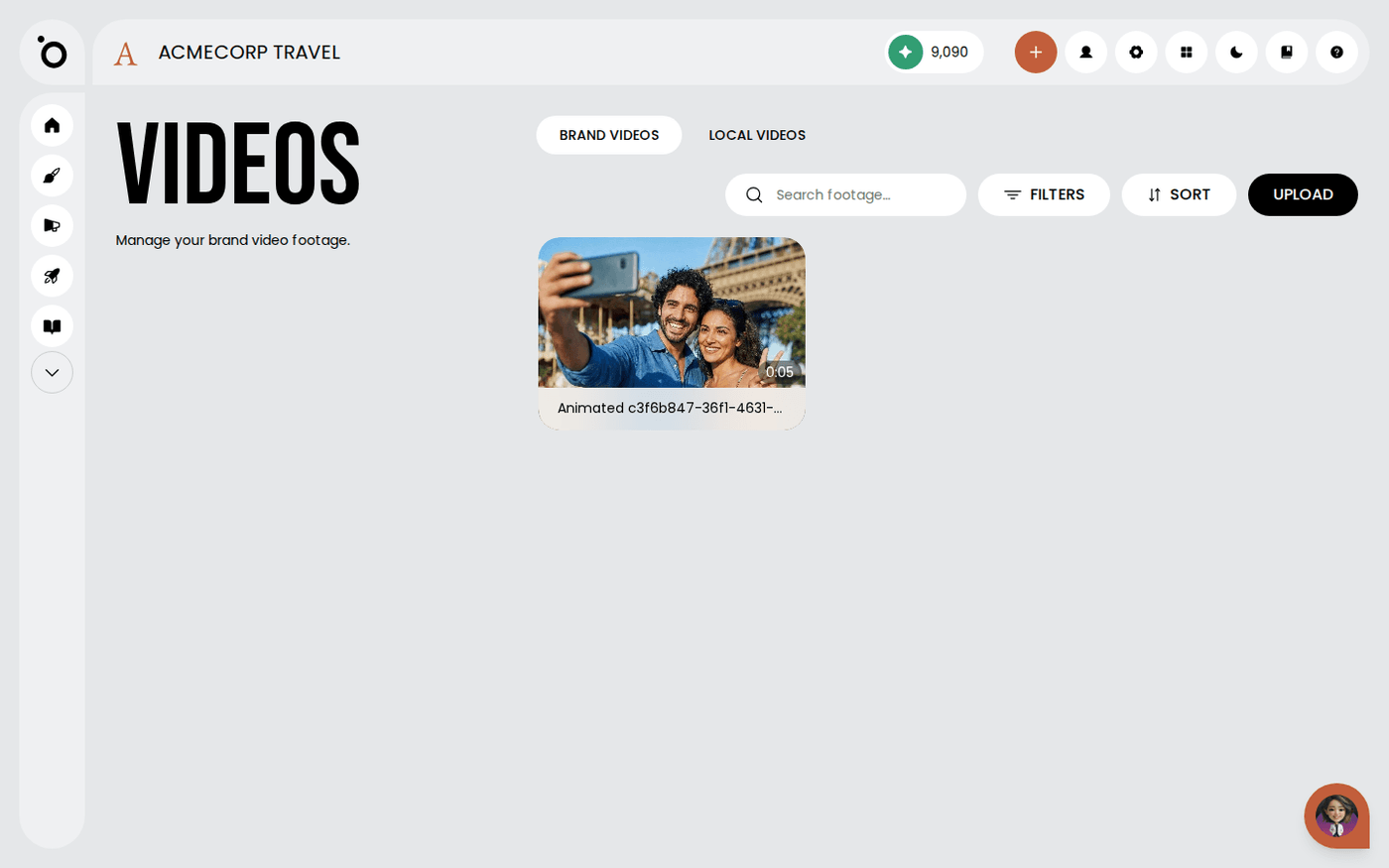
Open Brand DNA, then Videos. Use Shared for clips the whole brand should use. Everyone on the brand sees these, and campaigns draw on them. Use Local for clips only you need. Only you see these.
Upload your footage
Press Upload and choose your files. You can add up to ten clips at a time, up to 500MB each. Each card shows the length of the clip, which is the fastest way to find the one you want.
Find a clip fast
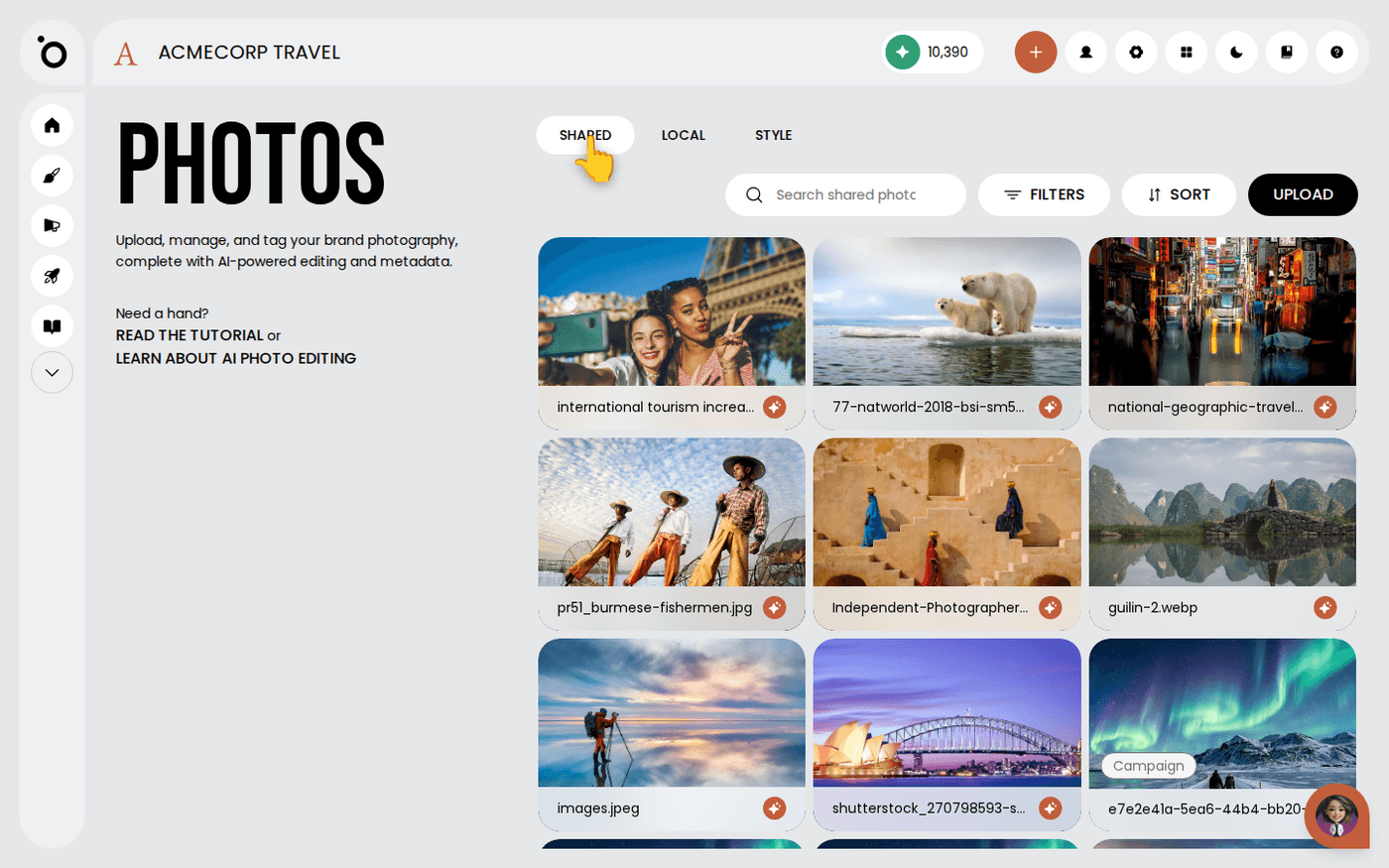
Press Filters to narrow the grid, or Sort to change the order. In the Shared tab, a chip on the card shows if a clip was made in a campaign, Sketch or Flicks. The Origin filter can hide any of these.
Move a clip between tabs
Open the three-dots menu on a card. Choose Move to shared or Move to local. The clip moves at once, and nothing is lost.
Anything worth reusing belongs in Shared. Anything you are still deciding about belongs in Local. You can move it later.