💬

Bring Maia into Slack

What you'll learn

How to install Maia in your Slack workspace, what she does there, and how to disconnect.

Series
6.3
Section
Settings
Last Updated
May 22, 2026 7:01 AM
Status
Drafting

Slack is where the work conversation already happens, so it makes sense for Maia to be there too. She joins your workspace as her own Slack app, sits in your sidebar under Apps, and is reachable the same way as any other teammate. You can DM her, @mention her in a channel, or use her Home tab as a control panel for kicking off campaigns without leaving Slack.

💡

One thing to know up front: Slack connects one workspace per brand. If you run multiple brands in Protaigé, each brand connects to its own Slack workspace separately. There's no single Slack workspace shared across all your brands.

Bringing Maia in

image

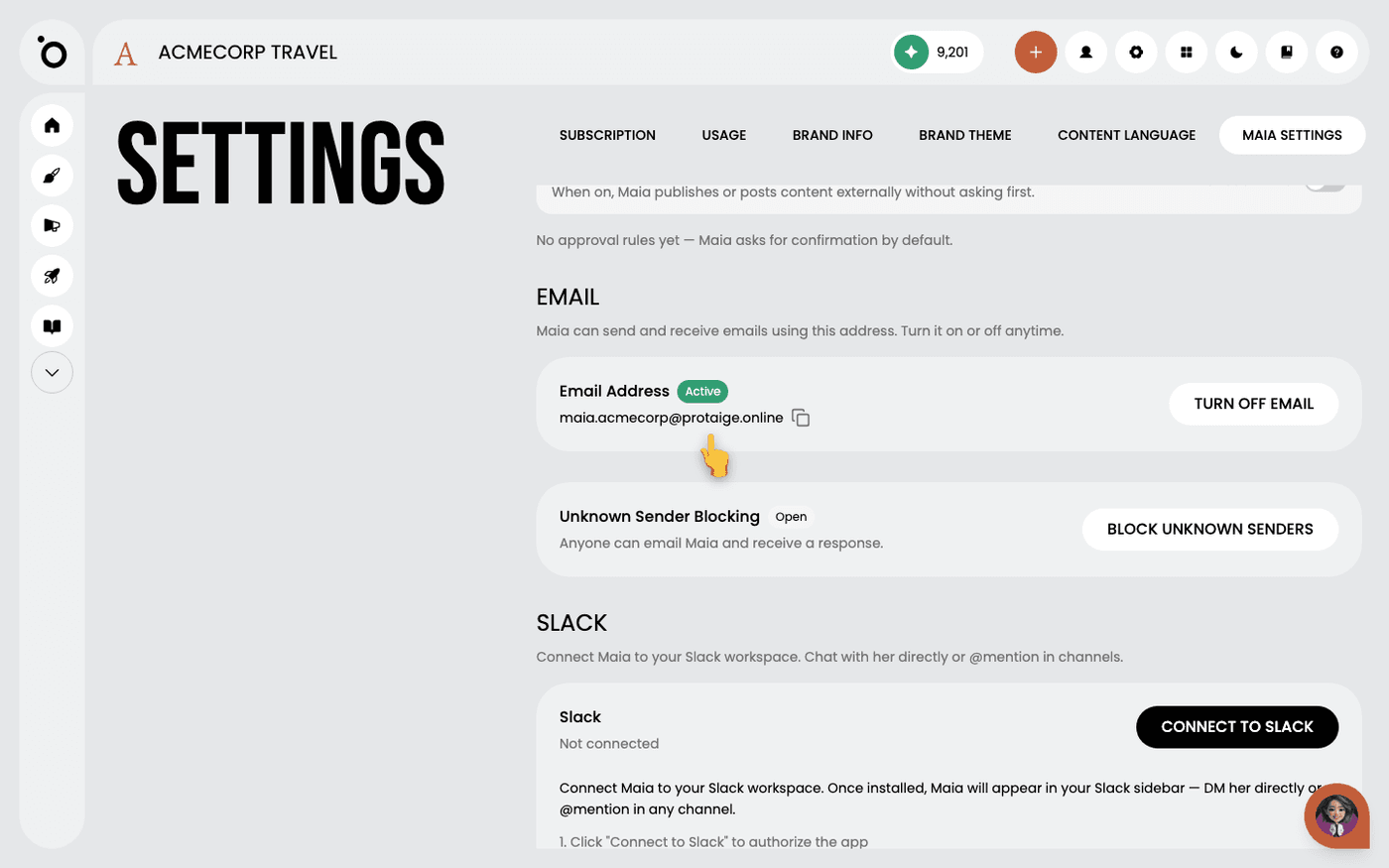
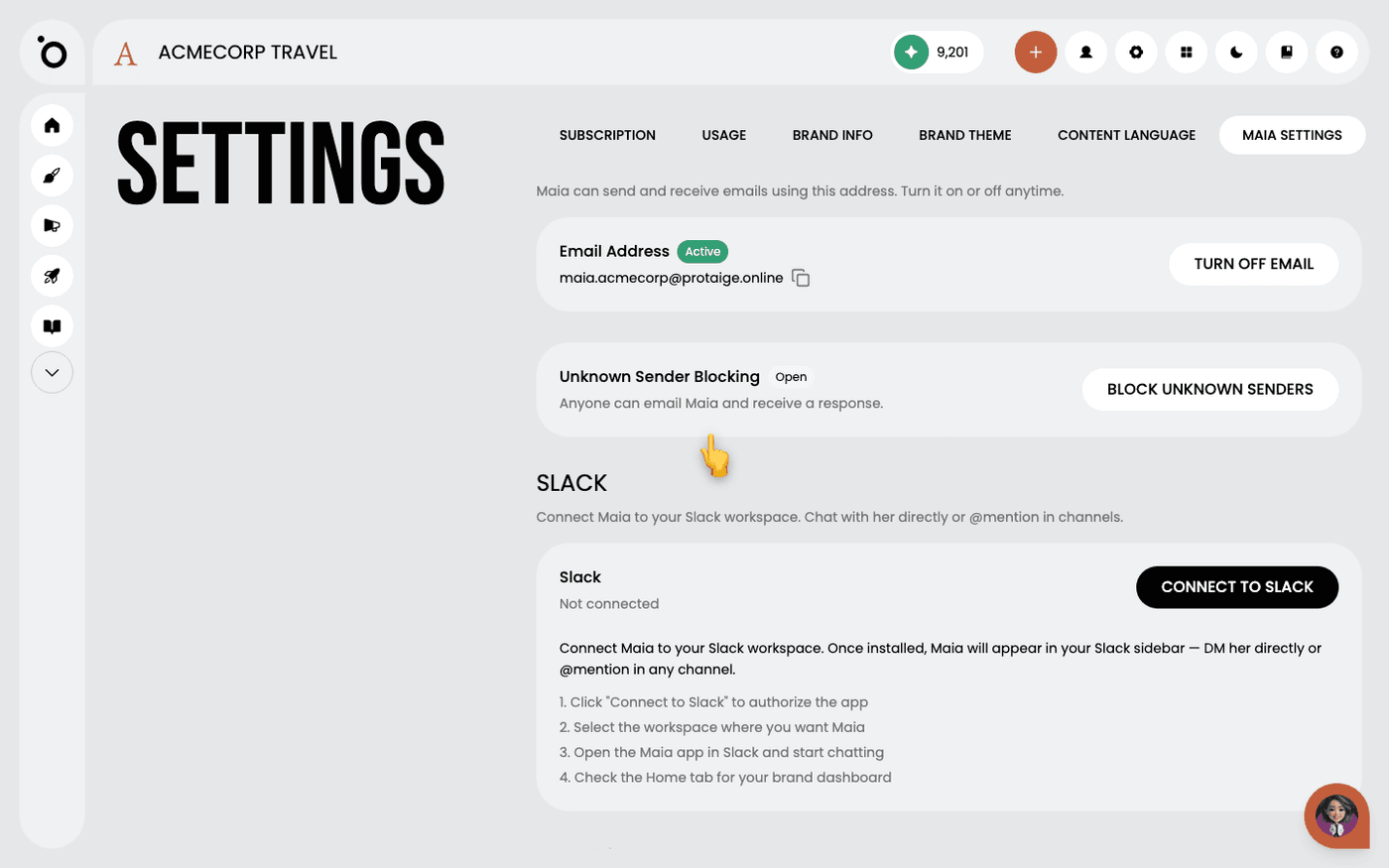
Head to Settings, then open the Maia tab. Scroll to the Slack section and hit the Connect to Slack button. Slack's OAuth screen will pop up asking you to pick a workspace and authorise the Maia app. Once you approve, you'll land back in Protaigé and see a green Connected badge next to the workspace name.

From her side, Maia now shows up in your Slack workspace under Apps in the sidebar. Click her name to open her up.

Maia's home base inside Slack

Maia's Home tab in Slack showing Recent Work, Launch Something New quick actions, Autopilot campaign types, and the Departments grouping

The first thing worth knowing is that Maia is not just a chat bot in your sidebar. Open her Home tab and you'll find a full dashboard.

At the top, Recent Work shows your most recent campaigns so you can pick up where you left off. Below that, Launch Something New gives you quick action buttons straight into Dashboard, Build Campaign, Brainstorm, and Content Studio.

The Autopilot row is the fast lane: tap Launch, Case Study, Awareness, Flash Sale, Event or Seasonal and Maia kicks off that campaign type for you. Your Departments at the bottom groups everything by team - Strategy & Planning, Brand & Identity, Art & Design, Copy Desk, Content Studio, and Back Office - so you can jump straight to the part of the agency you need.

Think of the Home tab as the place to come when you want to launch something fast without leaving Slack.

Direct messages with Maia

A DM thread with Maia covering brand questions, content requests, image generation, CRM updates and email drafting

DM Maia the same way you'd DM any colleague. Ask her a question about your brand, ask her to draft a post, ask her to generate an image, get her to log an update against a contact in your CRM, or have her write an email for you to send.

She remembers context across the conversation, so you don't have to re-explain yourself every time you come back. And if you start a piece of work in a DM, she can carry that thread of context across to the rest of Protaigé.

@mentioning Maia in channels

Maia being @mentioned inside a Slack channel and replying in a thread to keep the channel tidy

If you want Maia in on a wider conversation, invite her into a channel and @mention her like any other teammate. She'll join, read what's been said, and reply.

Her replies always come back in-thread, not in the main channel, so the channel stays scannable and your conversation with her stays self-contained. Great for the moments when you want her input where the rest of the team can see it, without flooding everyone's feed.

Disconnecting

If you ever need to remove Maia from Slack, head back to the Slack section in her settings and click Disconnect. Confirm and she'll leave the workspace. The connection can be re-established at any time by hitting Connect to Slack again.

Further study: