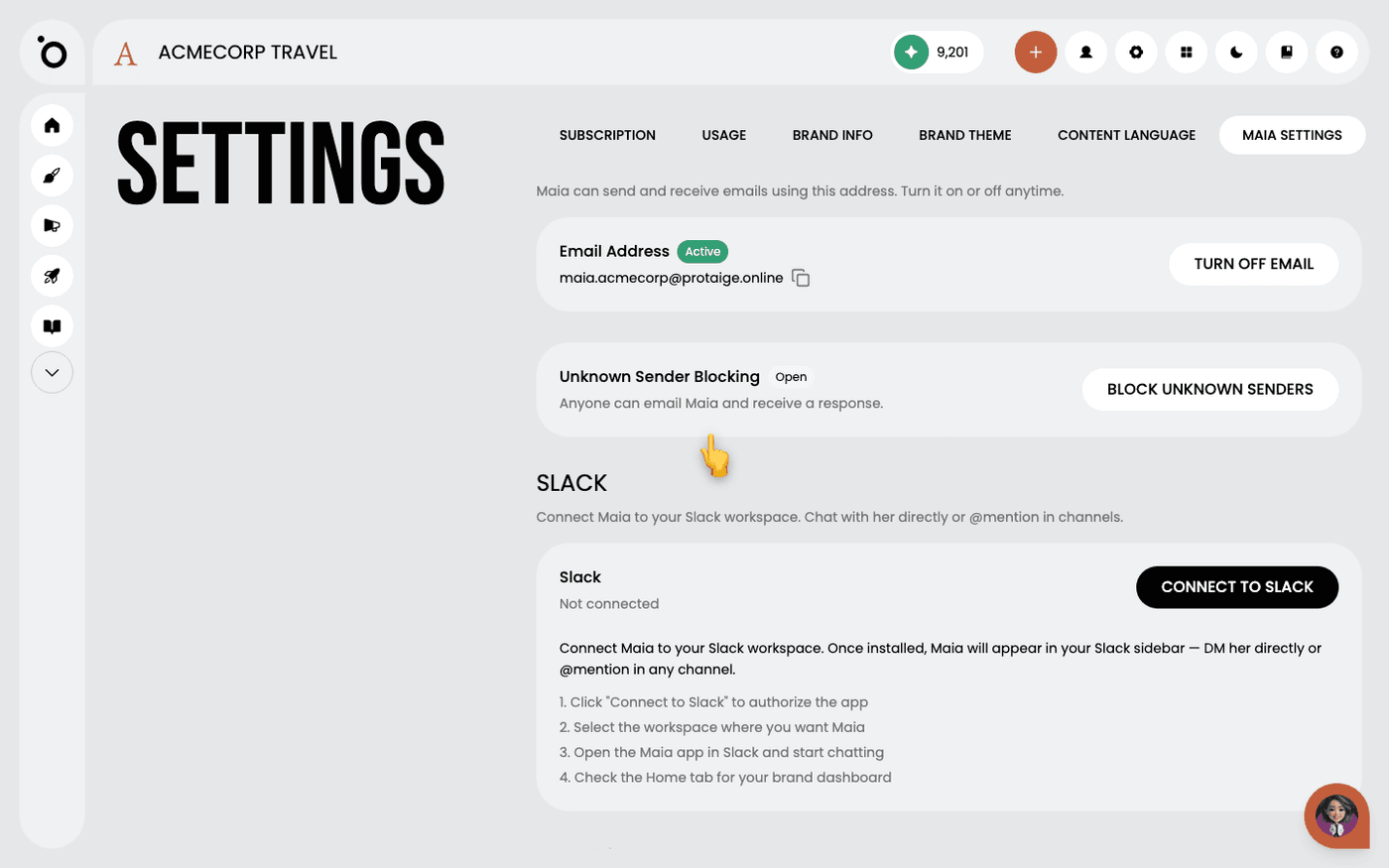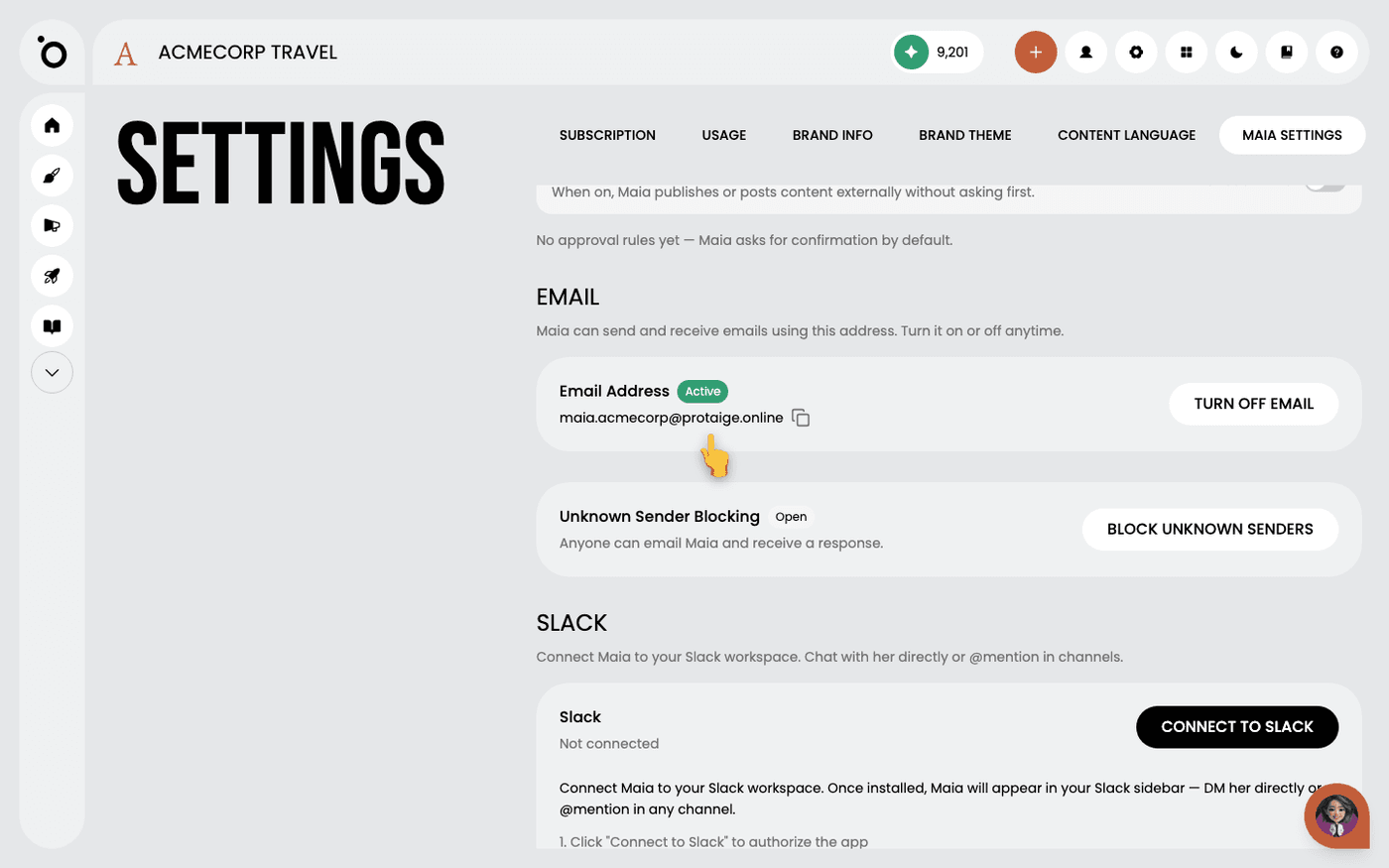
In short: Settings → Maia Settings → Email. Copy the address with the copy icon. Press Block unknown senders to limit who can email her.
Maia is your AI account director. With the Maia add-on, she gets her own email address. You can give it to clients, suppliers and partners, and they email her like anyone else on your team.
The address is created when you buy the add-on. It follows the pattern maia.yourbrand@protaige.online. There is nothing to set up.
Find her address
Open Settings, then the Maia Settings tab. Scroll to the Email section. The Email Address card shows her address with an Active badge. Press the copy icon beside it to copy it. If the section is missing, you need the Maia add-on first.
Share it like a colleague's
Forward emails to her. Copy her into threads with clients or suppliers. Give the address out as the contact for a project. She reads and replies like a colleague would.
Decide who gets a reply
By default her inbox is Open. Anyone with the address can email her and get a reply. Press Block unknown senders to change that. The badge changes to Restricted. She then replies only to your team members and your CRM contacts. Press Allow all senders to open it again.
Turn email off if you need to
Press Turn off email. Maia stops receiving and replying. The badge shows Inactive. Press Turn on email to start again.
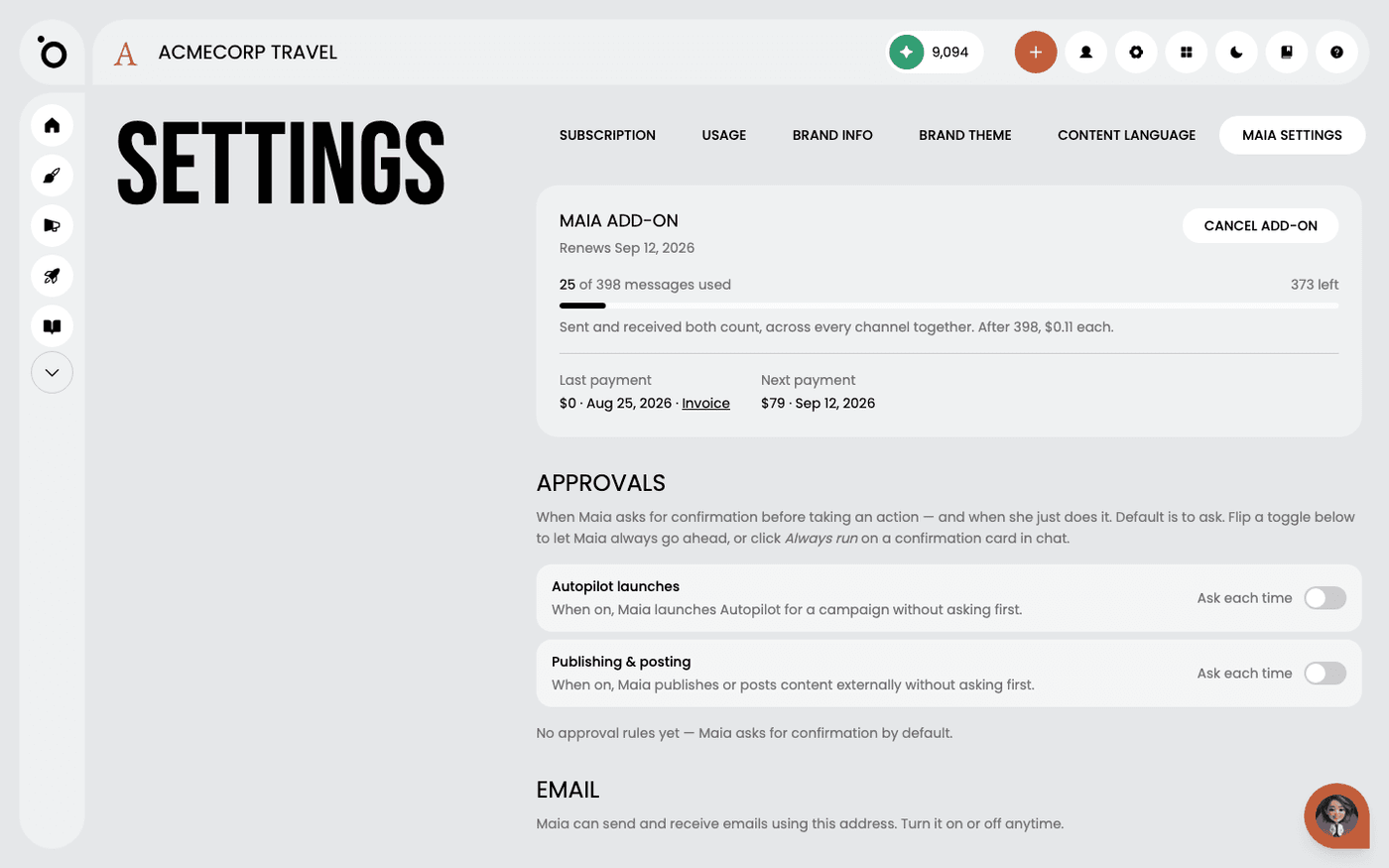
The Unknown Sender Blocking card only appears when email is on. Emails count against the same message bundle as Slack and WhatsApp. Sent and received both count.
Last updated 1 September 2026