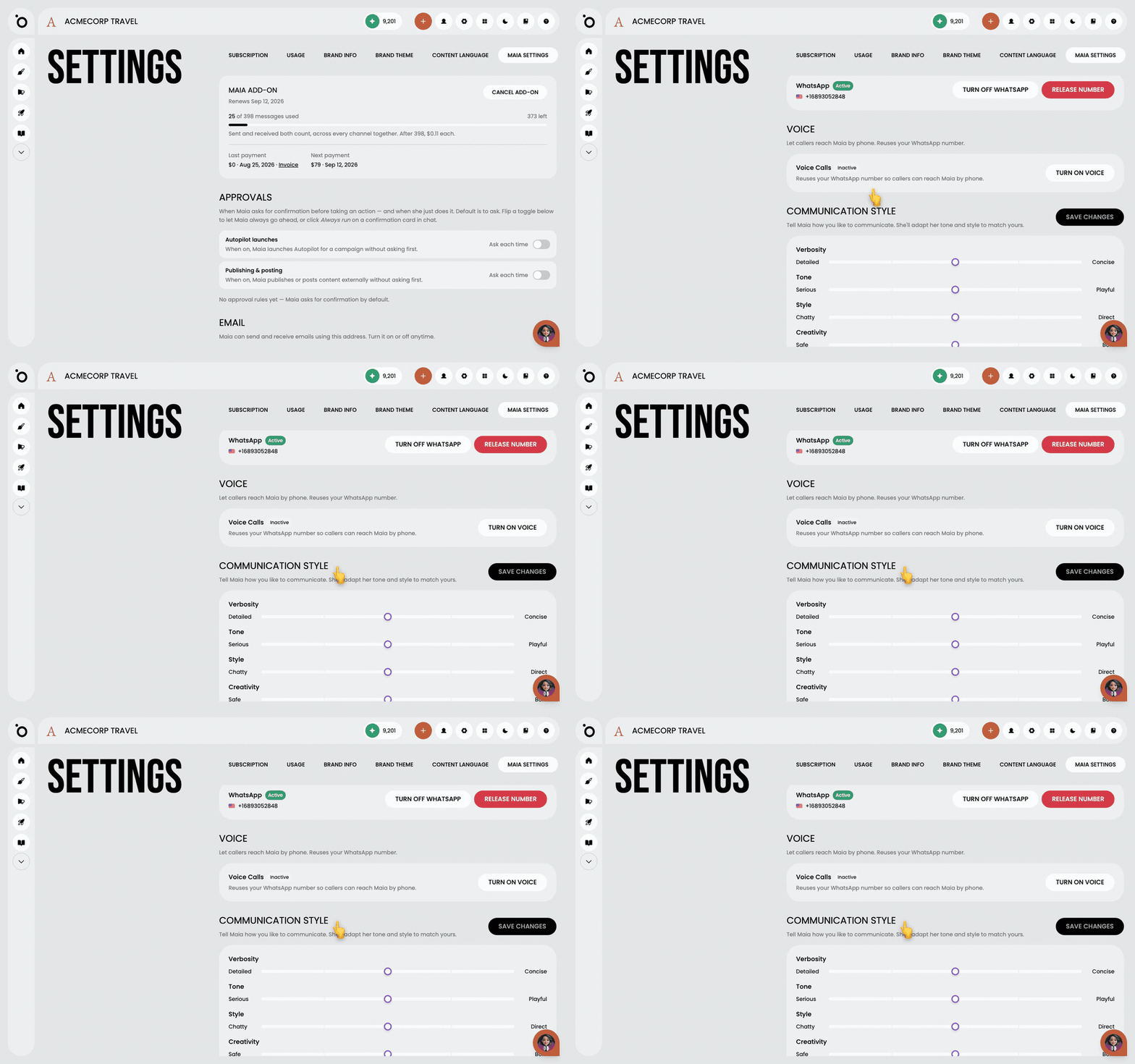
In short: Settings → Maia Settings → Communication Style. Move the sliders, then press Save changes.
Maia is your AI account director. She should sound like someone who works for your brand, not like a generic assistant. Tight and formal, or warm and playful, is your call.
You set it once. It applies everywhere Maia speaks, in the app and on every channel she is connected to.
Open Maia Settings
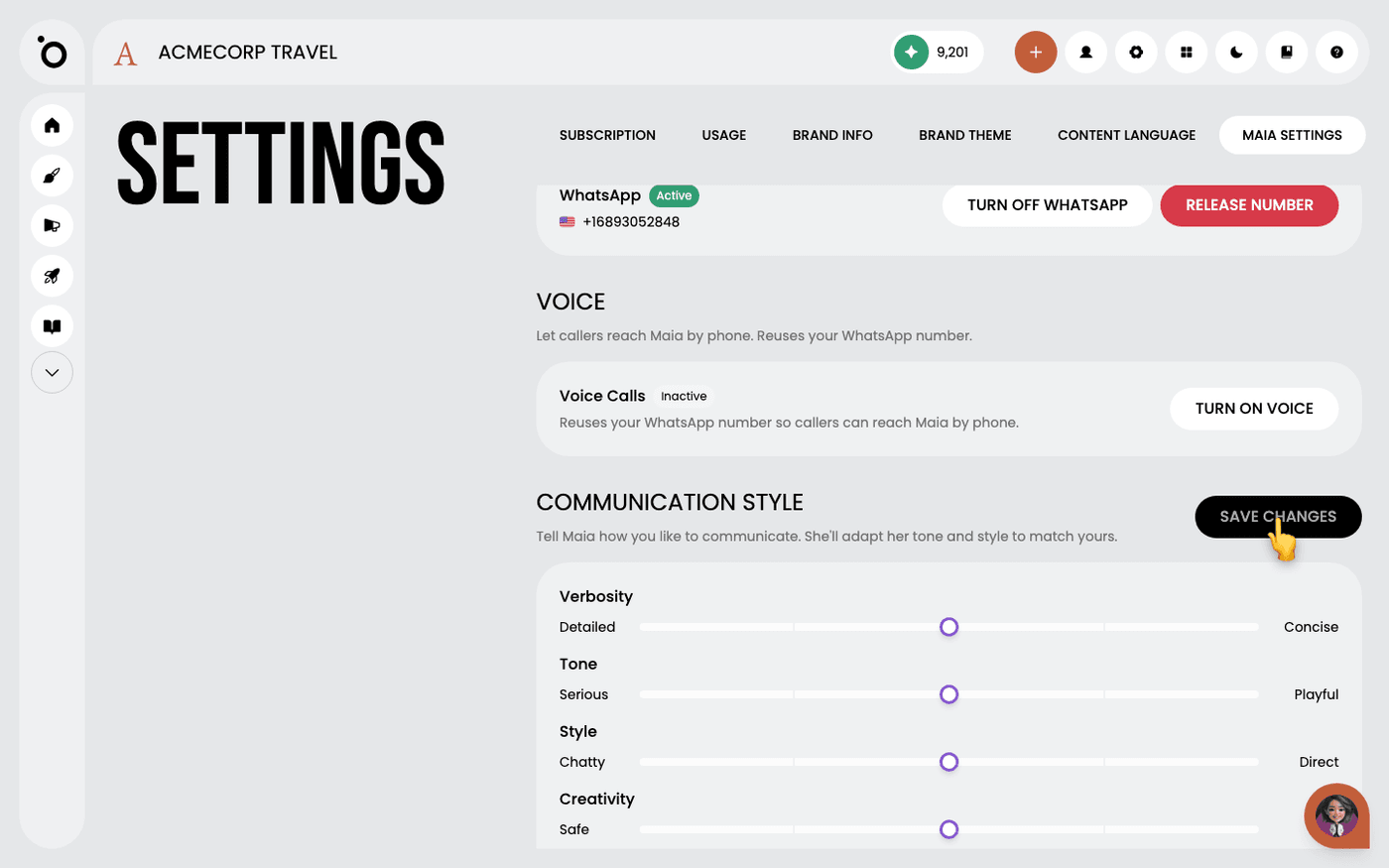
Press the gear button in the header to open Settings. Choose the Maia Settings tab. Scroll to the Communication Style section.
Move the five sliders
Verbosity runs from Detailed to Concise. Tone runs from Serious to Playful. Style runs from Chatty to Direct. Creativity runs from Safe to Bold. Data runs from Metrics to Narrative. Every slider starts in the middle. Move only the ones you care about.
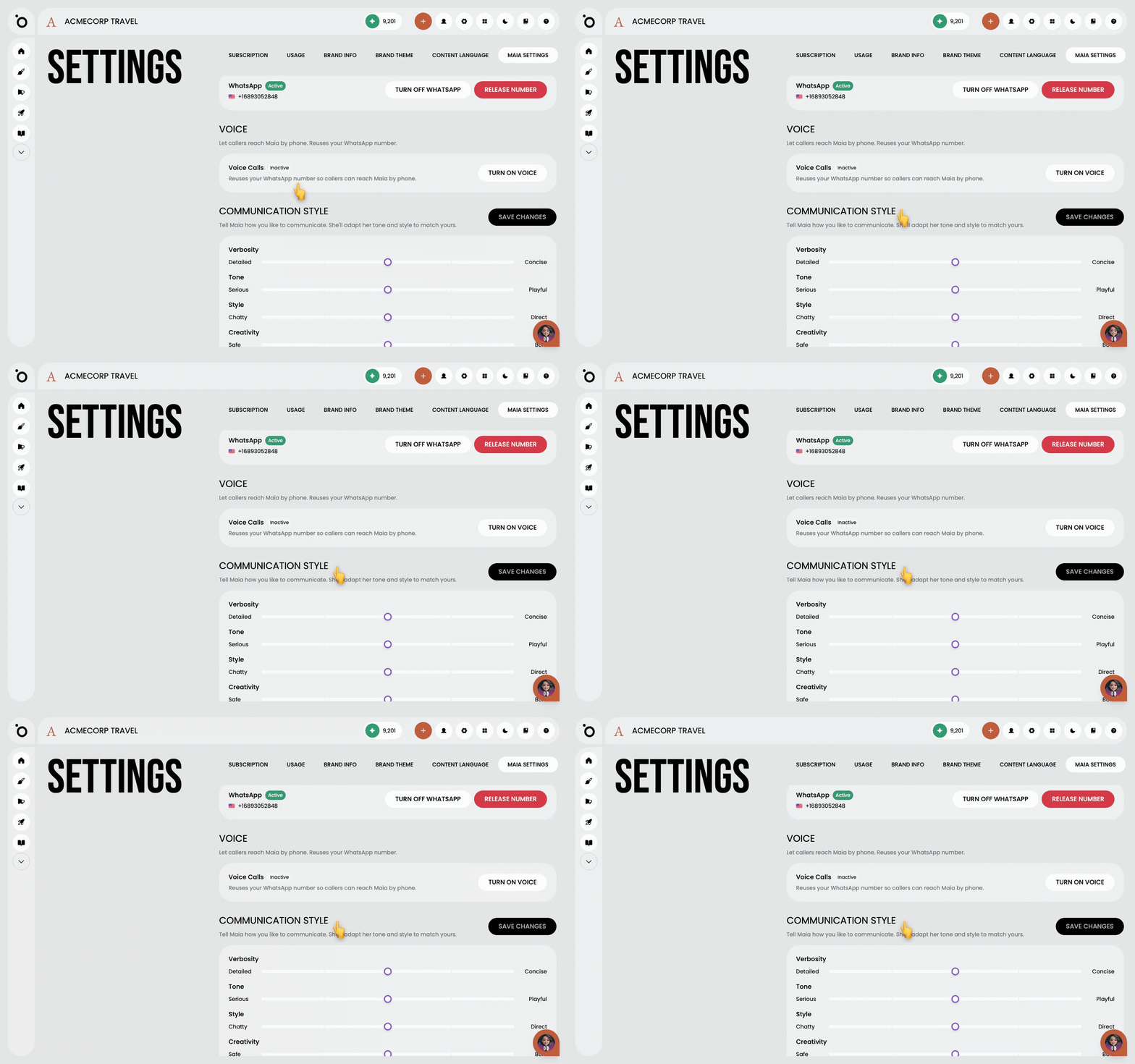
Save
Press Save changes at the top of the section. Maia uses the new style from her next message. You do not need to reload.
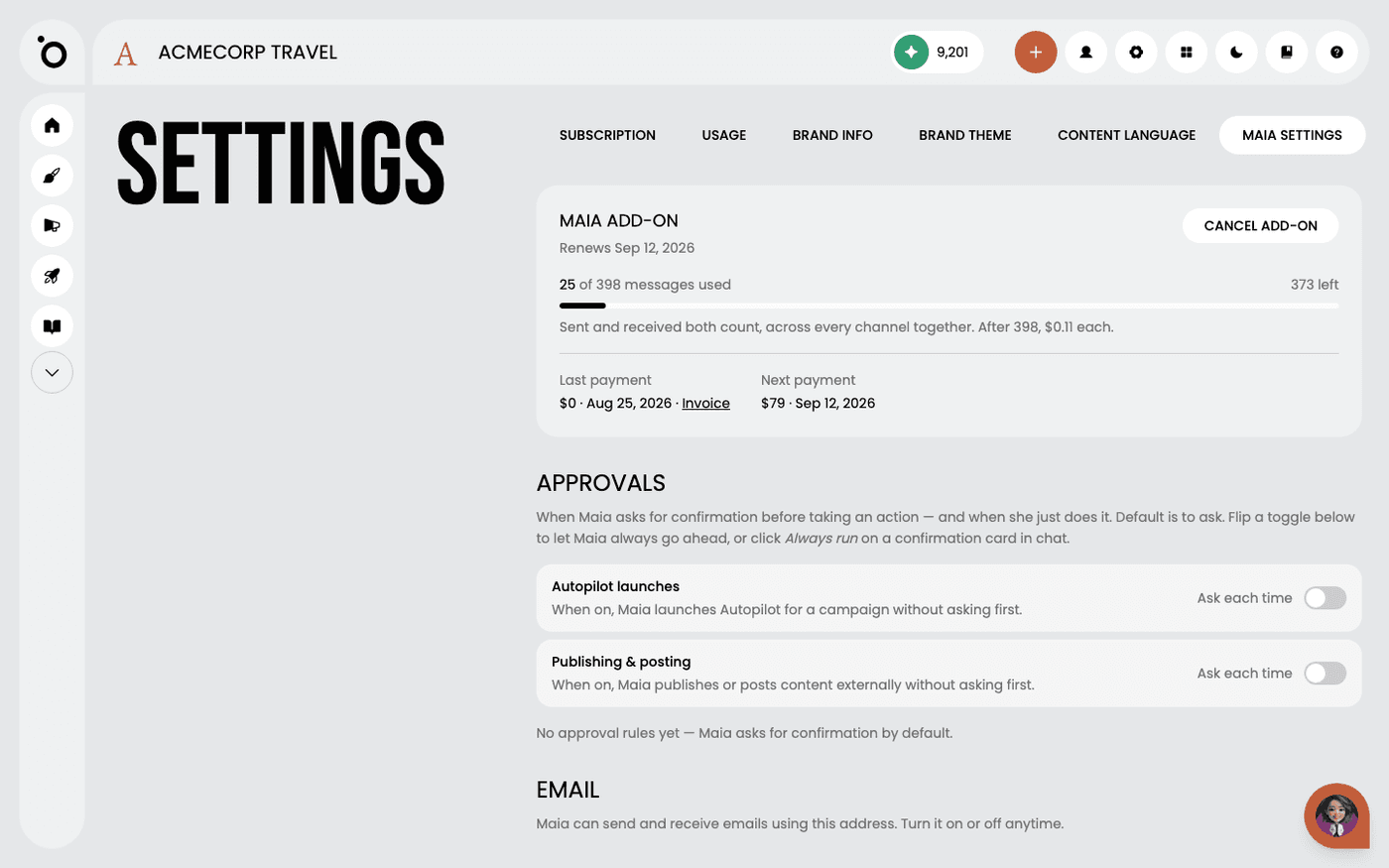
Check Approvals while you are here
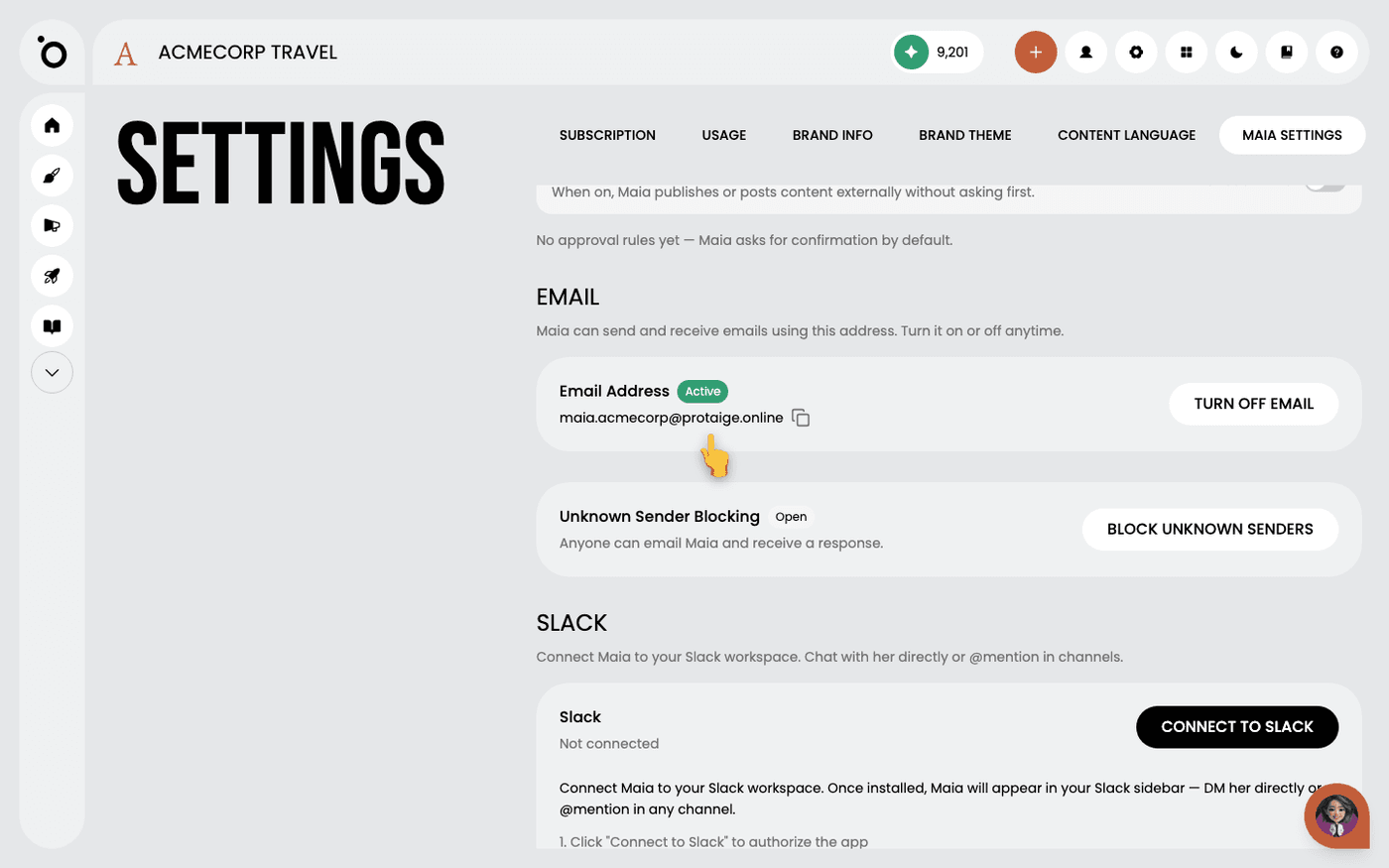
The Approvals section at the top of the tab decides when Maia asks before she acts. By default she asks. Turn on Autopilot launches to let her start Autopilot without asking. Turn on Publishing and posting to let her publish externally without asking.
These settings apply everywhere at once. Change them here and Maia sounds the same in email, Slack, WhatsApp, on the phone and in the app.
Last updated 1 September 2026