The Protaigé Academy
/
Protaigé Academy
/Setting your brand fonts
Setting your brand fonts

Setting your brand fonts

What you'll learn

How to manage your brand typography and usage rules

Series
2.06
Section
Brand DNA
Last Updated
Feb 4, 2026 8:58 PM
Status
Live
icon
Previous Tutorial
icon
Next Tutorial

TL;DR Navigate to Fonts → Upload .otf or .ttf font files → Enter the exact family name → Click Upload Files → Fonts and variants appear in your library with usage guidelines.

Click through an interactive tutorial

Typography sets the tone before your message is even read. It reflects your brand’s personality, builds familiarity, and shapes every piece of communication.

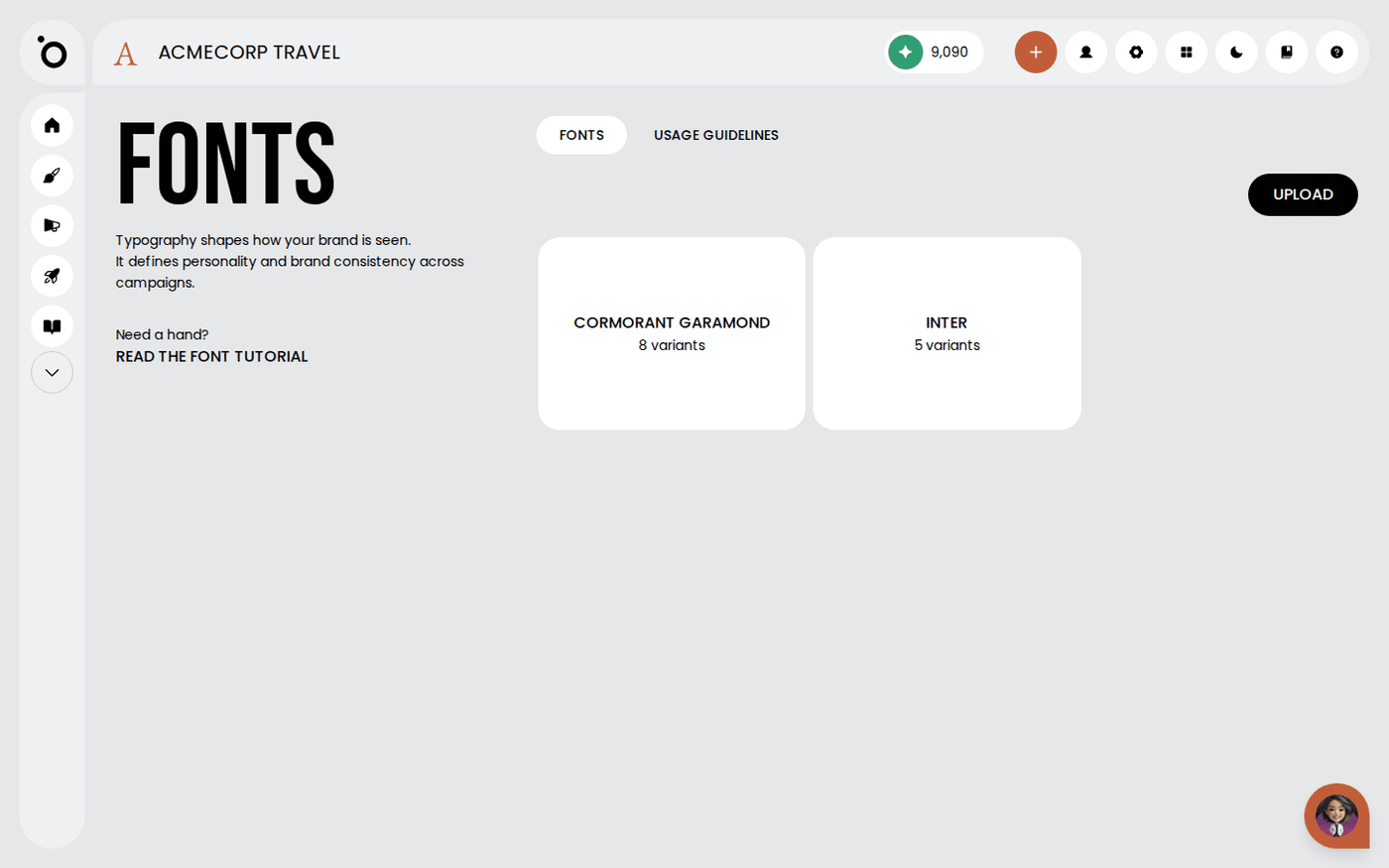
In the Fonts section, you can upload and manage your brand’s typography. Whether you’re working with a timeless classic or a modern custom font, this is where it all lives.

Uploaded fonts are instantly available in the visual editor. Every campaign layout will use your approved typefaces, keeping your design consistent across every channel.

If your brand guidelines include font usage instructions, they will be extracted and displayed automatically.

Font Limitations

When uploading fonts, please be aware of the following requirements:

  • Only supported file formats are accepted: .otf, .ttf, and .woff/woff2.
  • When uploading fonts, only standard weights are supported. Please use these conventional weights for reliable results:
    • Thin
    • Extra Light
    • Light
    • Regular / Normal
    • Medium
    • SemiBold
    • Bold
    • Extra Bold
    • Heavy
  • Non-standard names (e.g. UltraLight, Super Black, Hairline) may not render correctly and could fall back to the closest supported weight.
  • If a particular weight or style is missing from your uploaded family, Protaigé will automatically fall back to the closest available style (Inter, a Helvetica-esque Google Font).

A step-by-step guide

image

Open the Fonts section

From the Brand DNA dashboard, click Fonts to open the typography management view.

image

Start an upload

Click the upload area to select new font files from your computer.

image

Choose your font files

Browse to your font folder and select the files you want to add. You can upload multiple at once.

image

Preview the variants

Once selected, scroll through the list to preview all available styles and weights.

image

Enter the font family name

Type the exact name of the font family. This ensures proper display when importing design files.

image

Upload the fonts

Click Upload Files to add the selected fonts to your brand library.

image

View font details

Click a font card (like Montserrat) to view its full list of variants and styles.

image

Manage your fonts

Use the Delete button to remove any font that is no longer in use.

image

Add more fonts anytime

Repeat the upload process at any time to keep your brand’s typography up to date.

image

Review usage guidelines

If your uploaded brand guide includes font instructions, they will appear in the Usage Guidelines tab.

icon
Previous Tutorial
icon
Next Tutorial