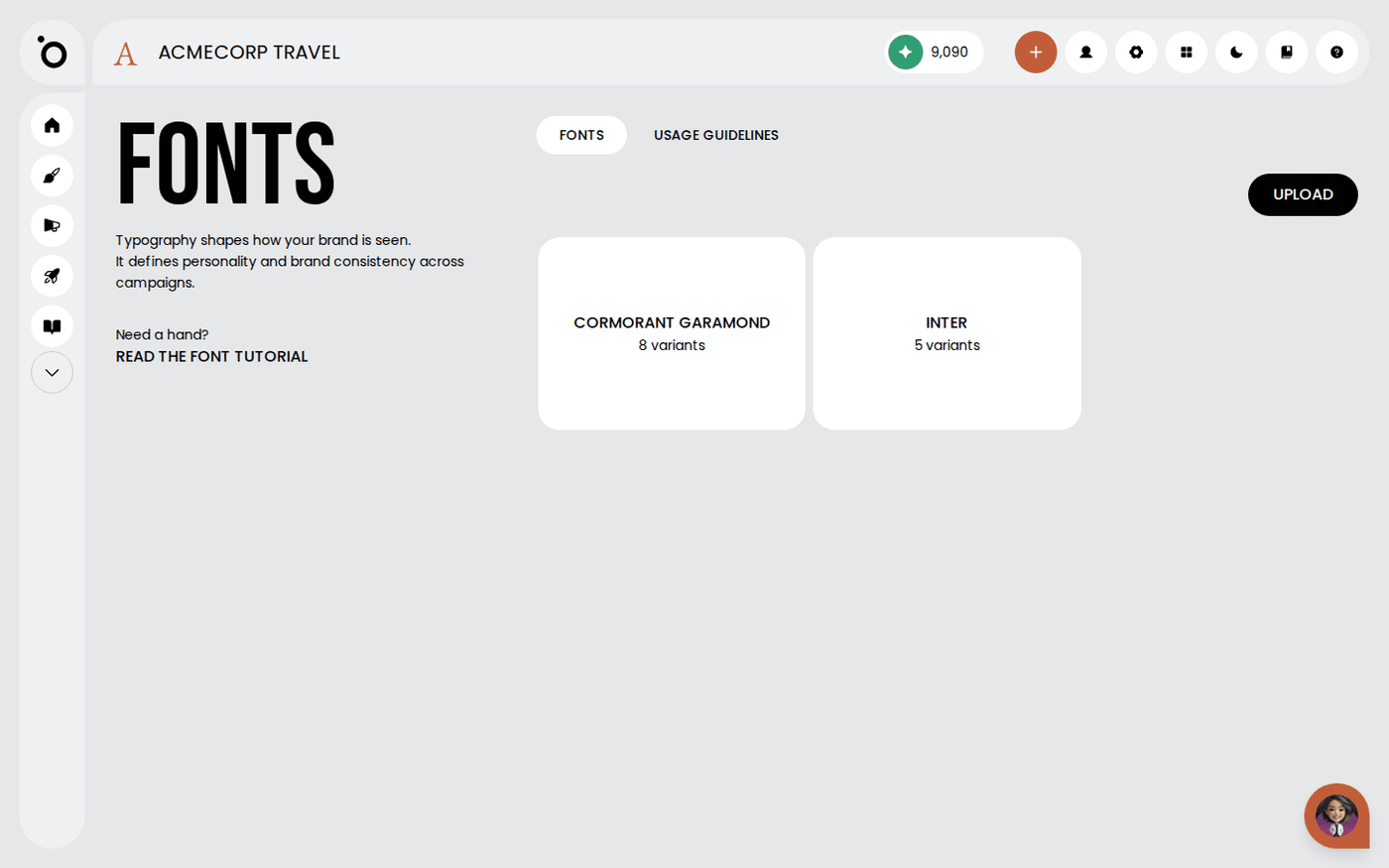
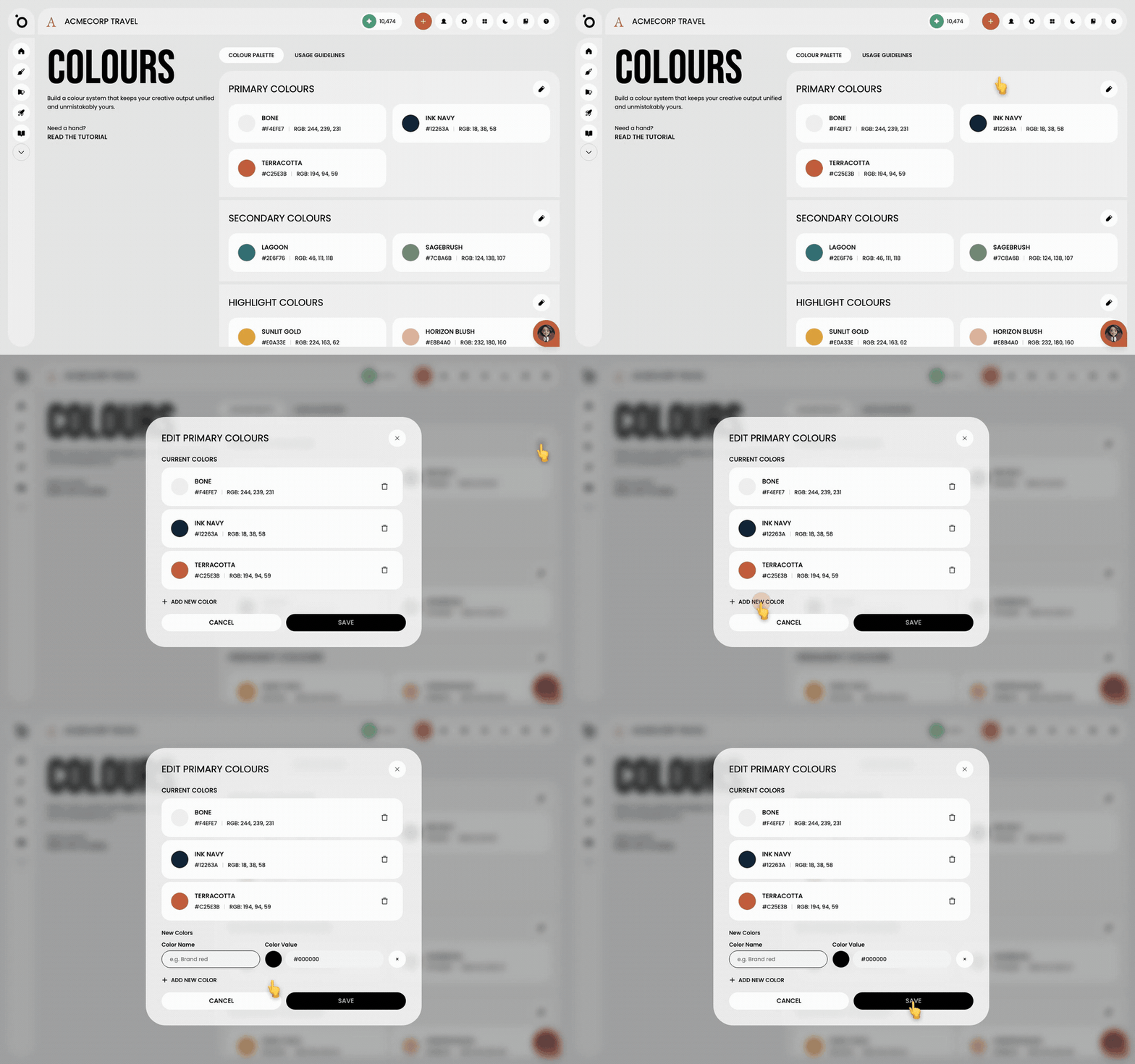
In short: Open Colours in your Brand DNA, click the pencil icon to edit a palette, then save.
Your brand colours influence everything from campaign layouts to call-to-action buttons. This is where you define and manage your primary, secondary and highlight palettes.
If your colours are already defined in the brand guidelines you uploaded, they are extracted automatically during onboarding. You can fine-tune those results or expand the palette from here.
Name each colour, set exact hex values, and order the palette so it reads clearly. Once saved, your colours sync to the creative editor, so every visual element stays on brand without anyone checking.
Open the Colours section
Go to Colours from your Brand DNA dashboard. You will see three groups: Primary, Secondary and Highlight.
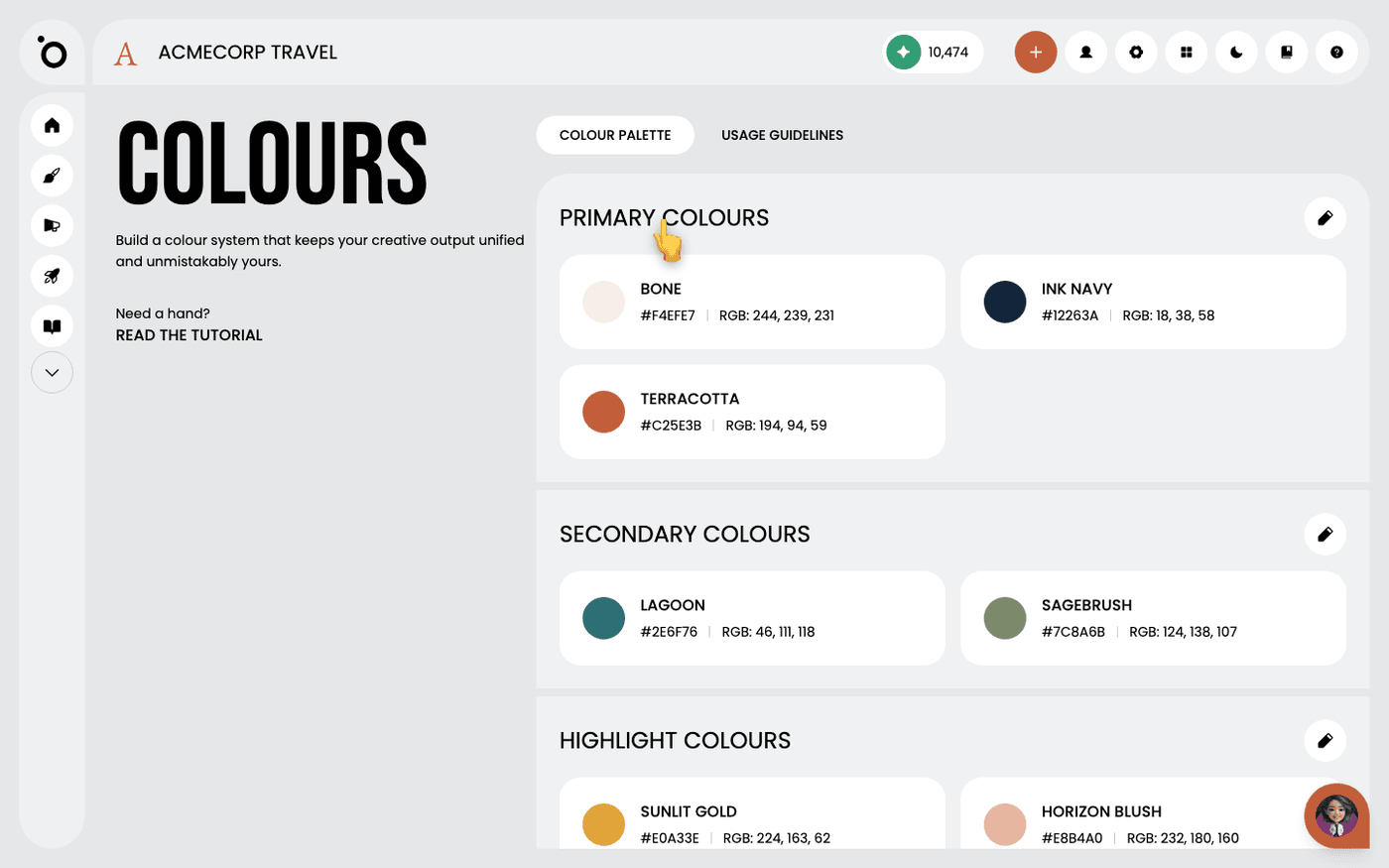
Edit your primary colours
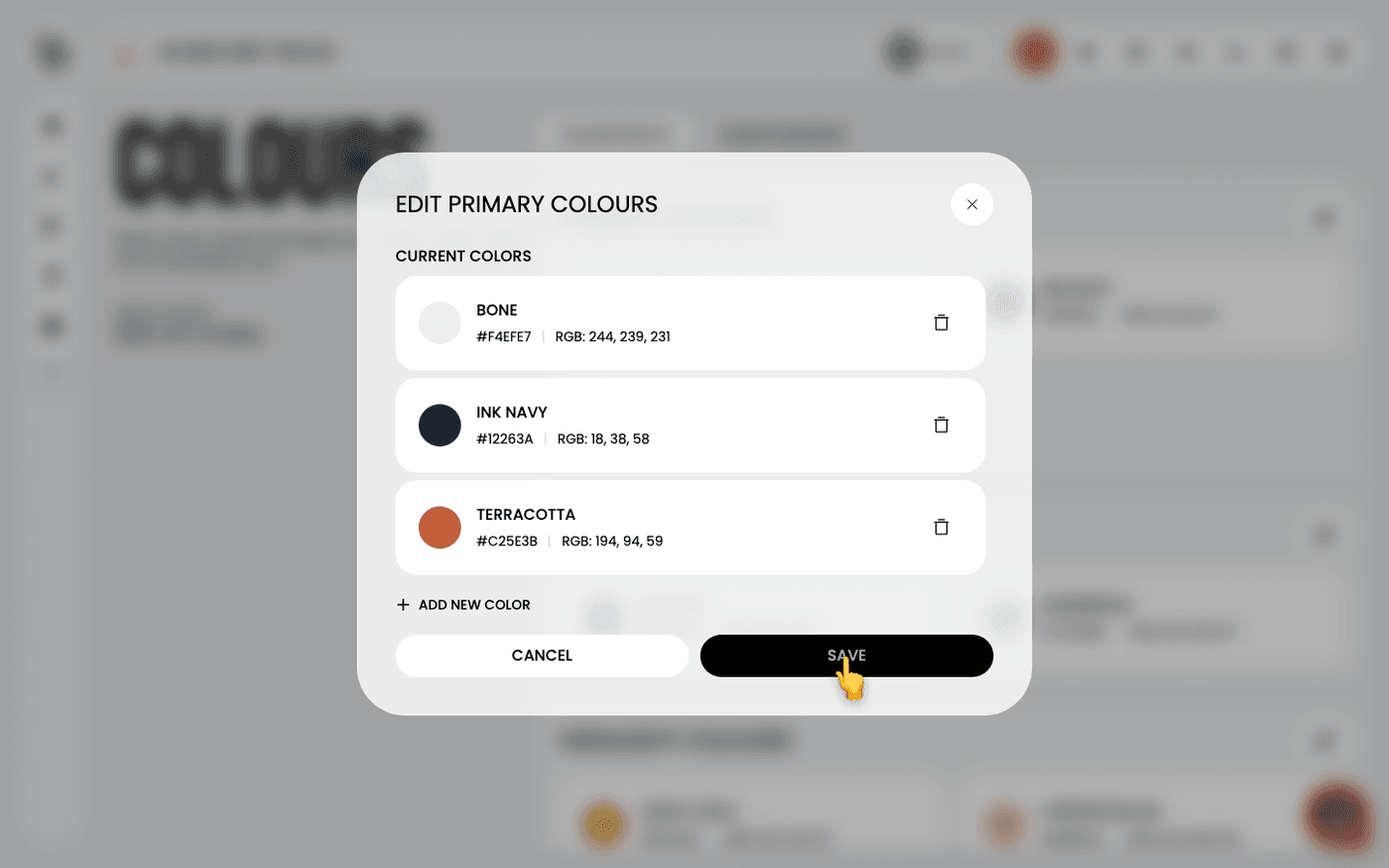
Click the pencil icon next to Primary Colours to open the editor. This is your core palette, the one Protaigé leads with.
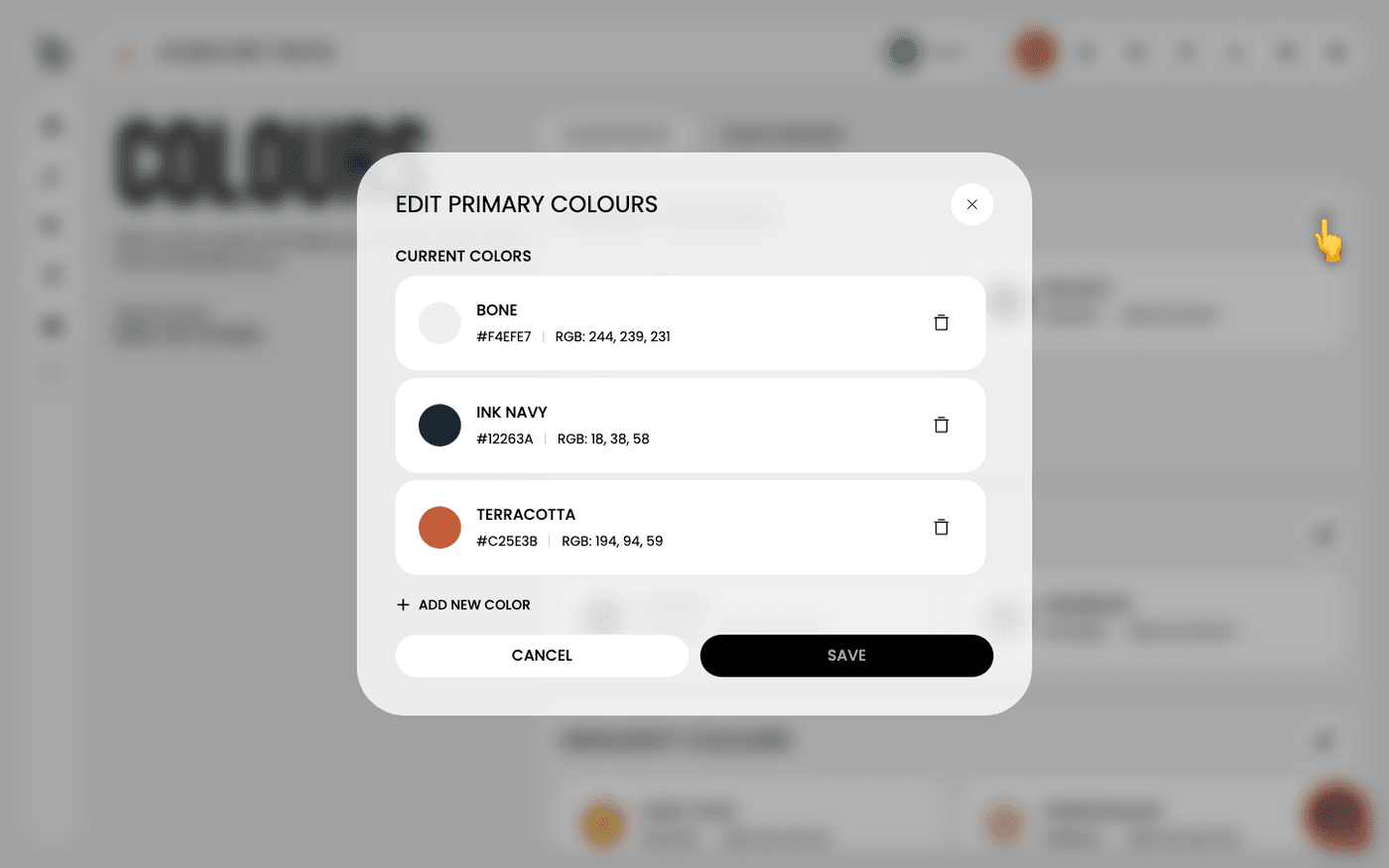
Add a new colour
Select Add New Colour and name the shade. Names travel with the colour into briefs, sketches and the campaign editor, so use the name your team already says out loud.
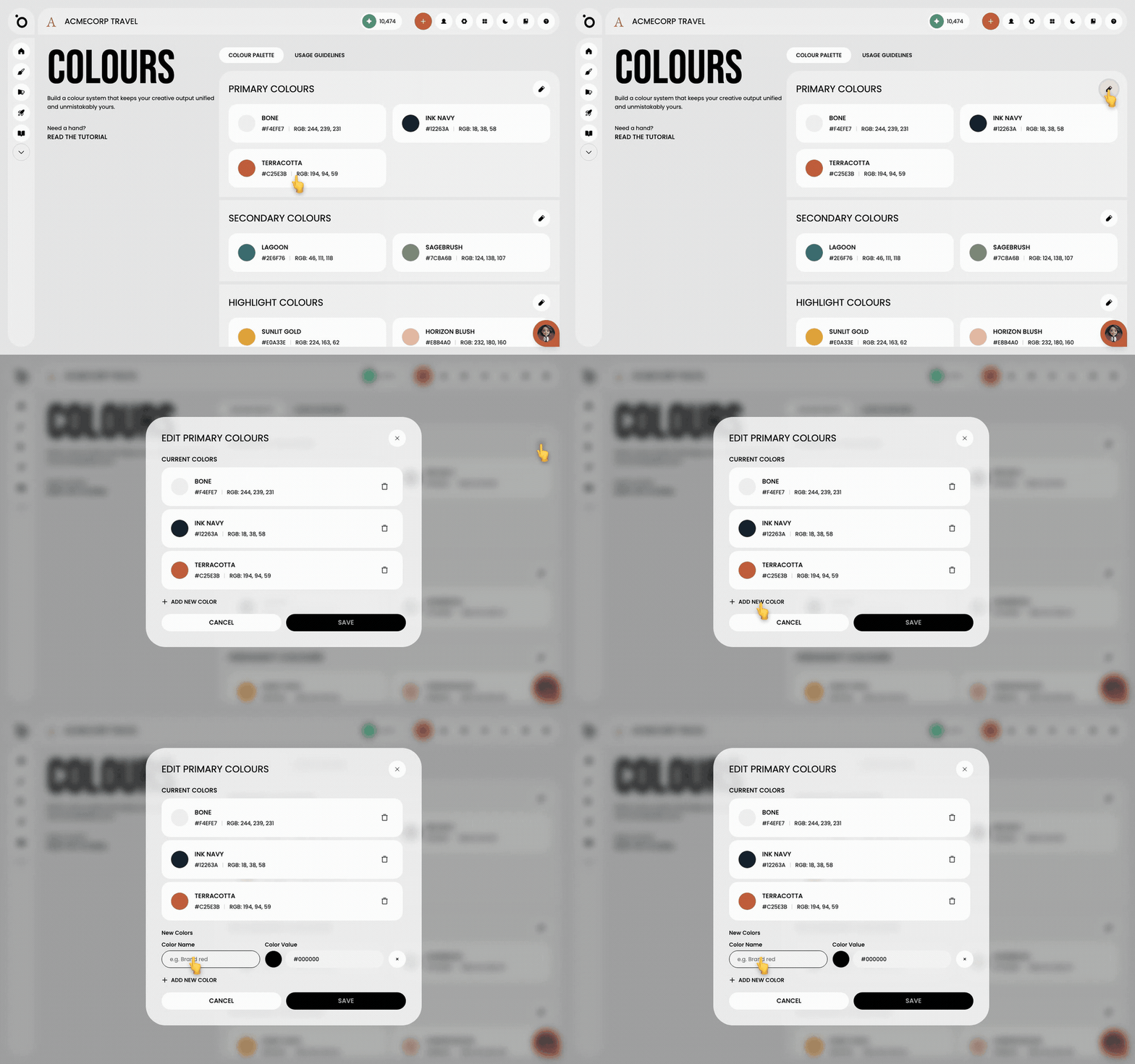
Pick your colour
The colour value field takes a hex code, with a picker beside it if you would rather choose by eye. There is no RGB input, so convert first if that is what your brand guideline gives you.
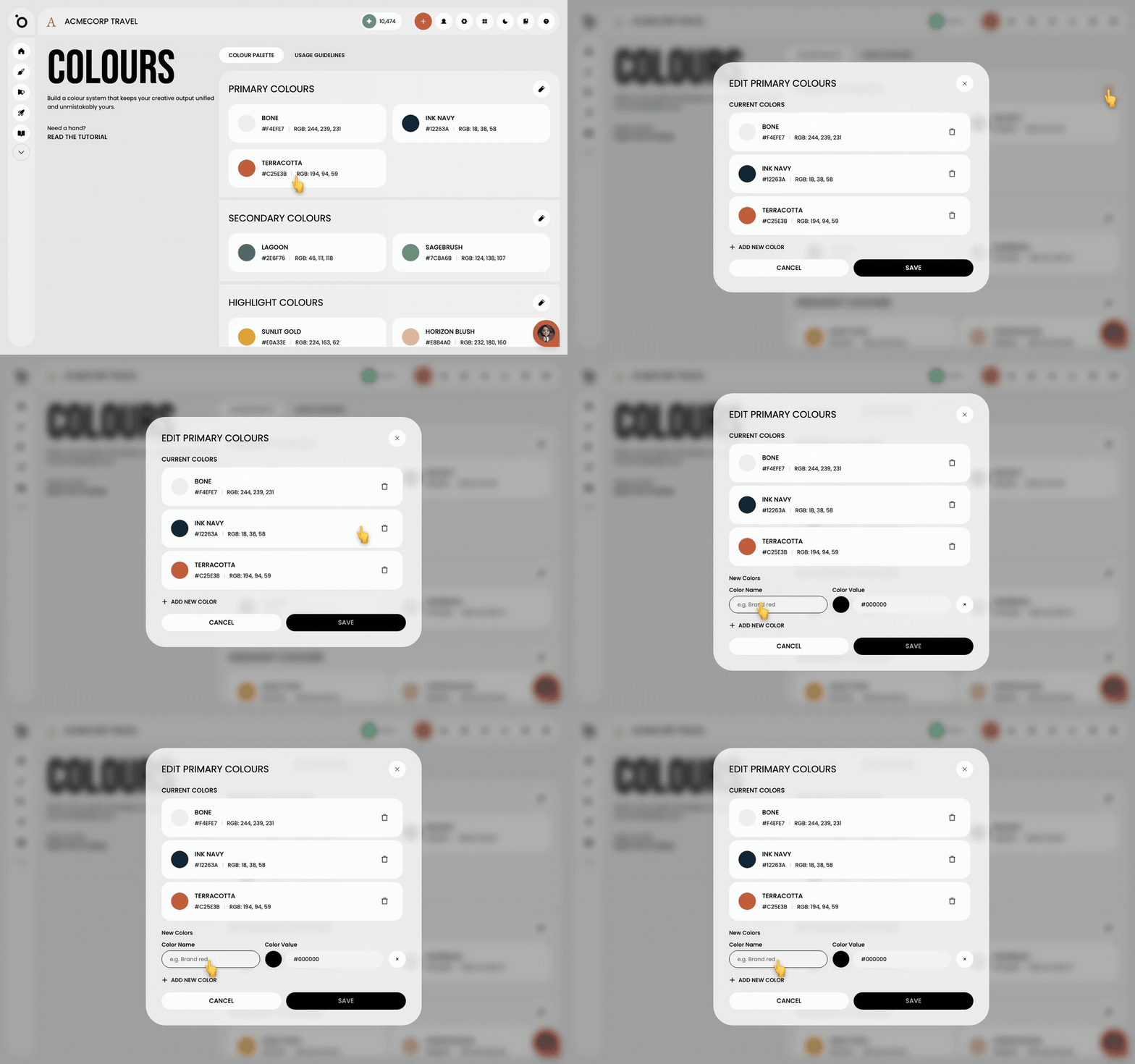
Save your changes
Click Save to lock in the update. Repeat for each colour you want to add.
Set your secondary and highlight colours
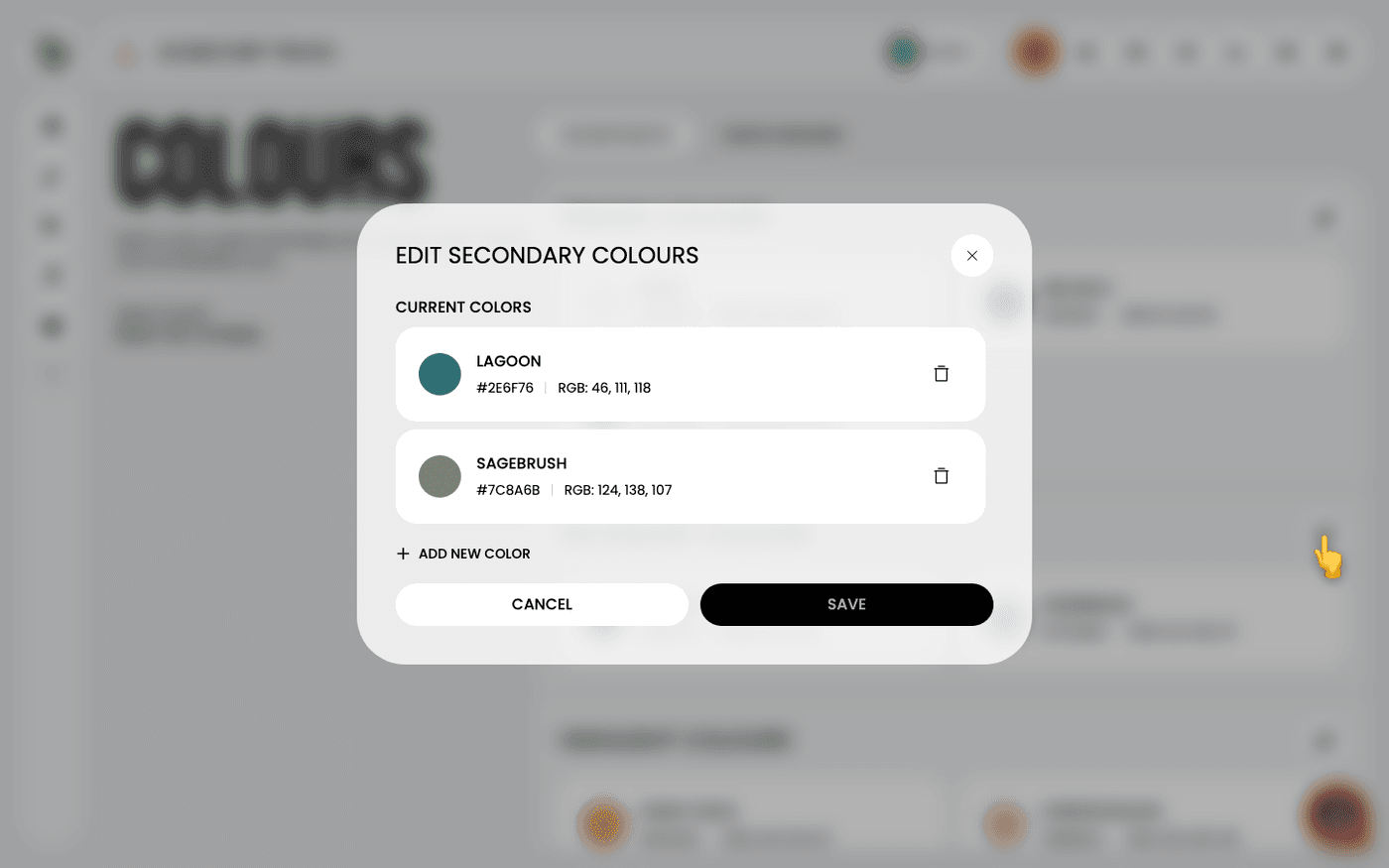
Scroll down and repeat for Secondary and Highlight. Which group a colour is in is what carries the weight, not where it sits within the group, and there is no way to reorder them anyway.
Remove colours you do not need
Delete any colour in either palette with the remove icon, then save. A tighter palette produces more consistent work than a broad one.
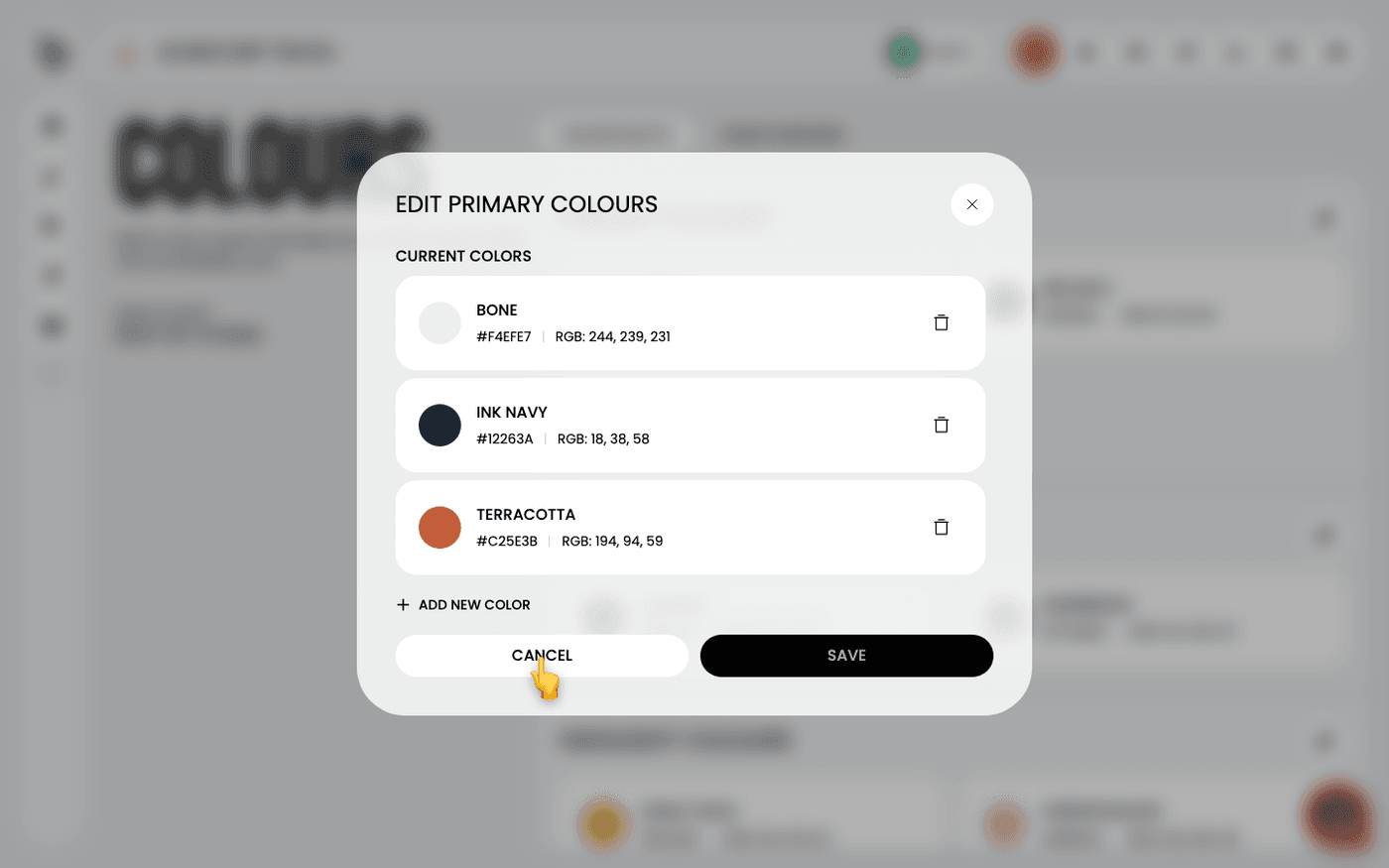
Every colour you save syncs to the visual editor, so campaigns, ads and landing pages all pull from the same palette.
Last updated 12 August 2026