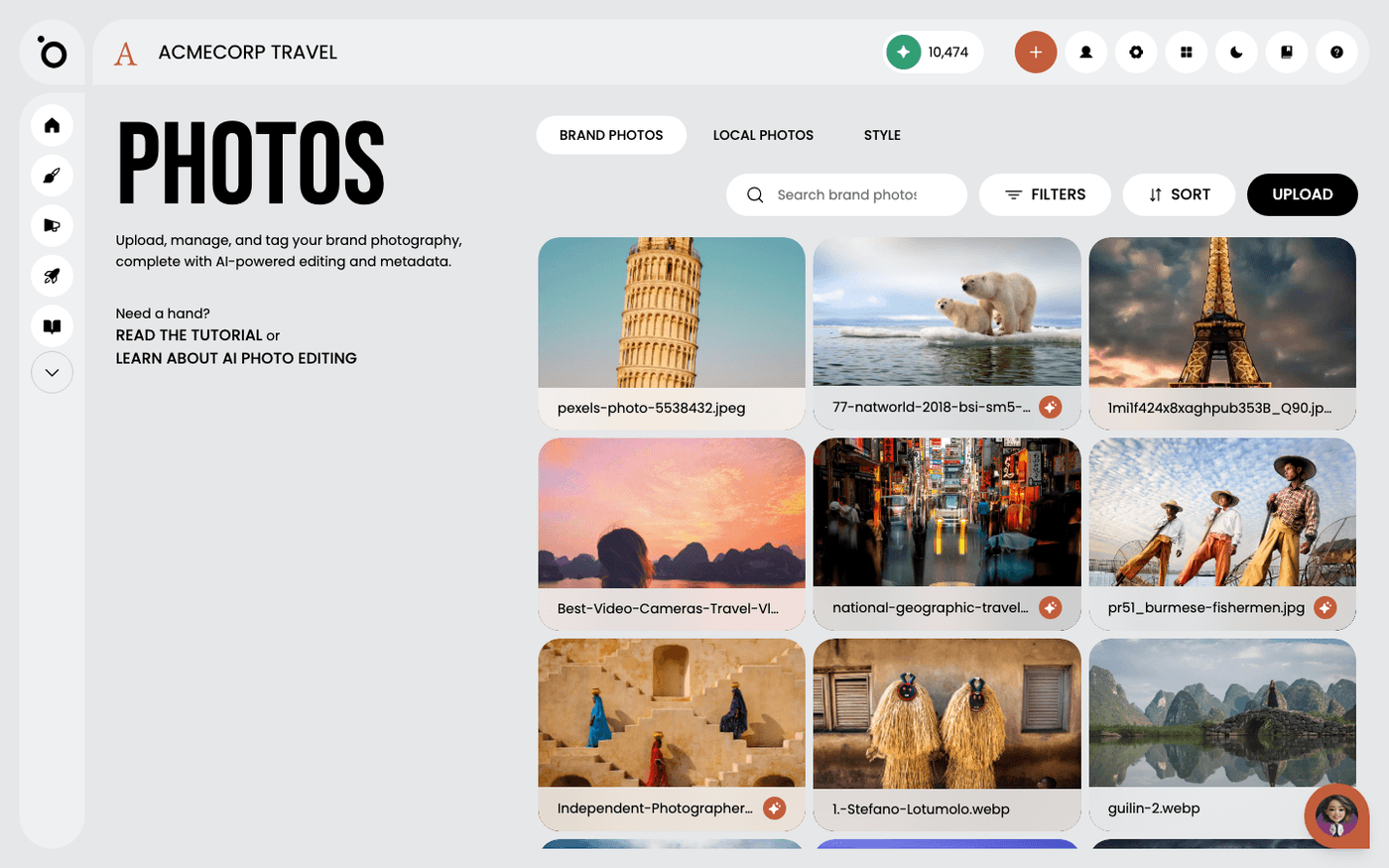
In short: Brand DNA → Photos → Shared tab → open a photo → three-dots menu → Set as style reference. Do this for up to eight photos.
Protaigé creates images for your campaigns and sketches. Without guidance, they look generic. With guidance, they match your photography: your colours, your light, your mood.
The guidance is a set of style references. These are up to eight of your own photos that show what your brand looks like. This page shows you how to choose them and mark them. It takes about five minutes.
Pick photos that show your look
Choose photos for their style, not their subject. A good set has different colours, moods and layouts, so Protaigé sees your whole range. Leave out near-duplicates. Eight is the maximum, and four good ones beat eight similar ones.
Make sure they are in the Shared tab
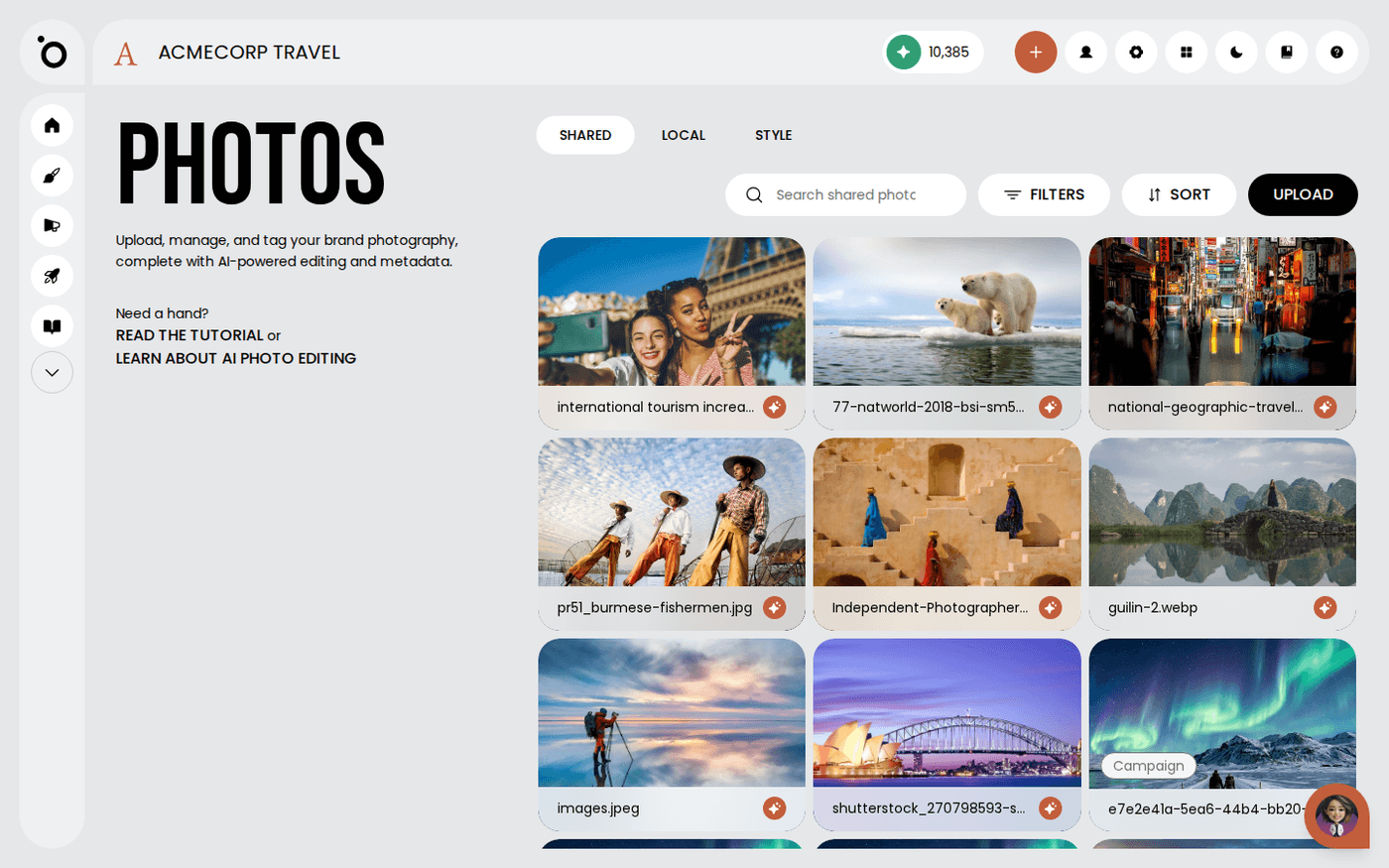
Only photos in the Shared tab can be style references. Shared holds the photos the whole brand uses. If your photo is in the Local tab, open its three-dots menu and choose Move to shared.
Mark each one
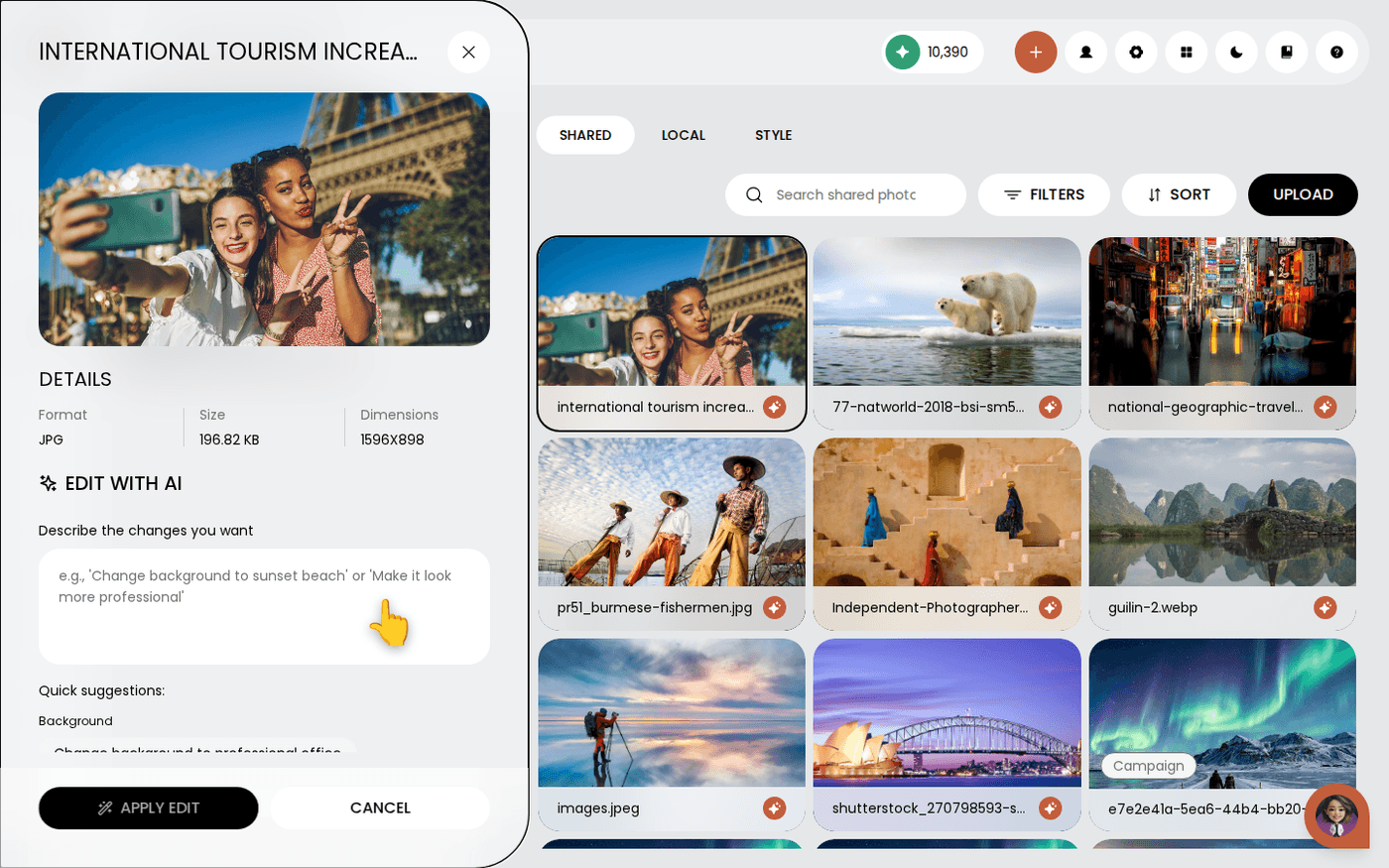
Open Brand DNA, then Photos. In the Shared tab, click a photo to open its detail panel. Open the three-dots menu next to Download. Choose Set as style reference. The photo now shows a Style reference badge in the grid. Repeat for each photo.
Check the set together
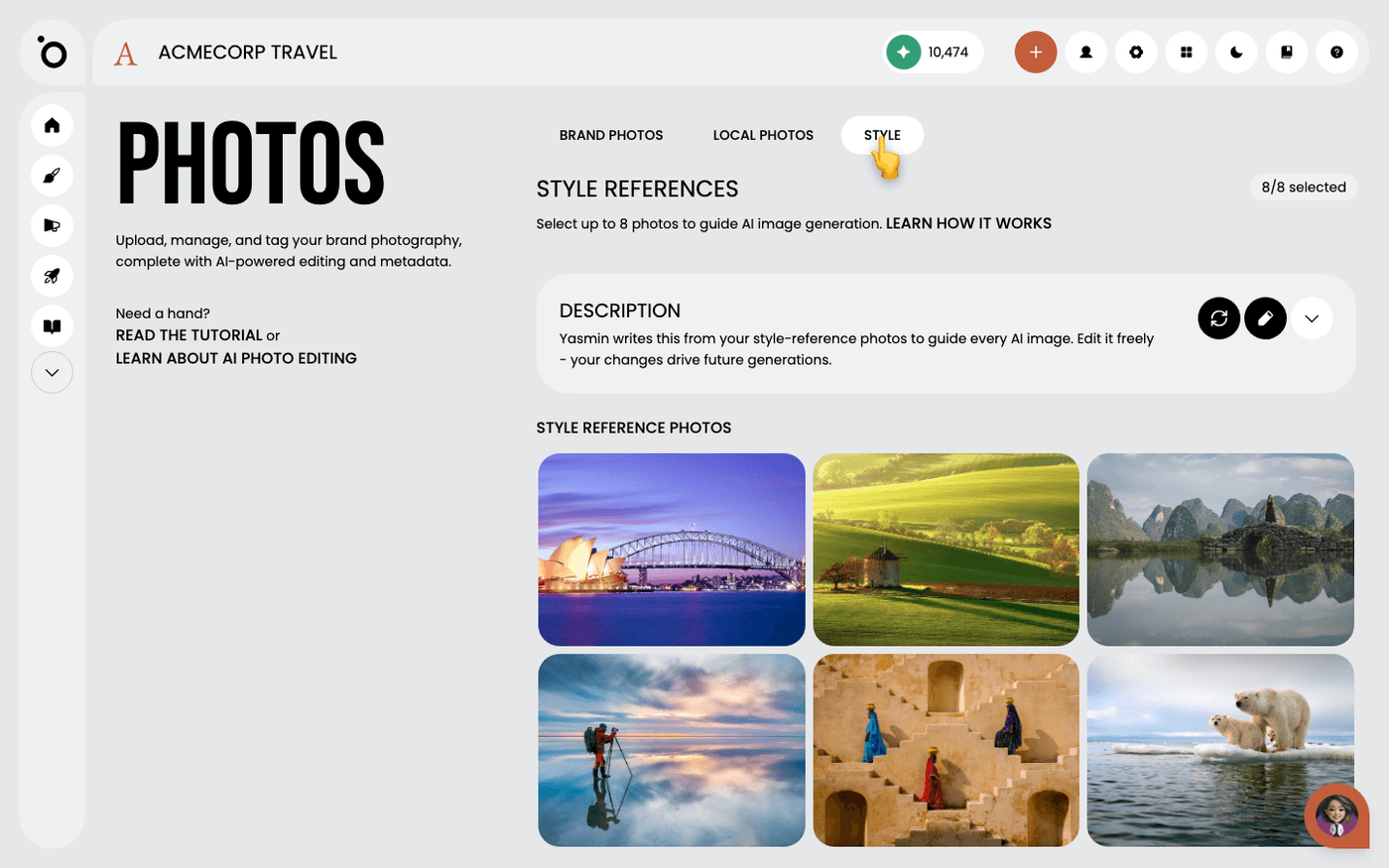
Open the Style tab. It shows all your references in one place. Ask yourself if they look like one brand. If one does not fit, open it and choose Remove style reference.
Refresh the style description
Above your references is the style description. Protaigé writes it from your reference photos, and uses both together to create every image. When you change the set, read the description again. If it still describes the old photos, press Refresh. If you have edited the description yourself, Refresh replaces your edits, and asks you to confirm first.
From now on, every image Protaigé creates for your brand follows these photos. Change them whenever your photography changes, then check the description again.