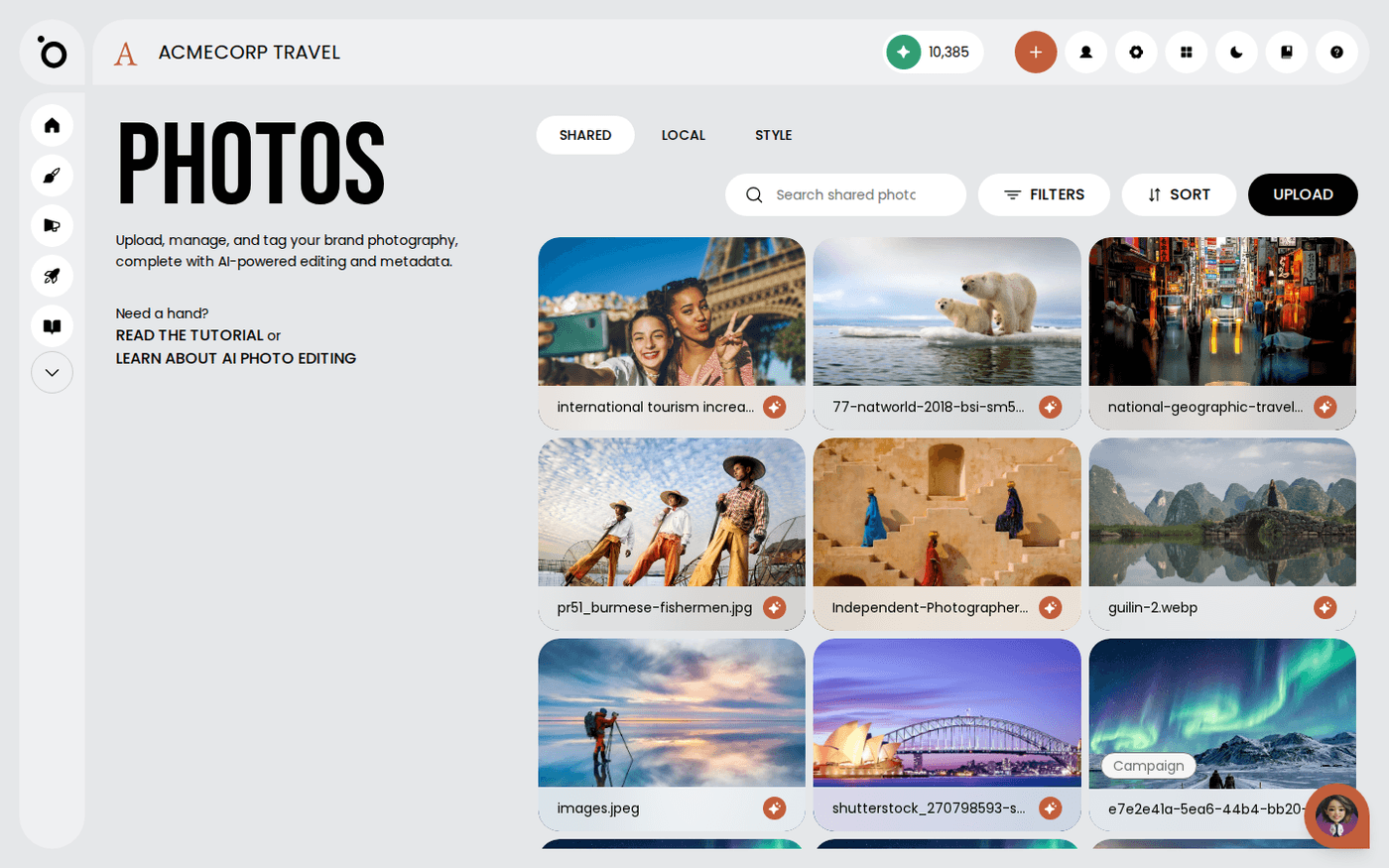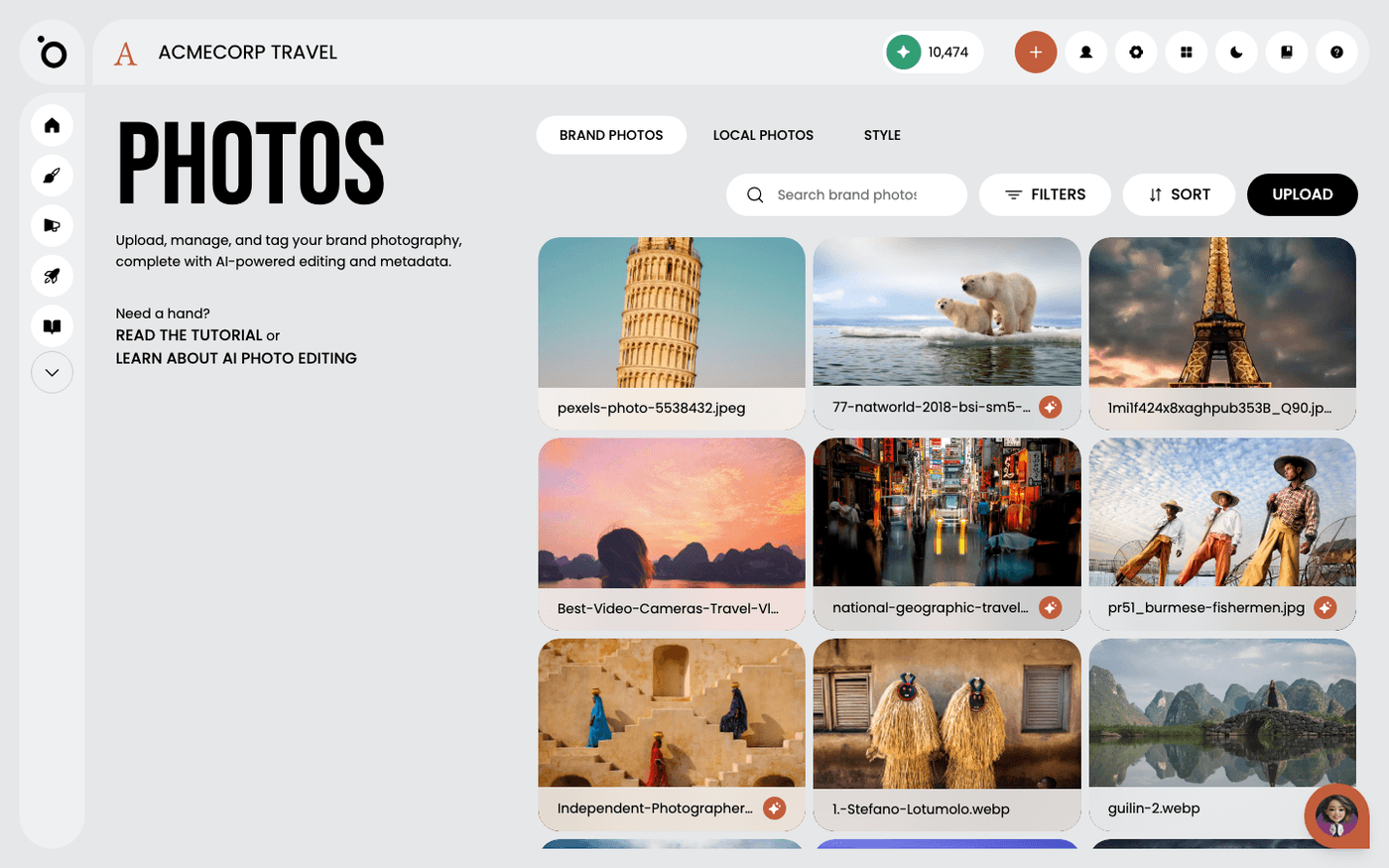
In short: Brand DNA → Photos → Shared tab → open a photo → three-dots menu → Edit with AI. Describe the change and press Apply Edit.
Your photos do not always fit the layout you need. You can change a photo inside Protaigé with a written instruction, for example a new background. You do not need another app.
The edit is saved as a new photo. Your original stays as it was.
Find Edit with AI
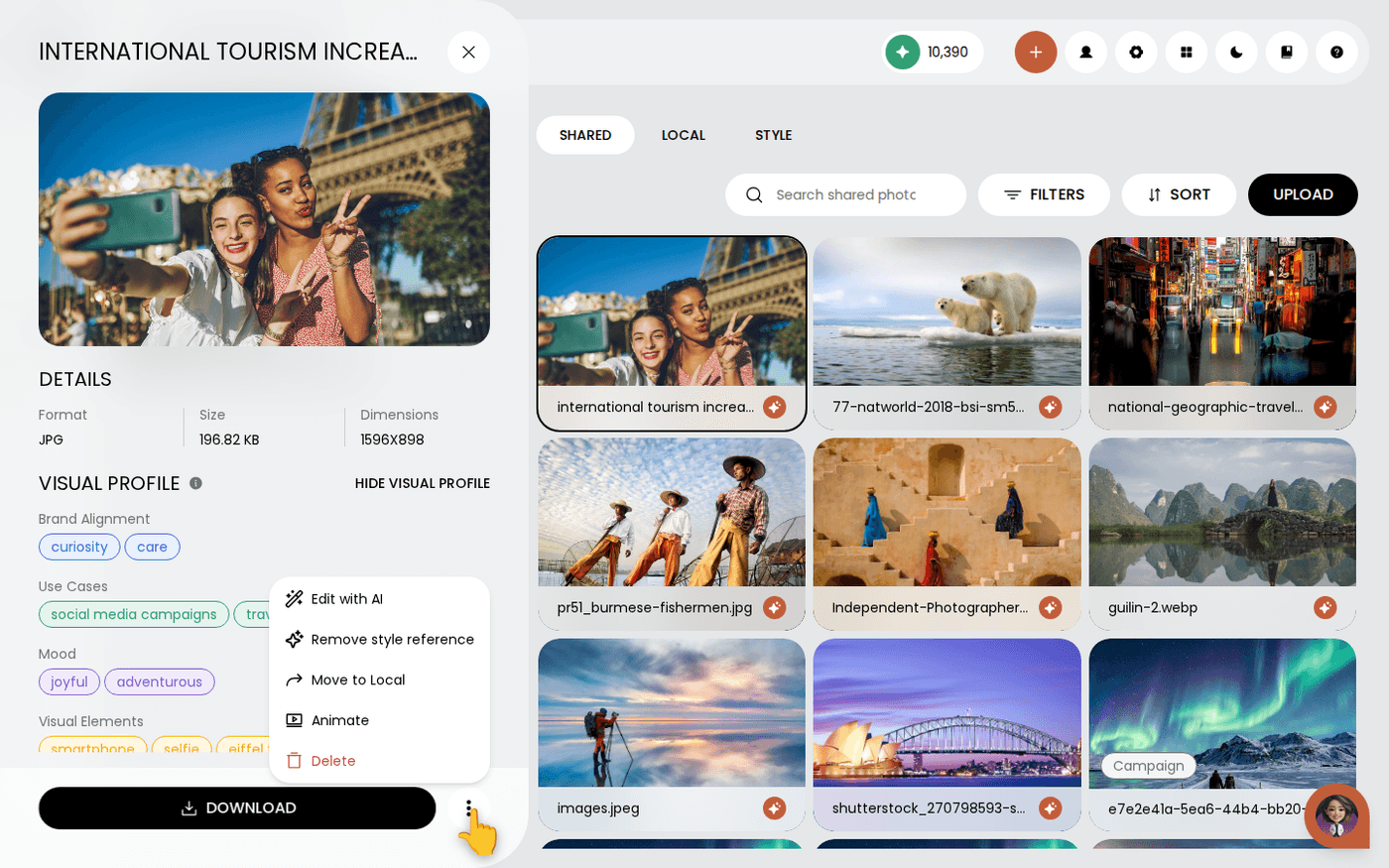
Open Brand DNA, then Photos. In the Shared tab, click a photo to open its detail panel. Press the three-dots button beside Download. Choose Edit with AI. Photos in the Local tab do not have this option. Move them to Shared first.
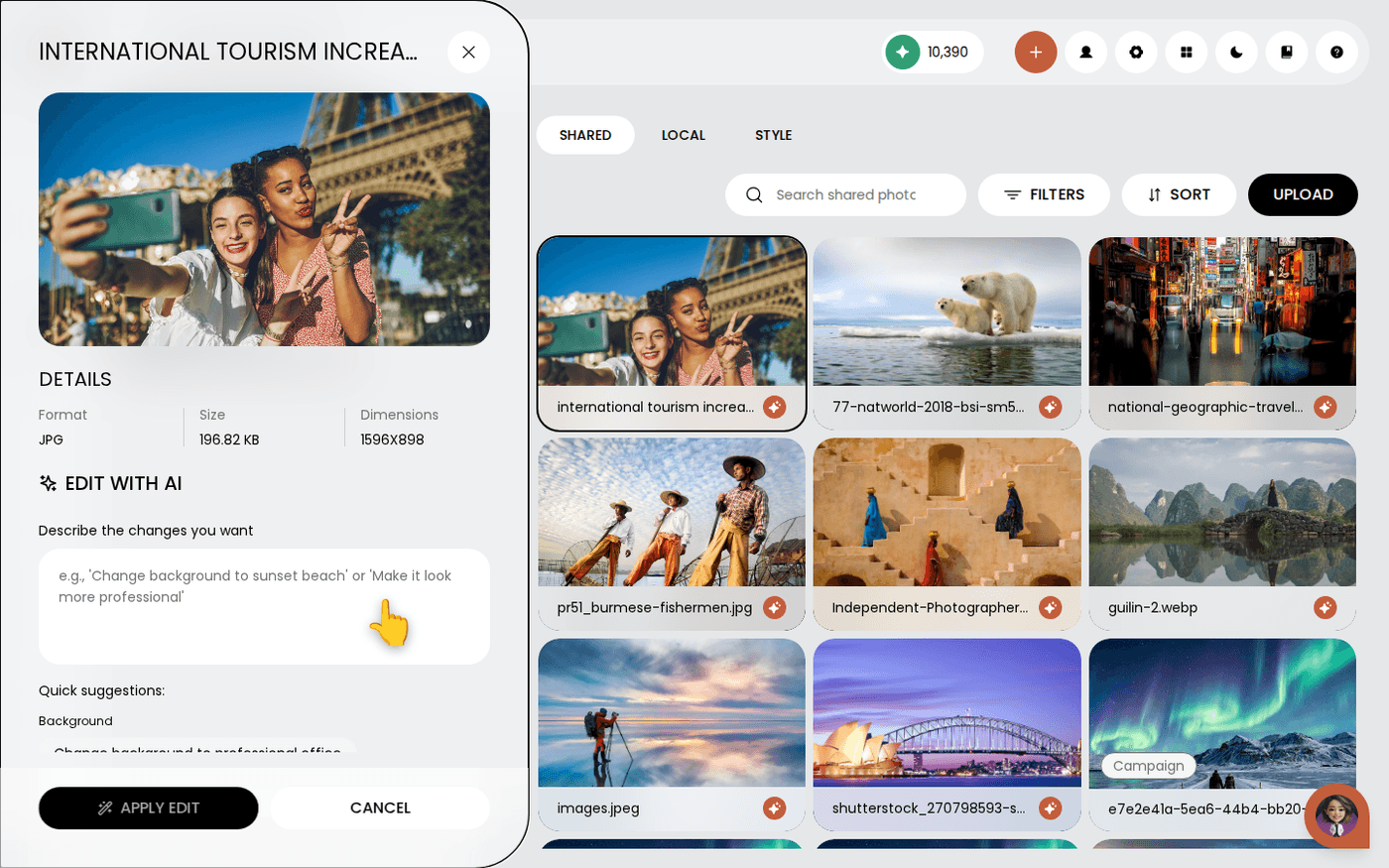
Describe the change
Type what you want in plain words, for example 'Remove background completely'. Or pick one of the Quick suggestions under the box. You can also choose a style, such as Photorealistic or Watercolor.
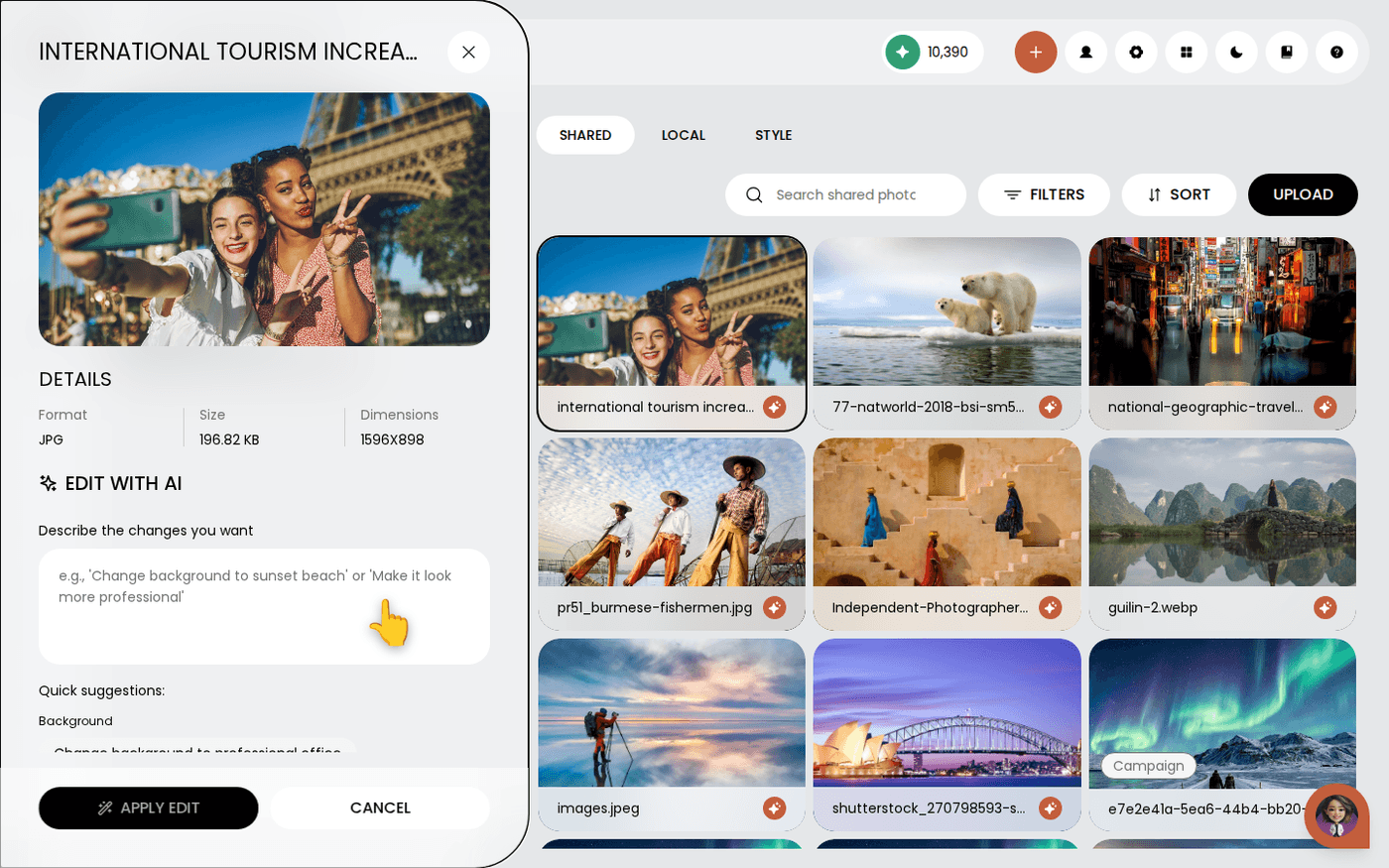
Apply the edit
Press Apply Edit. Protaigé takes 15 to 30 seconds. The edited photo is saved to your library.
Keep the original
The edit is a new photo. Your original is not changed. An edit made for one campaign does not affect the next.
Edited photos stay in your library, so every campaign and sketch can use them.
Last updated 29 September 2026