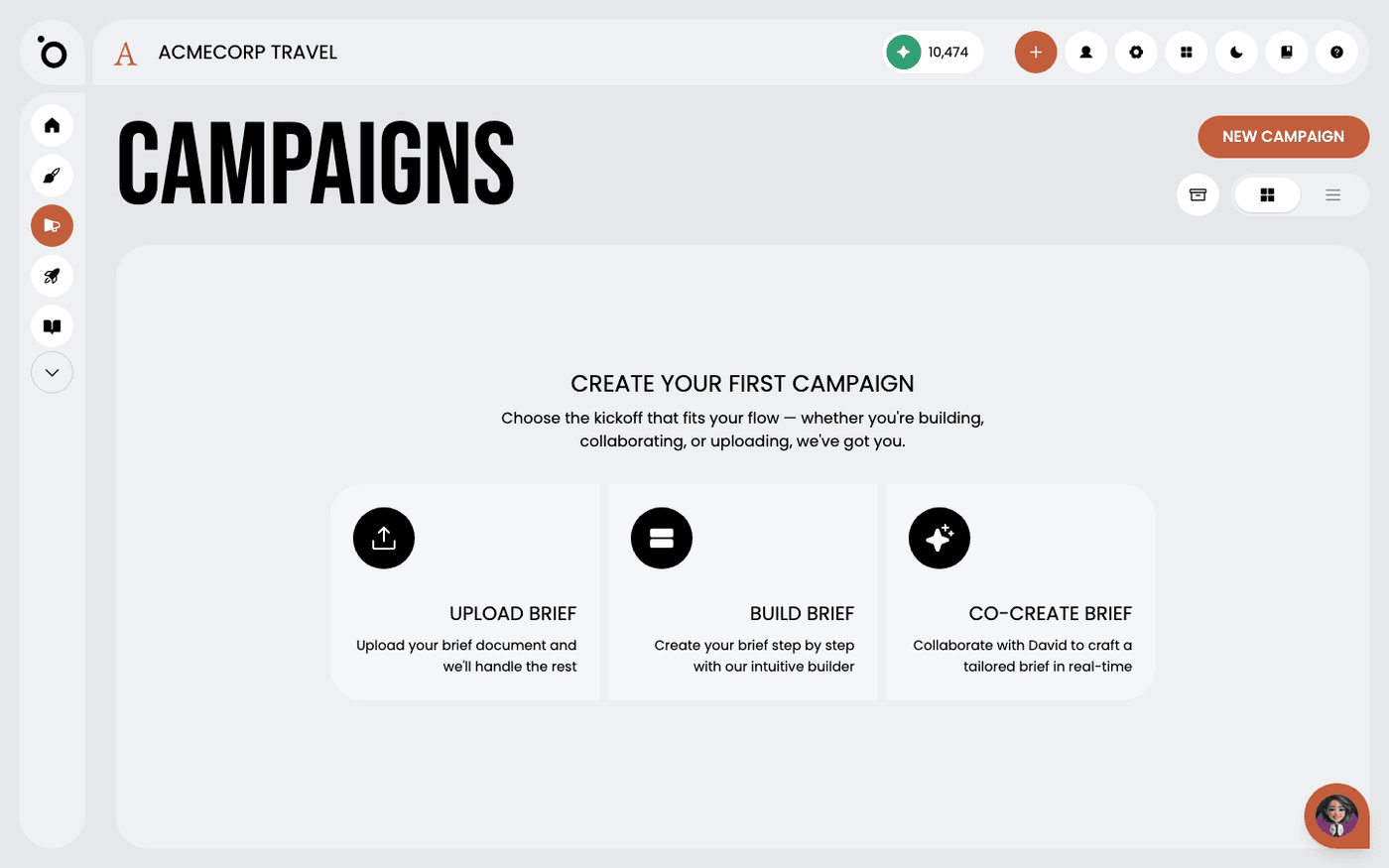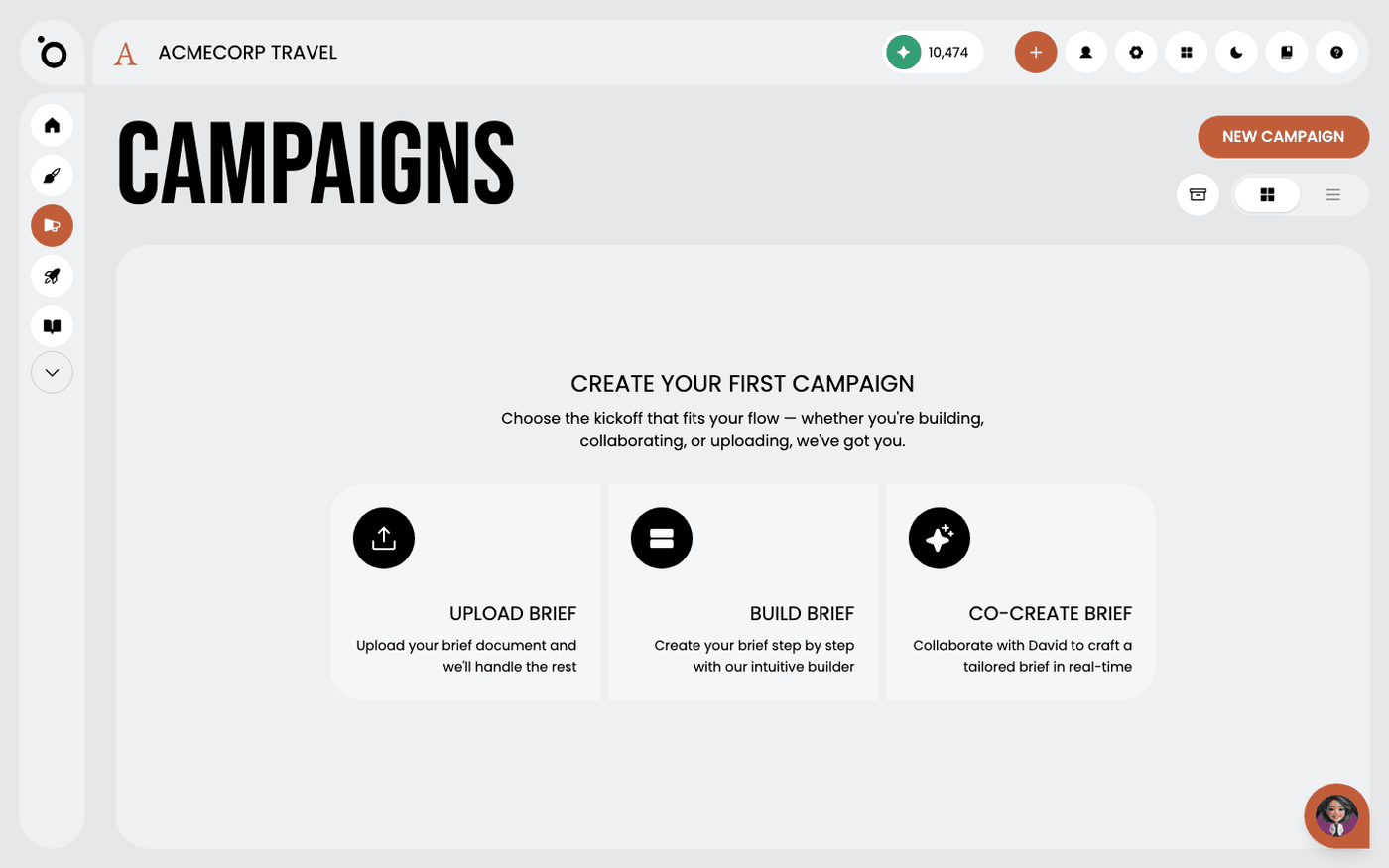
In short: Open the campaign → Key Visuals → Create Key Visual. Edit the layout, then press Generate Banners.
A key visual is your message and your image in one layout. Every other format in the campaign is made from it, so it deserves more care than any single banner.
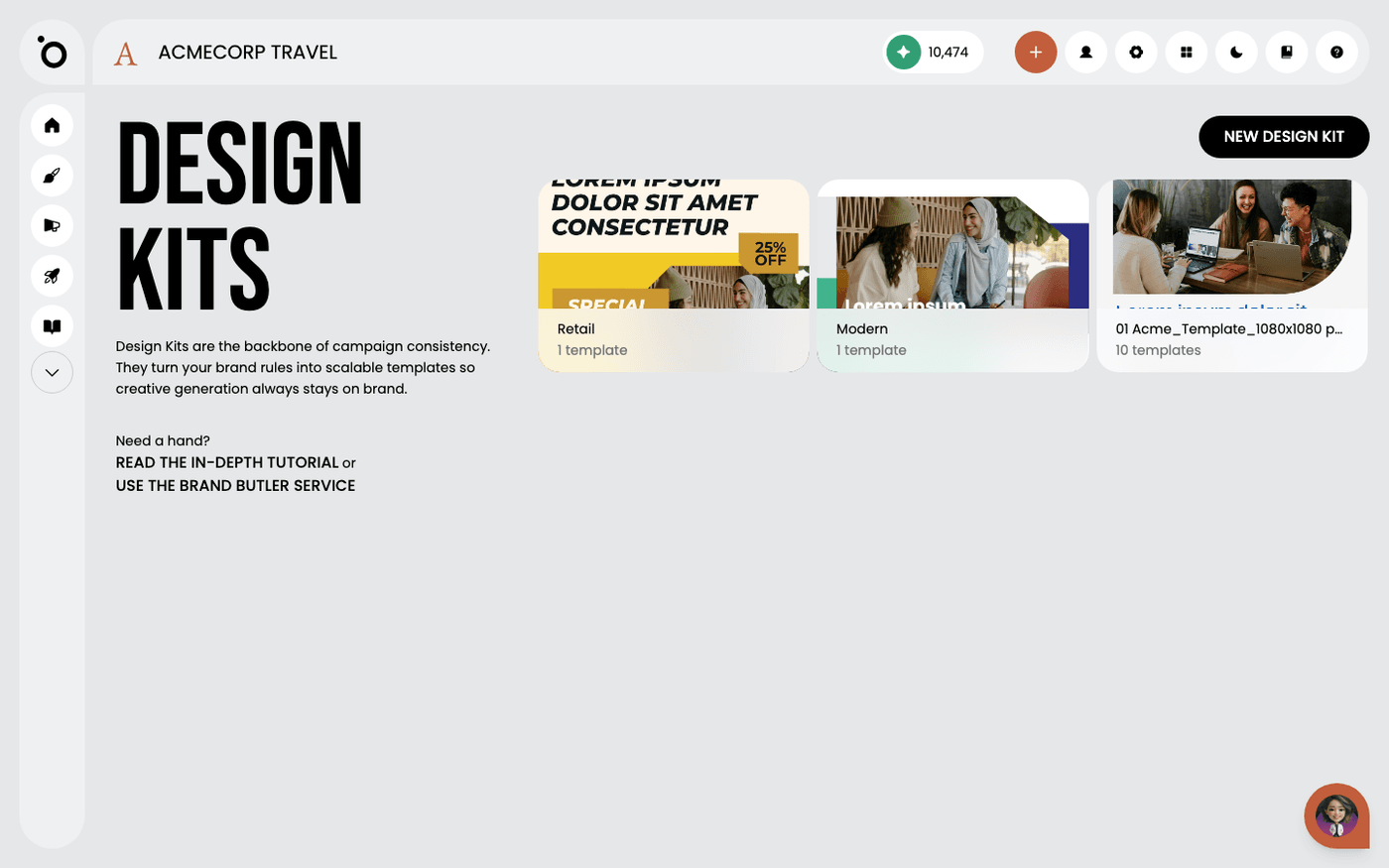
Your design kit decides the type, colours and spacing. A good kit makes the key visual look designed, not assembled. About four minutes.
Open the editor
On the Key Visuals stage, press Create Key Visual. The Key Visual Editor opens with your hero copy and hero image already placed in your design kit.
Judge it as the parent, not as one banner
Ask whether the layout still works as a square, a story and a wide banner. It will have to. Move or resize the text and image until it does.
Fix it before you scale it
A change here takes a minute. The same change across a dozen banners takes an hour. Press Save Draft if you want to come back later. Drafts wait on the Assets stage.
Generate the formats
Press Generate Banners. Protaigé makes every format in your design kit from this layout. Review the set, then press Approve. The set appears on the Key Visuals stage with a Keyframe badge.
Each key visual card has two hover buttons. Clone this set opens a copy in the editor so you can make a second version. Create video turns the key visual into a video. When the key visual is right, the rest of the campaign follows from it.
Last updated 12 August 2026