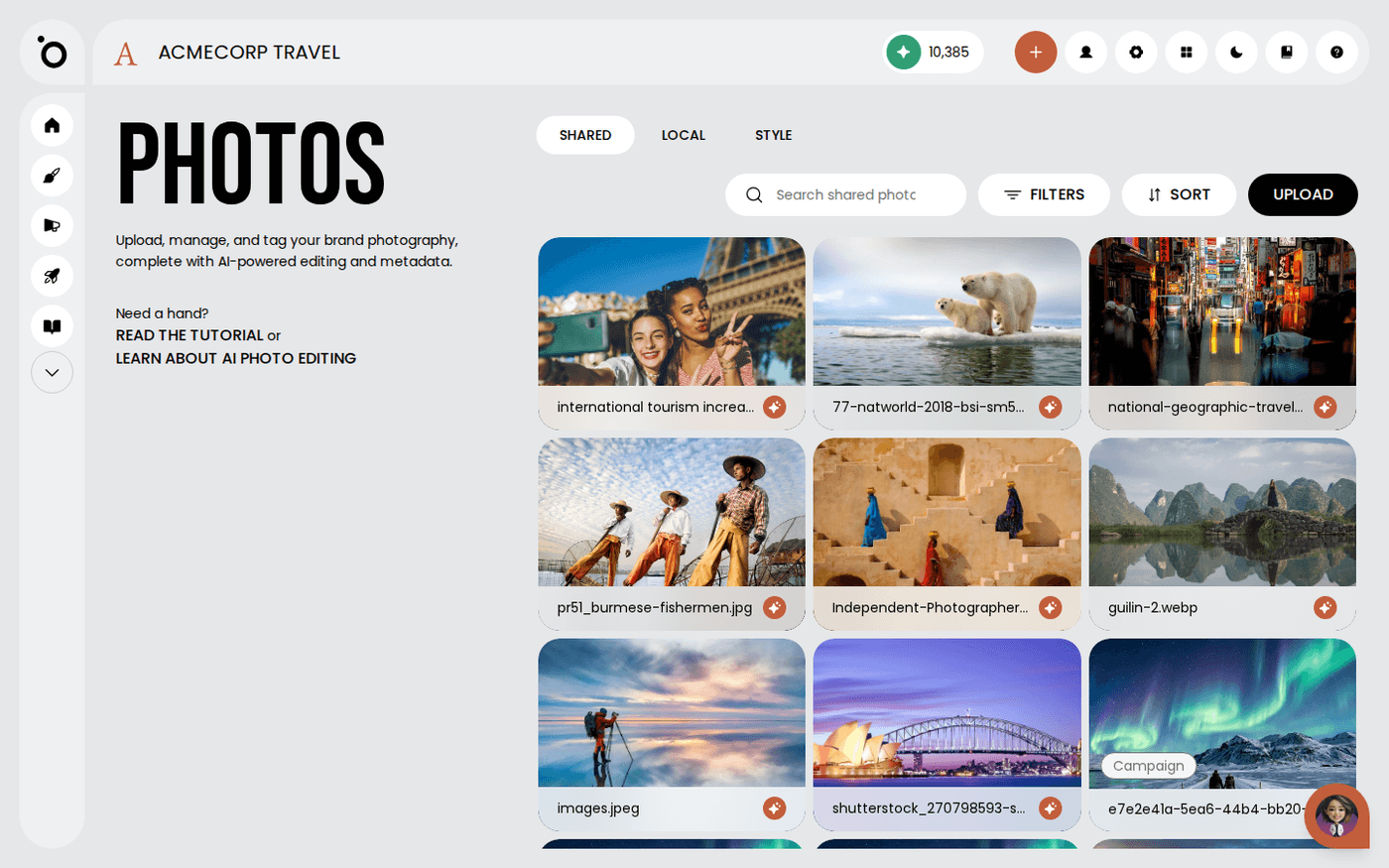
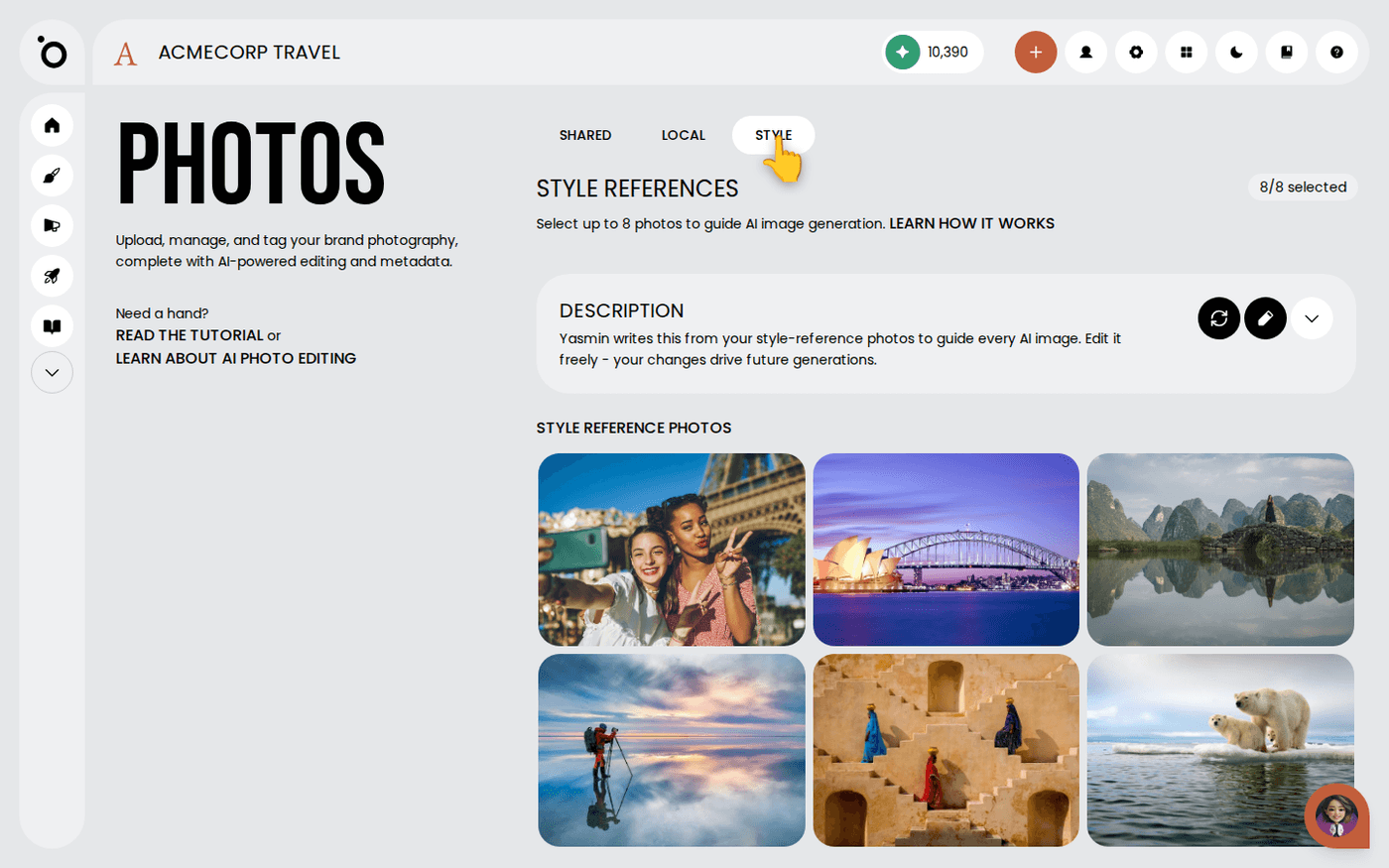
In short: Brand DNA → Photos → search. Type any word from the filename, the subject or the prompt.
Your photo library grows fast, and filenames stop helping. Protaigé now describes every image that enters your library, so you can search for what is in the picture instead of what the file is called.
Search looks at three things at once: the filename, the photo's tags and, for images Protaigé made for you, the prompt they were generated from.
Search your photos
Open Brand DNA, then Photos. Type a word or two into the search. Protaigé matches every word of your search against the filename, the tags and the generation prompt.
Read the order of the results
The closest matches come first. Filename matches and exact tag matches lead the list. Partial tag matches and prompt matches follow them.
Find images Protaigé generated for you
Every image Protaigé generates gets tags taken from the prompt behind it. You can also search for words from the prompt itself. Nothing to tag by hand.
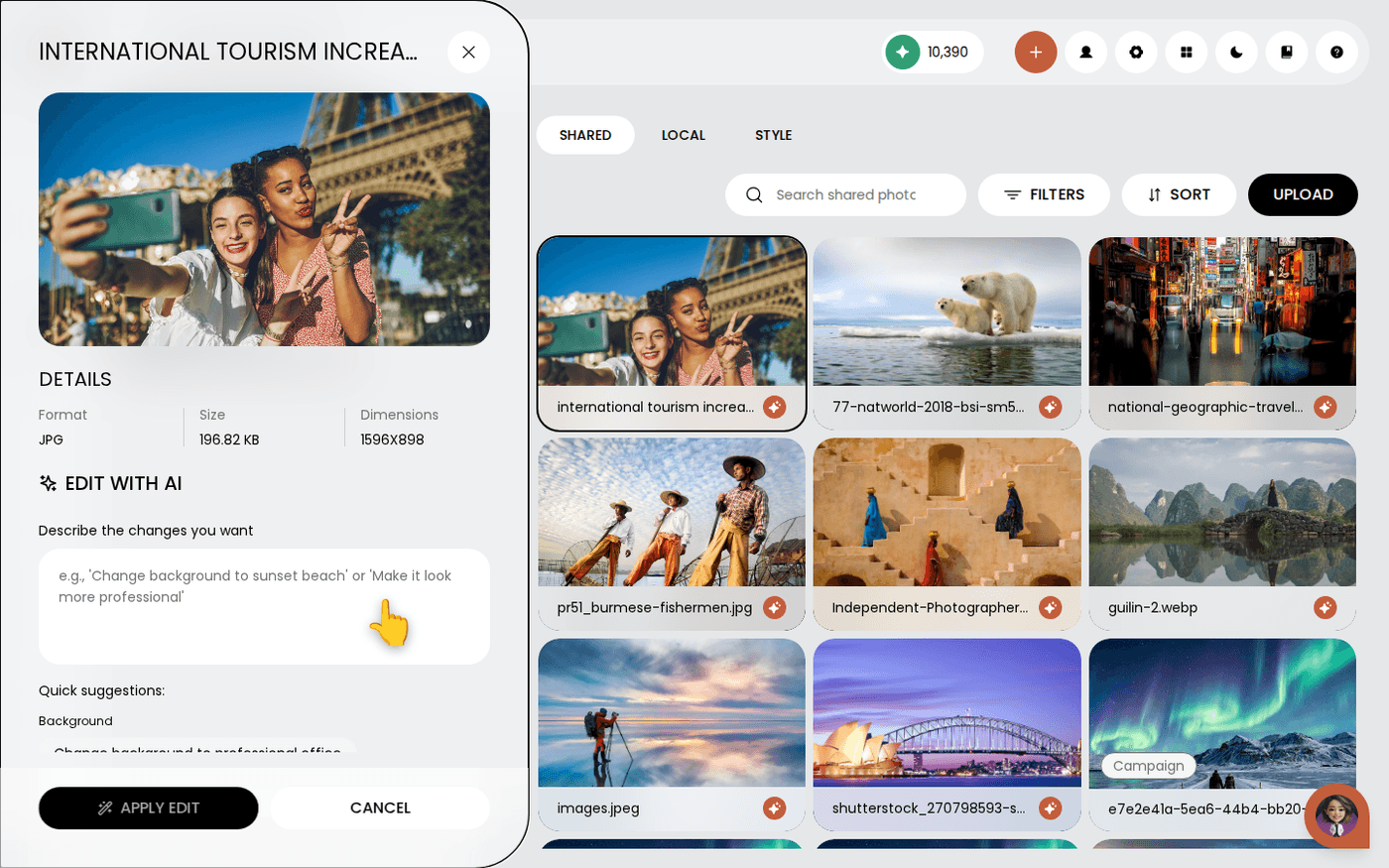
Find an edited version of a photo
When you edit a photo, the new version keeps the tags of the photo it started from. So the edit answers the same searches as the original.
Find photos you uploaded or saved from stock
Uploads and stock photos you save to your library are described by image analysis. That gives them tags for the subject, mood and visual elements, so they are searchable too.
Ask Maia instead
Maia is your AI account director. Ask her to find a photo in your brand library and she searches it exactly the same way.
Tagging runs in the background just after an image is saved. Give a brand new image a moment before you search for it.