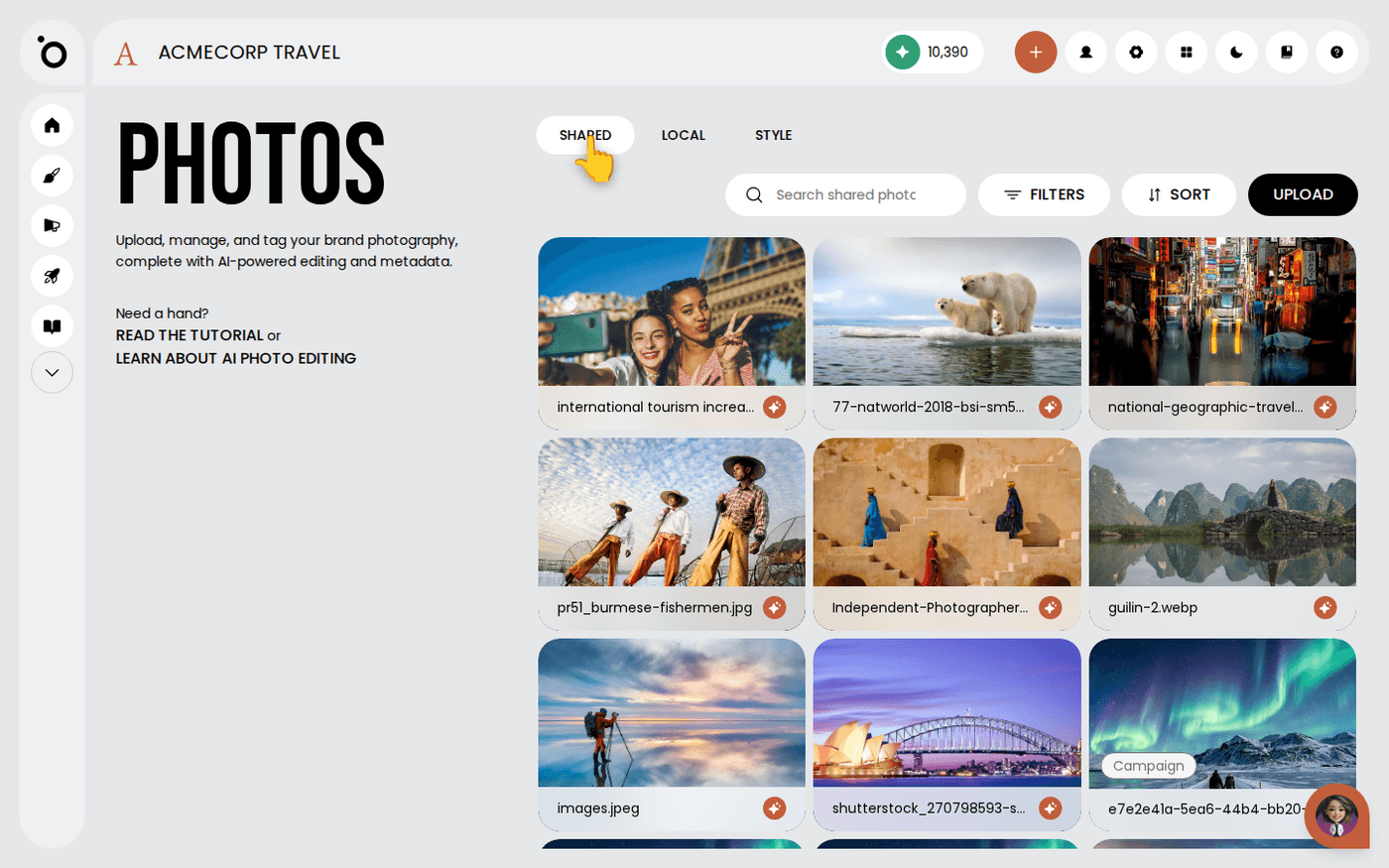
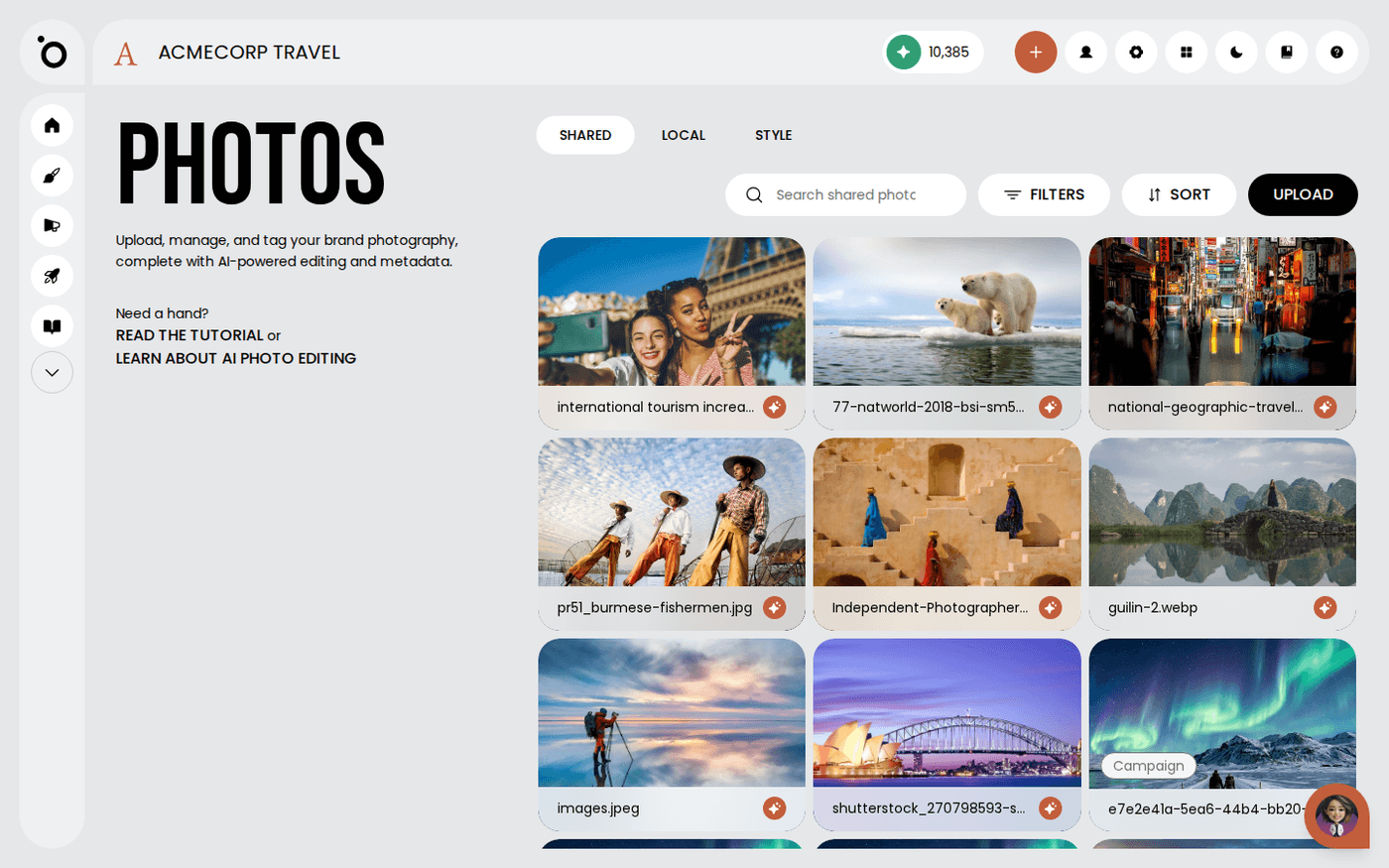
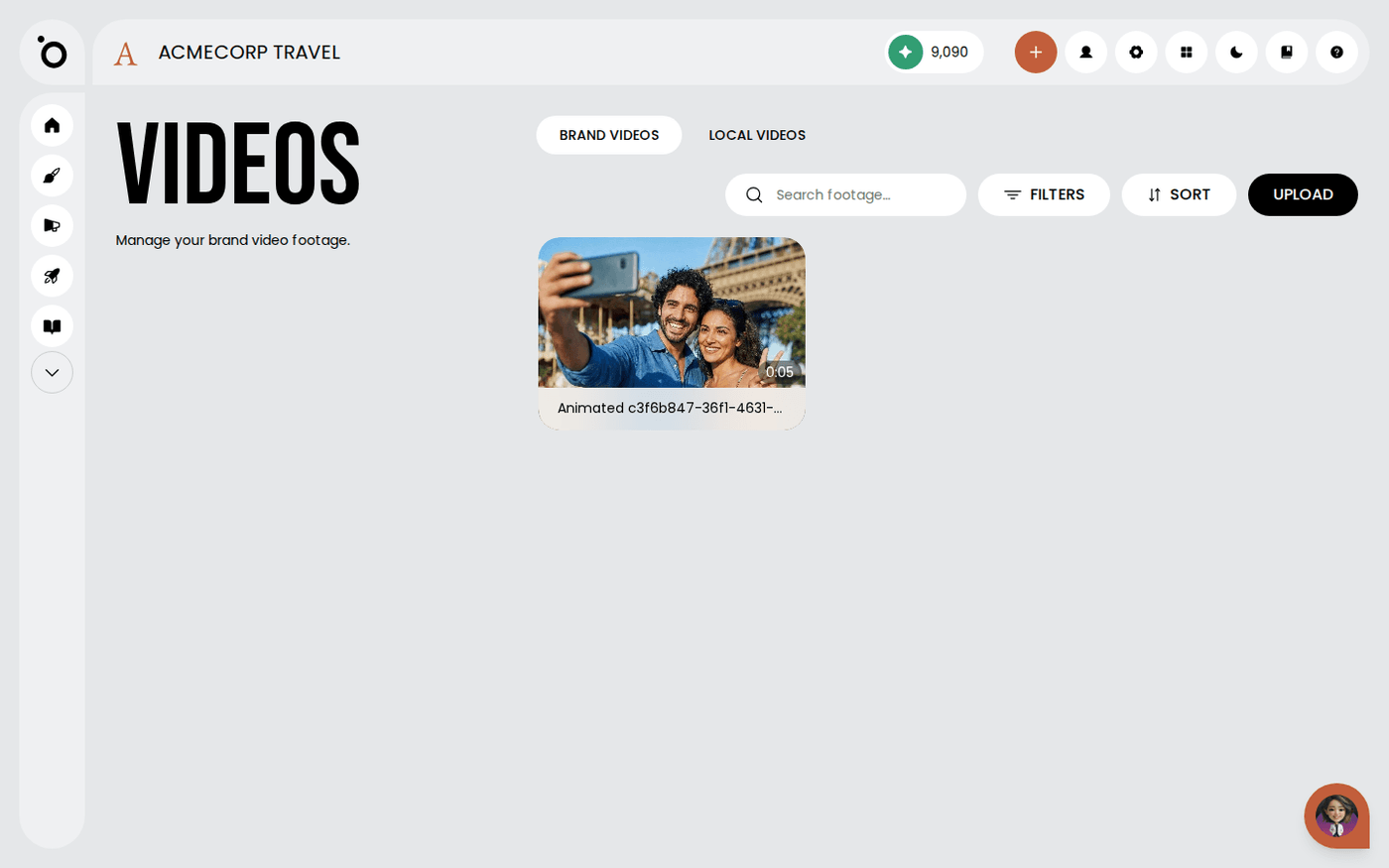
In short: Brand DNA → Photos, Videos or Audio → Shared tab → Filters → Origin. Switch off the origins you do not want to see, then press Apply.
Your Shared library holds assets from several places. Some you uploaded. Some were made in a campaign, in Sketch, or in Flicks, which makes videos. Once the library is large, the useful question is often where an asset came from.
Each card answers that with a small grey chip. The Filters drawer lets you hide whole groups at once.
Read the chip on the card
A card in the Shared library shows one grey chip: Campaign, Sketch or Flicks. It tells you where the asset was made. Audio rows show the same chip beside the file name. A card with no chip was uploaded straight to Shared.
Open Filters and find Origin
Open Brand DNA, then Photos, Videos or Audio. In the Shared tab, press Filters. The Origin section is at the top. It has four switches: Campaign, Sketch, Flicks and Uploaded. Click the section title to open it.
Switch off what you do not want to see
All four switches start on. Switch one off to hide those assets. Press Apply. For example, switch off Campaign and Sketch to see only your own uploads and Flicks assets.
If the grid goes empty
If you switch every origin off, there is nothing to show. The library tells you: 'Every origin is switched off in Filters, so there is nothing to show.' Switch one back on, or press Clear Filters to see everything.
Press Apply to make it stick
Your changes reach the grid only when you press Apply. If you close the drawer first, your changes are dropped. The next time you open it, it shows what the grid is showing.
The Local tab has no Origin section
Origin only applies to the Shared library. Assets in your Local tab have no origin, so that tab's Filters drawer does not show the section.
An asset made in a campaign or in Sketch already carries its chip when it appears in Shared. Use the chip to find it again.