In short: Key Visuals → Create Key Visual → Generate Banners → Approve. The full set lands on the Assets stage.
This is the step that saves you a day. You lay out one key visual. Protaigé makes every other format in your design kit from it, each fitted to its own size.
Every banner comes from the same parent, so the set is consistent by default. About four minutes.
Generate the set
In the Key Visual Editor, press Generate Banners. Protaigé builds one banner per format in your design kit, adapted to each size rather than stretched. A preview opens so you can review or edit the designs before export.
Check the awkward sizes first
Tall and wide formats strain a layout most. Look at the narrowest and the widest banner before the rest. If one is wrong, press Return to editor and adjust the key visual.
Fix at the parent
A change to the key visual carries into every banner made from it. That beats fixing the same thing a dozen times.
Approve the set
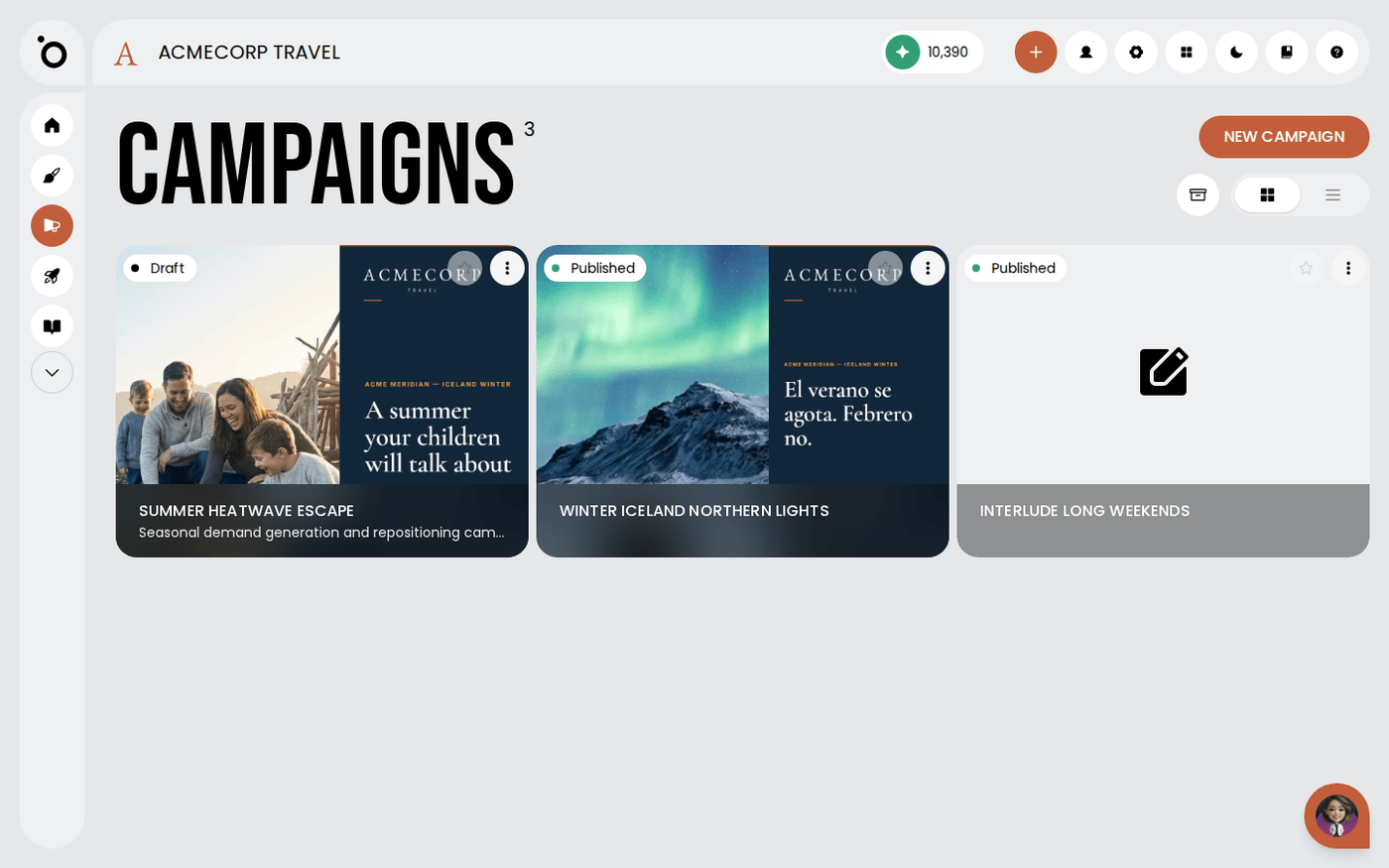
Press Approve. The set moves to the Assets stage. Each group shows its key visual with a Keyframe badge and the banners made from it.
The result is a full campaign kit that matches because it was never assembled by hand. Press Download All on the Assets stage to get every banner as a zip file.
Last updated 12 August 2026