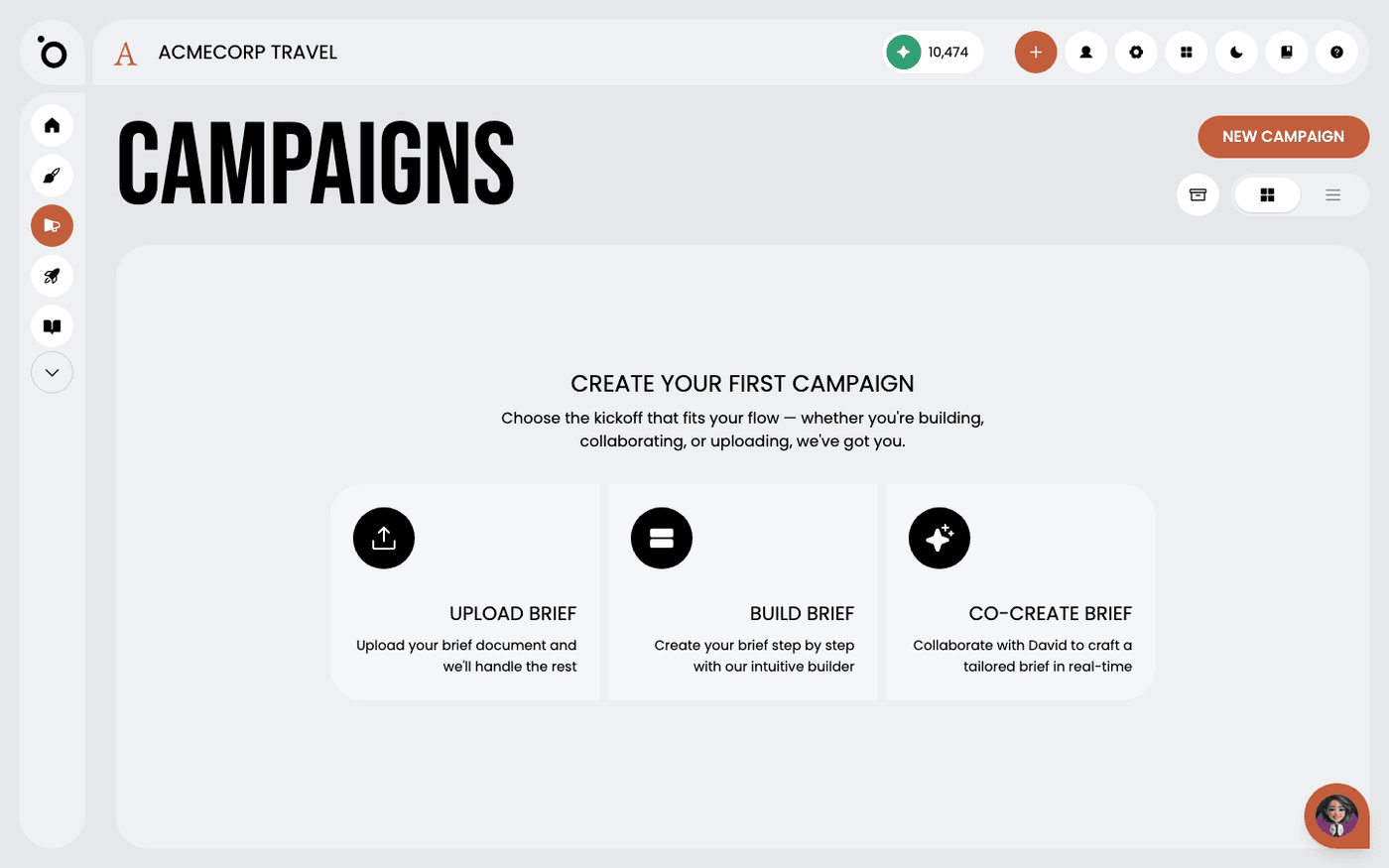
In short: Open the campaign → Assets → Download All. For the words, press Copy on the Brief stage or Copy All Content on a tactic.
Exporting is the last step. What you need depends on where the work goes next. That may be a designer, a scheduling tool, or a social channel.
Banners download from the Assets stage. The words live on the Brief stage and in each tactic. About three minutes.
Approve before you export
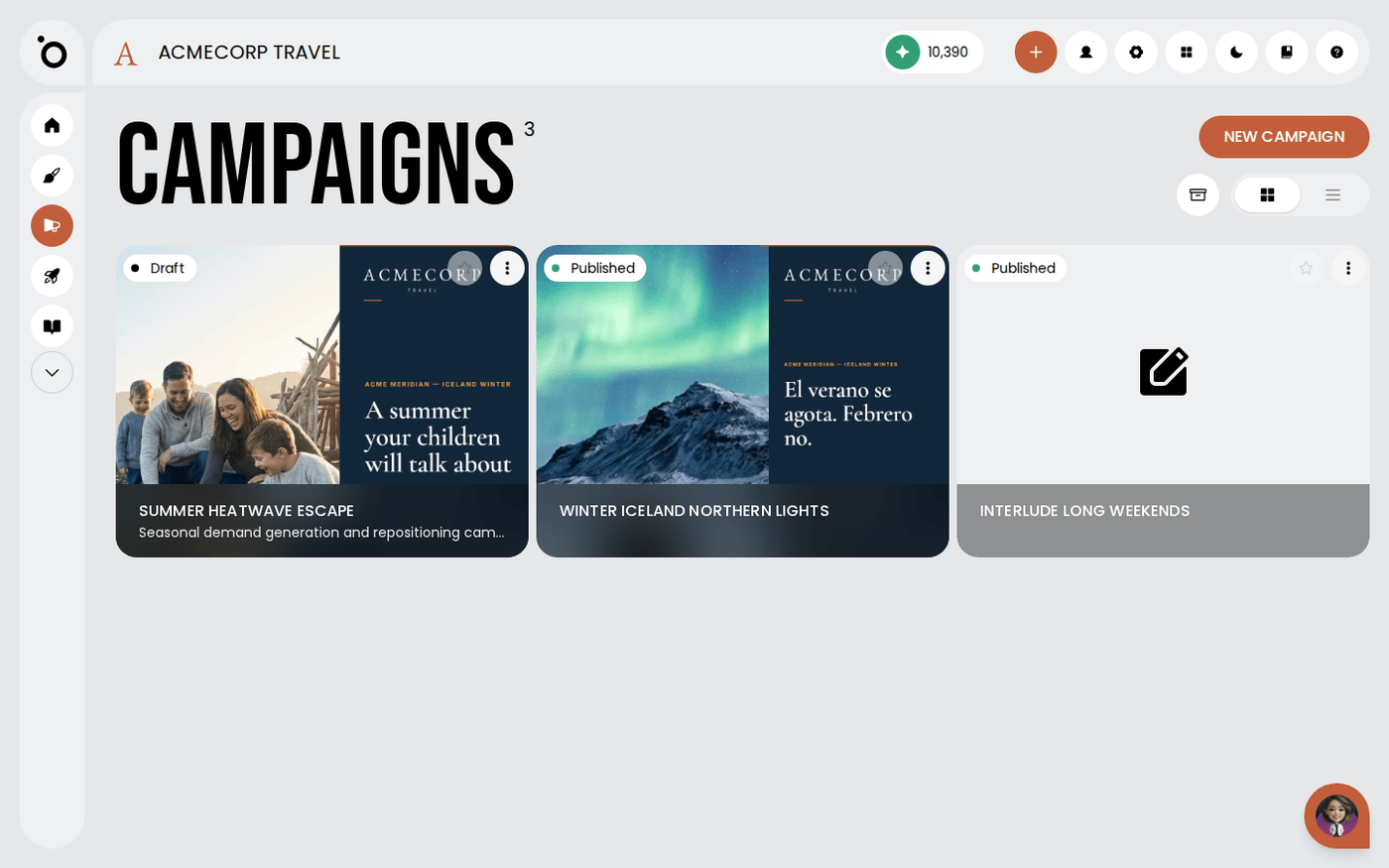
Only approved sets appear on the Assets stage. Anything still in the editor is a draft and waits behind the Drafts button. Approve a set before you download it, or you will ship a draft.
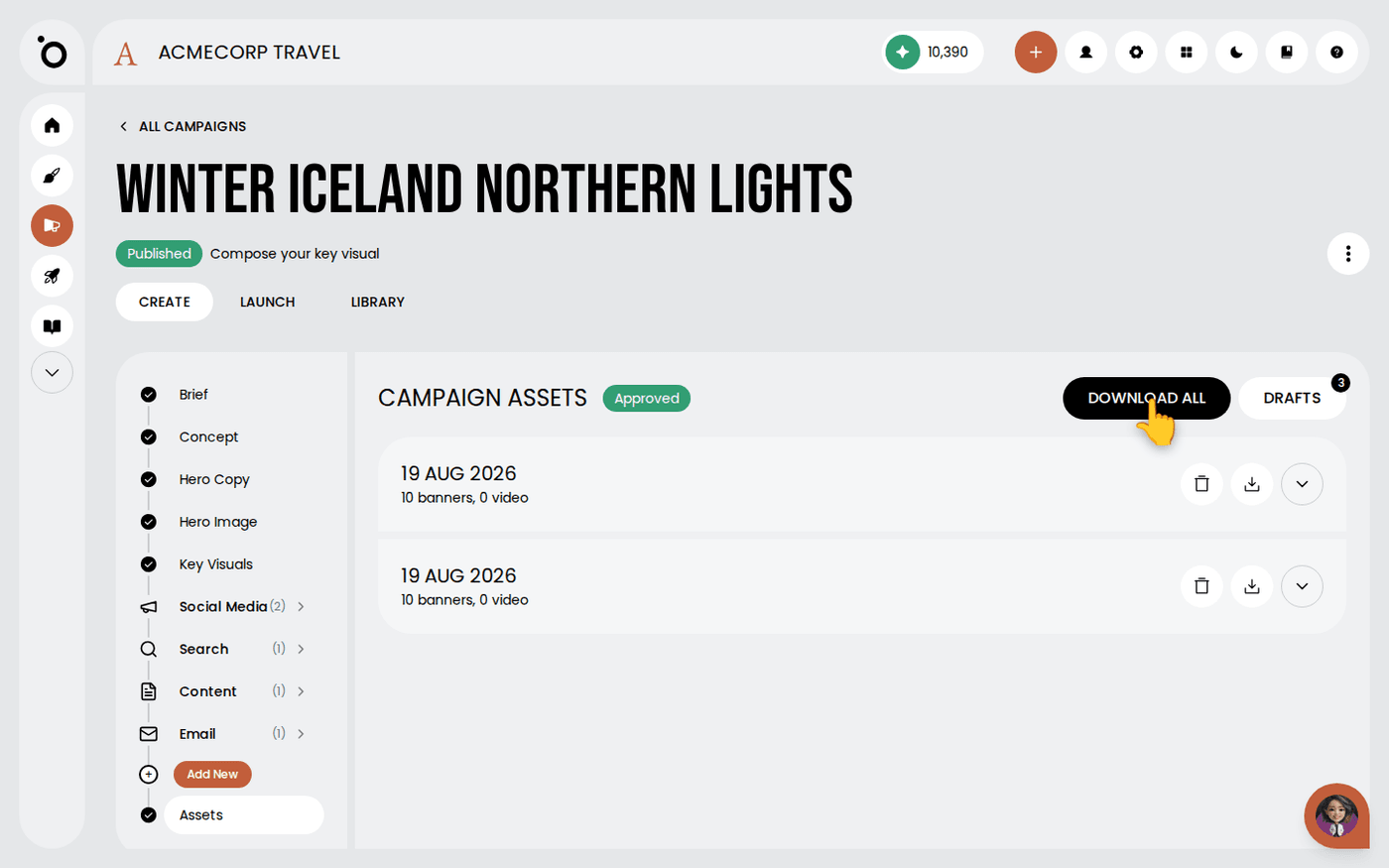
Download the banners
Open the Assets stage. Press Download All to get every approved banner as a zip file. Inside, each key visual set has its own folder. Banners are PNG files, and any videos sit in a Video subfolder. To take only some, select the banners you want and press Download.
Take the copy as well
The person scheduling the work needs the words too. On the Brief stage, press Copy or Download to take the brief. On a tactic, press Copy All Content to copy the whole piece, or the copy button beside one field.
Or publish without exporting
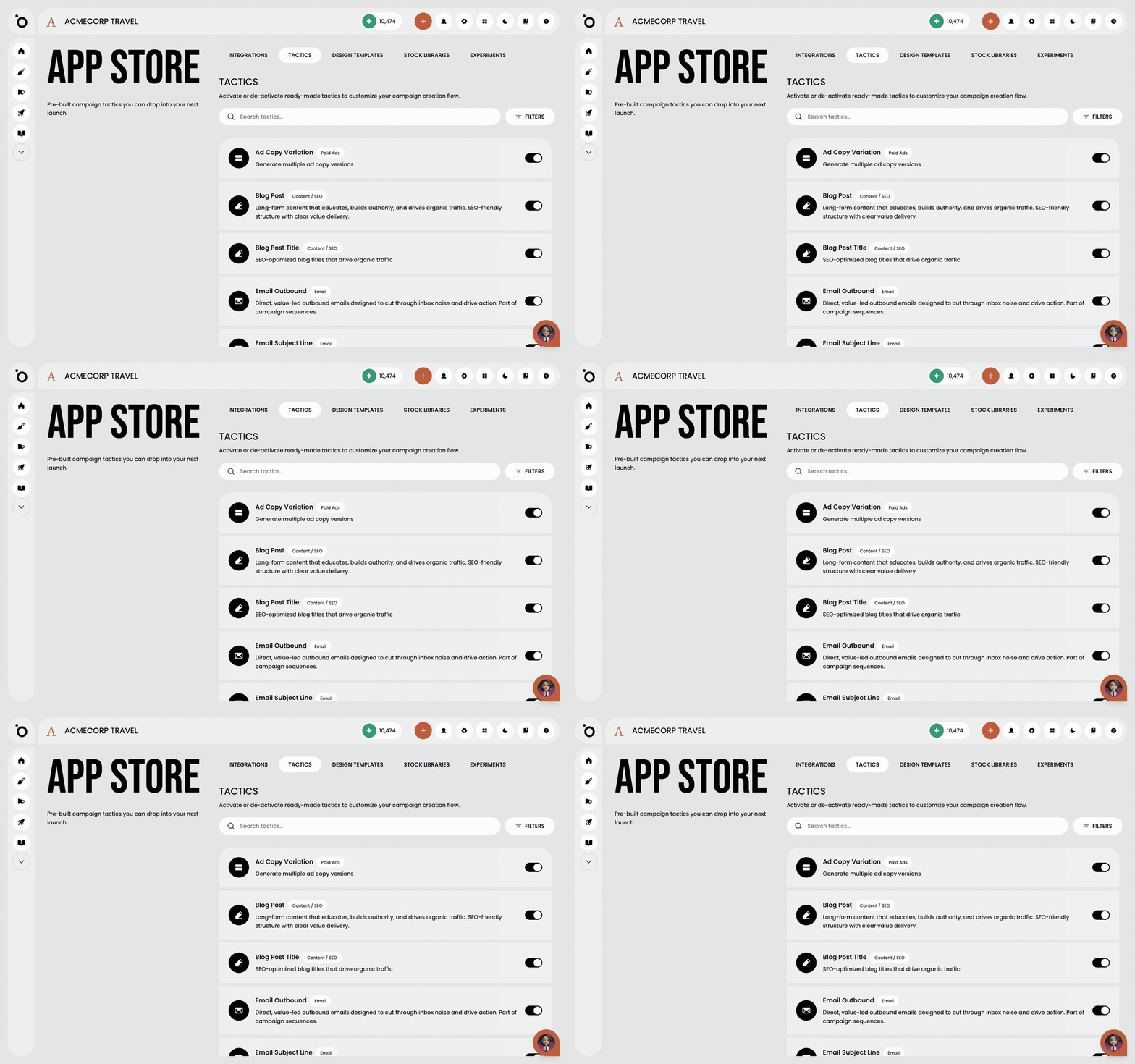
A social tactic can go straight to a connected channel. Press Generate Visuals on the tactic, then Publish to post now or schedule it. Connect channels in the App Store first, under Integrations.
If your channels are connected, you may not need to export at all. Publish from the tactic and watch the results in Launchpad.
Last updated 29 September 2026