The Protaigé Academy
/
Protaigé Academy
/Cloning campaign assets
Cloning campaign assets

Cloning campaign assets

What you'll learn

Clone an existing kit to test variations

Series
4.11
Section
Campaigns
Last Updated
Feb 4, 2026 9:39 PM
Status
Live
icon
Previous Tutorial
icon
Next Tutorial

TL;DR

Open your Key Visual → Click the Clone button → Make edits → Apply to the rest of the kit → Download in Assets

Cloning a kit lets you quickly create a new version of your campaign for A/B testing or creative variation. It is a fast way to explore new directions such as different headlines, hero images, or layouts without starting from scratch.

When you clone a kit, Protaigé duplicates the full set of assets, layouts, and linked components while preserving the strategic and design decisions made in your source design. Any assets that exist in the original source Key Visual are duplicated in the cloned version.

If certain child formats were deleted from the original kit, they will not appear in the cloned kit either. To create a completely new Key Visual kit for the same campaign, start again from Creating key visualsCreating key visuals and follow the creation flow from the beginning.

A step-by-step guide

image

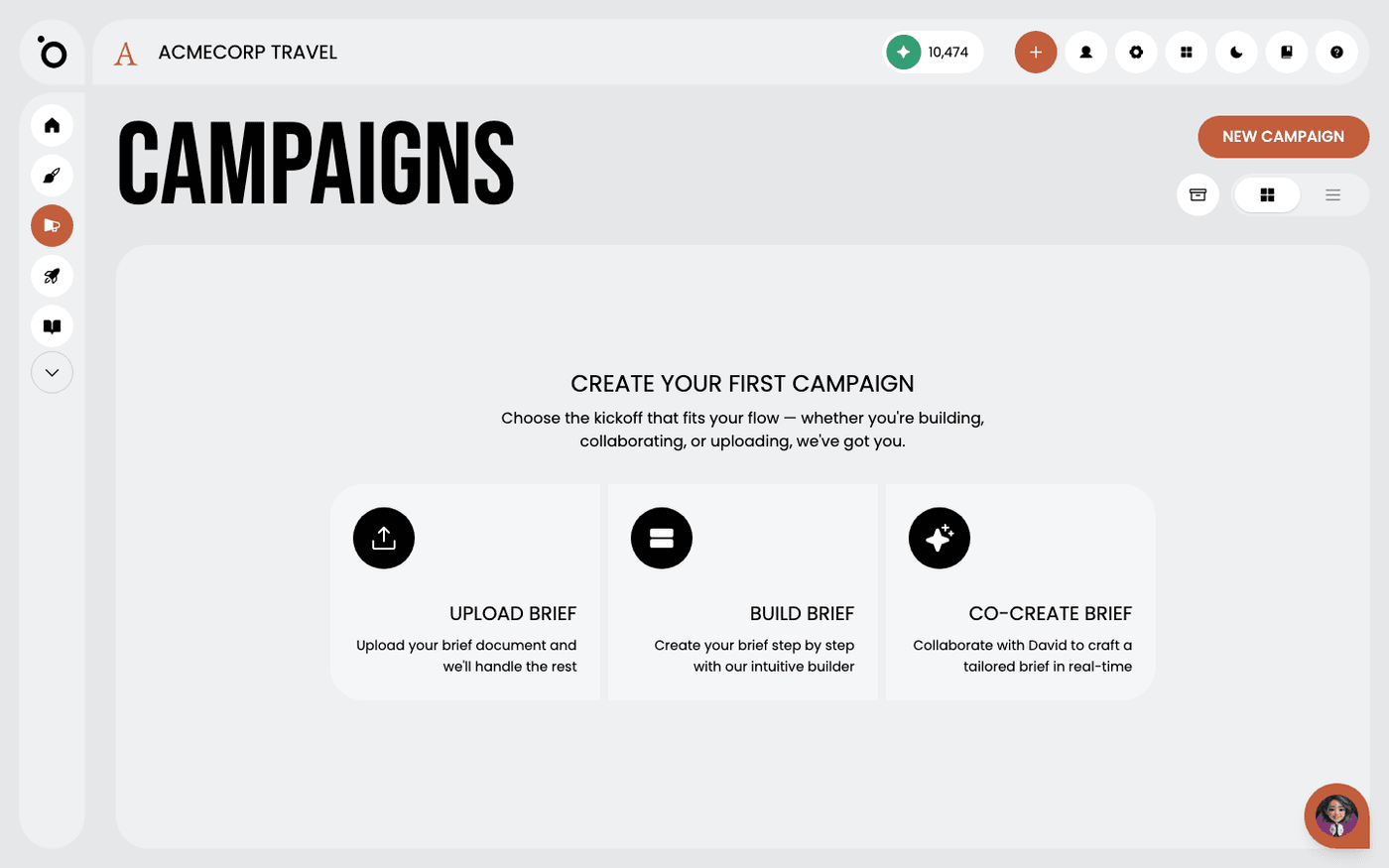
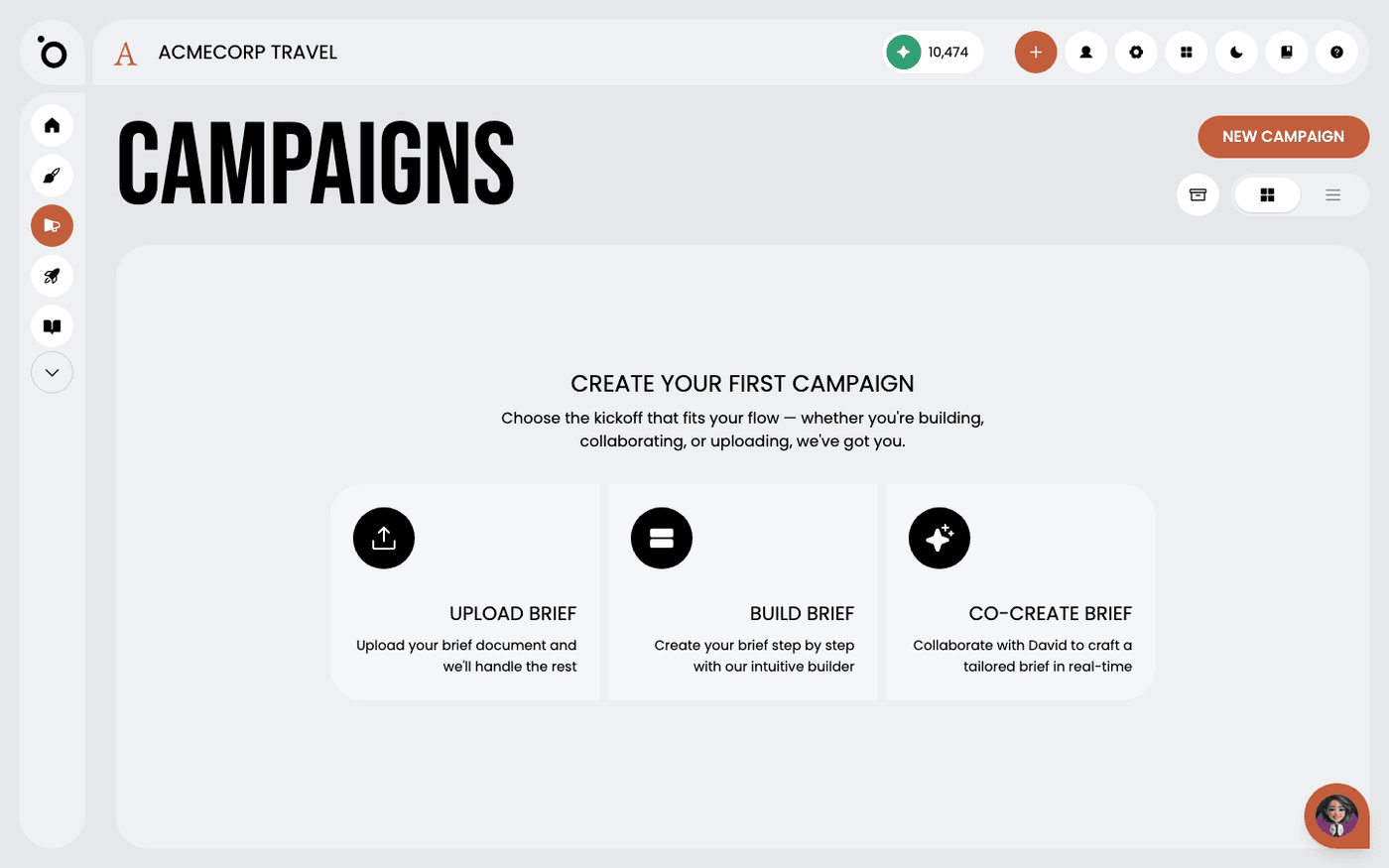
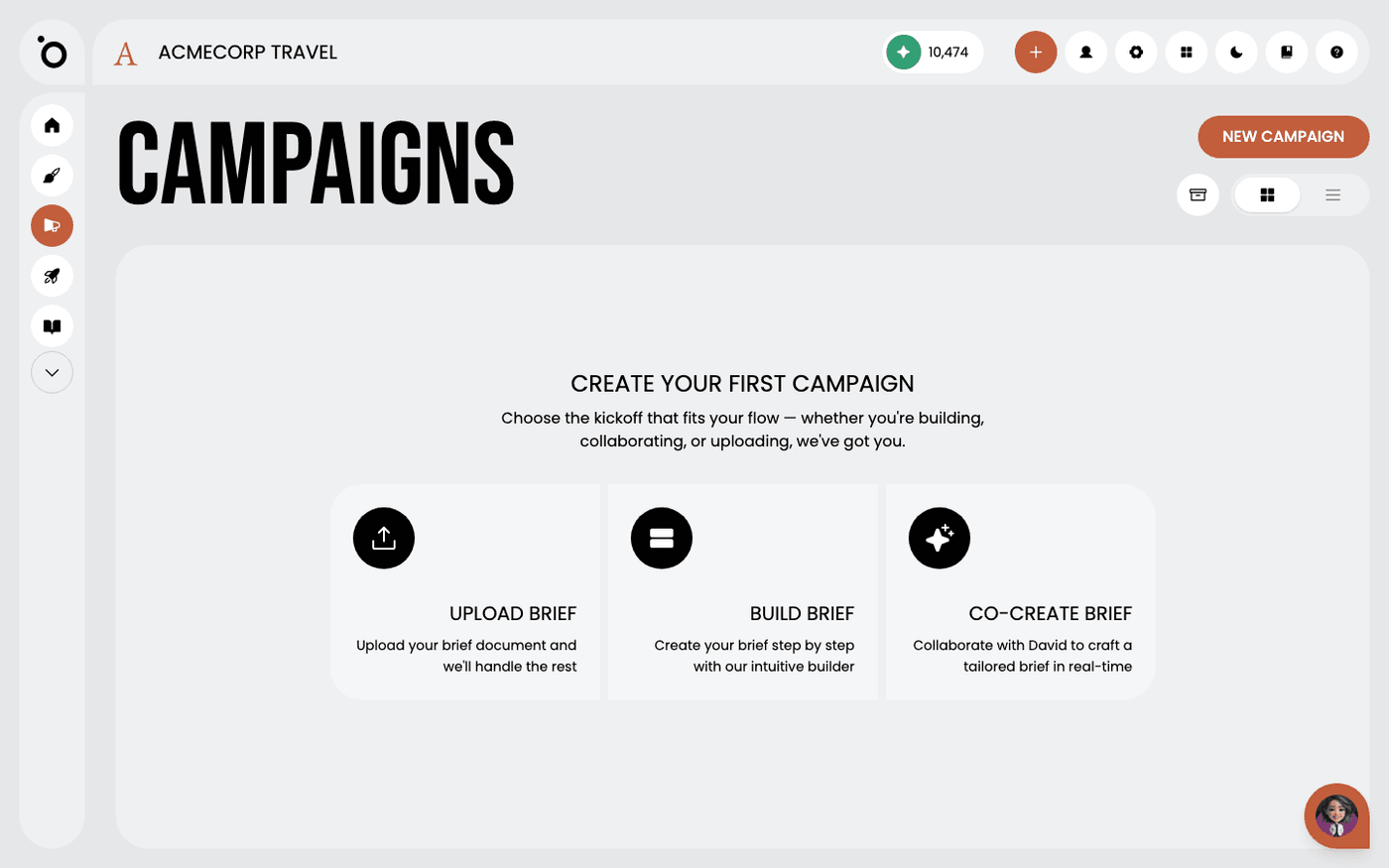
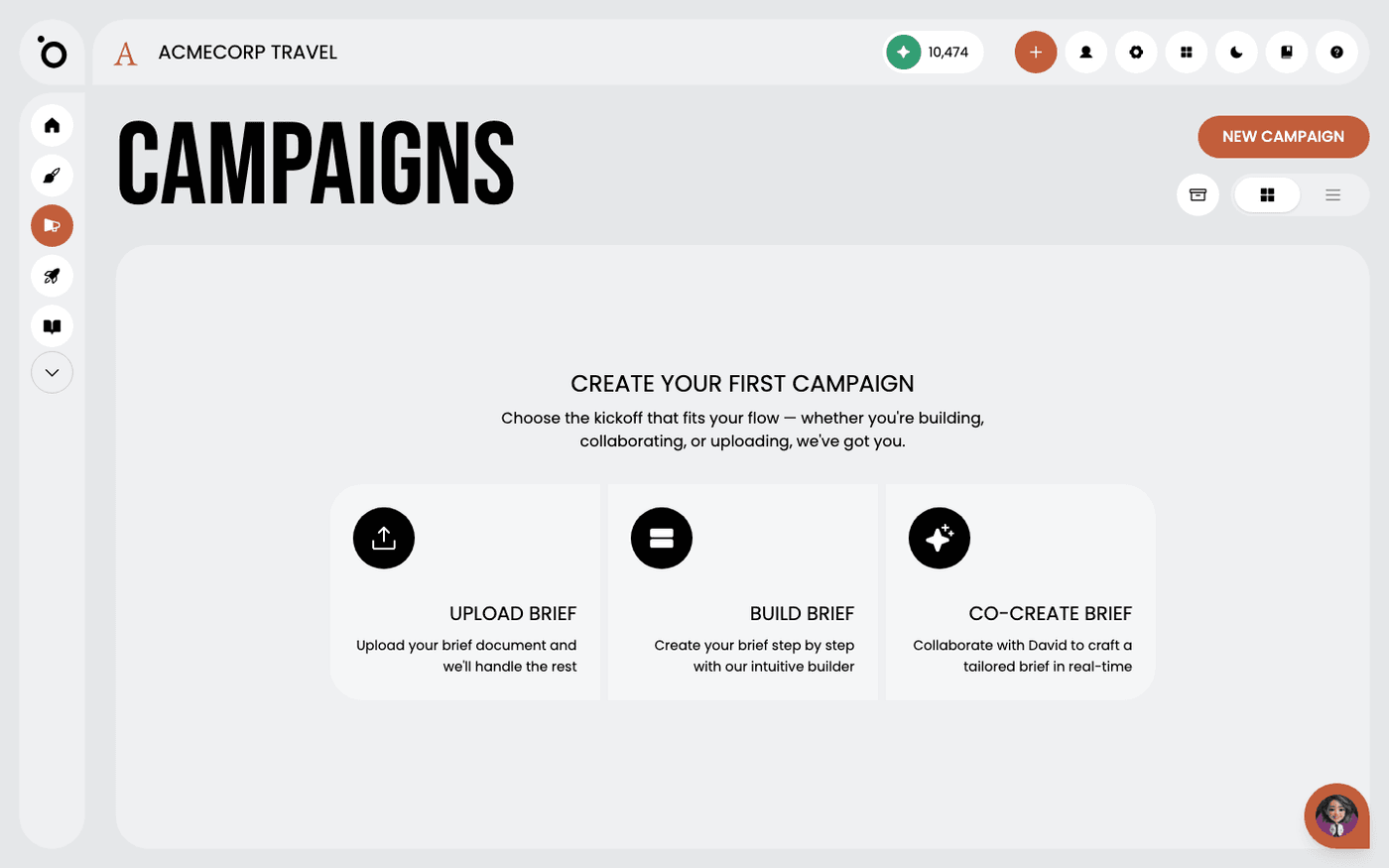
1. Select the campaign you want to clone.

image

2. Navigate to Key Visuals.

image

3. Click the Clone icon to duplicate an existing kit.

image

4. A new instance of the Key Visual will launch in the Key Visual Editor.

image

5. Update the headline for A/B testing.

image

6. Change the image for testing variations.

image

7. Your Lightbox selections and image libraries will be available in this panel.

image

8. Select Generate Banners to roll out your updates across the full campaign kit.

image

9. Preview your generated artwork and edit individual banners if necessary.

image

10. Approve your banner designs to finalise them for export.

image

11. Your new campaign kit will be organised in a folder in the Assets tab.

image

13. Access quick actions by selecting the asset.

image

14. Download a single campaign asset to save it locally for use or sharing.

image

15. Use checkboxes to select multiple assets for batch download.

image

16. Click Download to retrieve the selected campaign assets to your computer.

image

17. Select Download All to quickly save all campaign assets in one step.

image

18. Customising your banners is possible after export. Select Edit from More Options to make updates.

image

19. The Creative Editor enables you to update a single banner without affecting the rest.

icon
Previous Tutorial
icon
Next Tutorial