

Where to find Maia's dedicated email, how to share it, and how to decide who can email her.

From day one, Maia has her own email address. She is not a chatbot tucked inside a tab. She is a real account director with her own contact details that you can pass to clients, vendors, and partners so they can email her directly.
This tutorial shows you where to find Maia's email, how to share it, and how to decide who is allowed to reach her.
Finding Maia's email
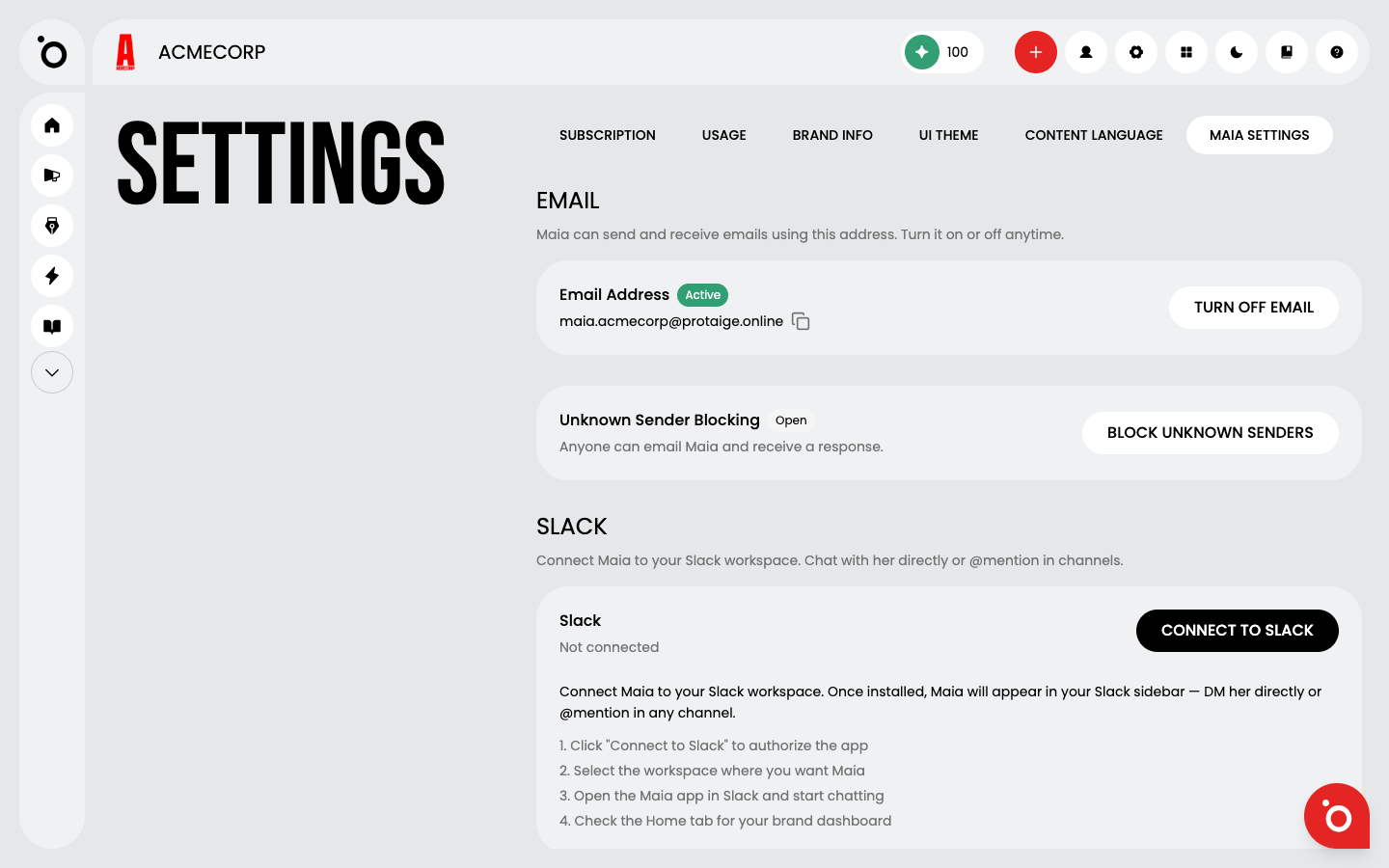
Head to Settings, then open the Maia tab. Her email lives in the top section.
The address follows a simple pattern: maia.<your brand>@protaige.online.
Most of the time you won't need to set anything up. Maia's address is provisioned automatically the first time you load the page, so it's ready to use straight away.
Sharing her address
Use the Copy button next to the address to grab it. From there, treat Maia like any other team member with an inbox. You can forward emails to her, include her on threads with clients or vendors, or hand the address out as the main point of contact for a project.
One thing worth knowing: once Maia's address is provisioned, it sticks. The brand name in the address is locked in, so it's worth checking it reads the way you want before you start sharing it widely. If you ever turn email off and back on later, you get the same address back.
Choosing who can email her
Maia's inbox is open by default, but you have a switch that decides who actually gets through to her.
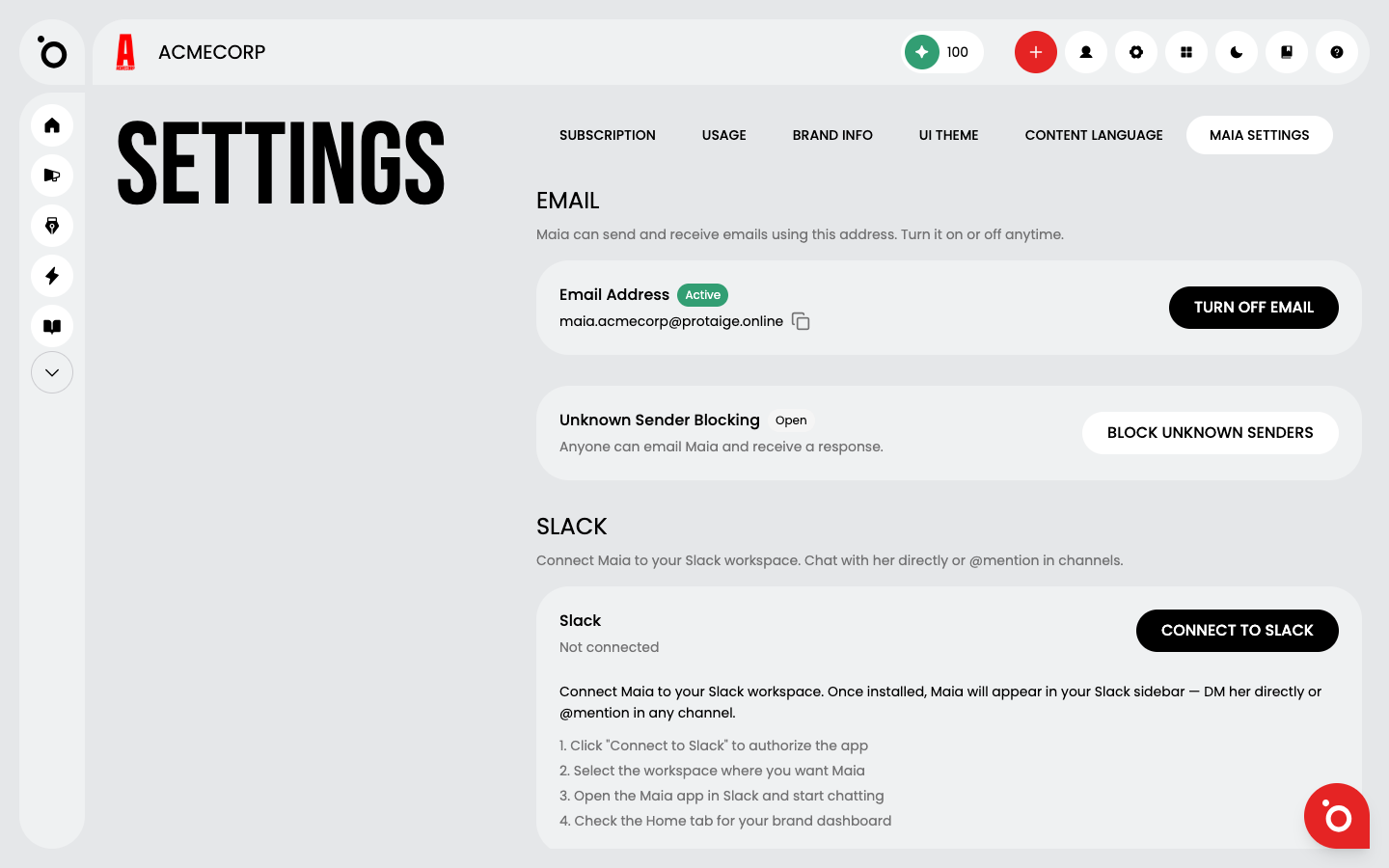
Open
With Unknown Sender Blocking switched off, anyone can email Maia at her address and she'll reply. This is the right setting if you want to give the address out freely - to leads, vendors, partners, or anyone who might need to reach her.
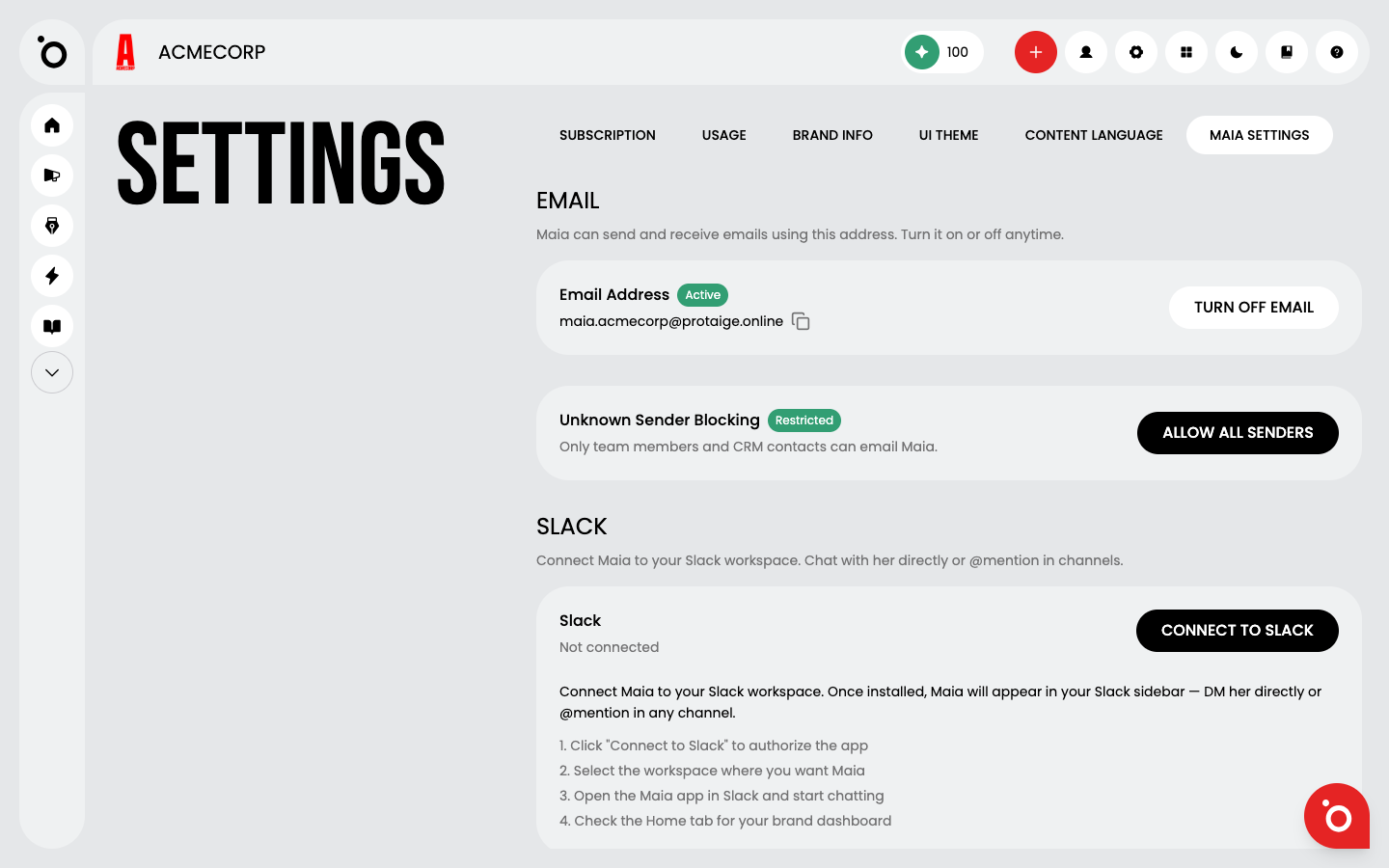
Restricted
Flip the toggle on and Maia only replies to two groups: your team members and your CRM contacts. Everyone else gets ignored.
A team member here means anyone whose email address or phone number is listed on your Teams page. So if you want a colleague to reach Maia under Restricted mode, make sure they're on the Teams page first.
The Unknown Sender Blocking card only appears when Maia's email is switched on. If you don't see it, check that her email is active first.
Turning email off

If you ever want to pause Maia's email, use the Turn off email button. She'll stop receiving and replying to messages until you turn it back on.
The address itself doesn't disappear. It's reserved to your brand, so when you switch email back on later, you get the exact same address back - no need to tell anyone it's changed.