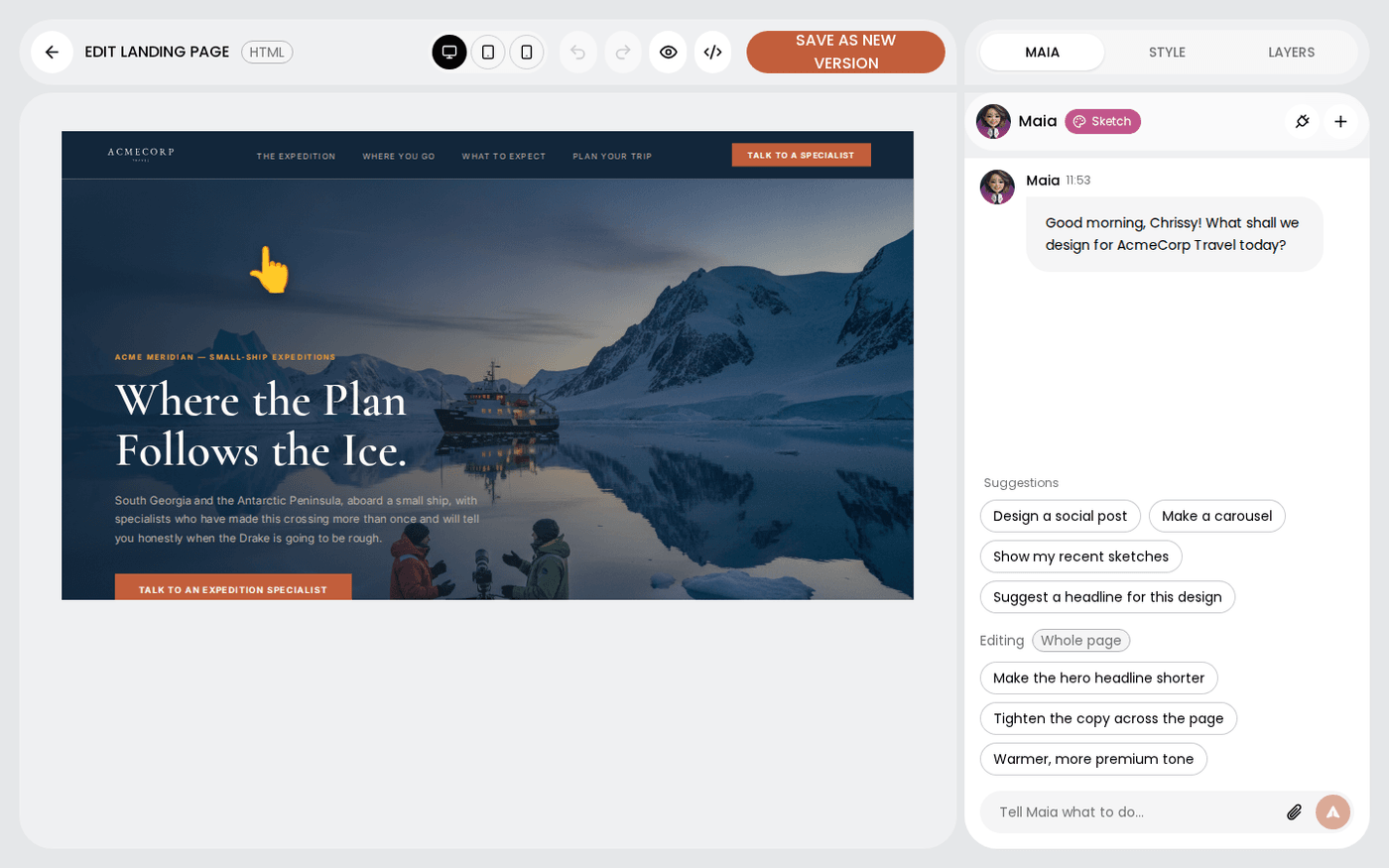
In short: HTML editor → select an image → sparkle → Swap, Regenerate or Edit with a prompt. Or open the Maia tab and say what to change.
Landing page and email frames open in the HTML editor, not the design canvas. Two things in the HTML editor do most of the work for you. A sparkle on any selected image changes the picture. The Maia tab changes whatever you have selected, in plain words.
Both write their changes straight into the page. You can undo them, and Save as new version keeps them.
Open the frame
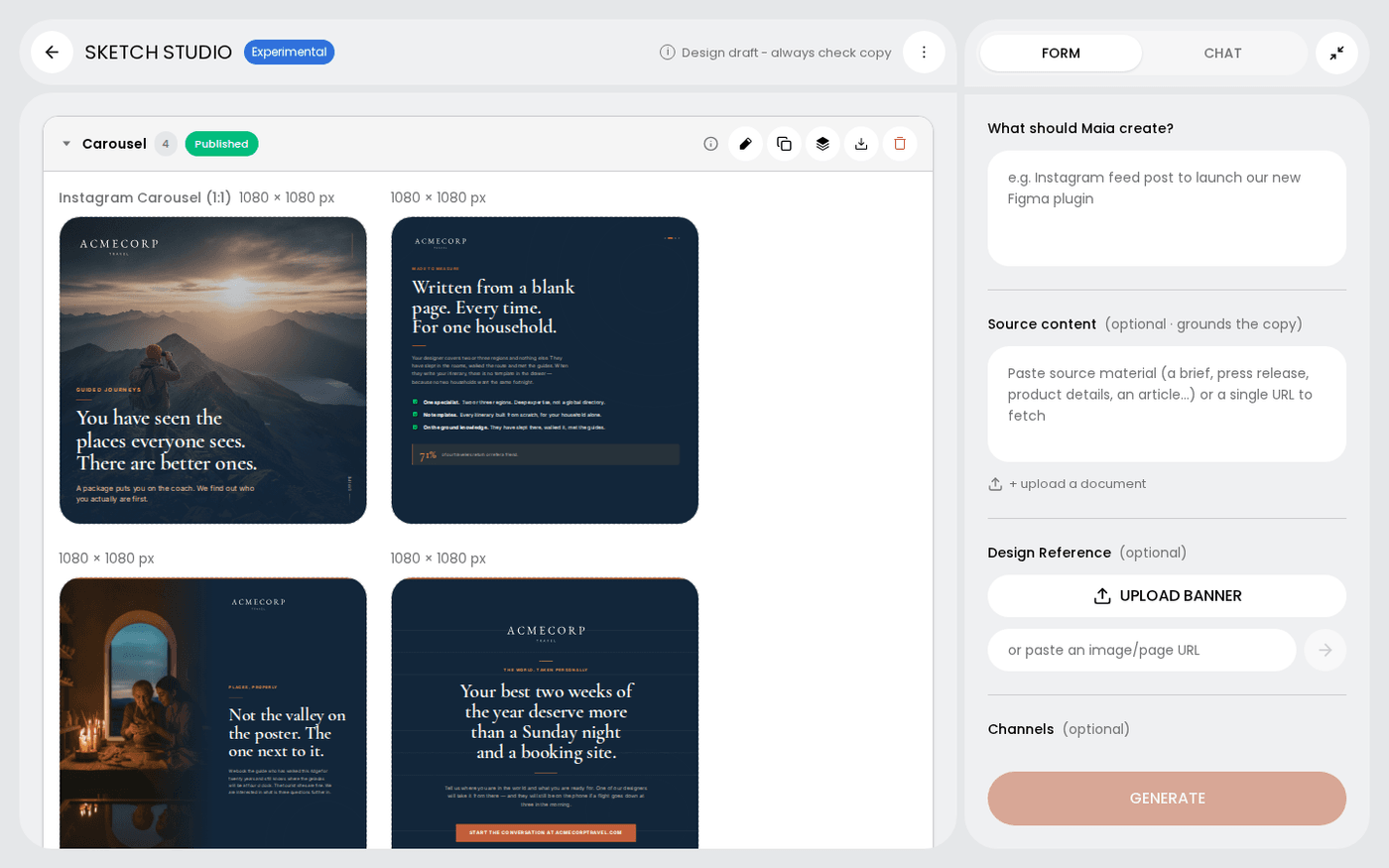
In Sketch Studio, hover a landing page or email frame and press the pencil. The HTML editor opens with the Maia tab on the right. Style and Layers sit beside it.
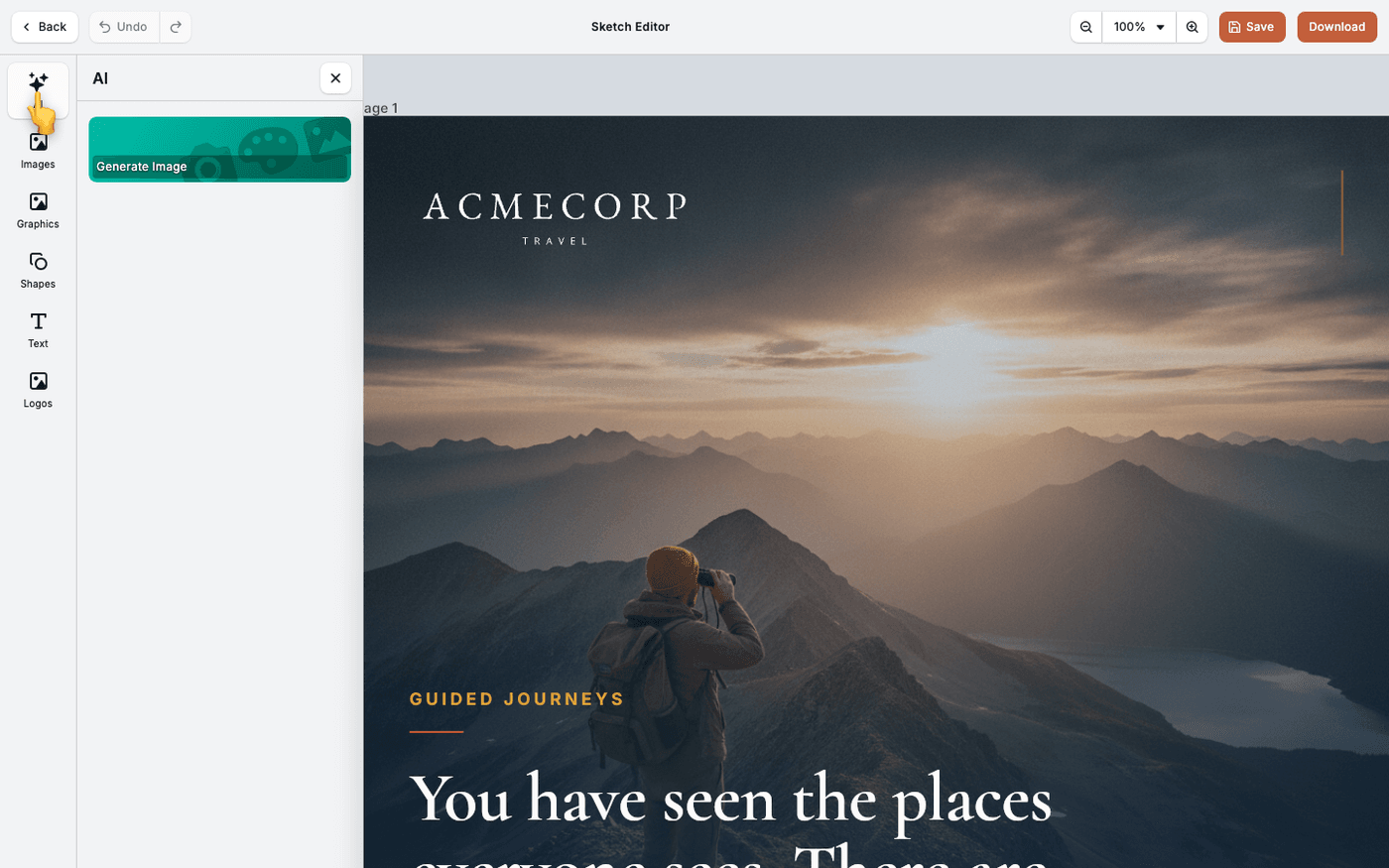
Select an image and press the sparkle
Click an image on the page. Its toolbar gains a sparkle. Press it to see three choices. Text elements do not get a sparkle.
Swap the image for one of your own
Choose Swap from brand photos. Your photo library opens. Pick a photo and it replaces the image. Swapping costs nothing.
Regenerate, or edit with a prompt
Choose Regenerate to make a fresh image that matches the page and your brand. Choose Edit with a prompt to describe a change, for example "make it warmer, add a sunset". The image shows a loading state while it works. You see Image updated when it is done.
Ask Maia to change what you selected
Open the Maia tab. Above the chat box, an Editing tag shows what you have selected. With nothing selected it reads Whole page. Say "shorter" and Maia knows you mean that element.
Use the suggestion chips
The chips change with your selection. Text gets Make it punchier, Shorter, More luxurious tone and Match the brand voice. An image gets Regenerate, Brighten and Swap for something warmer. Press a chip to send it as a message.
Watch the change land, then save
Maia's changes land on the page like your own edits, so undo works and Layers stays correct. If she is not sure which element you mean, she outlines the candidates for a moment and asks. When you are happy, press Save as new version.
If an image job fails or takes too long, you see a message and the image is left as it was. Try again with a different prompt.