In short: Settings → Usage. Your balance is also in the header on every screen.
Sparks are the credits that pay for everything Protaigé generates. Your plan gives you a monthly allowance. Top-ups add more.
Your balance is always in the header. The Usage tab shows what used your Sparks, so you can see where they went before you buy more.
Check the balance
Look at the header. The Sparks balance is there on every screen. For the detail, open Settings, then the Usage tab. The Your Sparks Balance card shows how many Sparks you have left out of your total. It also estimates how many social posts that covers.
See what used them
The Usage breakdown chart lists each type of work and how many Sparks it used. Change the period at the top. You can choose This week, This month, Last 3 months or All time.
Get a report
The Sparks Activity Report section sends a full report to your email. Choose a date range and the types of work to include. Choose PDF or CSV. Press the button to request it.
Top up or upgrade
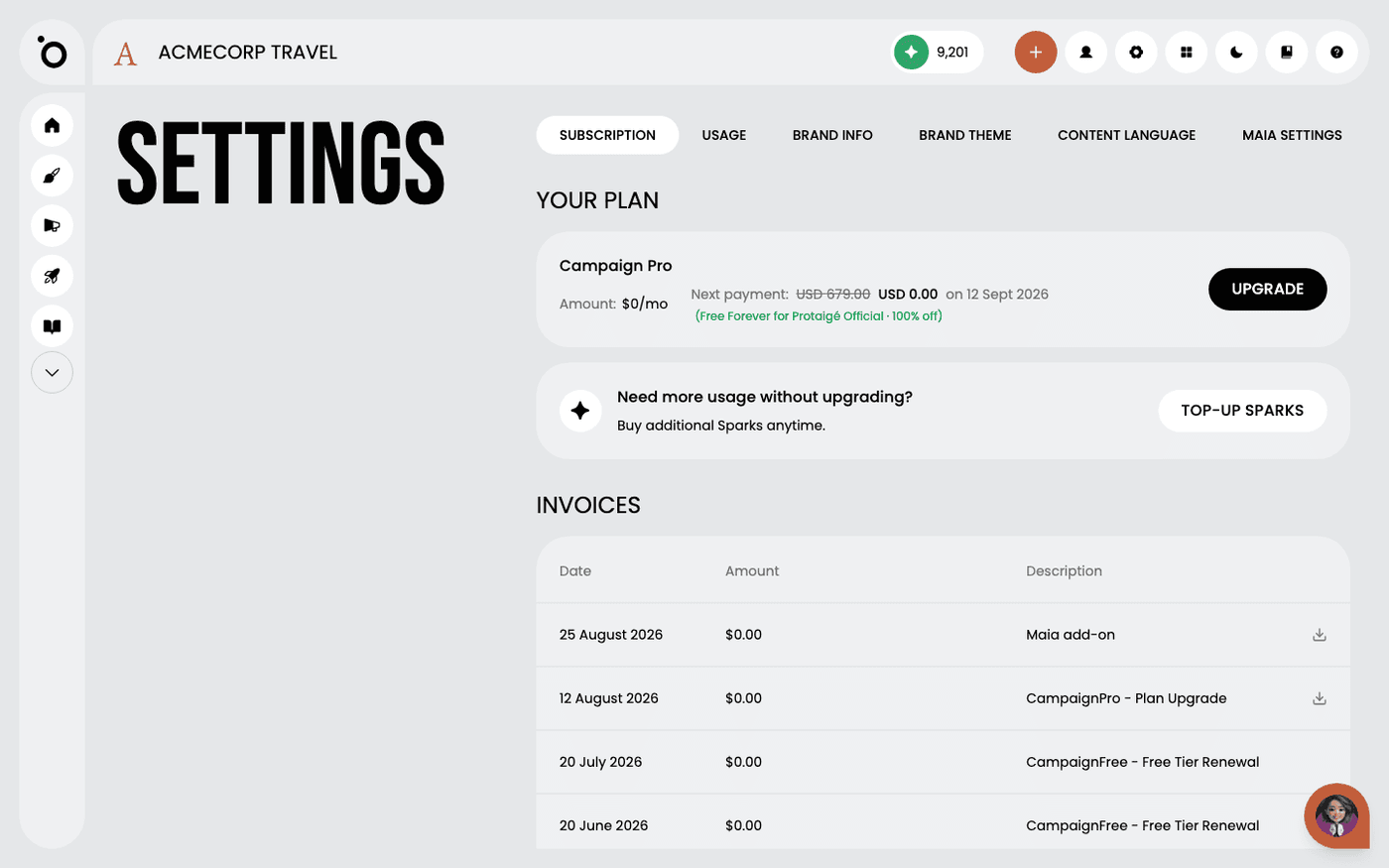
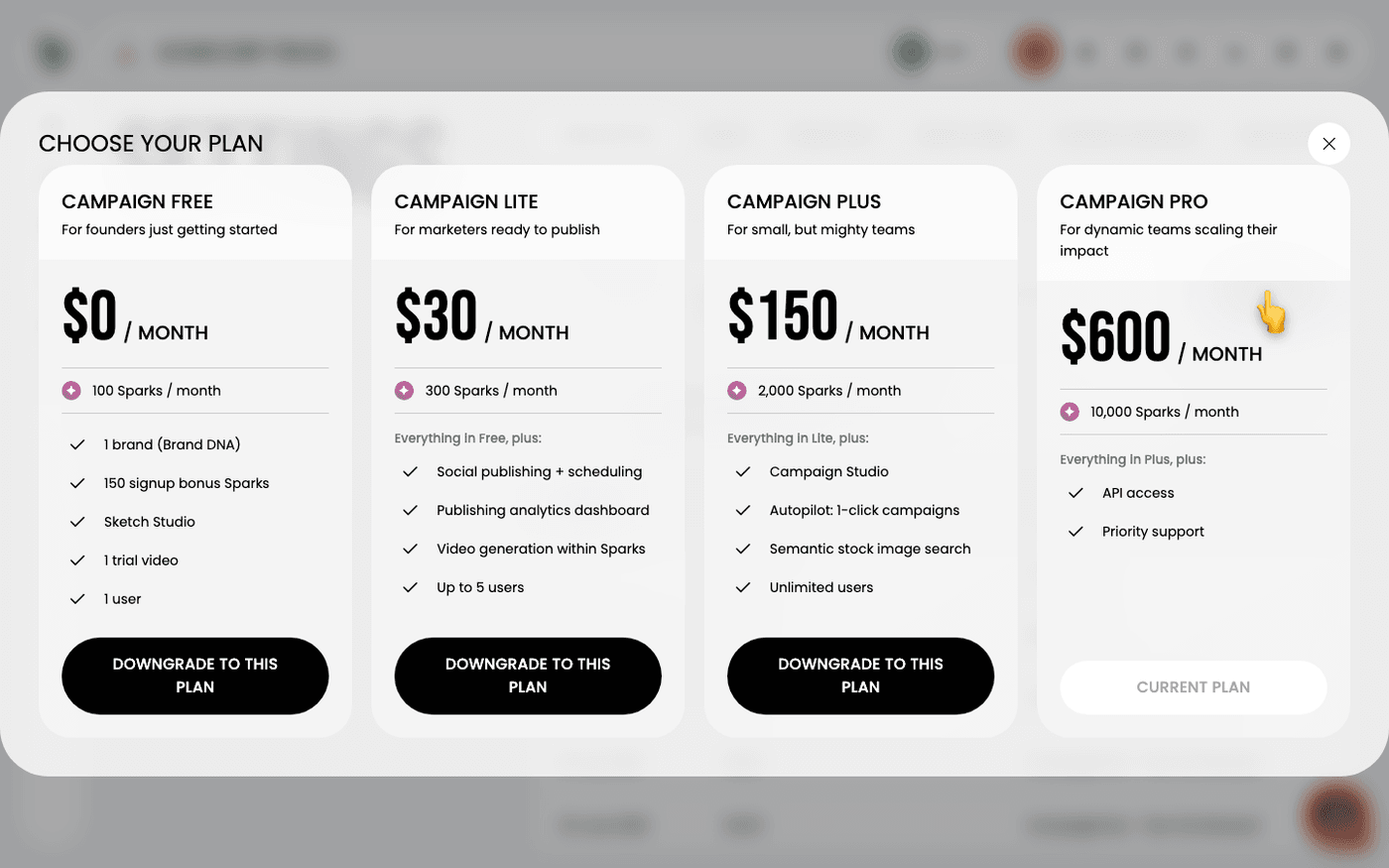
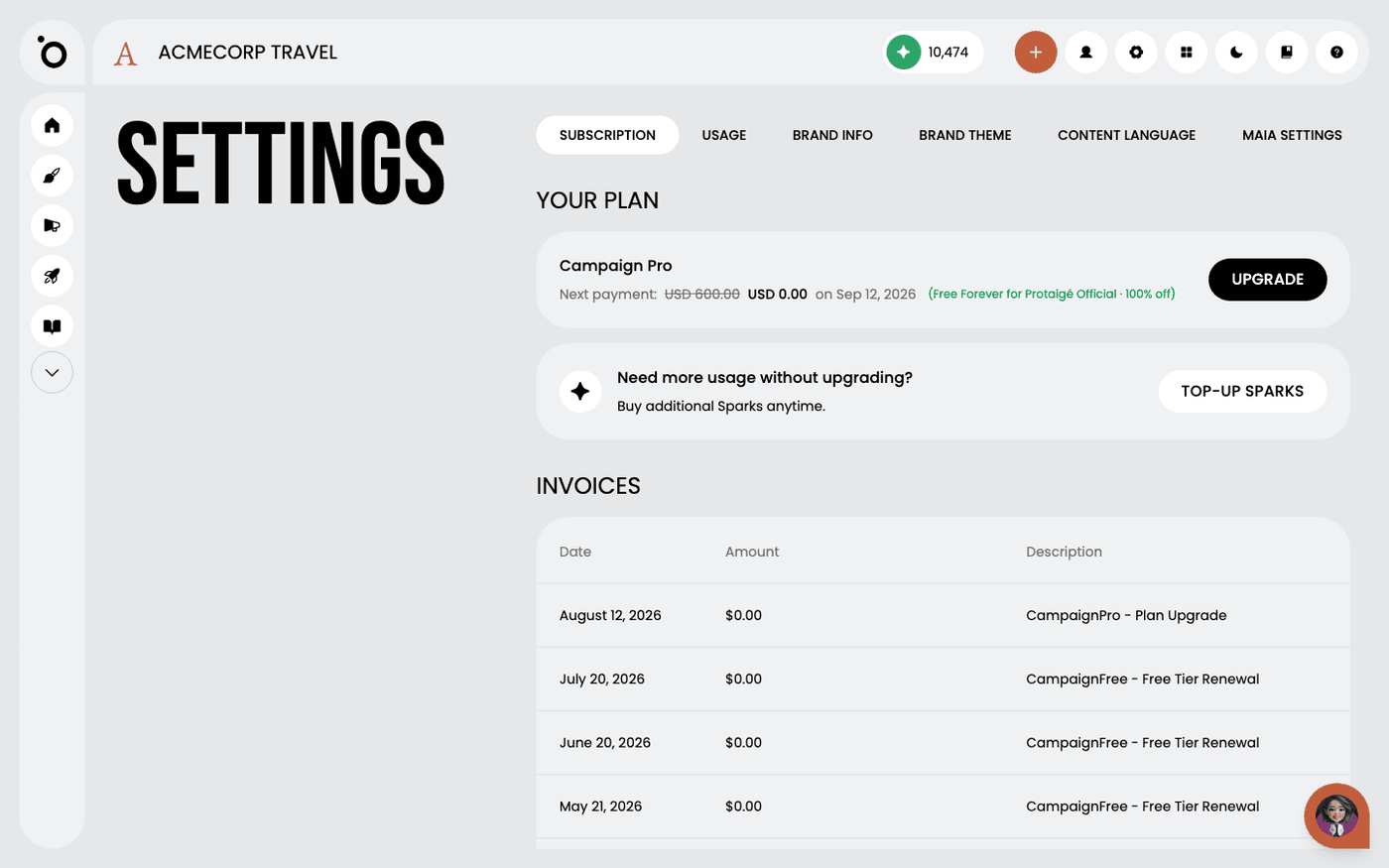
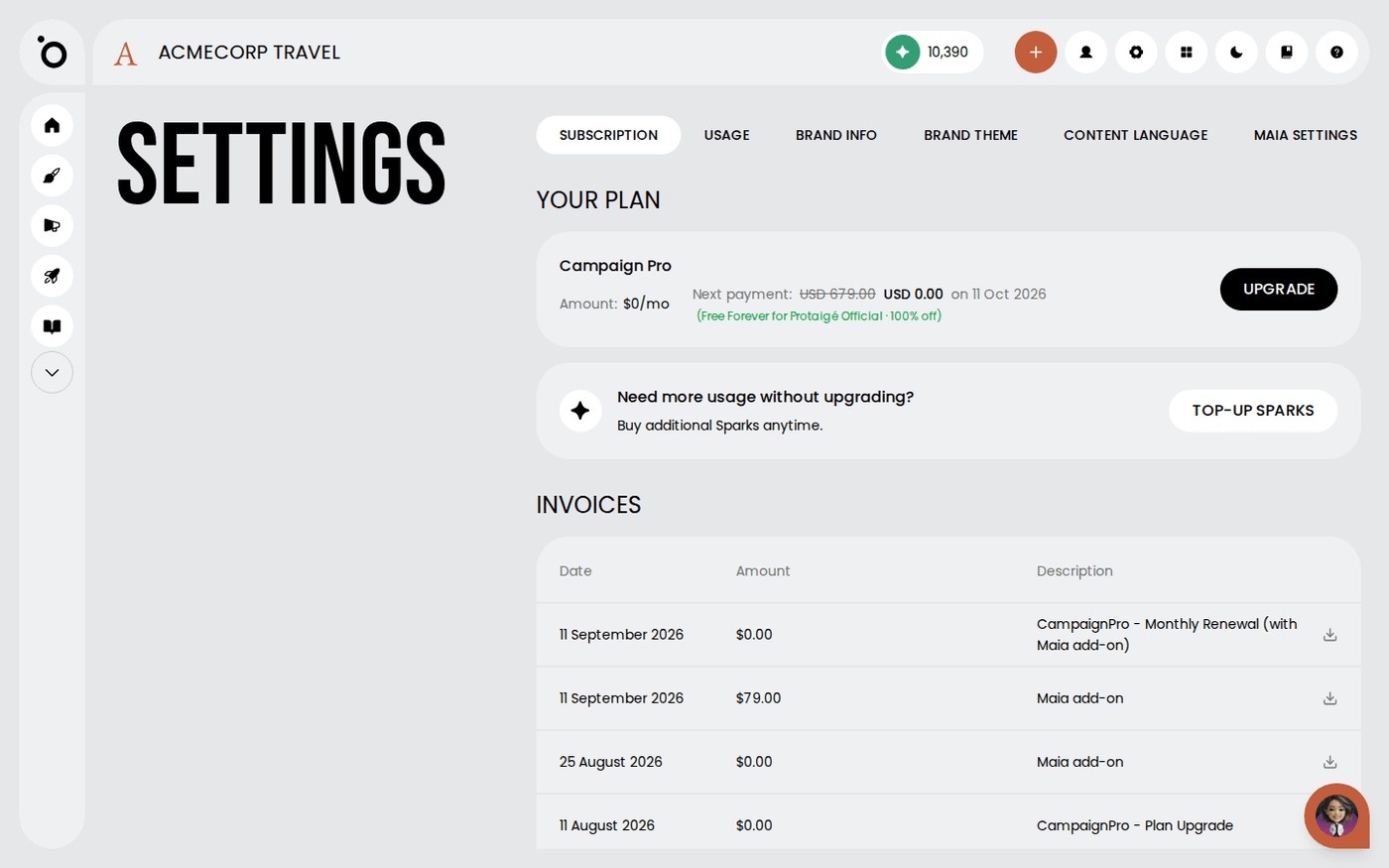
If you run short every month, press Upgrade Plan on the balance card. If you run short only now and then, buy a top-up from the Subscription tab instead.
When your balance reaches zero, Protaigé cannot generate new work until you top up or your plan renews. Your existing work and your Brand DNA stay where they are.