The Protaigé Academy
/
Protaigé Academy
/Choosing your hero image
Choosing your hero image

Choosing your hero image

What you'll learn

Select quality images from autopic, brand library or stock to match your concept

Series
4.08
Section
Campaigns
Last Updated
Feb 4, 2026 9:37 PM
Status
Live
icon
Previous Tutorial
icon
Next Tutorial

TL;DR

Use AutoPic, your brand library, stock search or upload → Add favourites to your Lightbox → Preview and refine them in layout → Apply across your campaign.

image

Your Hero Image is the visual anchor of your campaign. It’s the first thing your audience sees and the strongest cue for your campaign’s tone, message, and emotion. Every layout, banner, and creative asset in your campaign draws direction from this image.

A well-chosen hero image connects your approved concept and hero copy, turning the campaign’s story into something people can instantly feel. It’s not just decoration — it’s the visual embodiment of your big idea.

Protaigé gives you multiple ways to find the perfect hero image. You can browse your brand library, use stock sources, upload campaign photography, or let AutoPic, our intelligent image recommender, retrieve images for you.

Your shortlisted images are added to your Lightbox, where you can review and refine your choices. When you’re ready, your chosen hero image is automatically placed into the key visual in the next stage, allowing you to see how it looks in layout before the asset is rolled out across the campaign.

How AutoPic Works

AutoPic is our intelligent image search assistant. It scans your Brand Library and connected stock image sources to recommend visuals that capture the essence of your campaign — not just the words in your copy.

Behind the scenes, AutoPic reads your campaign’s headline, body copy, and strategy context to understand the story you are telling. It then translates your marketing message into visual ideas, searching for scenes, subjects, and moods that express the same emotion and intent.

Instead of matching literal keywords, AutoPic looks for imagery that represents what your campaign feels like.

Each image shortlist is generated automatically and refreshed every time you update your concept or hero copy, ensuring the recommendations always align with your campaign’s story and target audience.

A step-by-step guide

image

1. Access the Hero Image section to begin selecting your campaign’s primary image.

image

2. AutoPic is our intelligent image recommender that shortlists suitable images from your brand and stock libraries.

image

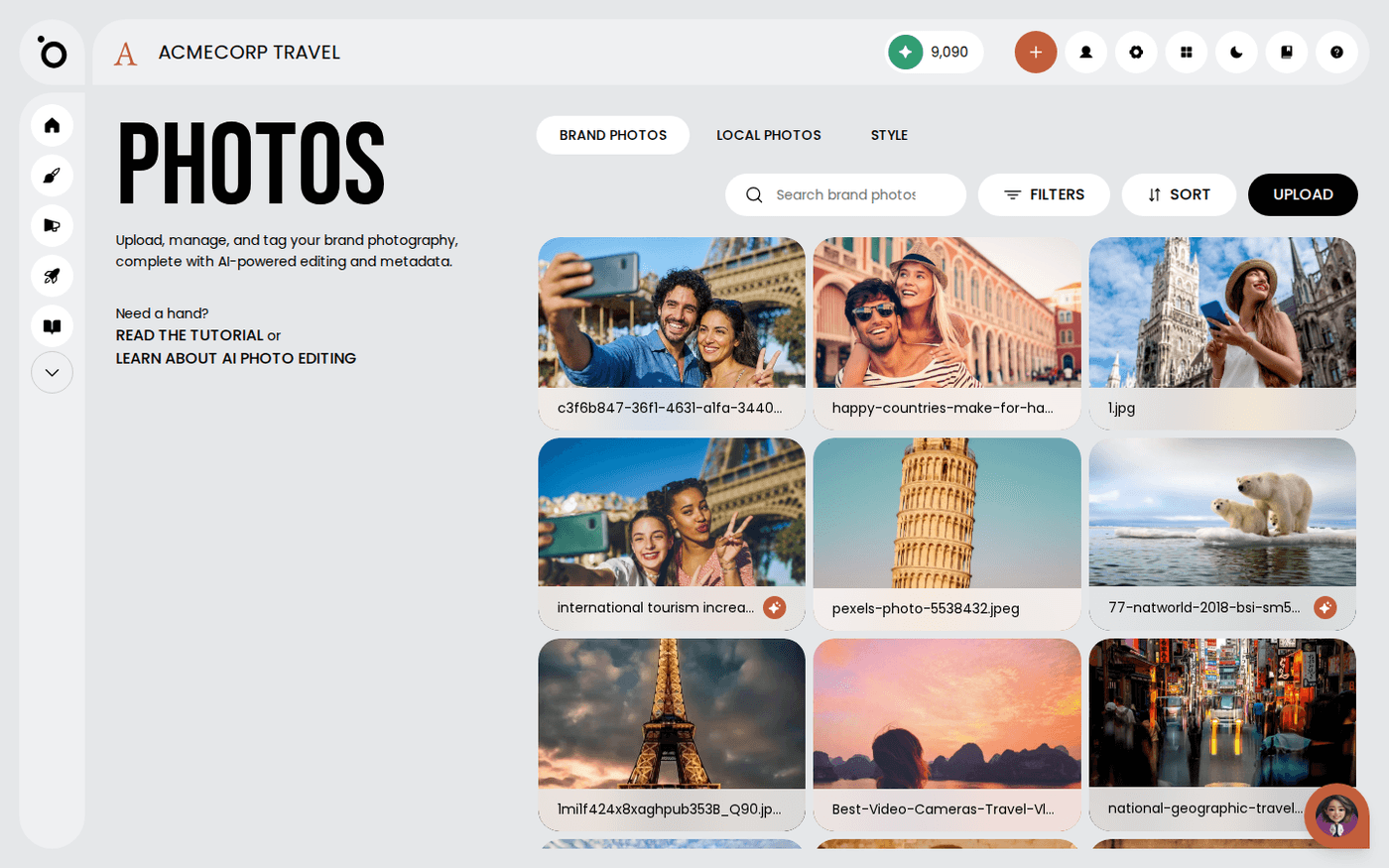
3. Your Brand Library is accessible from this tab.

image

4. Stock search is also available.

image

5. Connected libraries are in this dropdown.

image

6. Click GO TO APP STORE to manage stock image library settings or add new sources.

image

7. Stock libraries can be toggled on or off.

image

8. This is the stock library Image ID if you need to download the file directly.

image

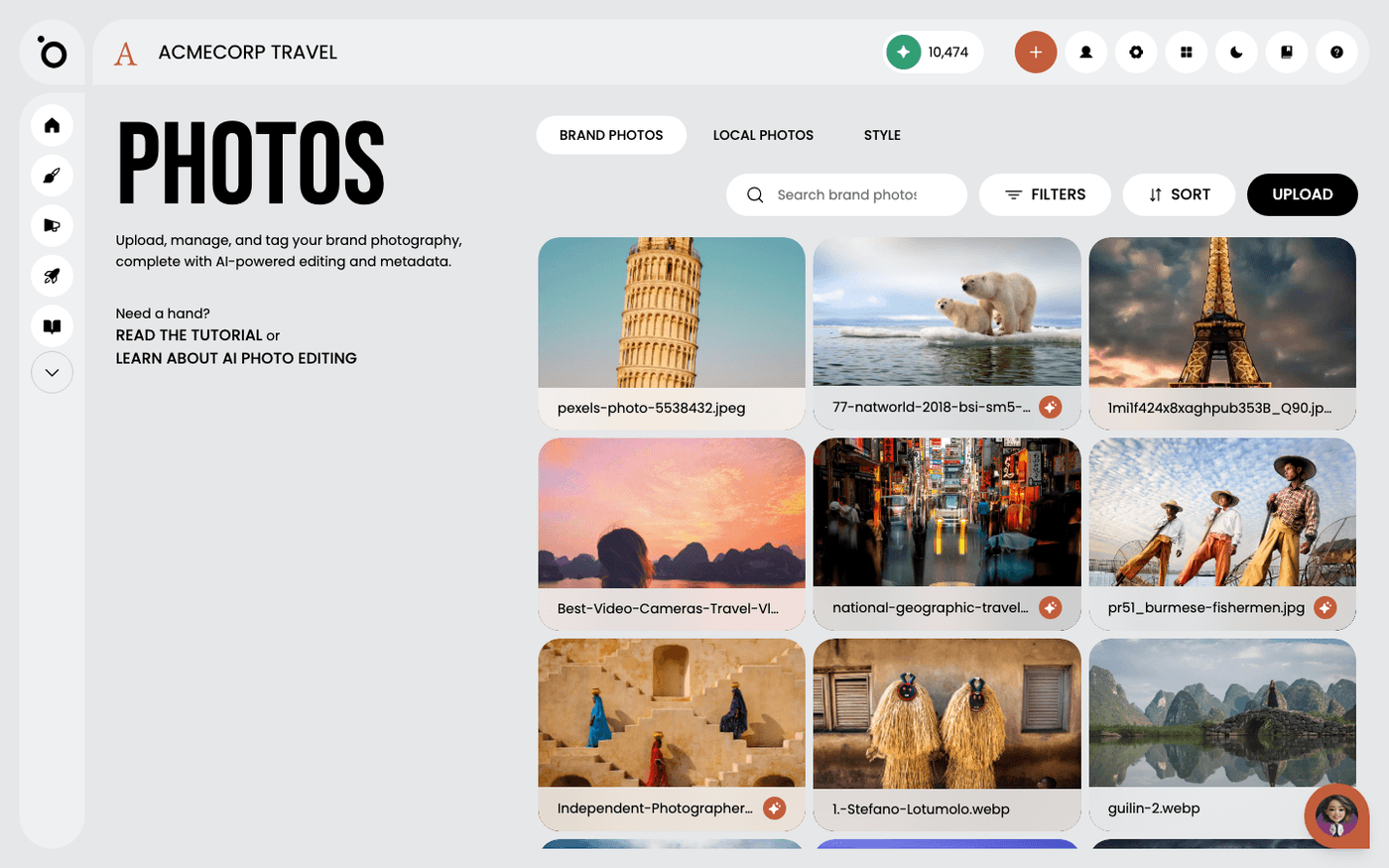
9. If you have campaign images ready, upload them in this tab.

image

10. Add your images from your local library using drag and drop.

image

11. Check this to begin curating your perfect shortlist.

image

12. Your shortlisted images will be saved in this Lightbox.

image

13. Remove unwanted images from your selection with the delete icon.

image

14. Next, Build Key Visual to view your images in layout.

image

16. Your preferred images will be dynamically placed in the image placeholder. Select the image to replace it.

image

17. Use the Replace button to swap out the current image in your design.

image

18. Your image selection and libraries will be visible in this side panel.

image

19. Brand library images are in this section.

image

20. Uploaded campaign images are here.

image

21. This is your Lightbox.

image

22. Stock search is also available within the editor.

image

23. Select the new image to preview in layout.

image
image

24. Explore other image editing tools like Background Removal.

image

26. Filters and other image adjustments are in this panel.

image

27. Try different filters and effects to make your hero image pop.

image

28. Click and drag the image to adjust its composition and placement.

image

29. Other image modes like scale, fit and rotate are available here.

image

30. When you've completed your edits, click Generate Banners to apply the changes to all the assets in the Design Kit.

image

31. Or, choose Save if you’d like to finish this task at a later time.

image

32. Saved Drafts are stored in the Assets tab, within the Draft button.

image

33. Resume Draft to continue editing.

icon
Previous Tutorial
icon
Next Tutorial