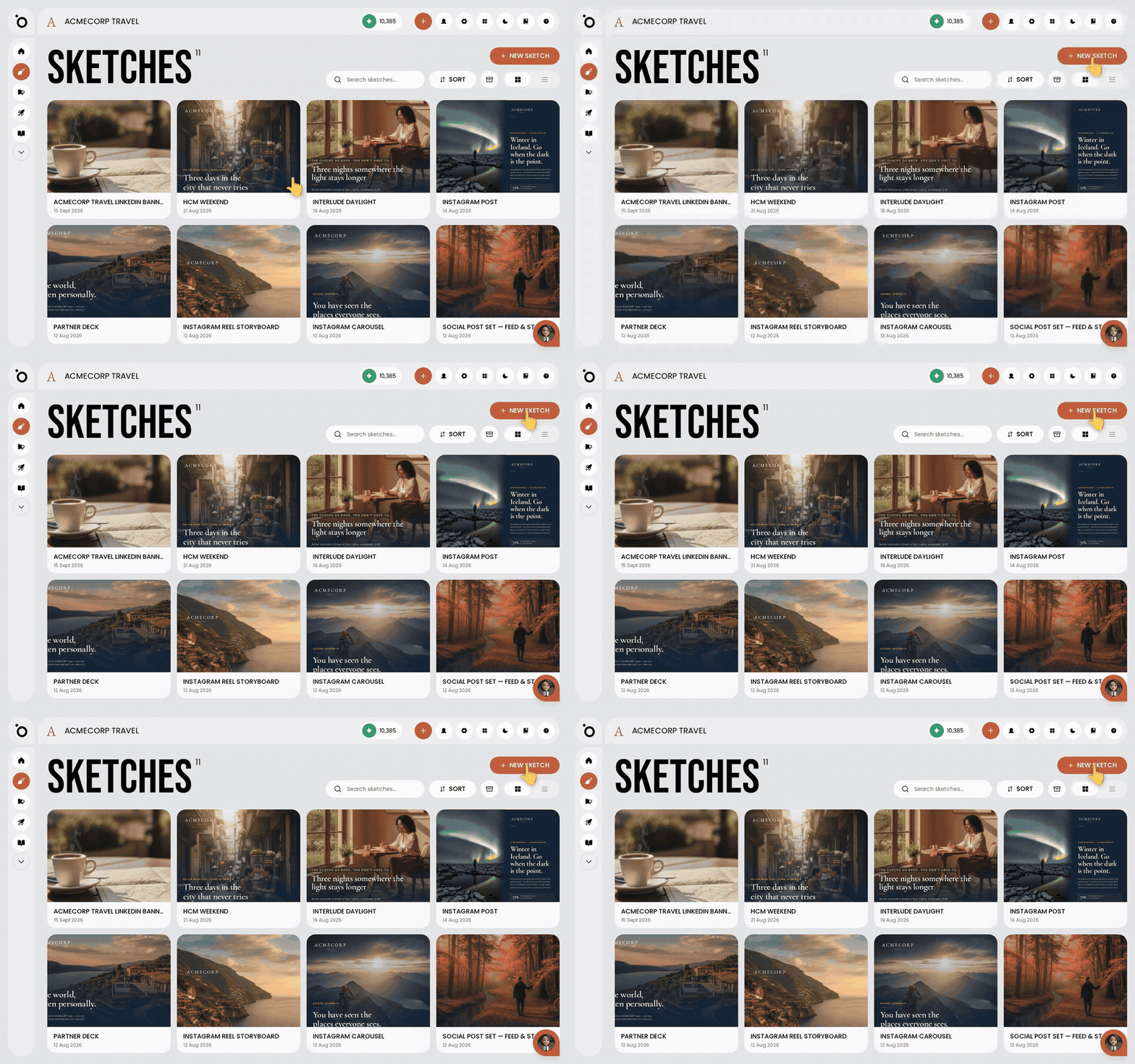
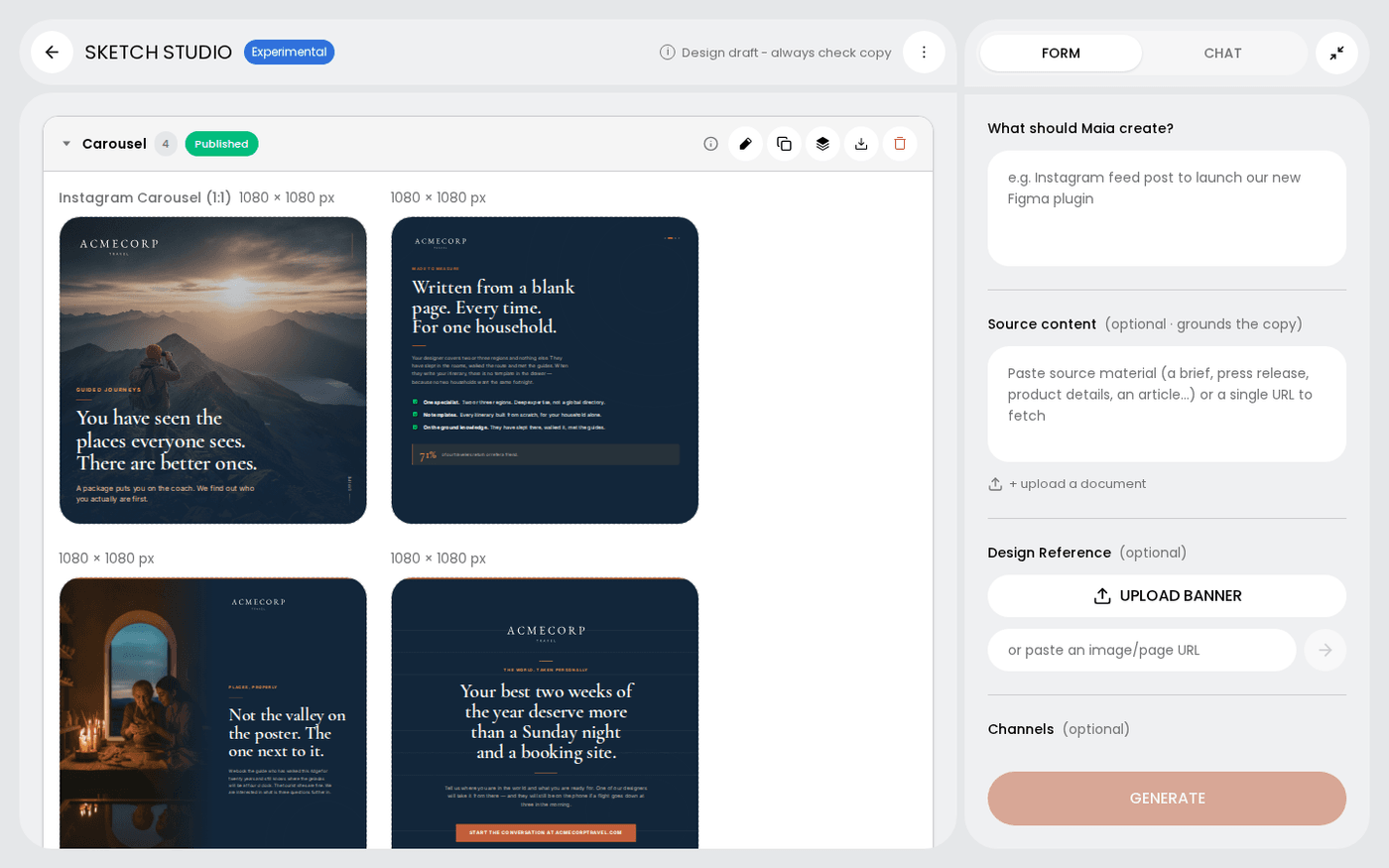
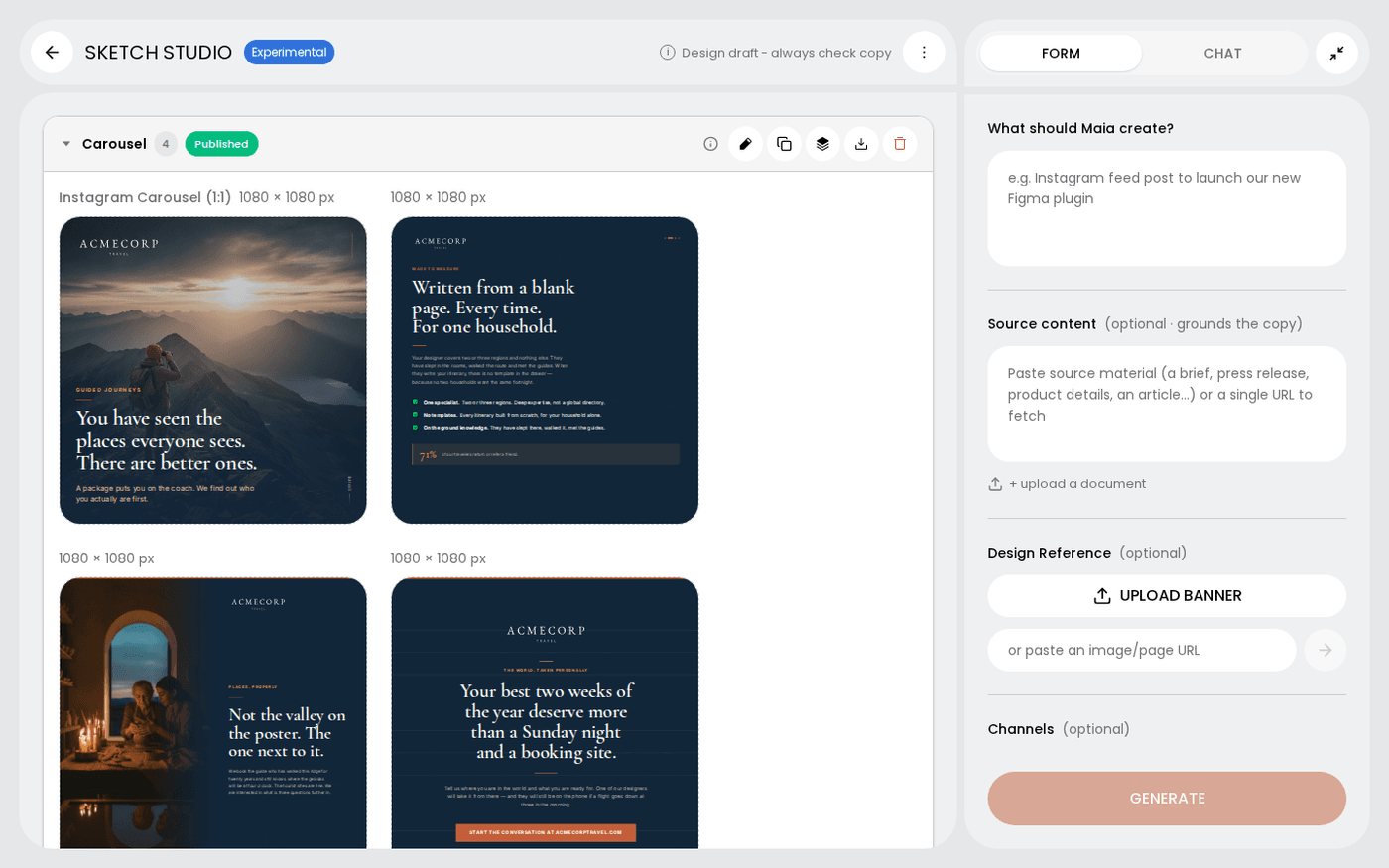
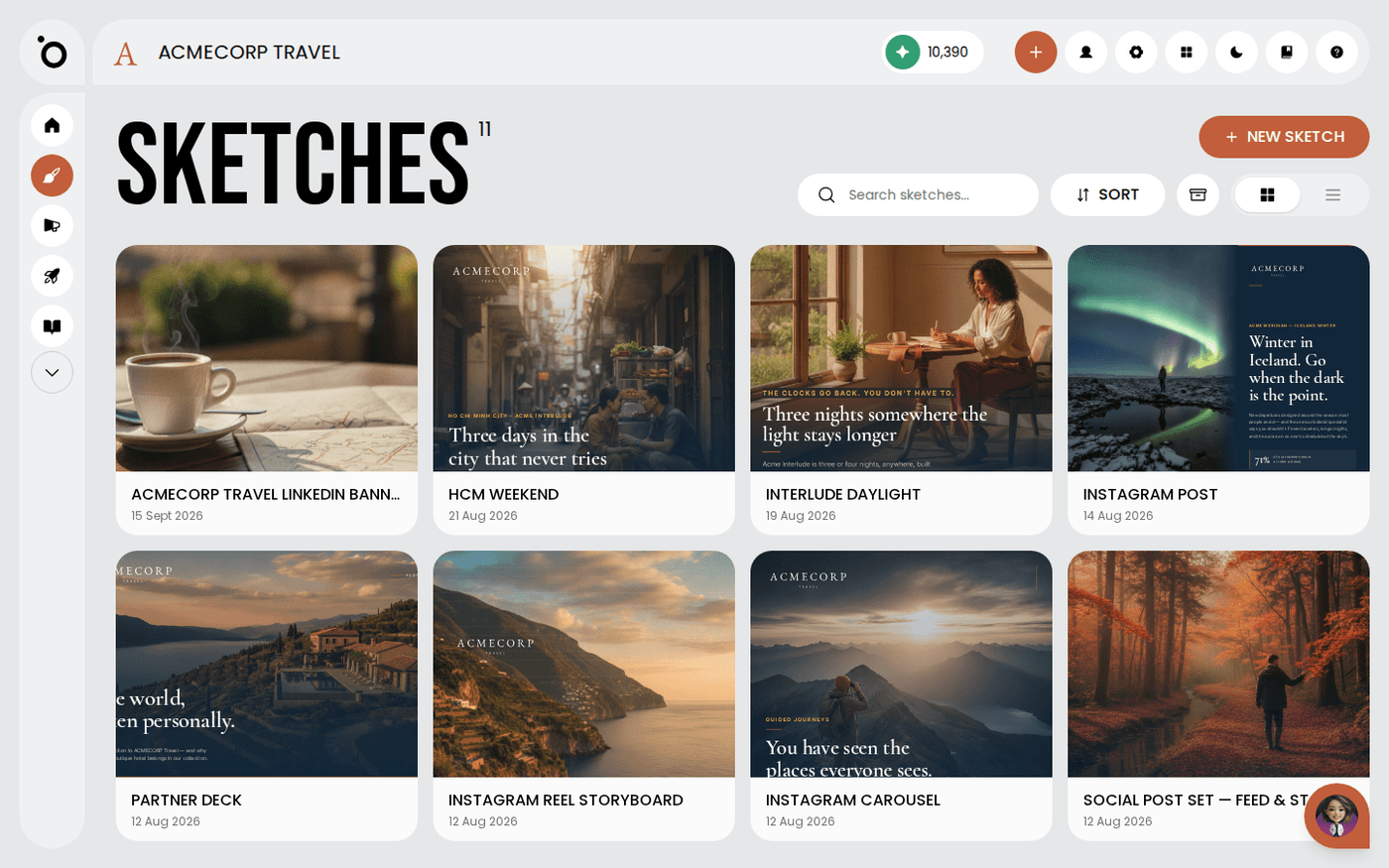
In short: Sketch Studio → chat → "write me a caption for this". Maia adds a copy block beside the design. Press the pencil on the block to edit it.
A copy block is text that sits beside a design, not on it. It can be an email body, landing page copy, a caption for a post, or a shot list with voiceover lines. Maia writes it in your brand voice and keeps it with the sketch.
You do not need to say "copy block". Ask the way you would ask a colleague. Maia knows what you mean.
Ask in plain words
Open your sketch in Sketch Studio and type in the chat. Say "write me a caption for this" or "give me some text for the newsletter". "Draft the body copy" and "a blurb for the product page" work too. Maia writes a copy block. You can also ask for a shot list or voiceover lines.
Say which frame the text belongs to
Name the frame if the text goes with one design, for example "write the email body for this banner". The block sits under that frame. If you name no frame, the block belongs to the whole sketch.
Add context if your words are vague
Words like "a description for this" or "some text for this" can mean other things. Say what the text is for, or which frame it goes with. Then Maia writes the block you want.
Keep artwork text separate
A headline, tagline, subline, slogan or button label is text on the design. Ask to change one of these and Maia edits the artwork, not a copy block. "Make me a sketch from this" starts a new design.
Edit the block yourself
Press the pencil on the block. Change the words in place. Paragraphs stay as paragraphs, lists stay as lists, and headings stay as headings. Press Enter twice to start a new paragraph. Press Save to keep the change, or Discard changes to throw it away.
Take the text with you
Press Download as text on the block. You get a .txt file to paste into your email platform, your website or a post.
Copy blocks hold paragraphs, headings, lists and quotes only. That keeps the text safe to paste anywhere.