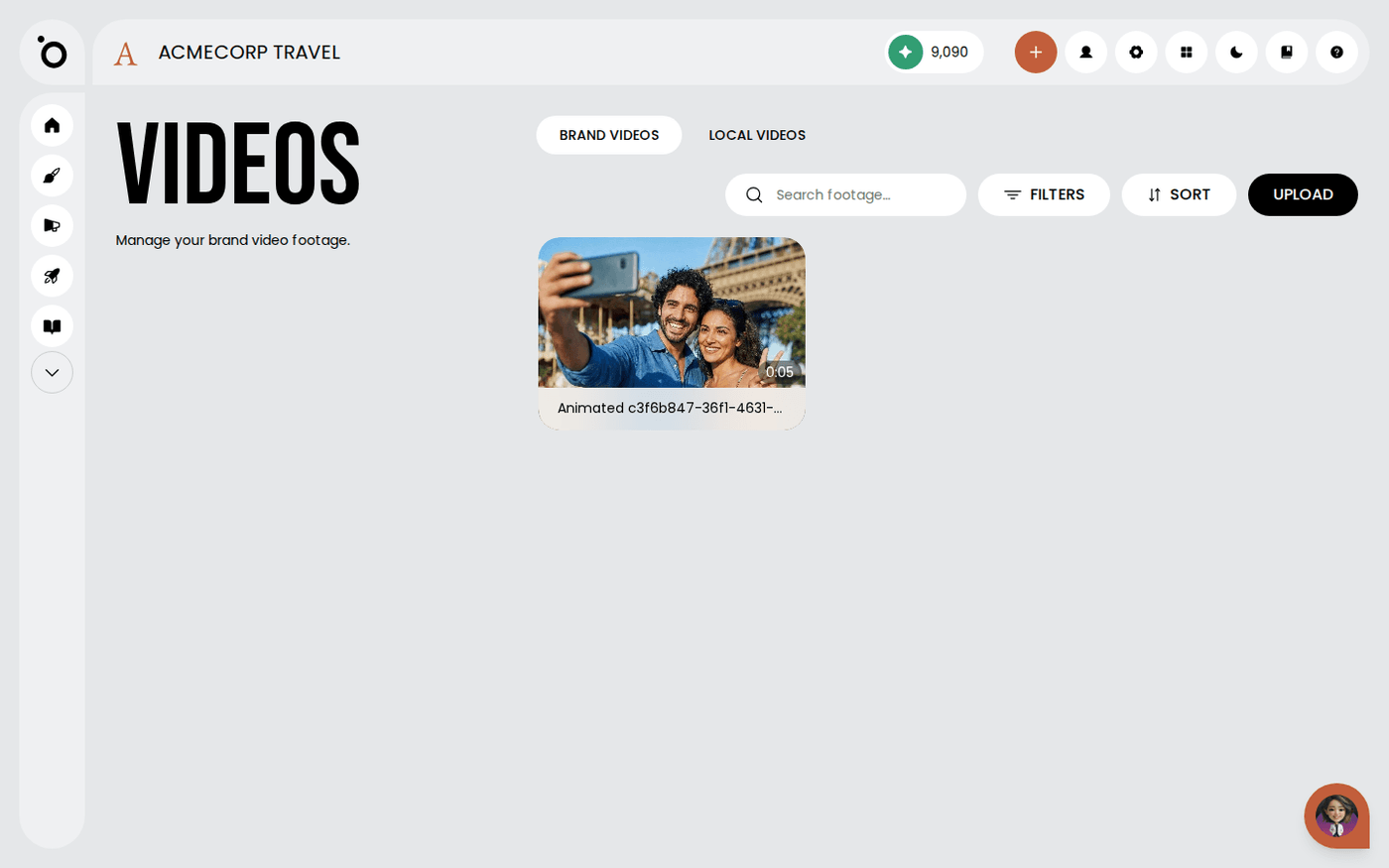
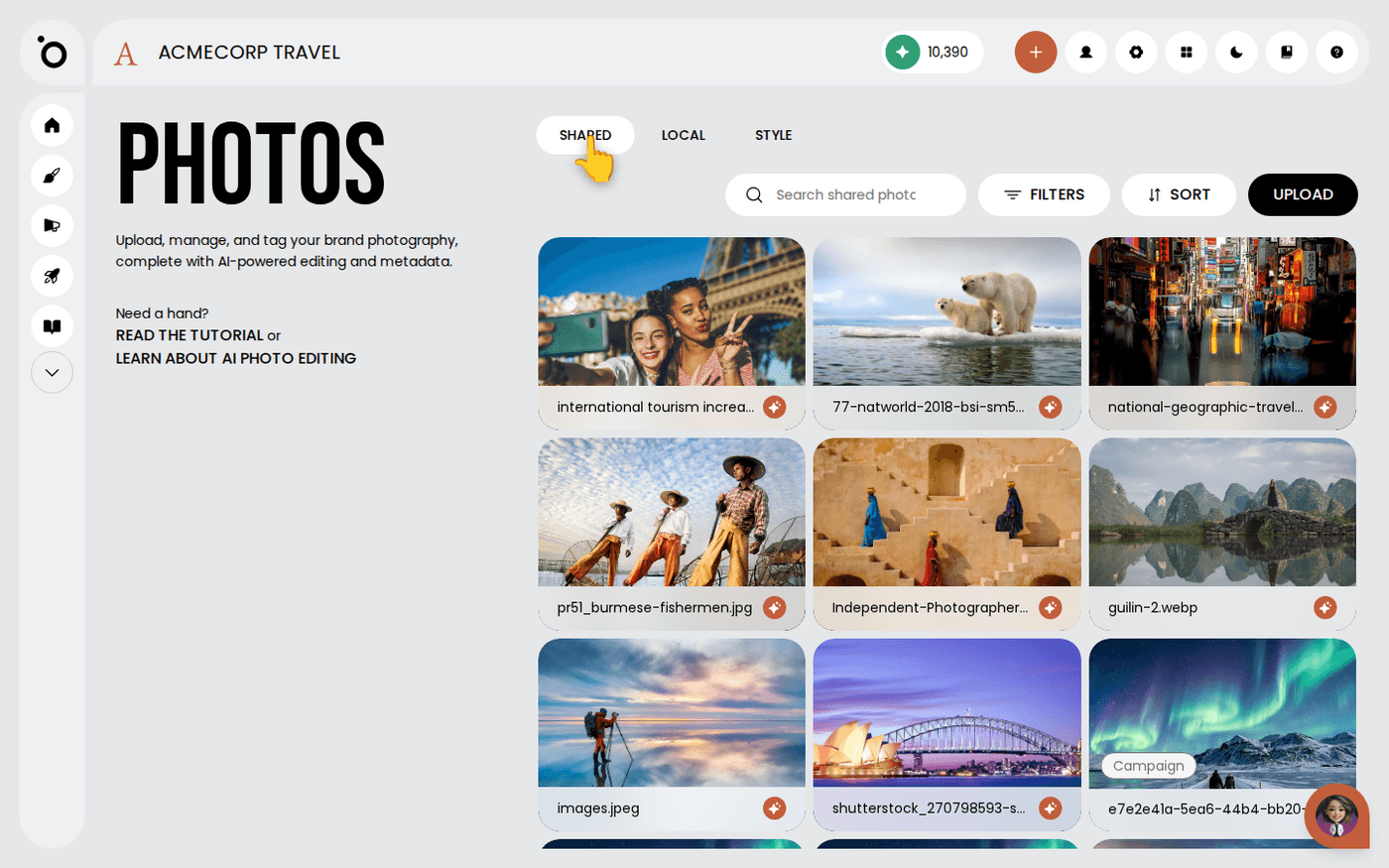
In short: Brand DNA → Videos → Shared tab → three-dots menu on the clip → Mark as ident. Then on the Flicks form, choose it under Add your brand ident to the end.
An ident is the short clip with your logo that ends every film. You never redesign it. Flicks adds it, unchanged, to the end of a film.
Protaigé needs to know which clip it is. This page shows you how to mark it and how to choose it when you brief a film. Flicks is behind a feature flag, so if you cannot see it, it is not switched on for your workspace yet.
Mark the clip in your video library
Open Brand DNA, then Videos. In the Shared tab, open the three-dots menu on the clip and choose Mark as ident. You see Marked as ident. The mark belongs to the brand, so everyone working on the brand sees it. Only clips in the Shared tab can be idents.
Mark more than one if you have more than one
Many brands keep a long cut and a short one, or a version with the strapline and one without. Mark as many as you need. All of them are offered when you make a film.
Choose the ident on the film form
When you brief a film in Flicks, the Settings row shows Add your brand ident to the end. Pick the ident you want, or leave it on No ident. This setting appears only when your brand has marked at least one ident.
Check the length the picker shows
Each ident is listed by its file name, with the word ident removed, so Glitch_ident.mp4 reads Glitch. The picker shows the length that plays. Anything longer than five seconds is trimmed to five. A shorter ident keeps its own length.
Unmark a clip when it changes
Open the same three-dots menu and choose Unmark as ident. This removes only the mark. The clip stays in your library.
Mark your ident before you make your first film. Then every film can end on your brand.