
How to brief and generate Responsive Search Ads in Content Studio, where your brief is the whole story.
Responsive Search Ads are the Google Ads search format where you hand Google a pile of headlines and descriptions and let it mix and match them for each person who searches. When you build them inside a campaign, the campaign brief is already feeding Protaigé its context: what you're selling, who you're selling to, and what you want the ads to do. You barely have to brief it at all. Content Studio is the standalone version, and that's the one real difference. There's no campaign sitting behind it, so the blank page you start with is exactly that, blank. What you put in is what you get out, which makes this tutorial as much about briefing well as it is about clicking Generate.
Starting an RSA in Content Studio
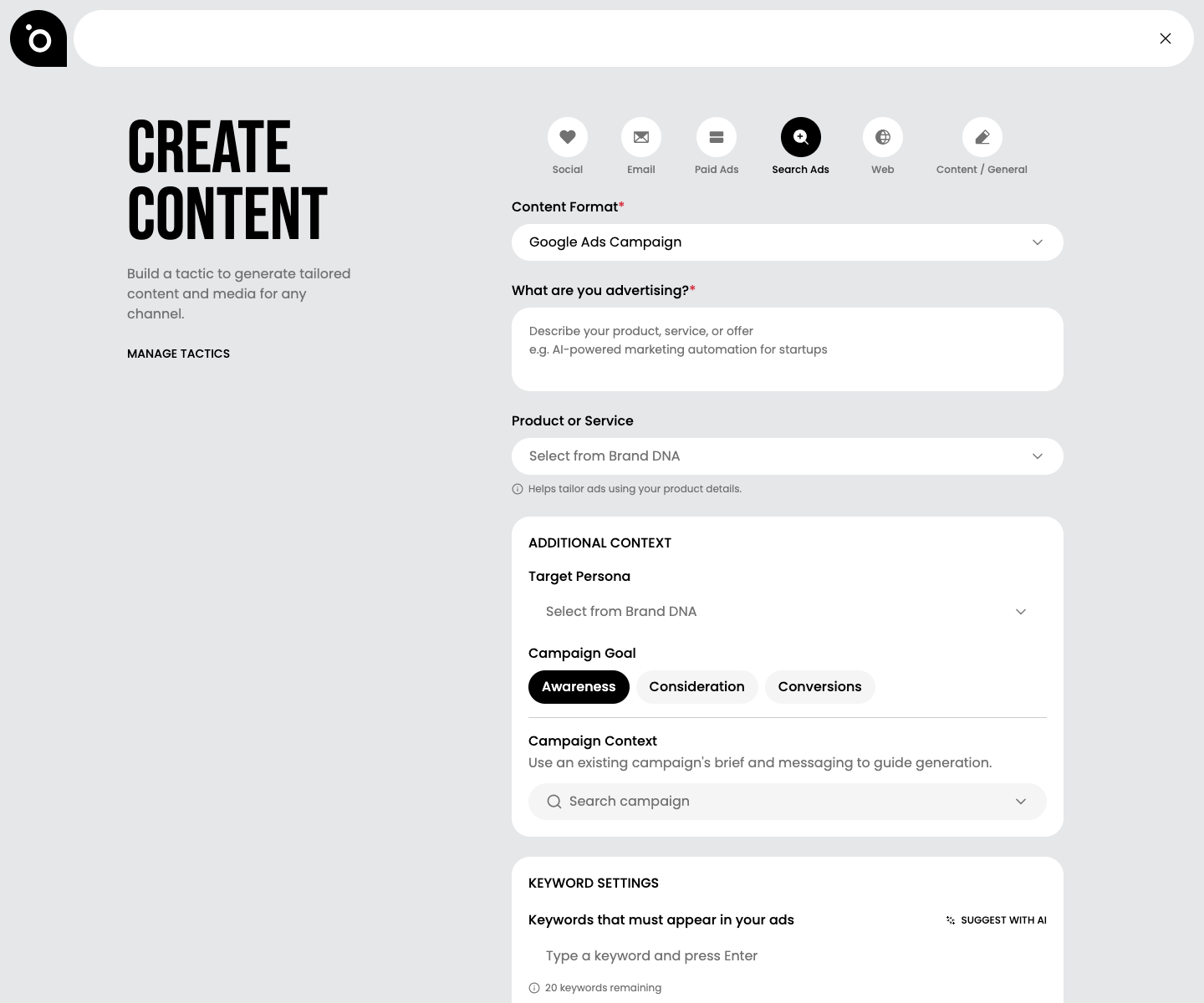
Head to Content Studio and hit New Content to open the Create Content modal. Across the top you'll see the content categories. Choose Search Ads and the brief form switches over to Google Ads, ready to build a Responsive Search Ad.

How to brief for a great result
This is the part that matters. Because there's no campaign feeding it context, you supply that context here, and the richer your brief, the sharper the ads. Think of it this way: in Content Studio, you are the campaign. Here's how to make each input earn its place.
✍️ What are you advertising? Be specific and concrete. "Real-time analytics dashboards for ops teams who can't wait on data engineers" gives Protaigé far more to work with than "our software". Name the offer, who it's for, and what's good about it.
📦 Product or Service. Pull the exact product from your Brand DNA so the copy speaks to its real features and positioning rather than a generic version.
👤 Target Persona. Choose the persona you're actually selling to. The same product pitched to a CFO reads differently than one pitched to a hands-on operator, and Protaigé will adjust the angle to match.
🎯 Campaign Goal. This shifts the whole tone. Awareness leans on reach and recognition, Consideration leans on benefits and proof, and Conversions leans on clear calls to action. Pick the one that matches where these ads sit in your funnel.
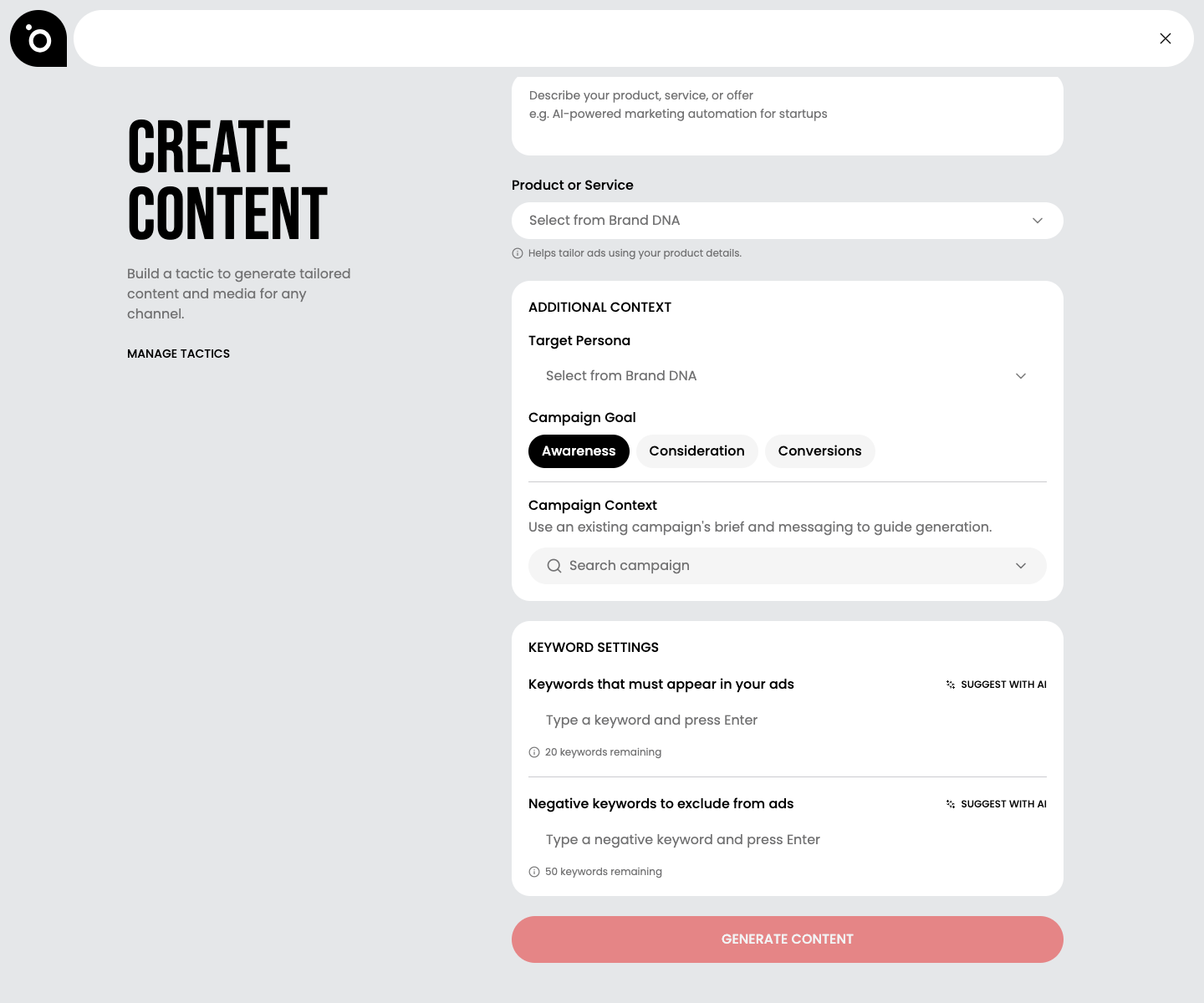
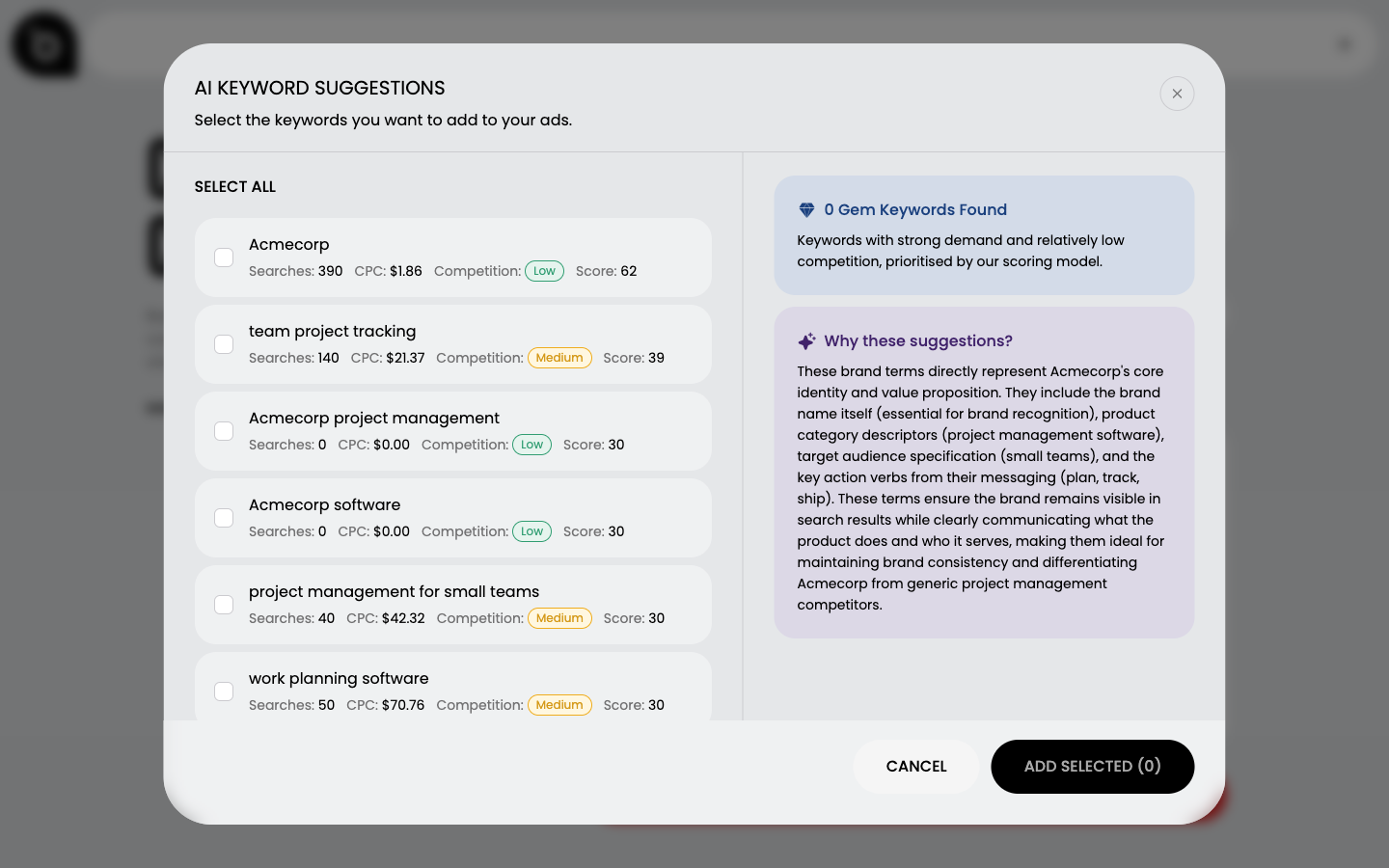
🔑 Keywords that must appear. Add the terms you want the ads built around, and use Suggest with AI to find ones with real search demand. The keyword tutorial covers how to read the scores and spot the gems.
🚫 Negative keywords. Keep off-brand or irrelevant terms out so the copy stays on message.
You'll find the persona, goal and campaign context under + Add more context, and both keyword boxes under + Add keywords & exclusions.
Hit Suggest with AI on either box and Protaigé researches each term and lays out the numbers so you can choose with your eyes open rather than from memory.
Generating
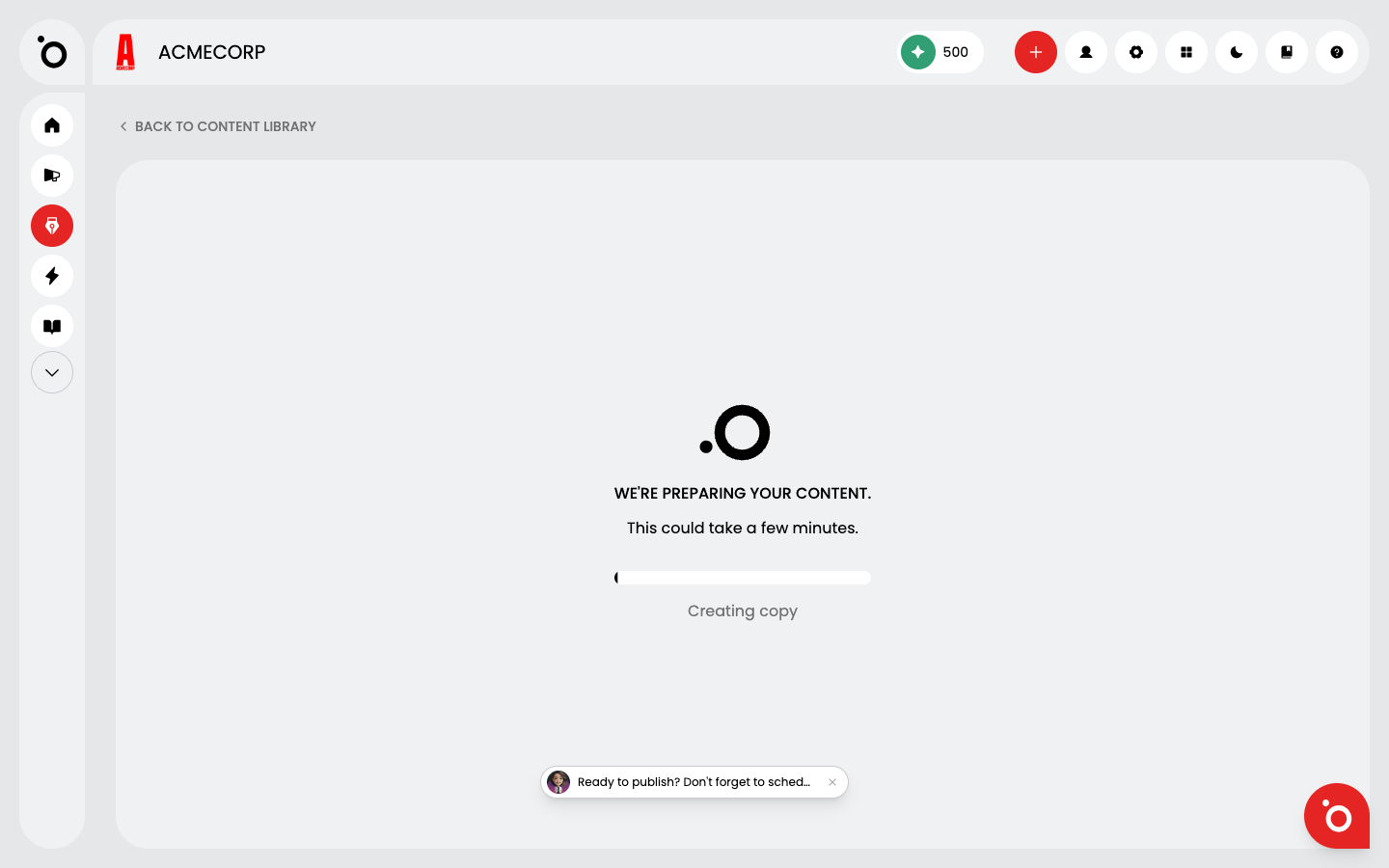
When the brief reads well, hit Generate. Protaigé researches the keywords and then writes a full set of 15 headlines and 6 descriptions around them. It can take up to a few minutes, so this is a good moment to grab a coffee. You'll see a generating state while it works.
Reading the output
Once it's done you get your 15 headlines and 6 descriptions, and there's a bit more going on in each one than meets the eye. The result header reads GOOGLE ADS RSA with a Draft badge and the date it was generated. Here's what the parts mean.
🏷️ Type badges tag every headline as Keyword Match, Benefit, Cta, Social Proof or Urgency, so your set covers genuinely different angles rather than fifteen versions of the same line.
📏 Character counts keep headlines within 30 characters and descriptions within 90, with an amber nudge as you near the limit so nothing gets truncated in the wild.
🎯 Covers shows which researched keyword each line is targeting, so you can see the intent behind every one and trust that the copy is pulling its weight. Each line also has an Include in export toggle, so you can drop any you don't want before exporting.
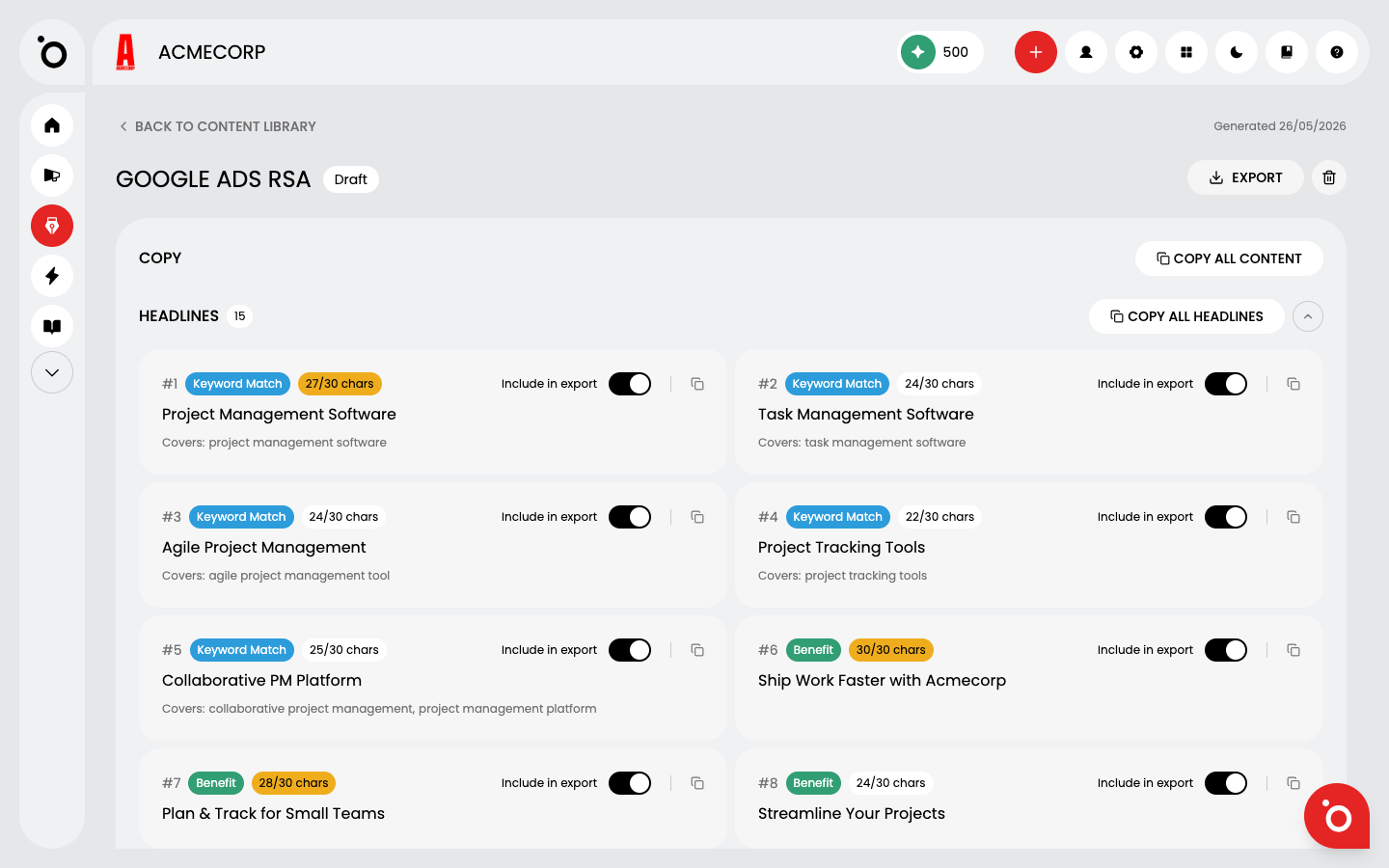
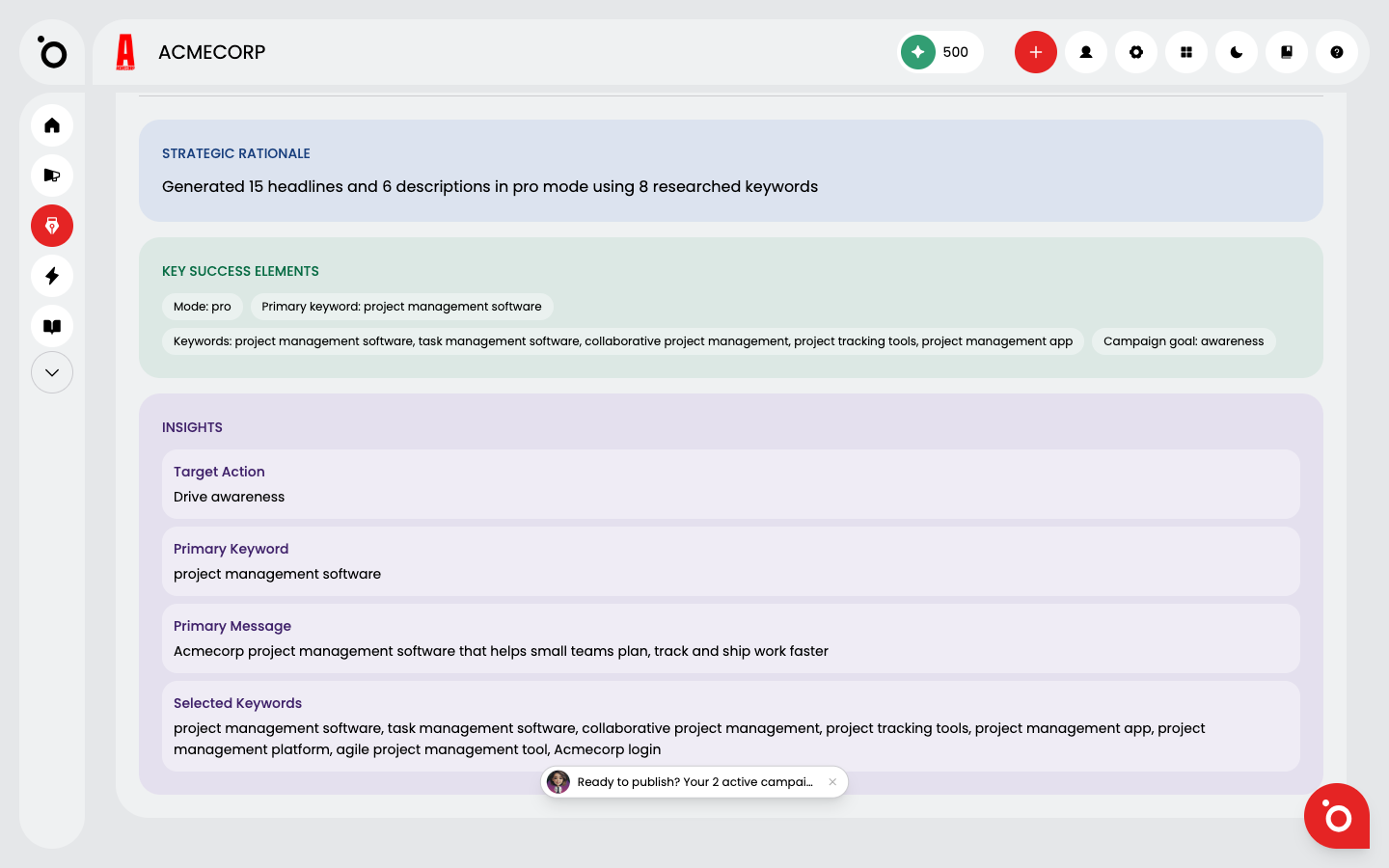
The descriptions work the same way, just with the longer 90-character allowance and their own Covers lines. Below the copy you'll find a few panels worth reading. Strategic Rationale explains why the set is built the way it is, Key Success Elements pulls out the primary keyword, the full keyword list and the campaign goal it was writing towards, and the Insights panel breaks down the target action and primary message.
Exporting to Google Ads
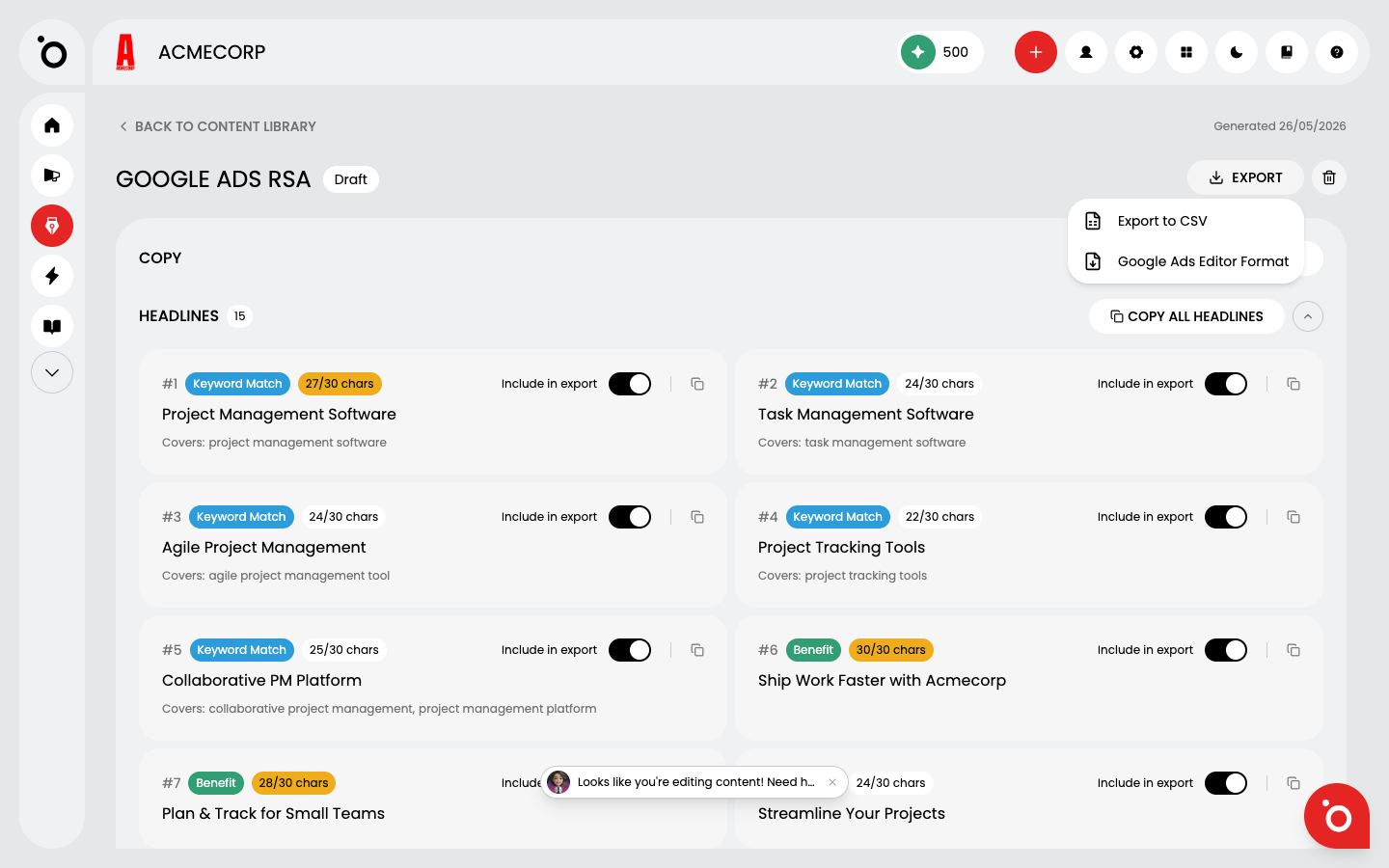
When the set looks right, open the Export menu. You've got two options: Export to CSV for a plain spreadsheet, or Google Ads Editor Format if you want something that drops straight into Google Ads Editor. Either way it's ready to upload, with the keywords and copy lined up exactly as you saw them on screen.
Further Reading
