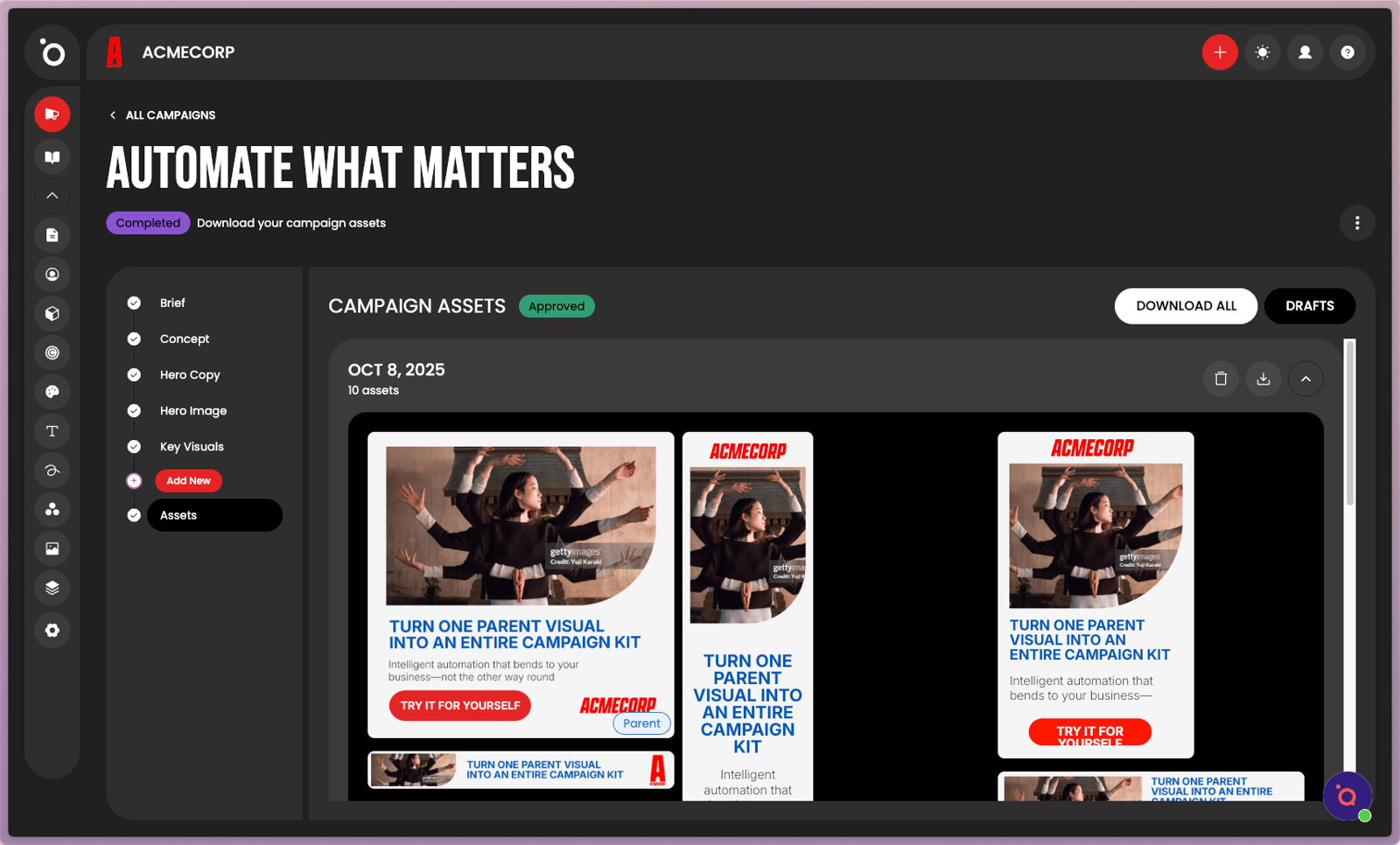
How automated propagation keeps every ad consistent as your campaign grows


TL;DR
Setup your Design Kit → Edit your Key Visual → Generate Banners → Scale across all formats → Make final edits → Approve → Saved in Assets folder
Your Key Visual is the first step to visualising your campaign. Scaling that single layout into a full campaign kit is where our creative system truly proves its power.
In Protaigé, scaling isn’t about creating dozens of files manually. It’s about letting your Design Kit architecture — built on the parent–child model — do the heavy lifting for you. The parent asset, usually your Key Visual, contains all the layout rules, editable zones, and brand settings that every child format inherits. When you propagate your design, those rules flow automatically across each size and placement, preserving typography, spacing, and brand elements perfectly .
Every change you make in the parent updates instantly across all related assets. Adjust a logo position, colour, or headline, and the entire banner set refreshes in seconds. This eliminates repetitive editing and keeps every piece of campaign creative aligned with your original design intent.
When your 
A step-by-step guide
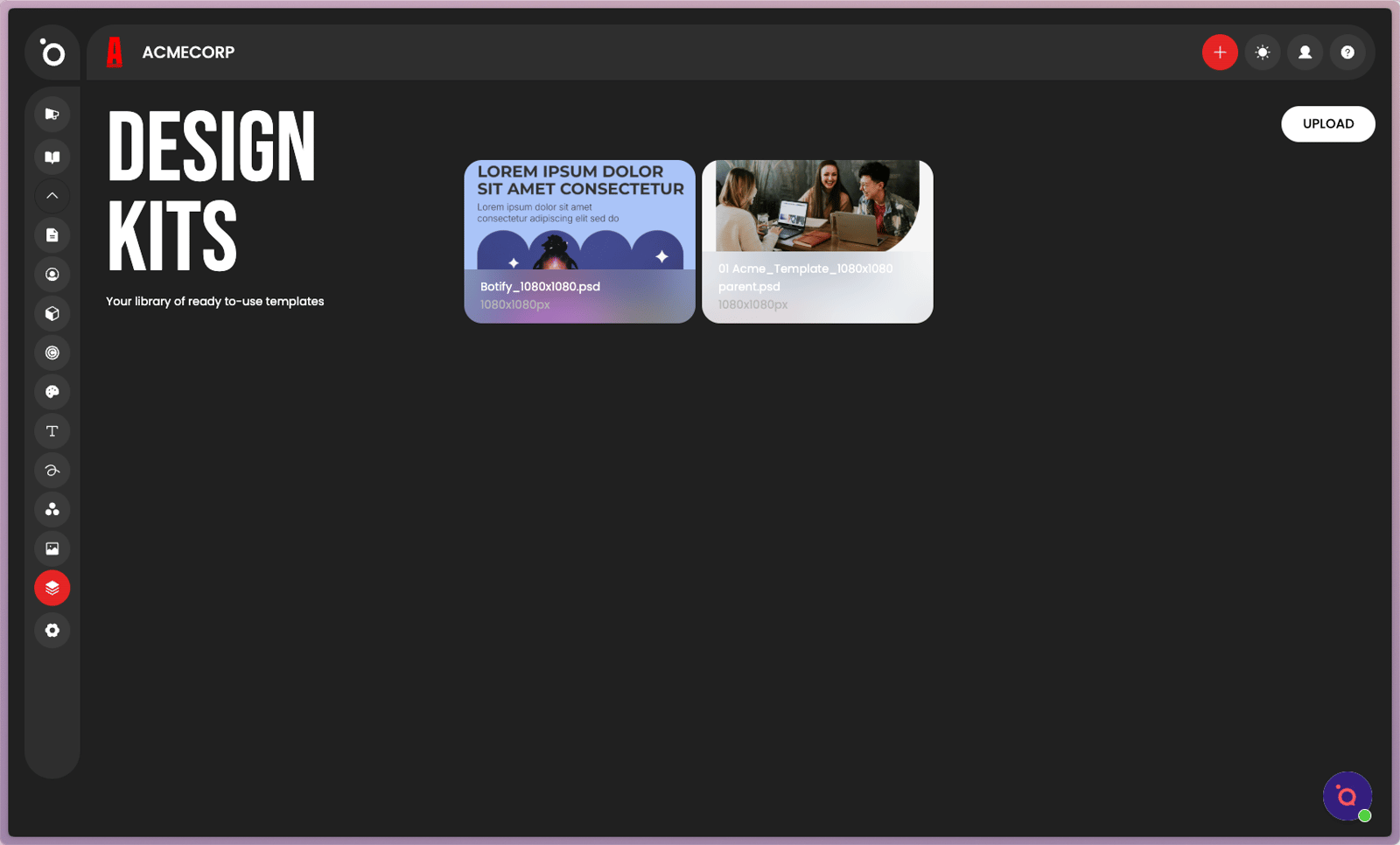
1. In an earlier tutorial, we learned that Design Kits serve as your campaign templates.
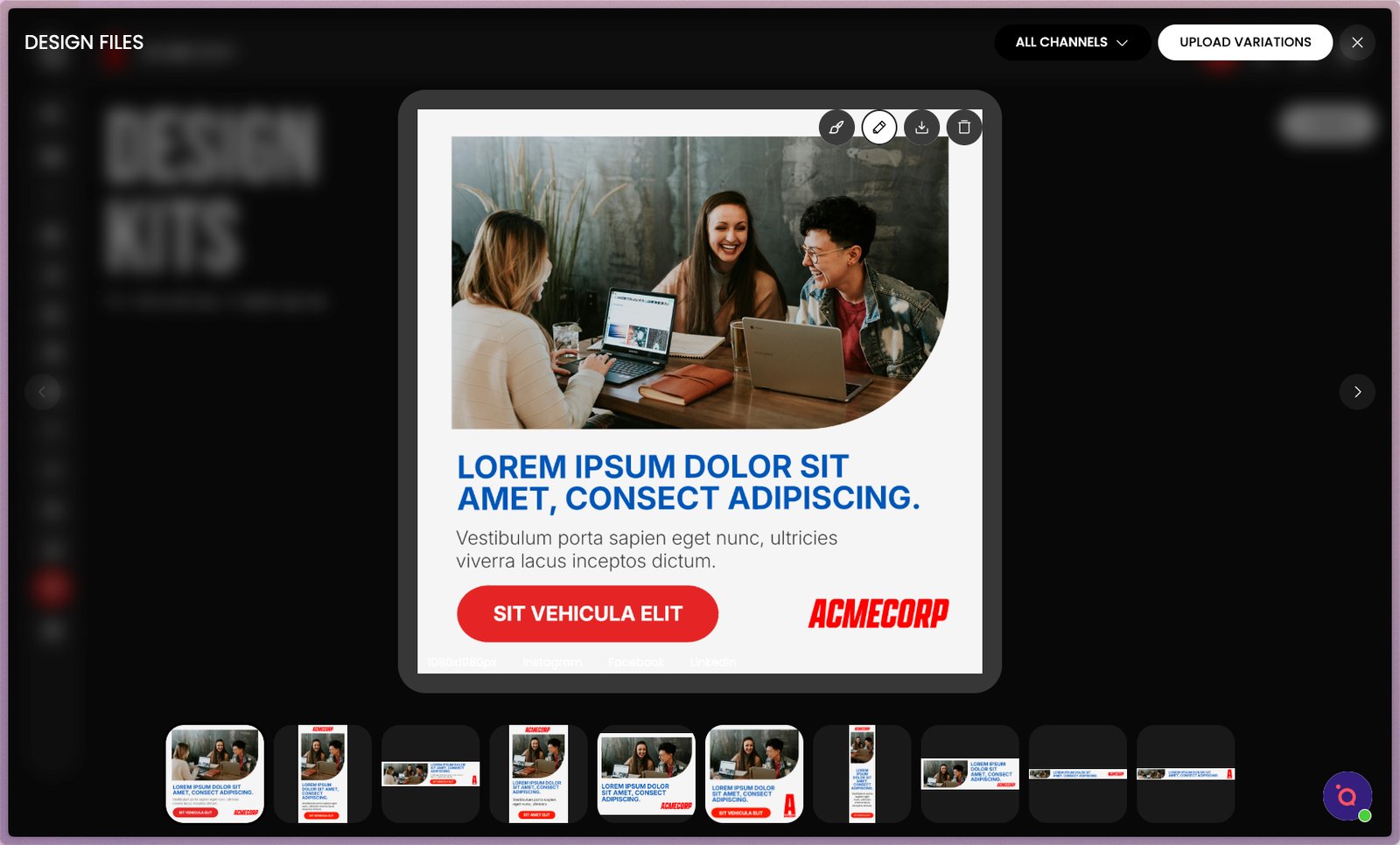
2. Kits are structured into parent and child assets.
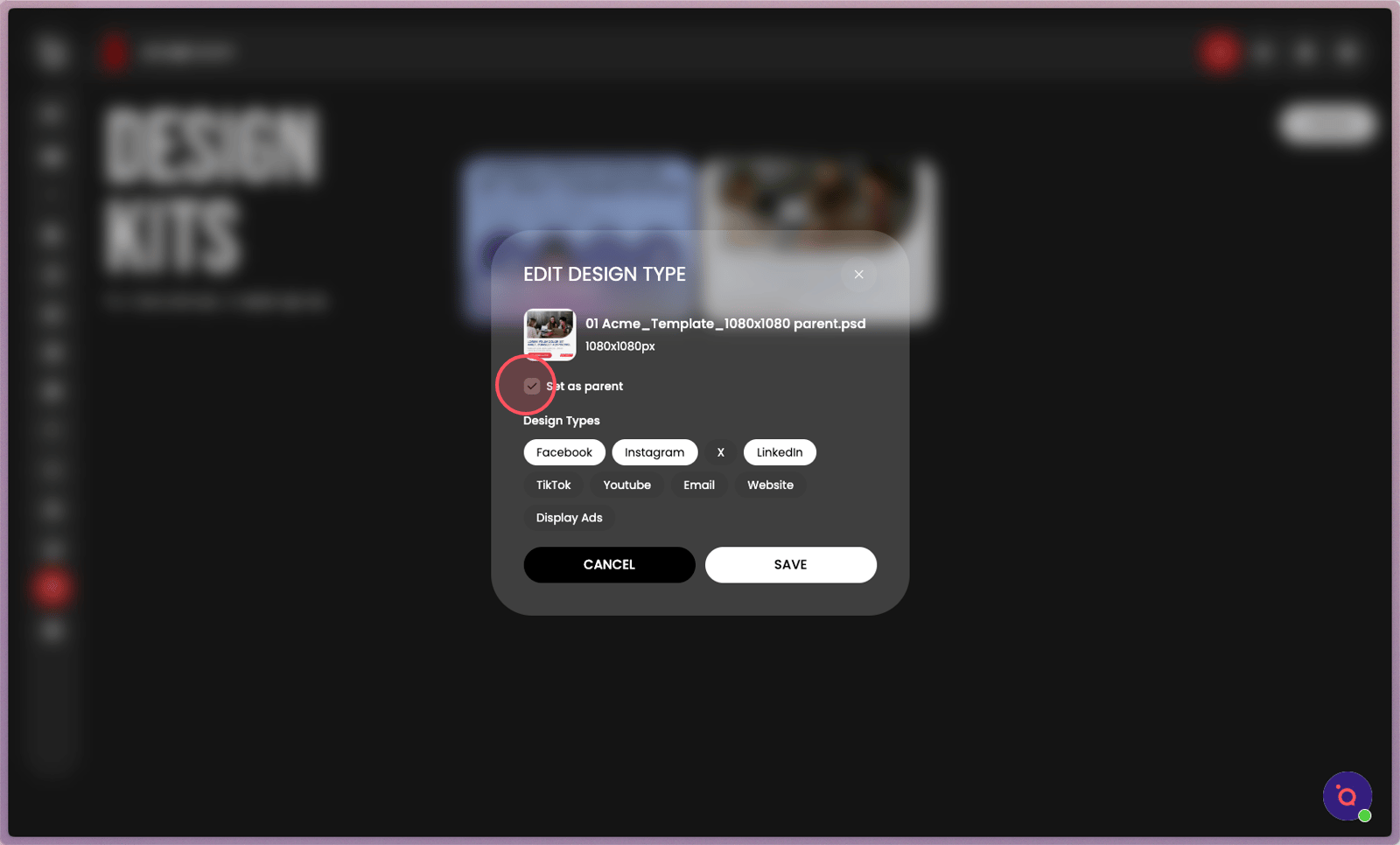
3. The parent asset is automatically set as the Key Visual.
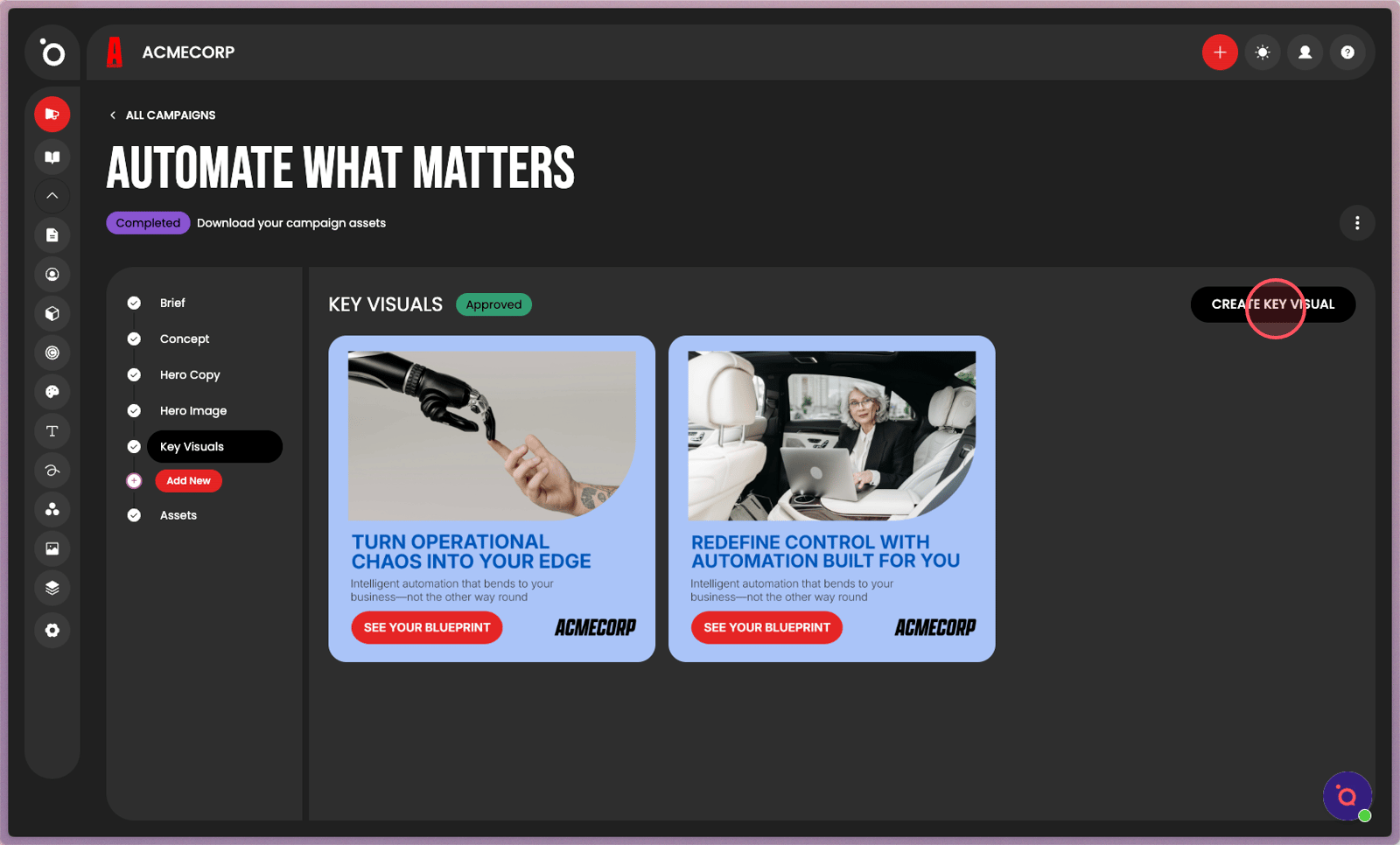
4. You start the campaign design process by creating a Key Visual.
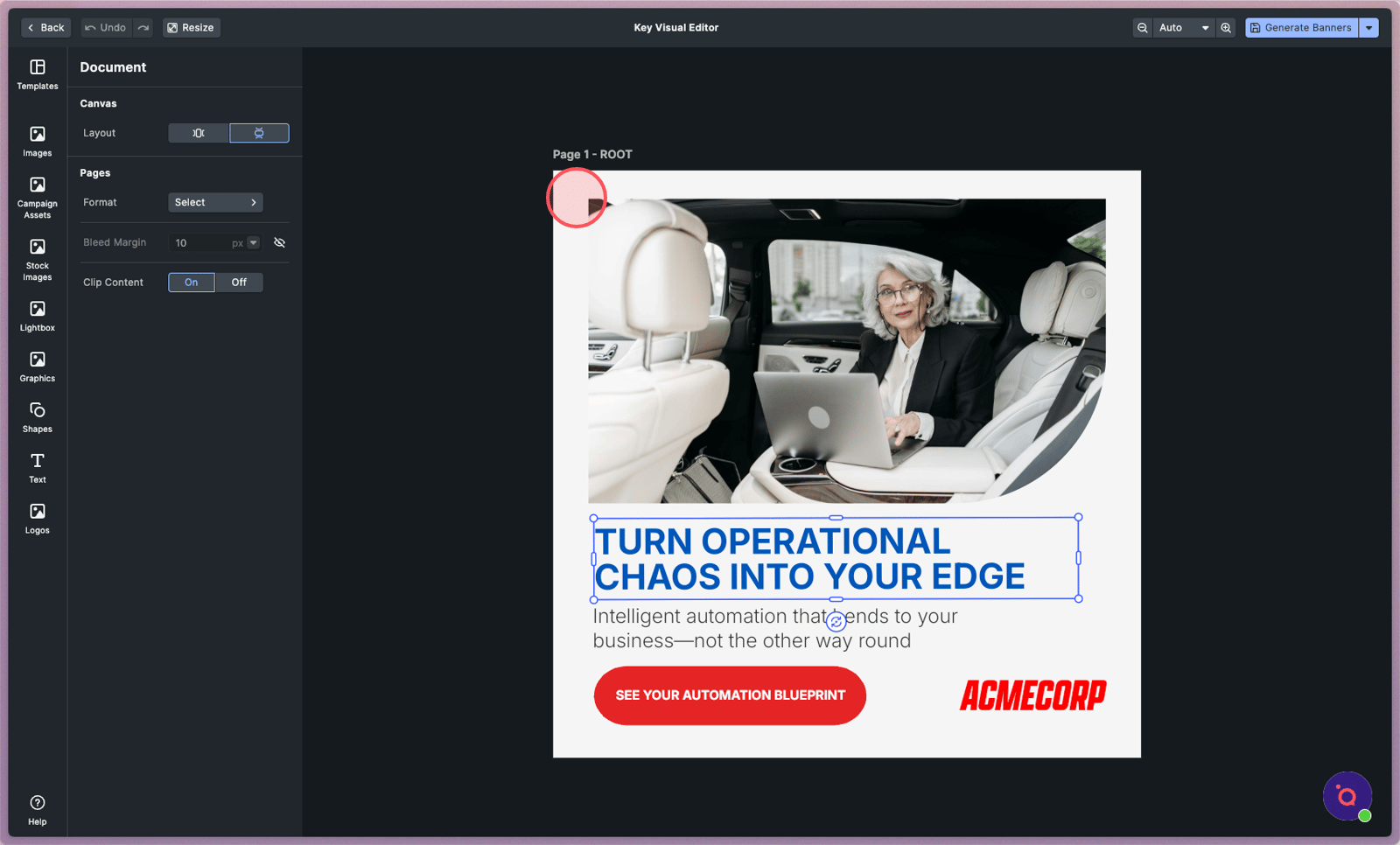
5. The parent asset in automatically loaded and dynamically filled with your approved hero copy and image.
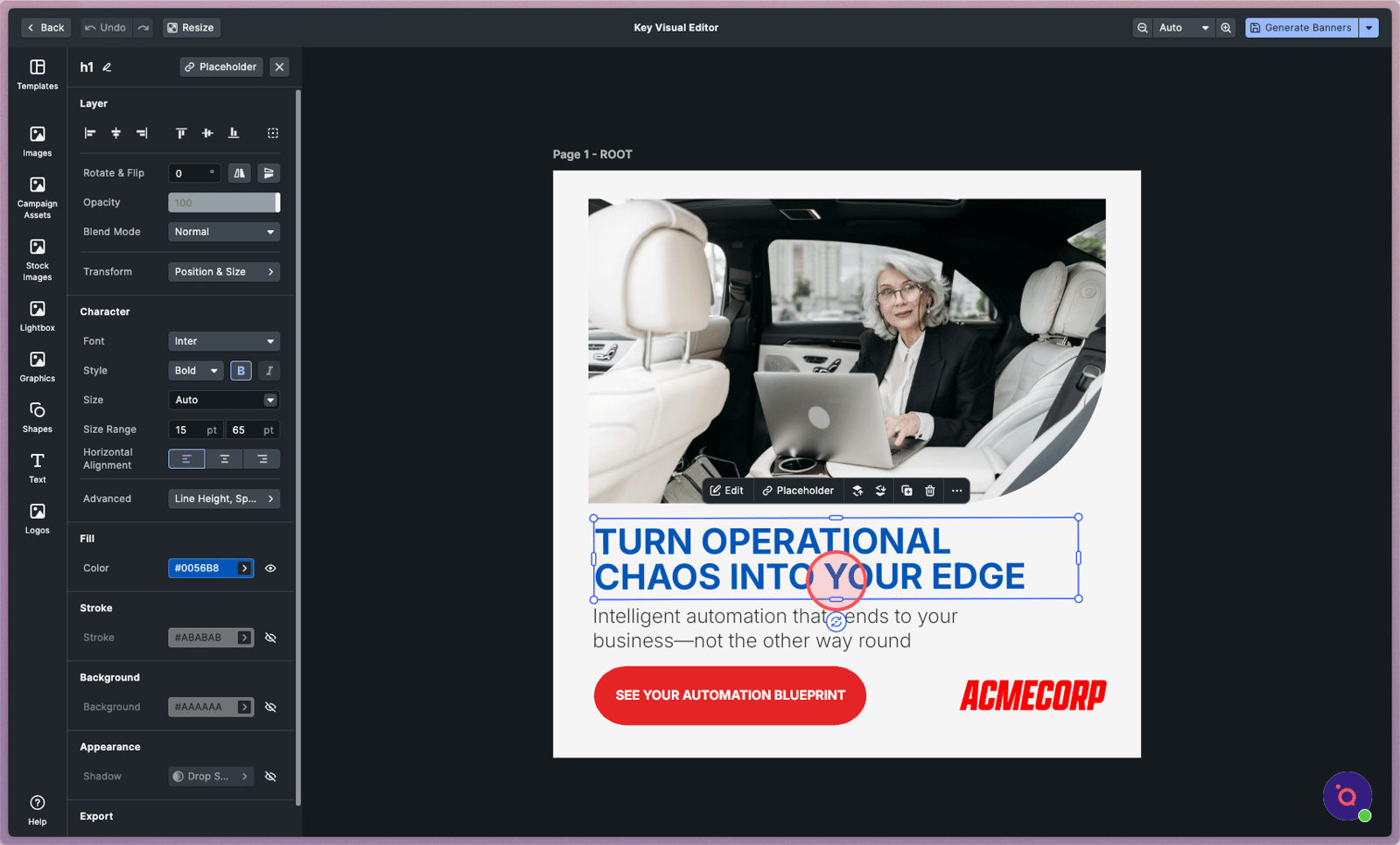
6. Any changes or updates made in the Key Visual will propagate across the entire kit.
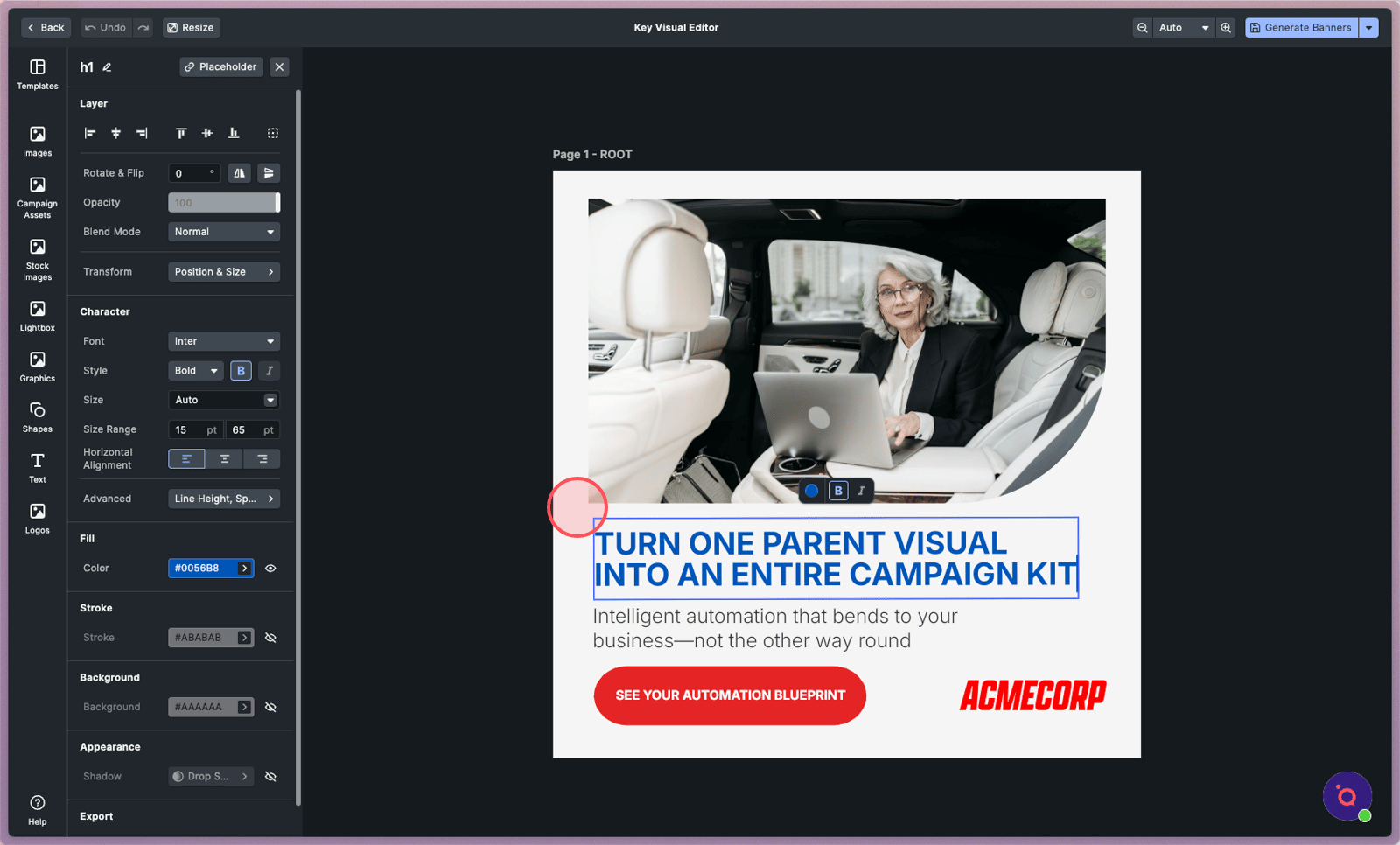
7. For instance, changing the headline.
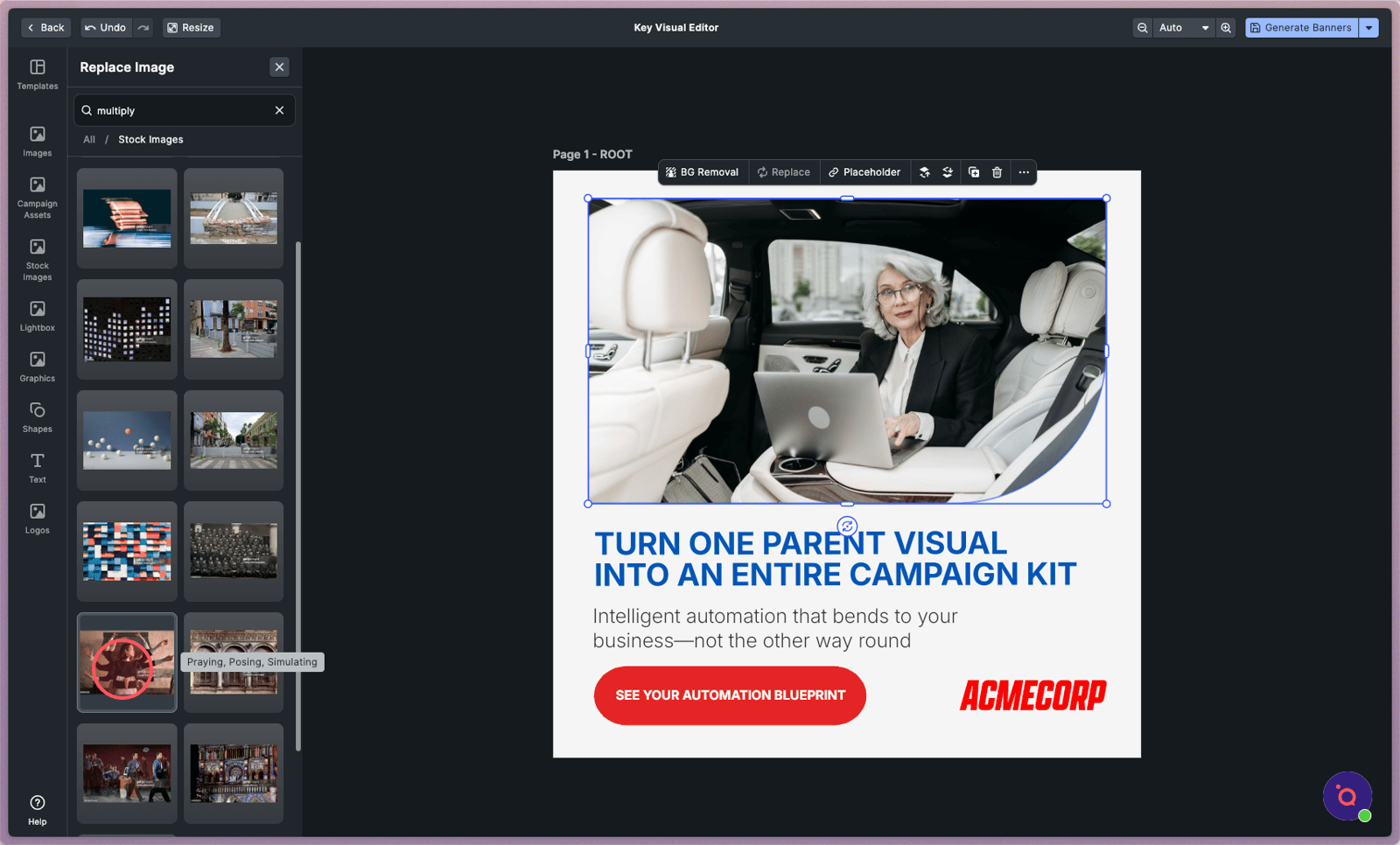
8. Or changing the hero image.
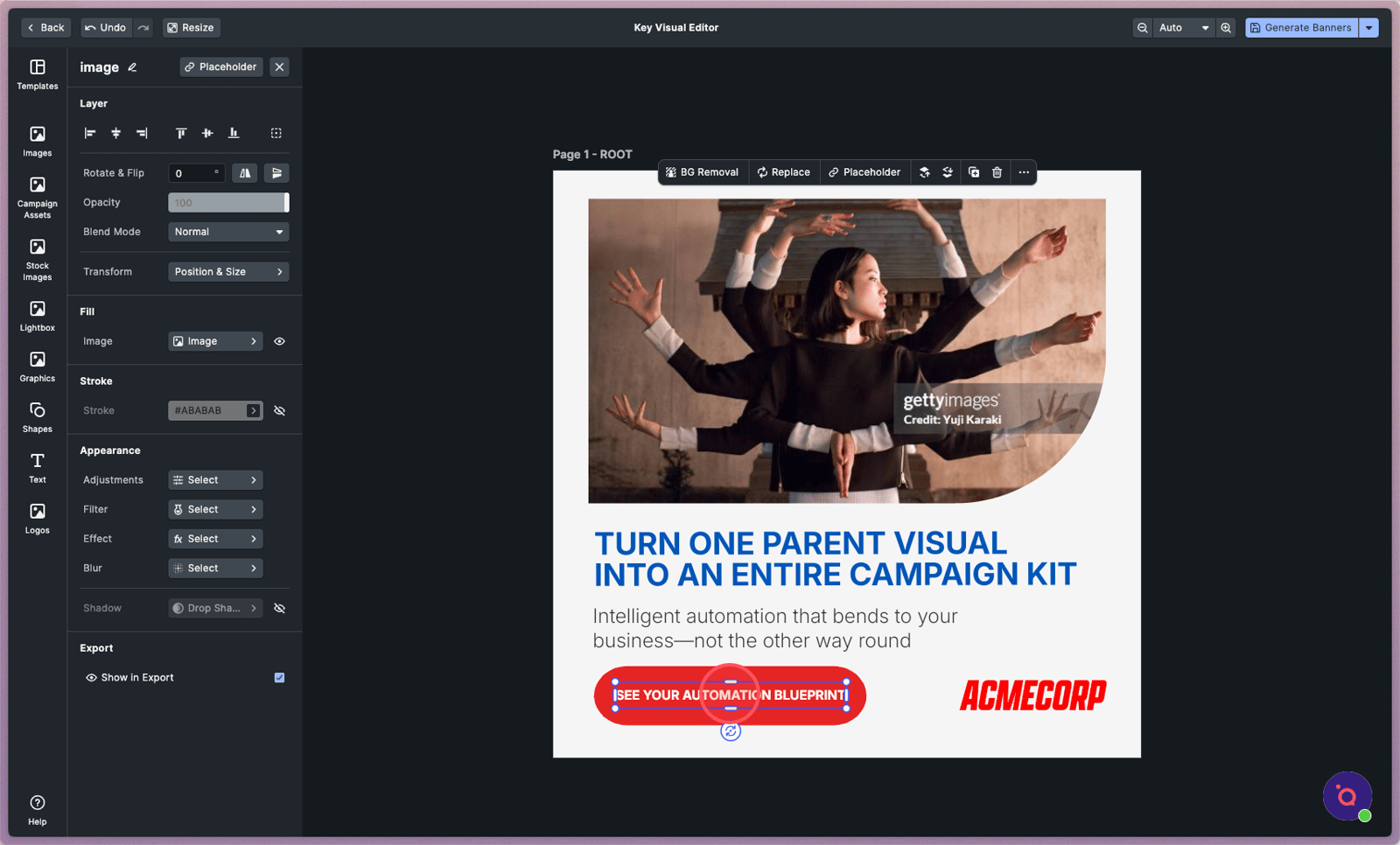
9. Or the CTA, background, logo or graphics.
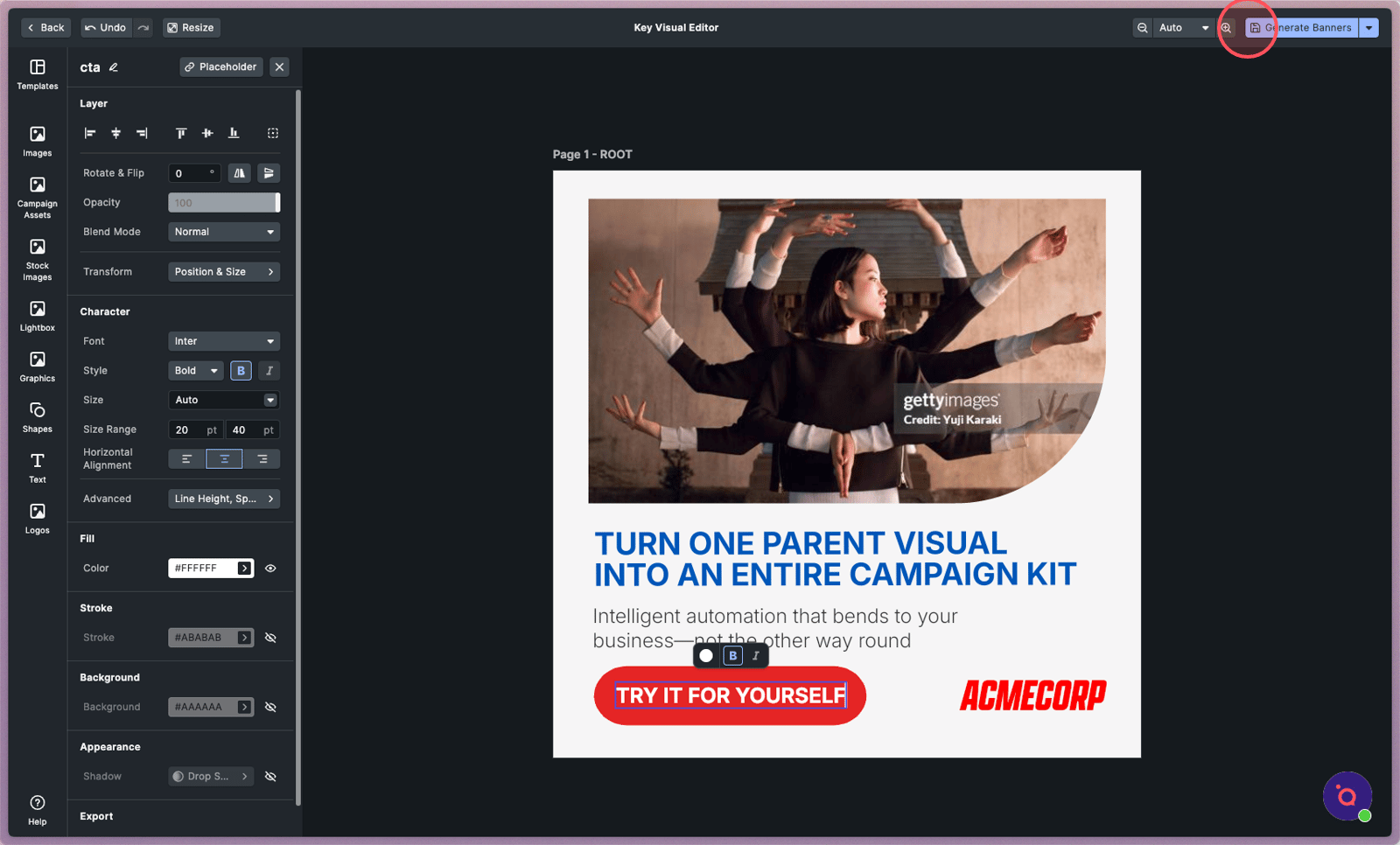
10. Applying these updates across dozens of formats is as simple as clicking Generate Banners.
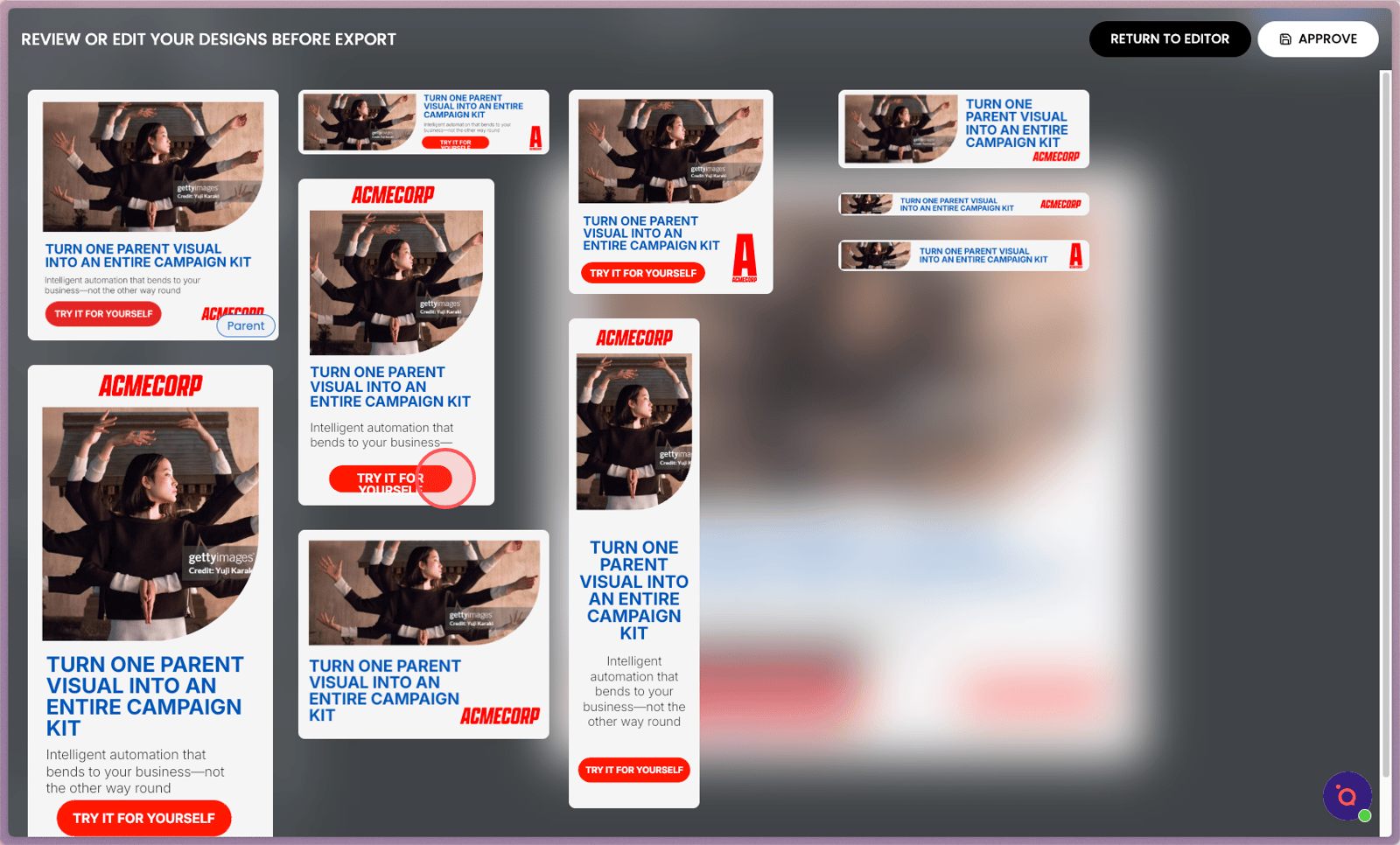
11. It's almost perfect, but don't worry — every banner can be edited at anytime.
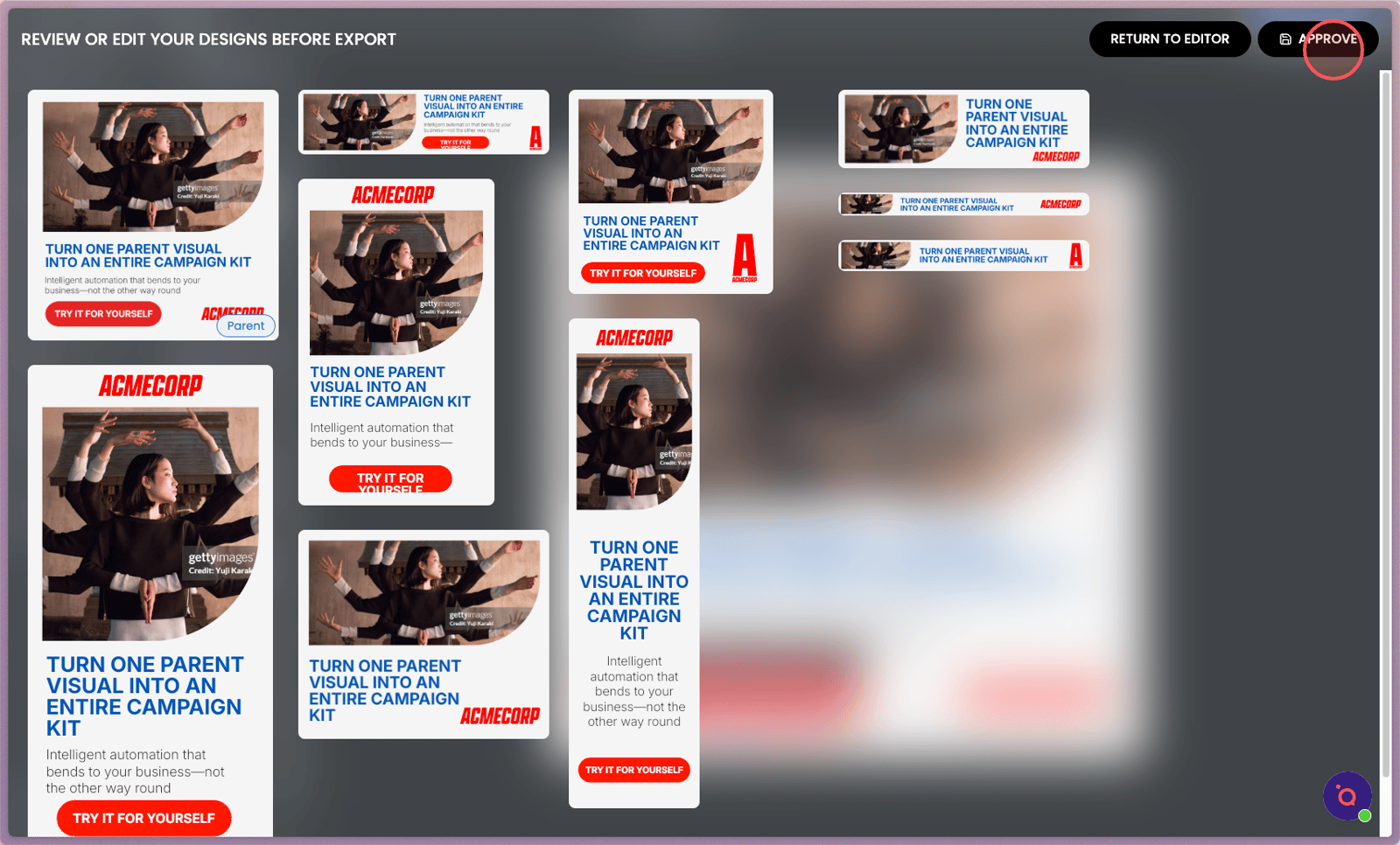
12. Click APPROVE when you're completely satisfied.
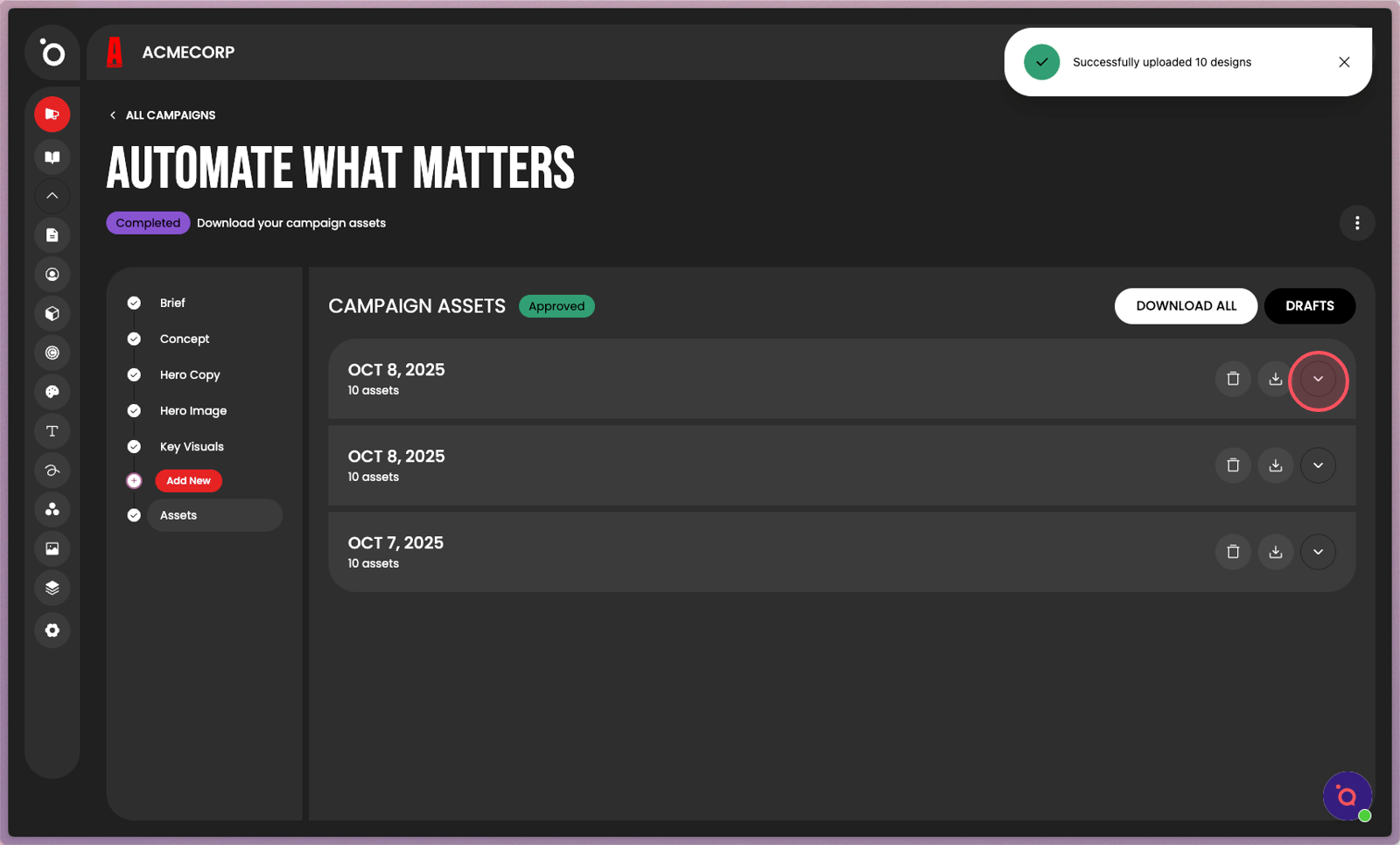
13. Your new campaign assets will be saved in a folder here.