What you'll learn
Download approved visuals and copy in the right formats
Series
2.26
Section
Campaigns
Last Updated
Feb 4, 2026 9:38 PM
Status
Live


TL;DR
Open campaign → Assets section → Select files or choose Download All → Export your campaign assets
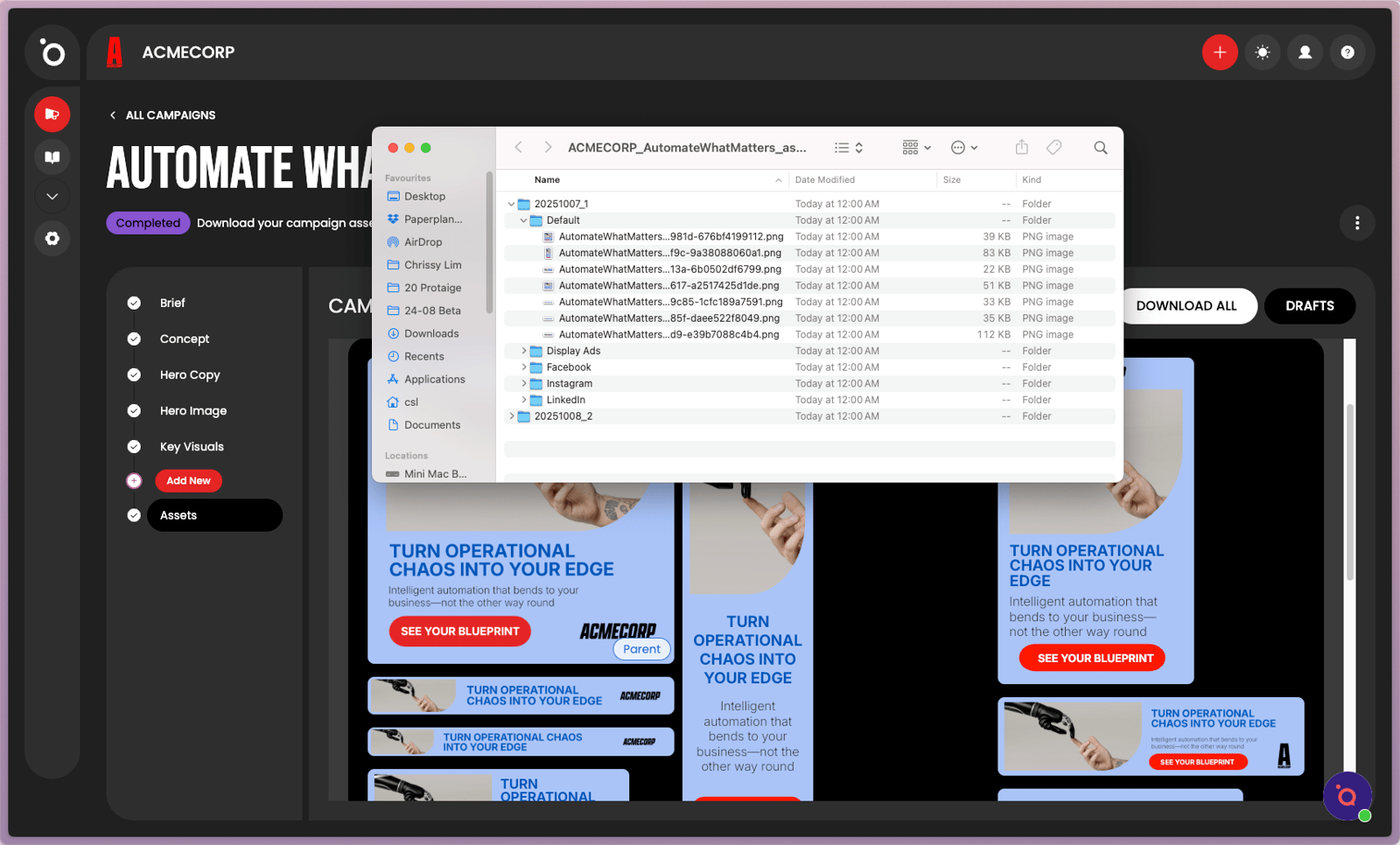
Once your campaign is approved, you can download all of your final creative assets directly from the campaign dashboard. Each asset is neatly organised in folders for easy access — by channel, format, or asset type — so you can quickly find, share, and publish your campaign materials.
All channel-tagged artwork is automatically sorted into dedicated folders, while untagged designs are placed in the Default folder. You can choose to download selected assets or export the entire campaign as a zip file in one click.
A step-by-step guide
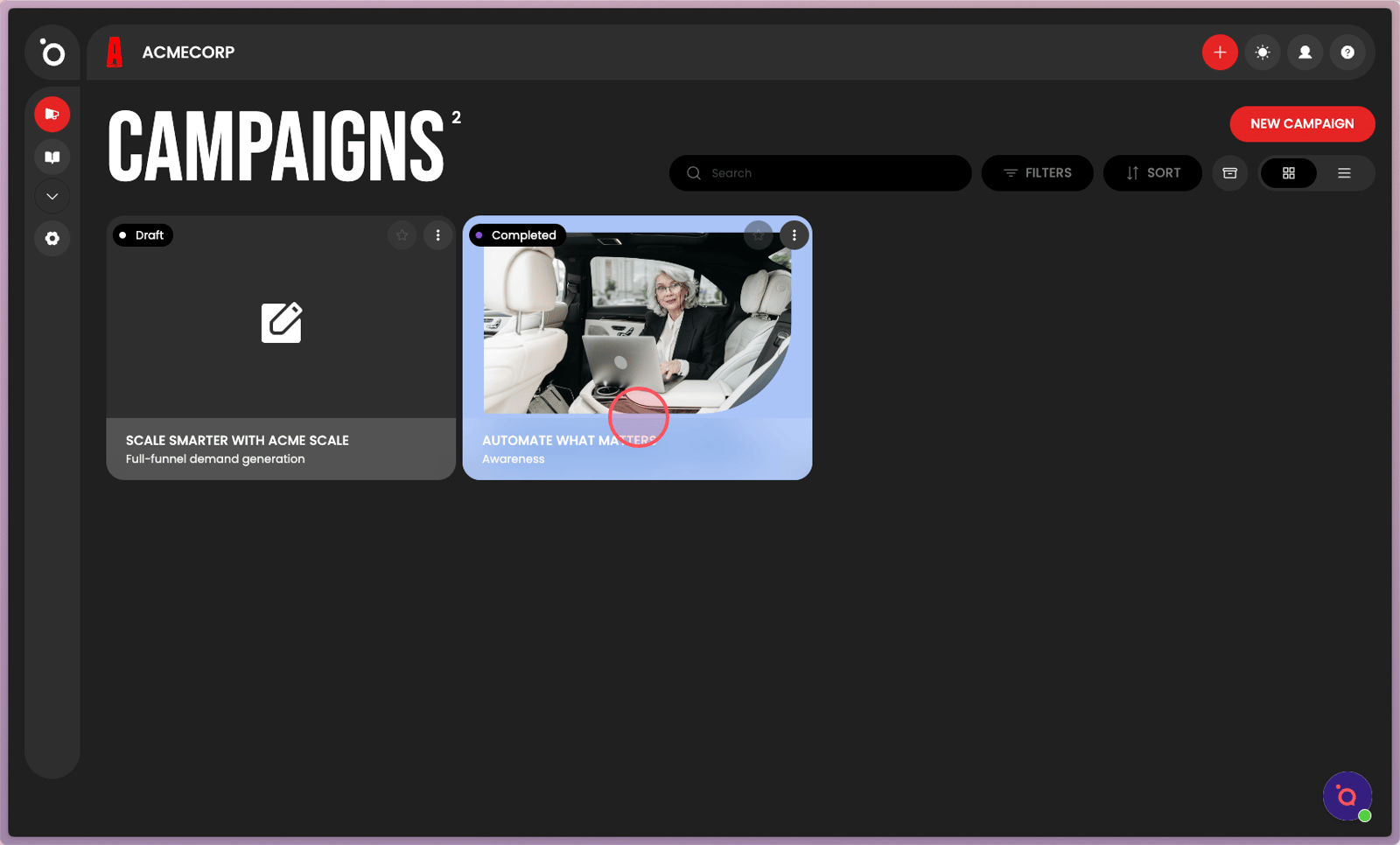
1. Locate your desired campaign on the dashboard.
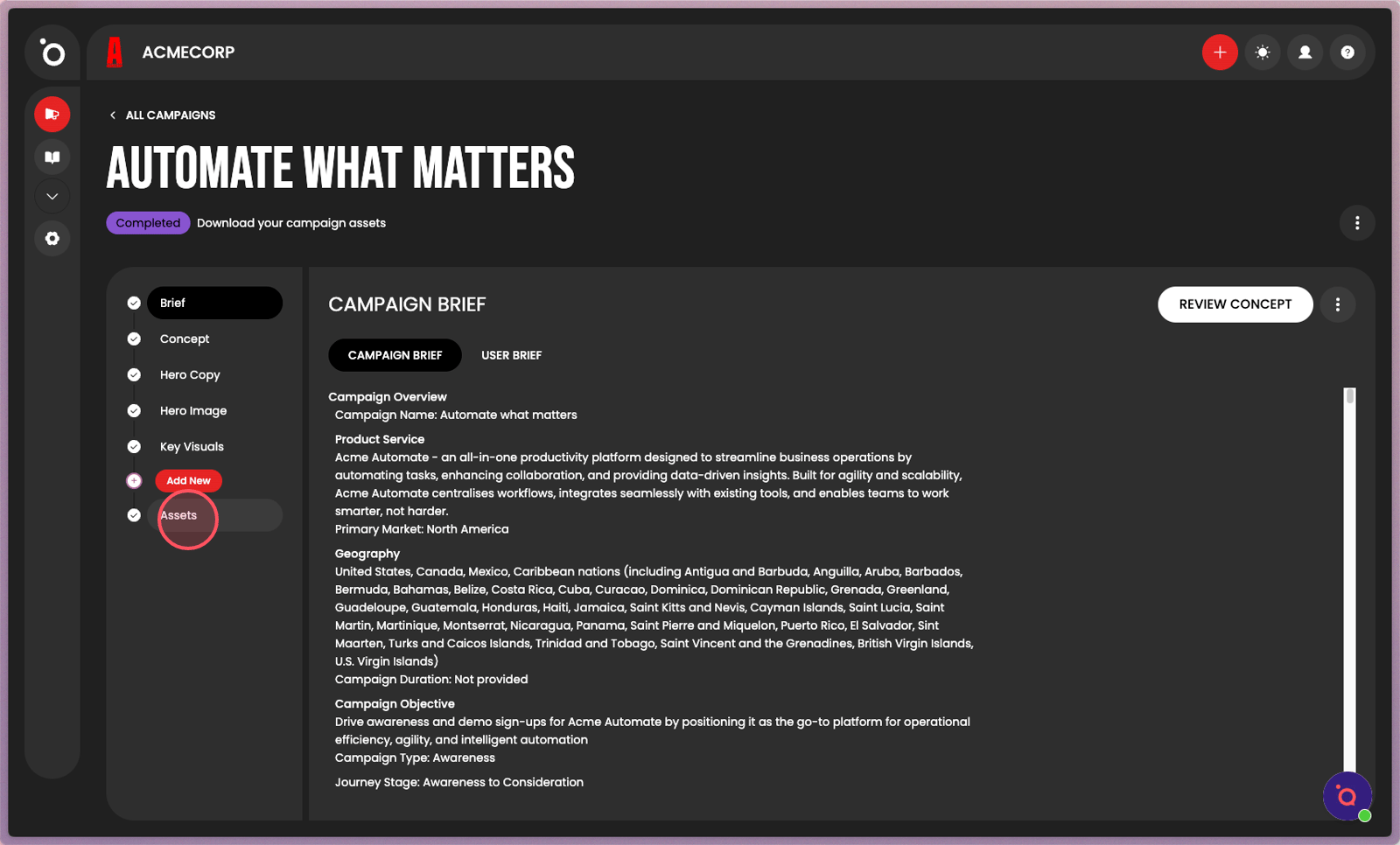
2. Navigate to the Assets section from the sidebar.
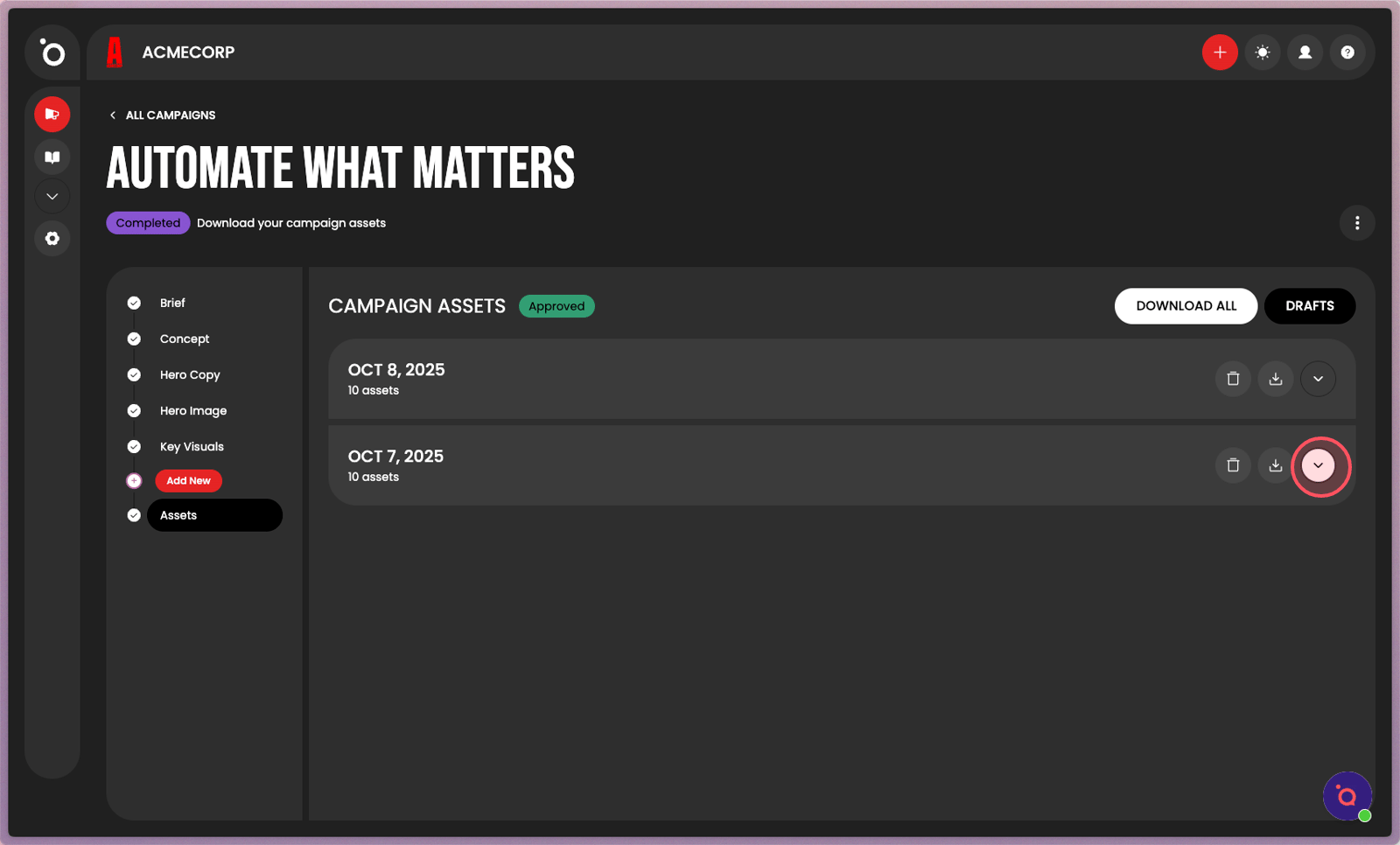
3. Your creative assets are organised in folders. Expand on to view artwork.
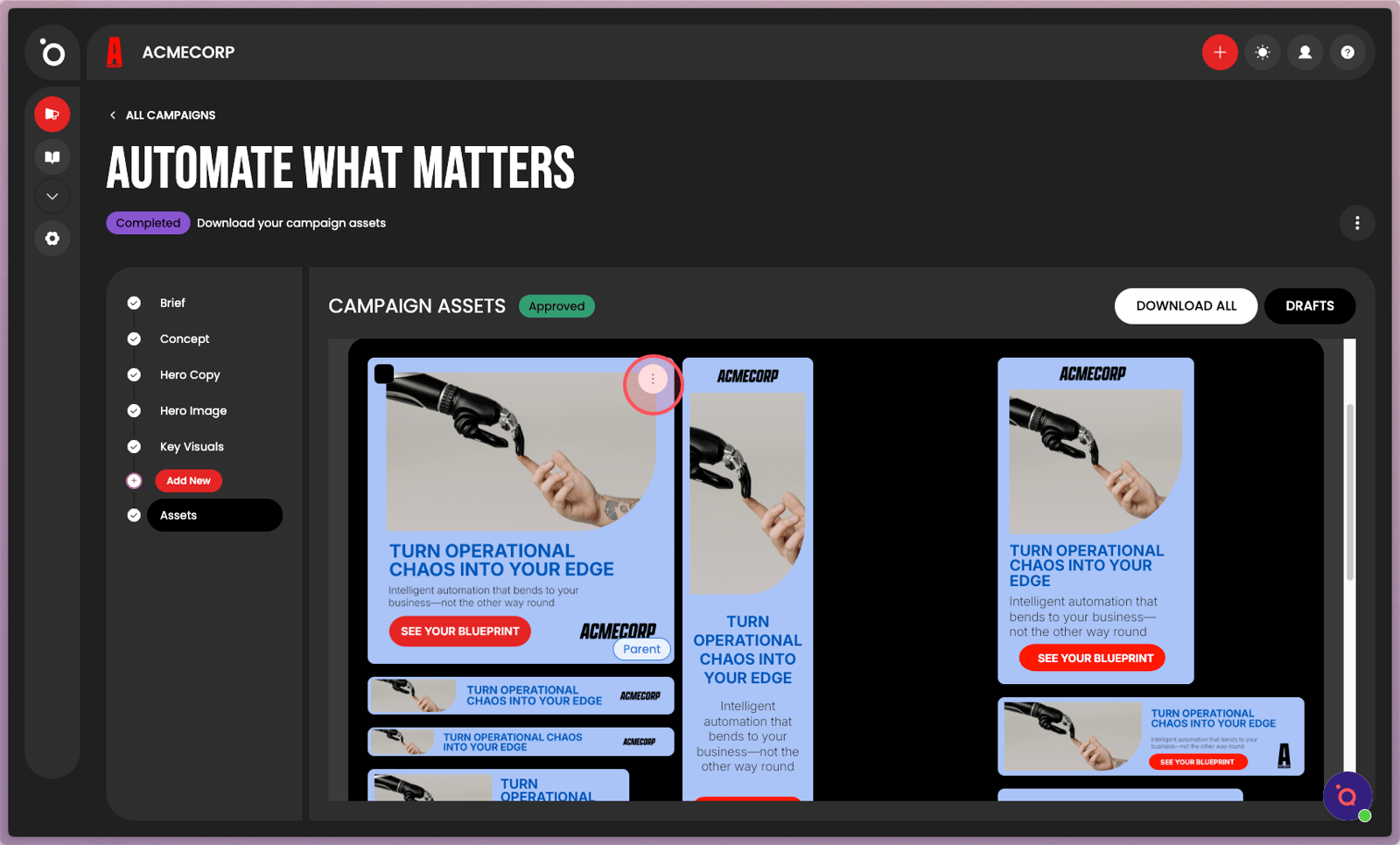
4. Open the quick actions menu.
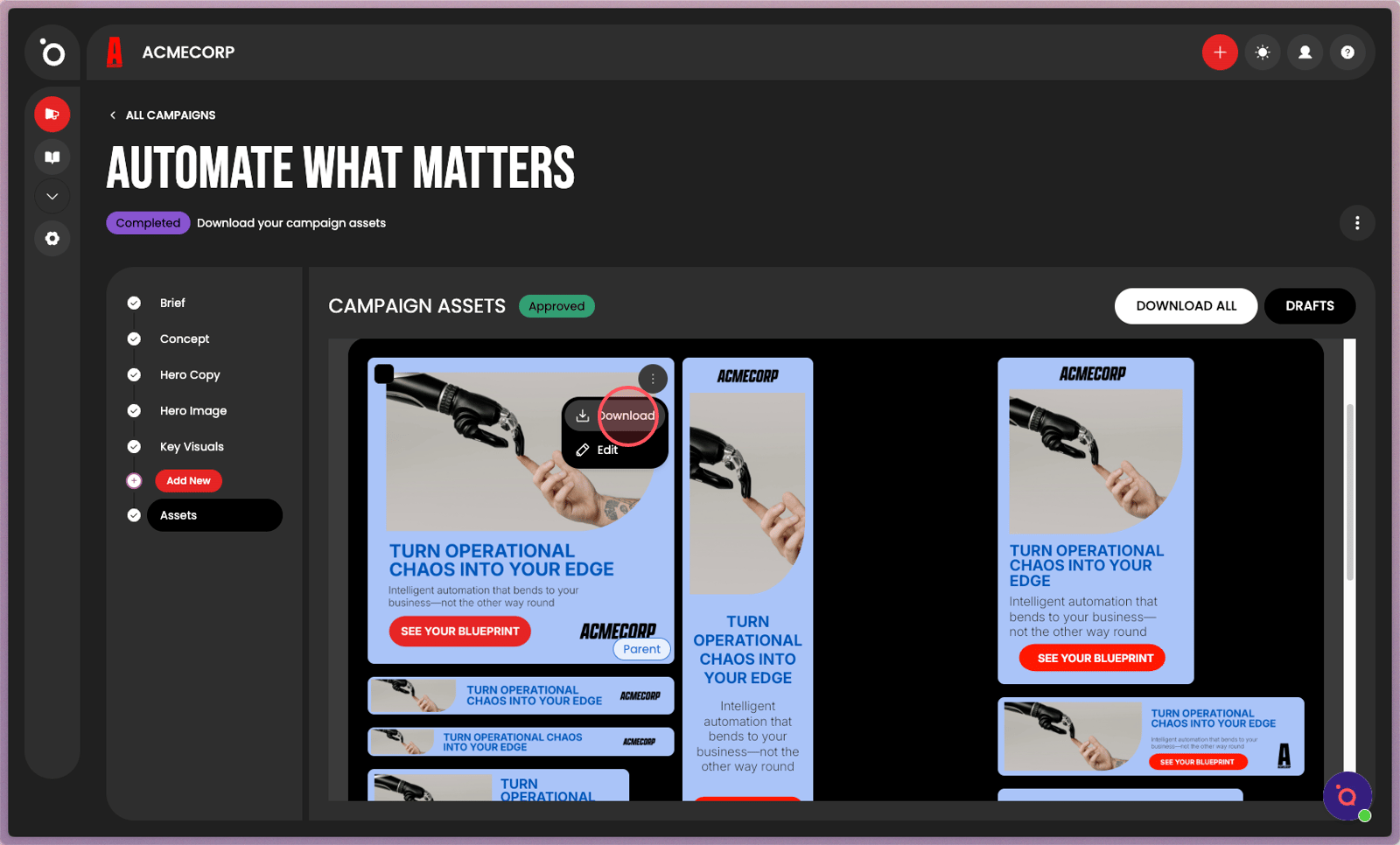
5. Select 'Download' from the menu to save the asset to your device.
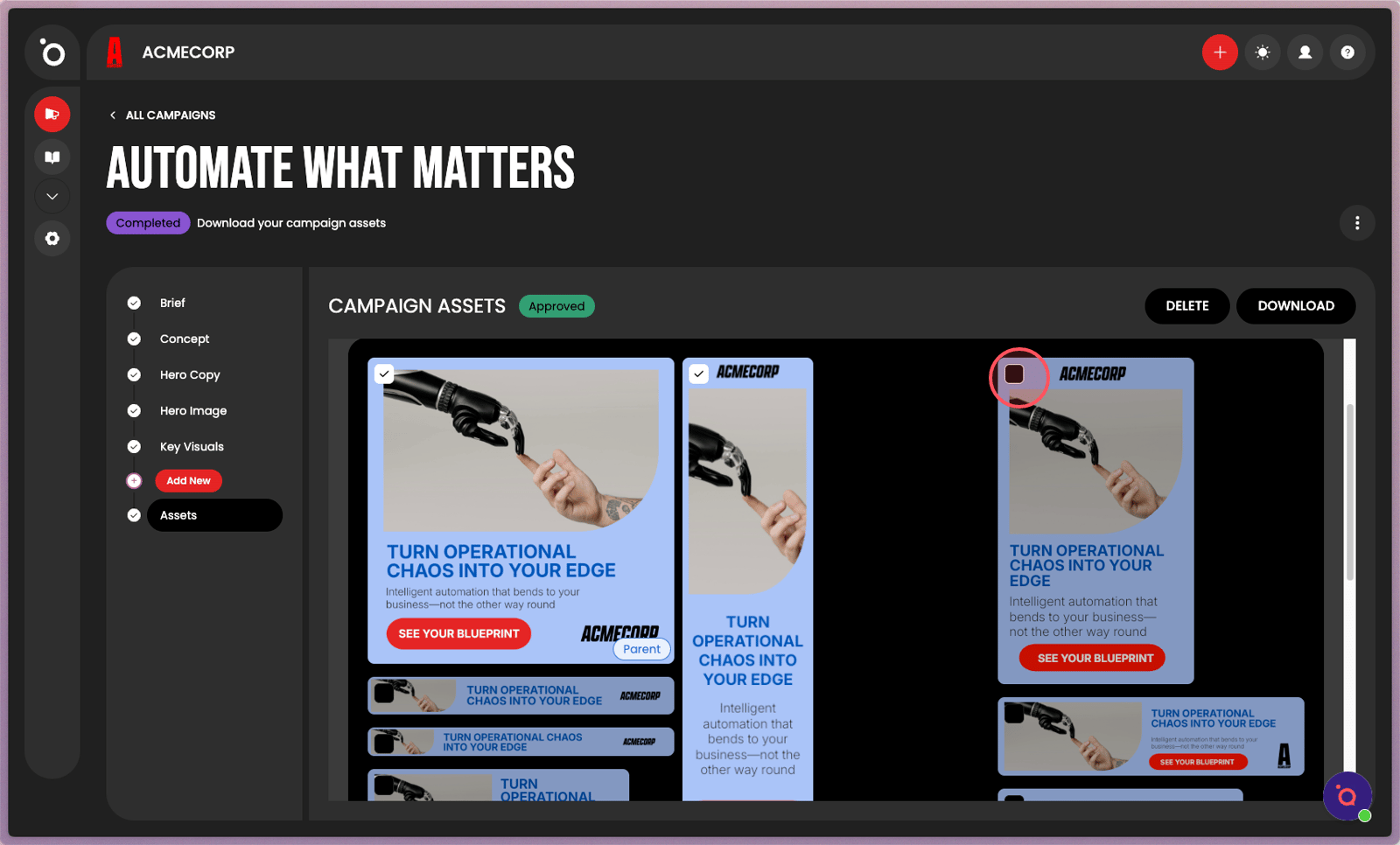
6. Choose assets for bulk download.
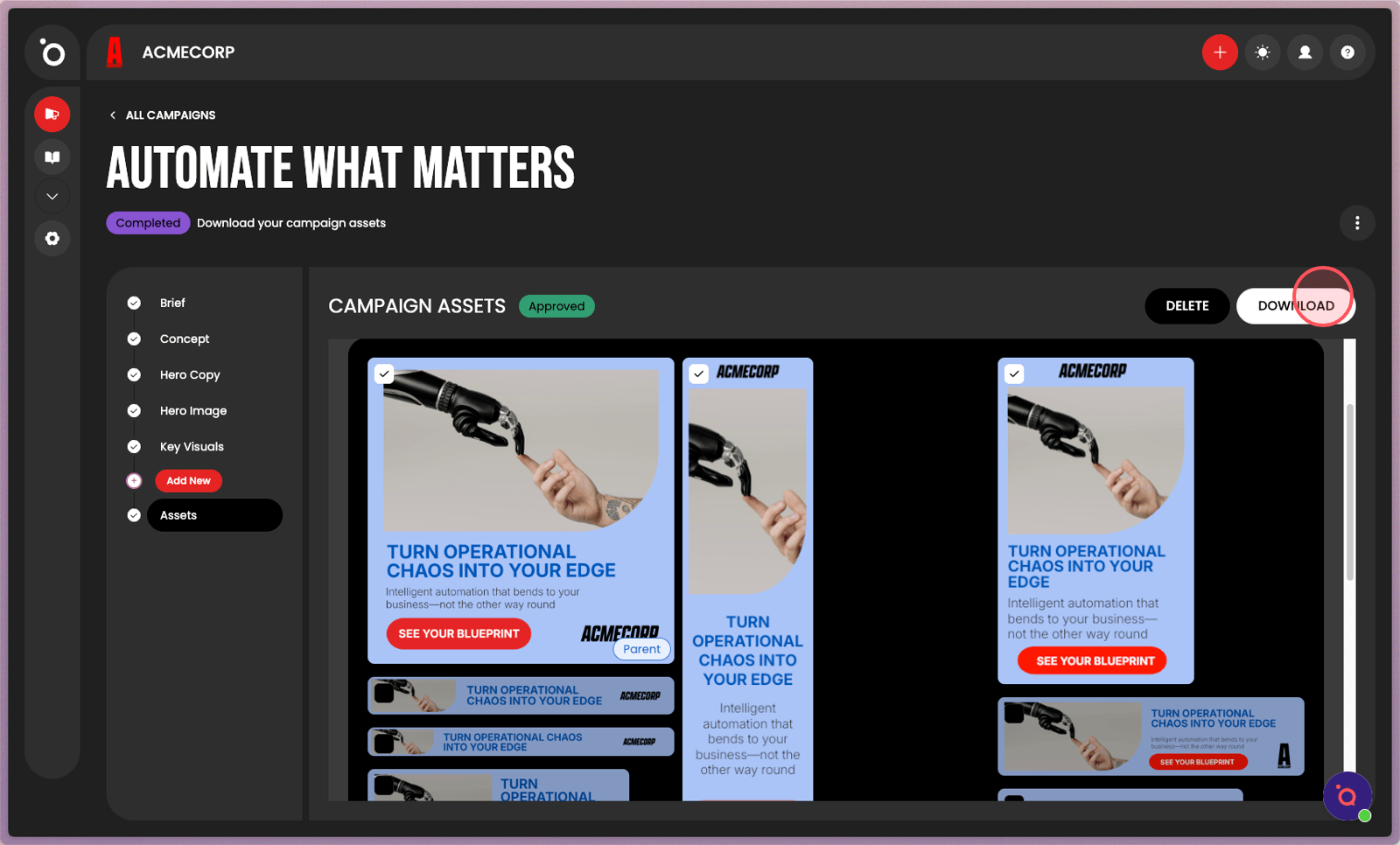
7. Click the Download button to save your selected campaign assets.
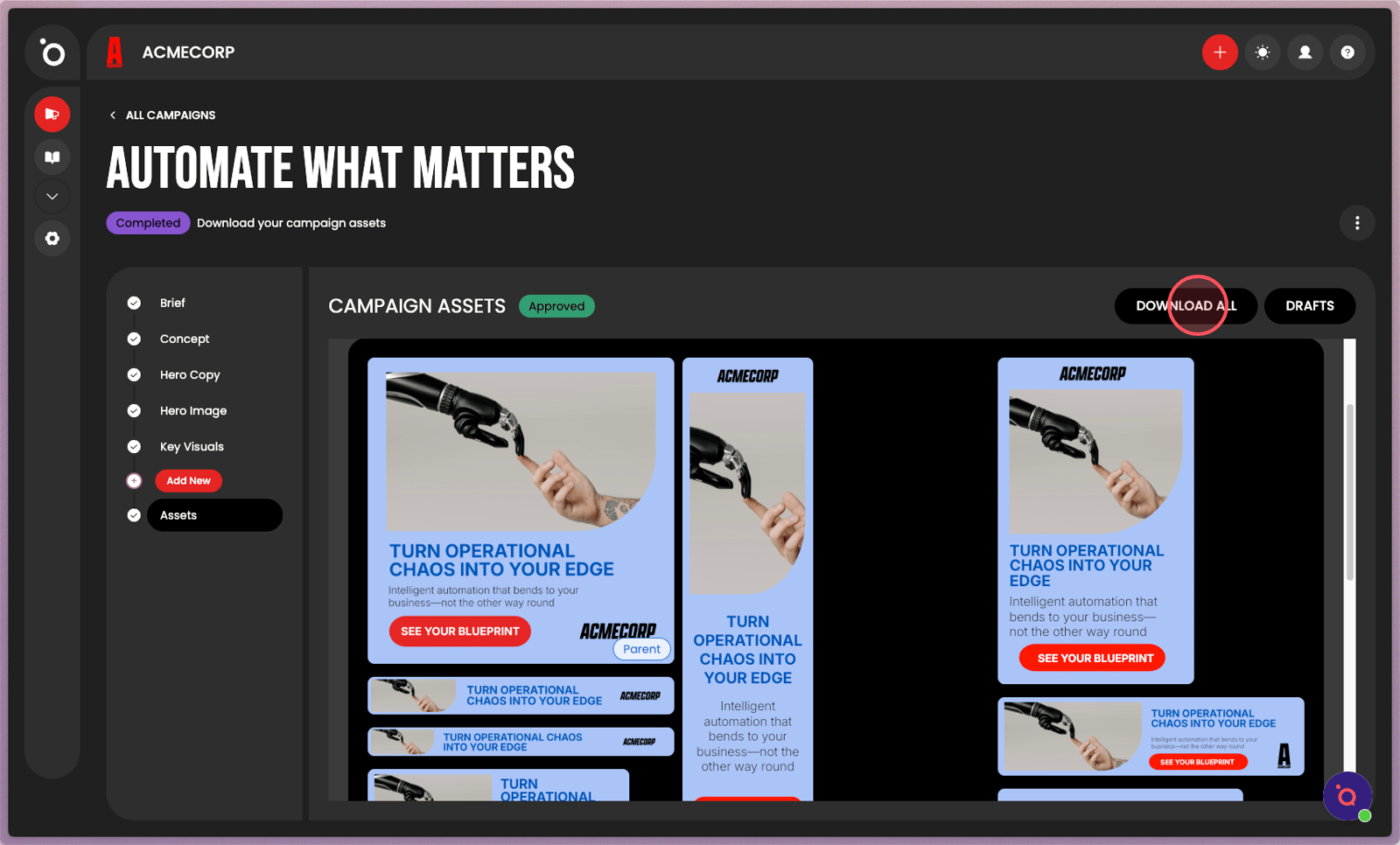
8. Click 'Download All' to save all of your campaign assets.