The Protaigé Academy
/
Protaigé Academy
/Managing your brand graphics
Managing your brand graphics

Managing your brand graphics

What you'll learn

Create a library of brand graphics

Series
2.07
Section
Brand DNA
Last Updated
Feb 4, 2026 8:59 PM
Status
Live
icon
Previous Tutorial
icon
Next Tutorial

TL;DR: Upload your brand graphics via drag-and-drop or the Upload button

Click through an interactive tutorial

Your brand graphics aren’t just assets—they’re building blocks for every campaign. Upload icons, illustrations, product images, diagrams, and more into a central library that’s always at your fingertips. Everything you add here becomes instantly available in the visual editor, ready to drag into your campaign layouts.

Keep your creative system consistent by storing your brand-approved visuals in one place. Edit, organise, bulk manage and reuse them across campaigns without starting from scratch.

Step-by-step

image

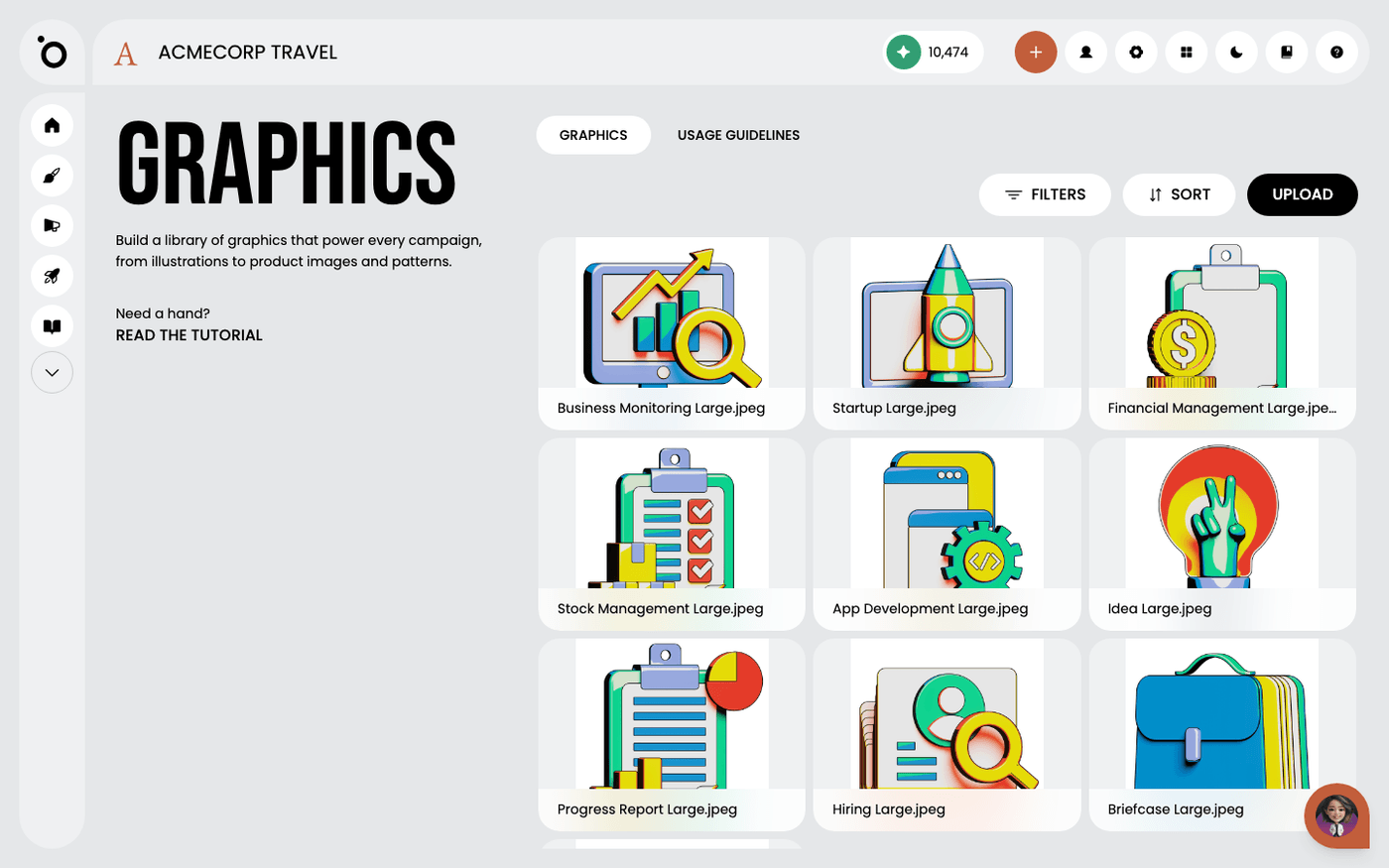
Open the Graphics section

From the Brand DNA dashboard, click Graphics to enter your brand’s visual asset library.

image

Start uploading

Drag files into the upload box or click the Upload button to browse your folders.

image

Select and confirm

Choose the graphic files you’d like to upload and click Open. Then hit Upload to begin importing.

image

Preview your graphics

Uploaded assets appear as thumbnails in your library. Click any one to inspect the file’s details.

image

Quick actions menu

Use the three-dot menu on any thumbnail to download or delete the file.

image

Bulk select graphics

Use the checkboxes to select multiple images at once for bulk actions.

image

Sort your assets

Use the Sort menu to order your library by name, date, or file type.

image

Apply filters

Narrow down your view with filters to quickly locate the assets you need.

icon
Previous Tutorial
icon
Next Tutorial