How to set the language Protaigé uses for all AI-generated content, and when the change takes effect.
Protaigé writes your content in whatever language suits your brand, and the Content Language setting is where you decide which one. It governs every piece of AI-generated content across the platform, so it's worth getting right early. One thing to know up front: a change only ever applies to new content. Anything you've already generated stays in the language it was made in, so switching won't quietly rewrite your back catalogue.
Your two options
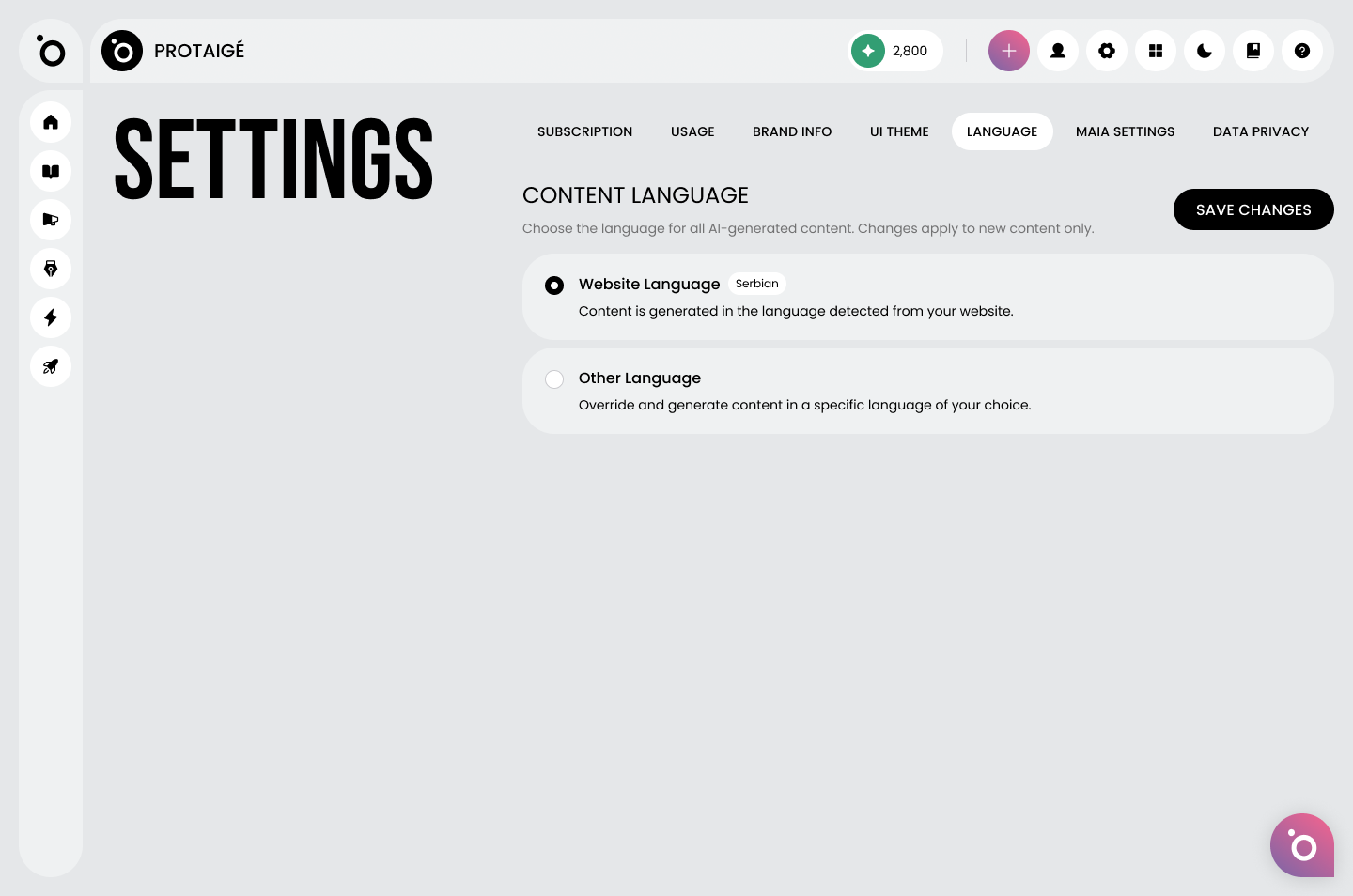
Open Settings and go to the Language tab. There are two ways to set it.
🌐 Website Language. Protaigé detects the language from your website and uses it automatically. The detected language is shown right next to the option, so you can see exactly what it picked. Leave it on this and your content simply matches your site, no decision required.
✍️ Other Language. If you'd rather generate in something different from your website's language, choose this and pick the specific language you want.
Saving your choice
Pick your option and hit Save Changes. From your next piece of content onward, Protaigé writes in the language you've set. Everything generated before the change keeps its original language, so you can switch whenever you need to without disturbing what's already done.
