In short: Account menu (top right) → Teams → Invite. Two roles are available today: Owner and Admin.
Your Brand DNA, campaigns and sketches are shared with everyone on your team. The people who brief and approve work should be in Protaigé with you.
Invites are sent by email. This page shows you how to send one, which role to choose, and how to change it later.
Open Teams
Press your profile button at the top right of the header. Choose Teams. The table lists everyone on the team. It shows their email, their access level, which brands they can reach, and their status.
Send an invite
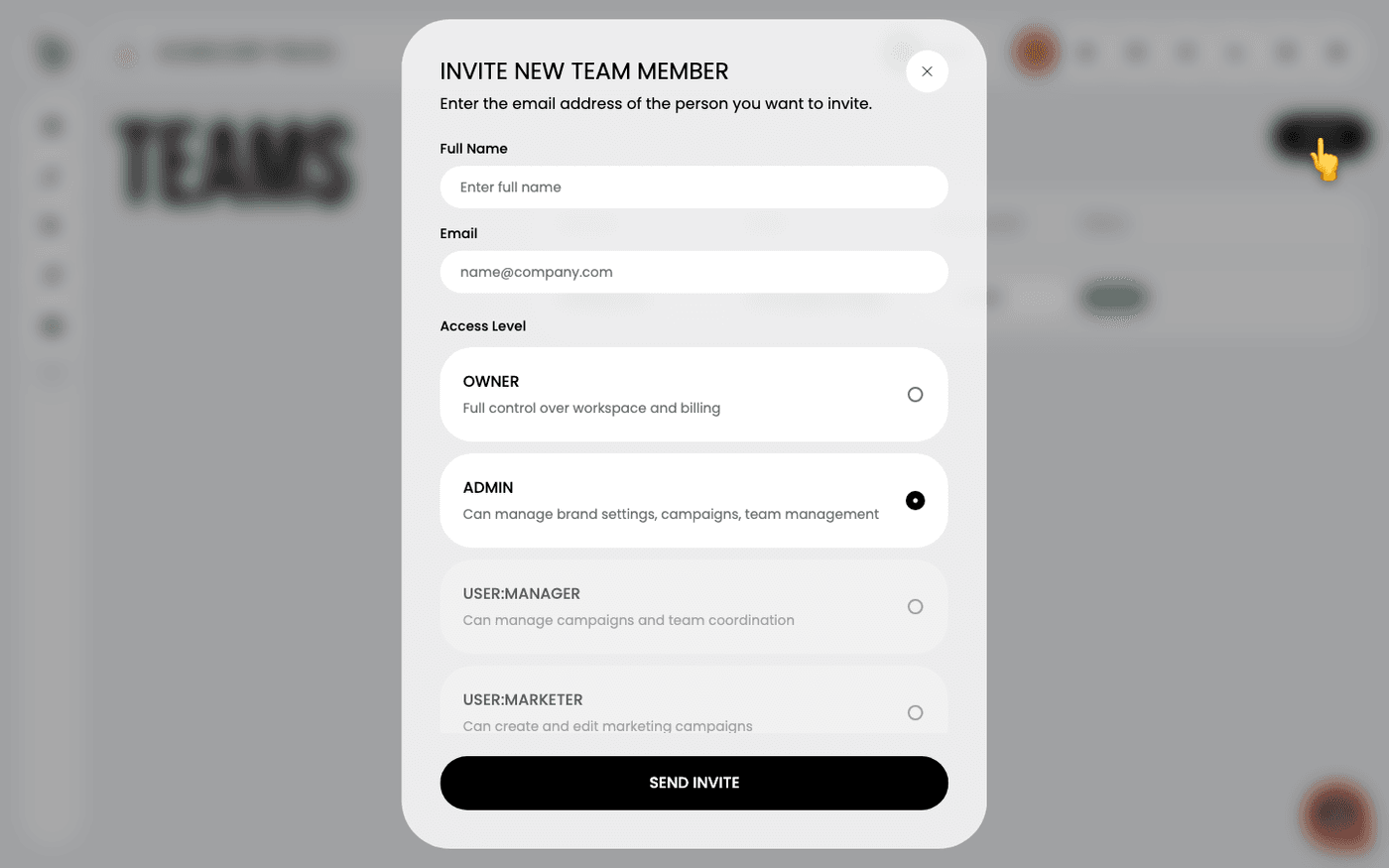
Press Invite. Enter the person's full name and email. Choose an access level. Press Send Invite. They get an email with a link. Their status shows Invited until they accept, then Active.
Choose Owner or Admin
Owner has full control over the workspace and the billing. Admin can manage brand settings, campaigns and the team, but not the billing. Admin is selected by default and is right for most people.
Know that five roles are coming
The form also lists Manager, Marketer, Creator, Approver and Viewer. They are greyed out. You cannot give them yet. Until then, Admin is the only way to give someone access without making them an Owner.
Know which brands they get
If you invite from inside a brand, the person gets access to that brand only. The invite dialog tells you which one. The Brand Access column in the table shows what each person can reach.
Change or remove someone
Use the access level dropdown on a row to change a role. Press the bin icon to remove someone. An Admin cannot make or remove an Owner, and nobody can change their own role.
An Admin can invite other people. Keep the Admin list short until the narrower roles arrive.
Last updated 19 August 2026