

What you'll learn
Apply brand colours and logos to your workspace
Series
6.6
Section
Settings
Last Updated
Feb 4, 2026 9:29 PM
Status
Live


TL;DR
Settings → UI Theme > Select > Toggle Apply Brand Theme → Save to make Protaigé look like your brand
Your brand should feel at home inside Protaigé. The UI Brand Theming settings let you apply your logos and colour palette to the platform itself. It’s a cosmetic feature — but it makes the workspace feel like yours, not ours.
Logos and colours are pulled directly from your Brand DNA, so your buttons, accents, and interface reflect your brand identity from the moment you log in.
A step-by-step guide
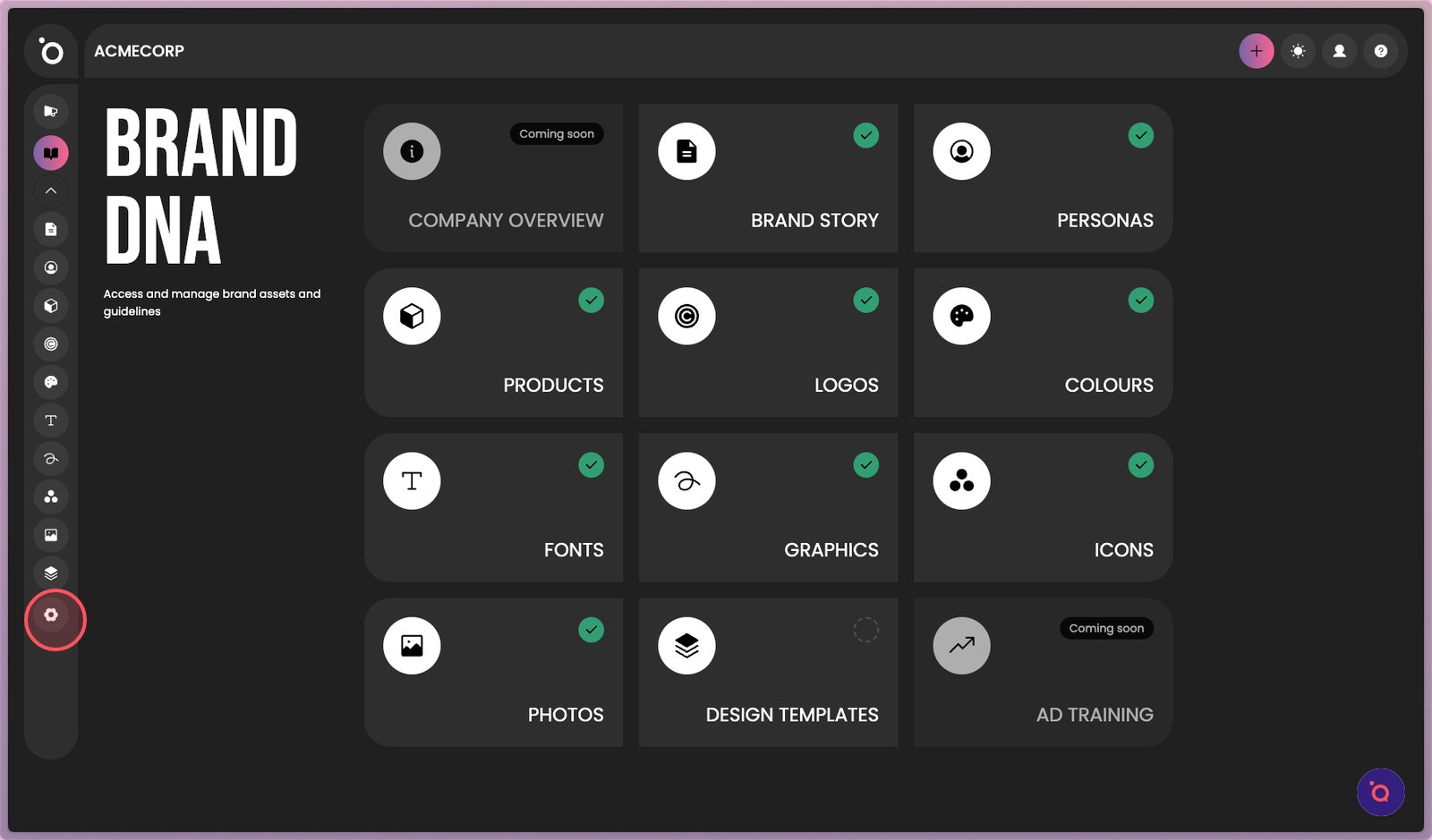
1. Start by launching the app and opening the settings menu from the left sidebar.
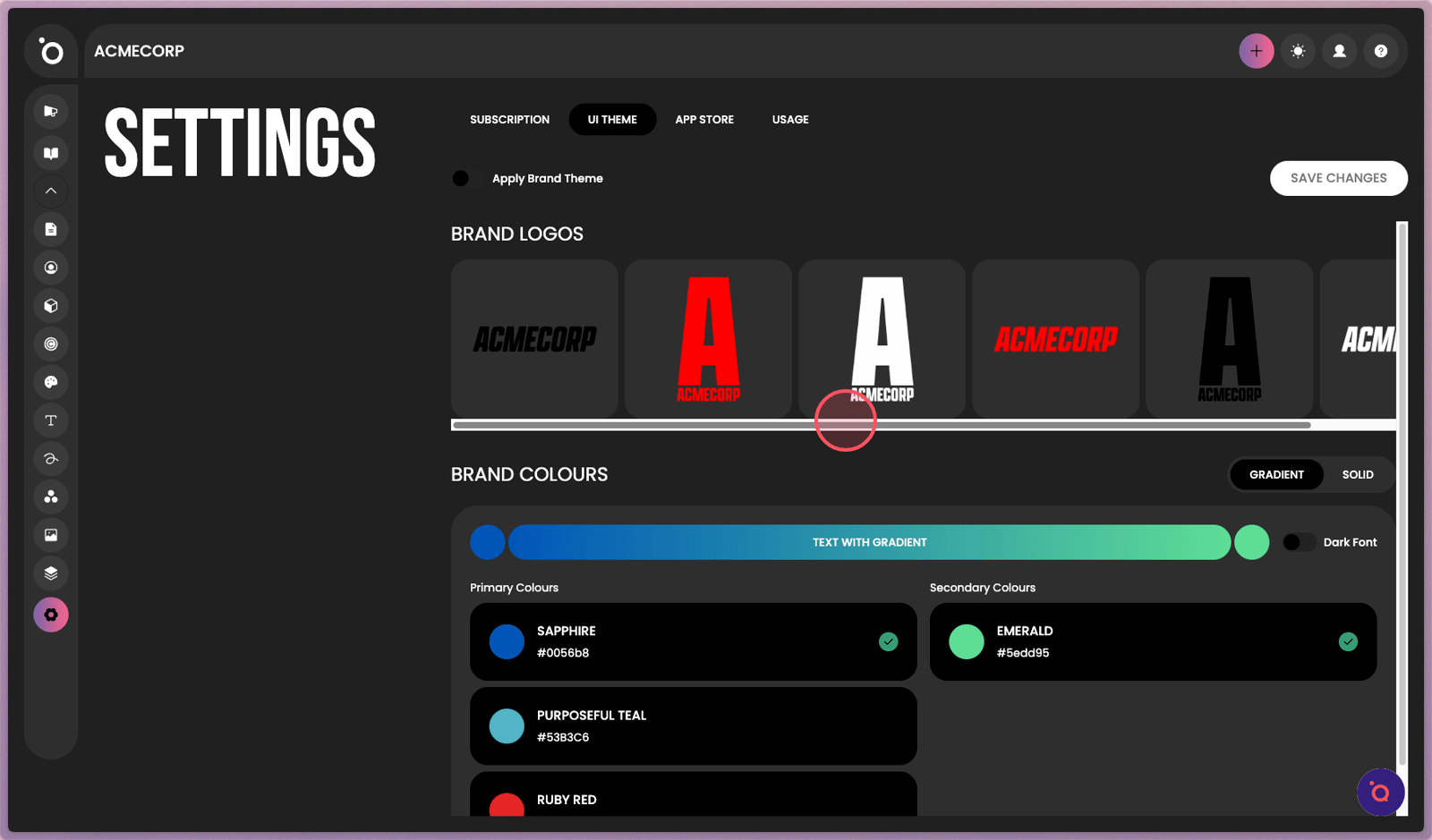
2. Select your preferred brand logo to display. These are retrieved from Brand DNA.
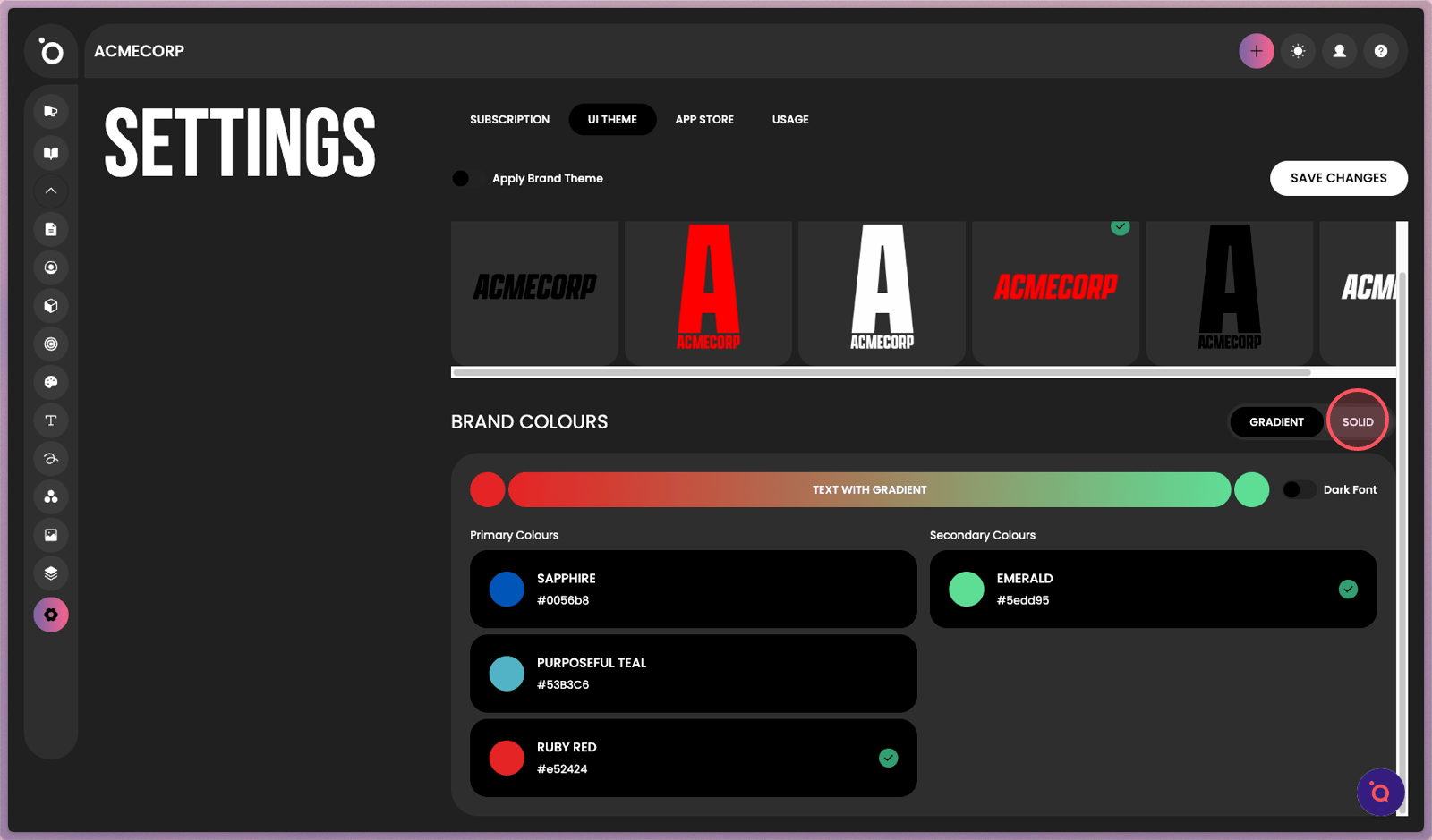
3. Switch between Gradient and Solid colour styles to refine the look of your buttons.
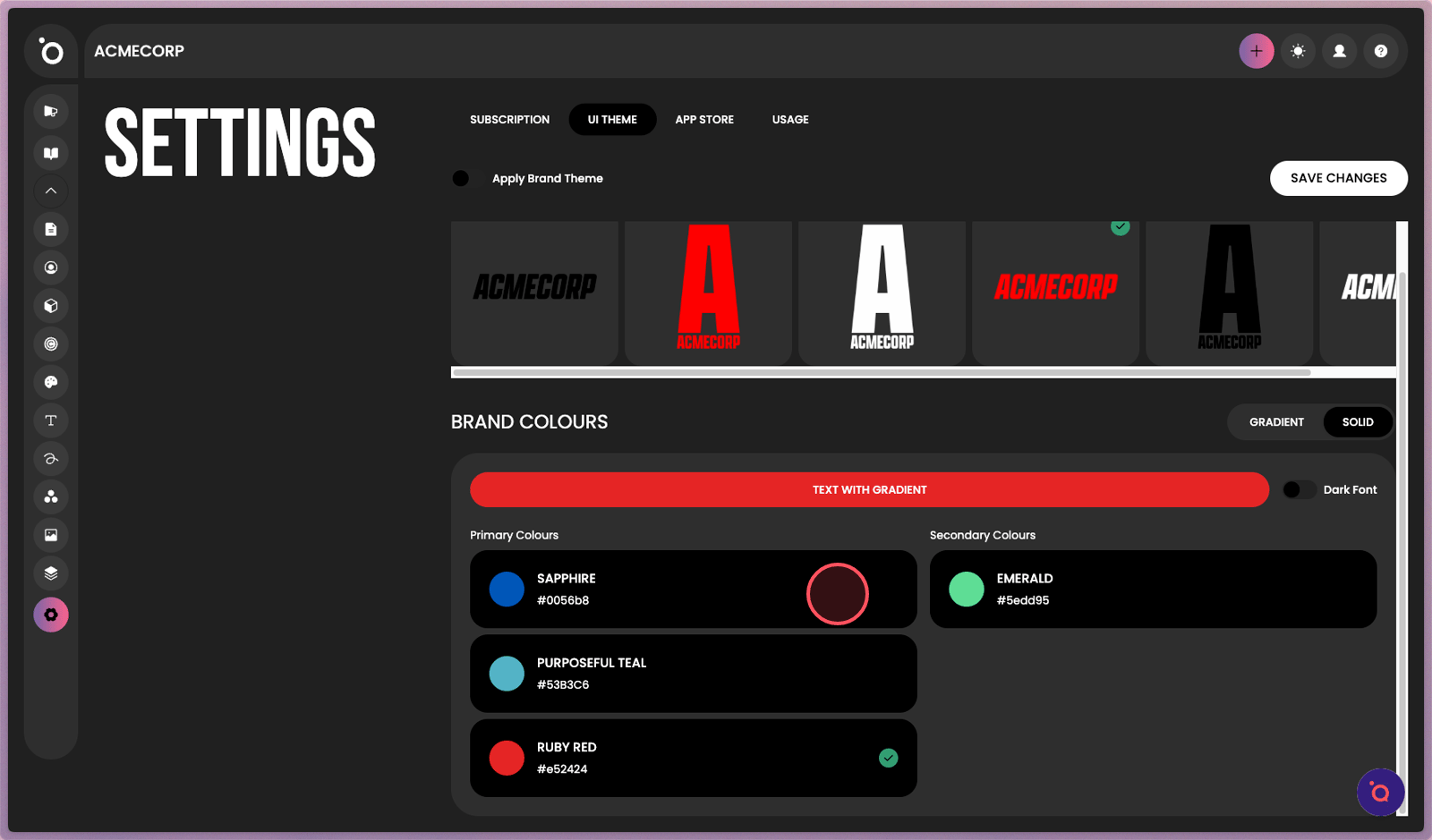
4. Your Brand DNA colour palette is available here for customisation.
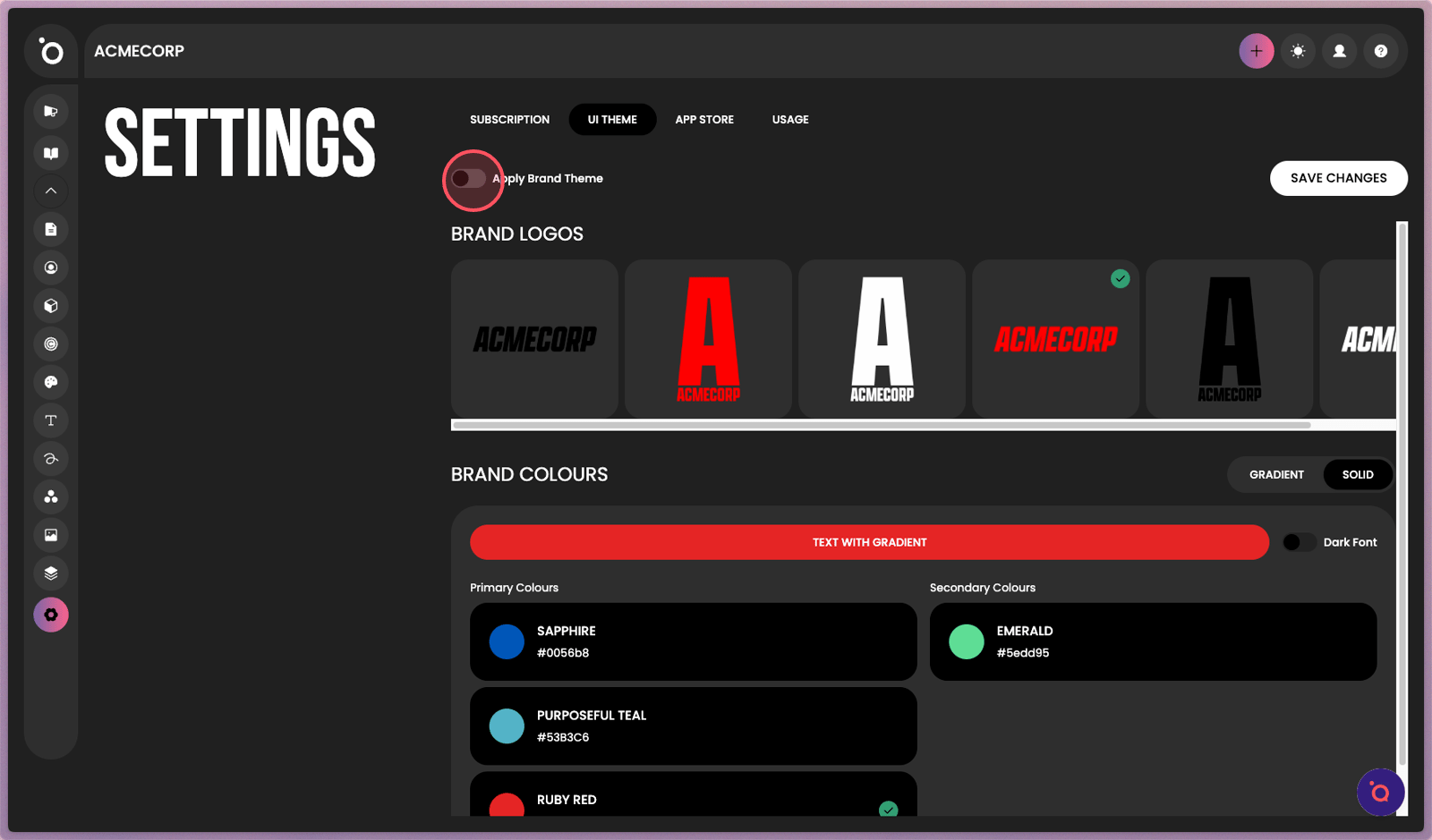
5. Toggle Apply Brand Theme to preview your brand's unique style.
