How to edit your brand photography with AI


TL;DR
Open Photos → Select an image → Click AI Magic Wand → Describe your edit → Apply → Review your new AI-generated photo in the gallery
Sometimes a great photo just needs a little help — whether it’s adjusting lighting, changing composition, or transforming an entire scene to fit your campaign’s message. Protaigé’s AI photo editor lets you make these changes quickly and creatively.
The editor uses intelligent scene understanding to analyse your selected image, interpret your prompt, and apply changes. You can edit any existing photo from your Brand Library — from small tweaks to complete transformations, like converting one portrait style into another.
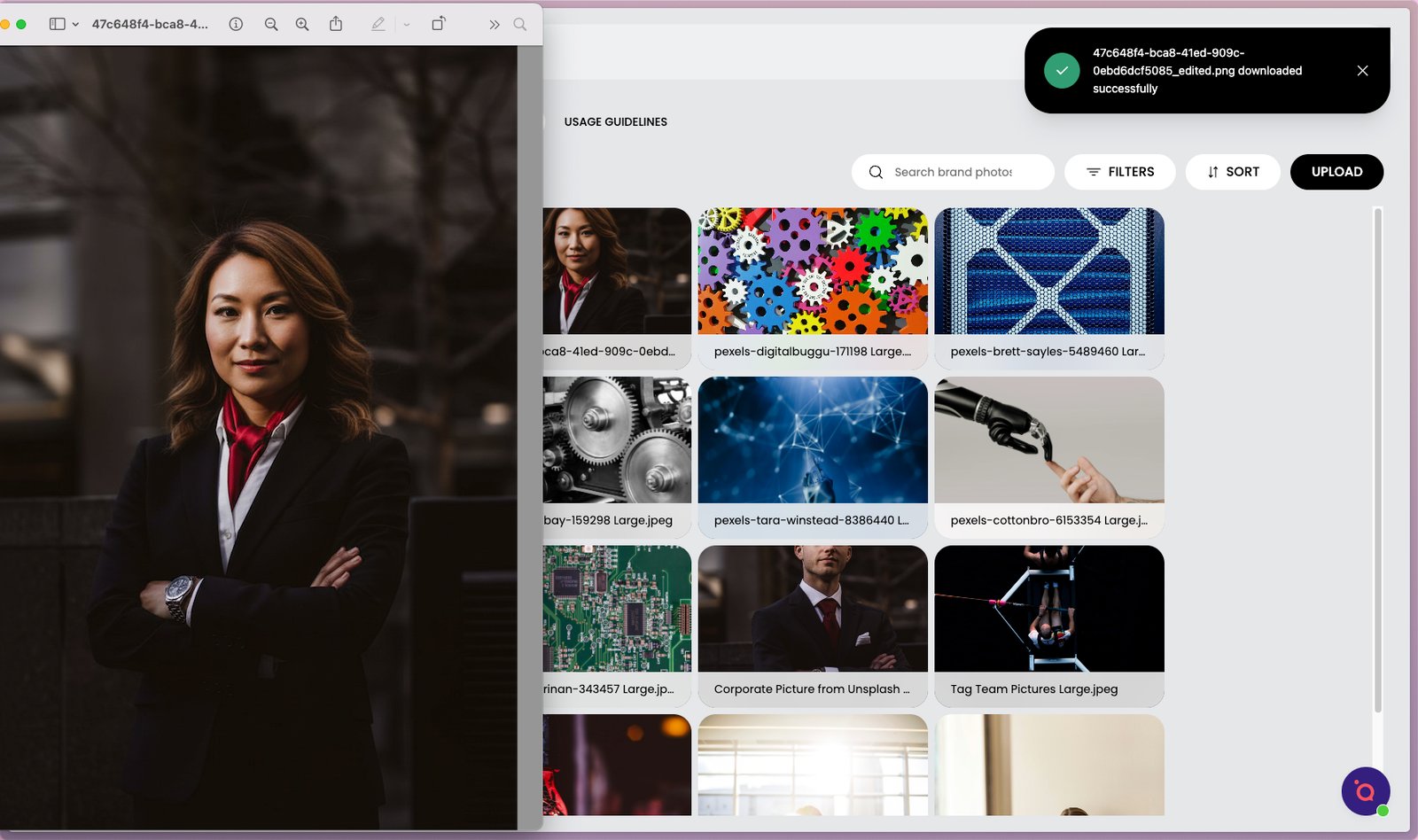
Once edits are complete, your new AI-generated photo is automatically added to your gallery, ready to use across campaigns and layouts.
Photo Gallery Samples


A step-by-step guide
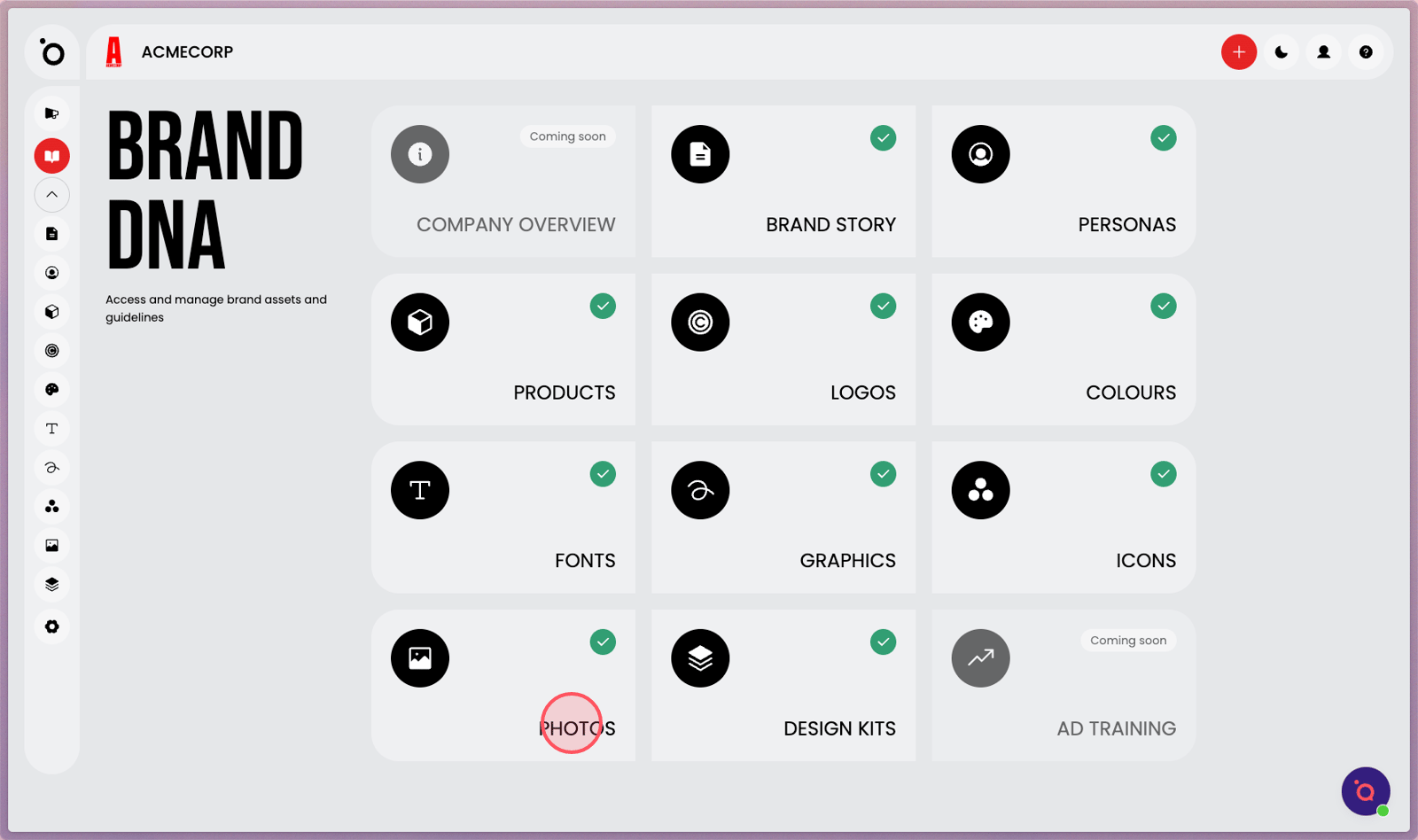
1. Navigate to the PHOTOS section.
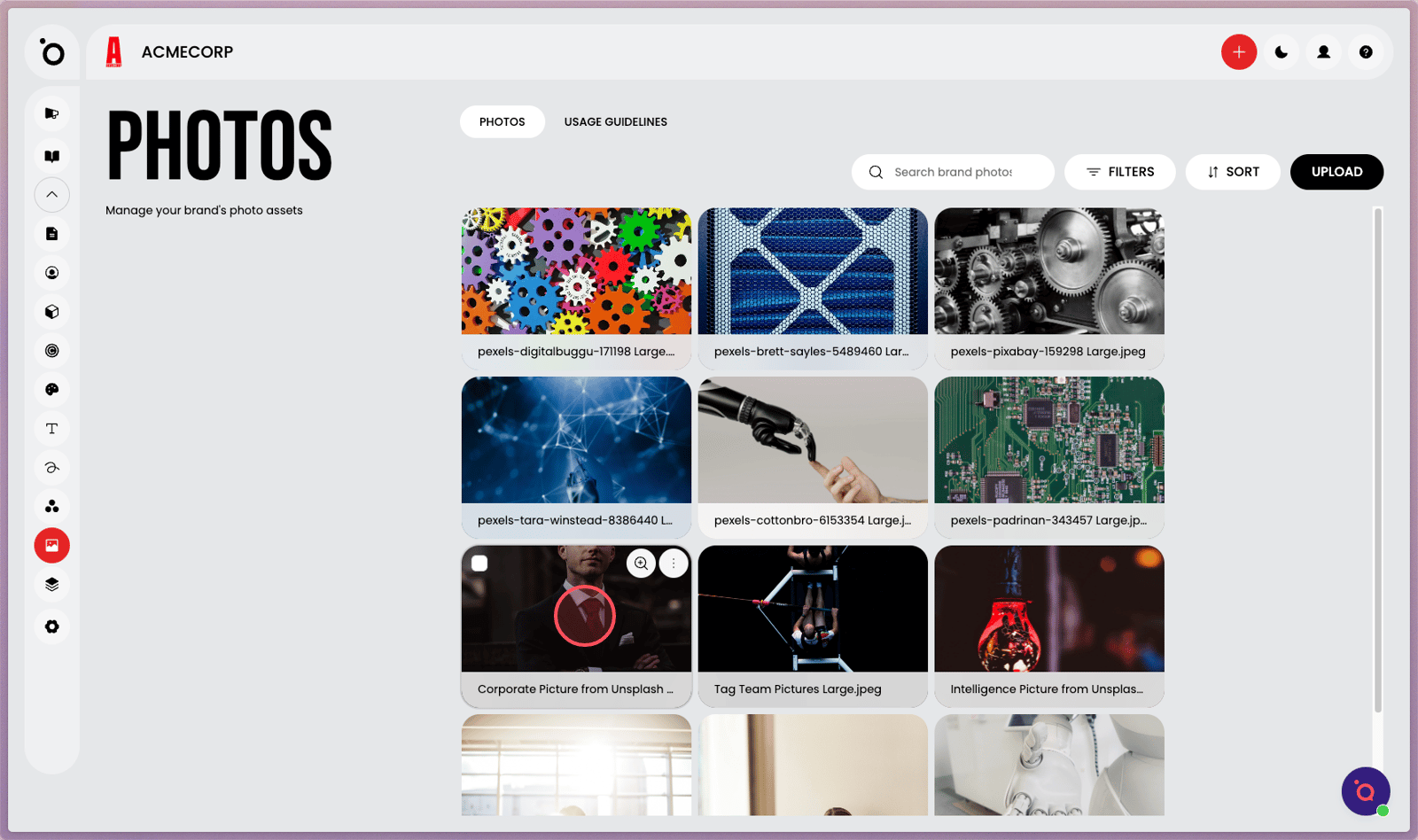
2. Select an image to edit.
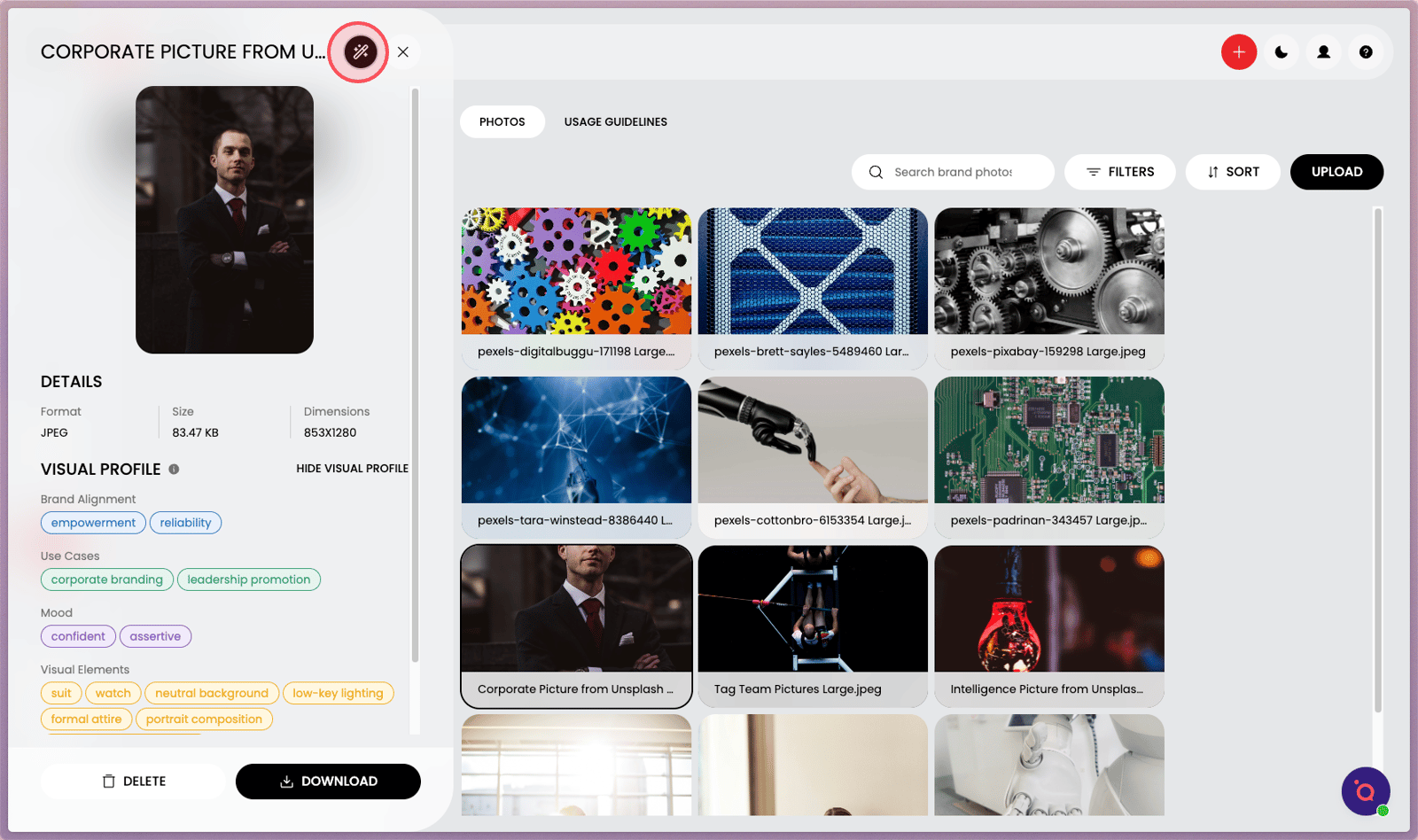
3. Click the AI Magic Wand*.
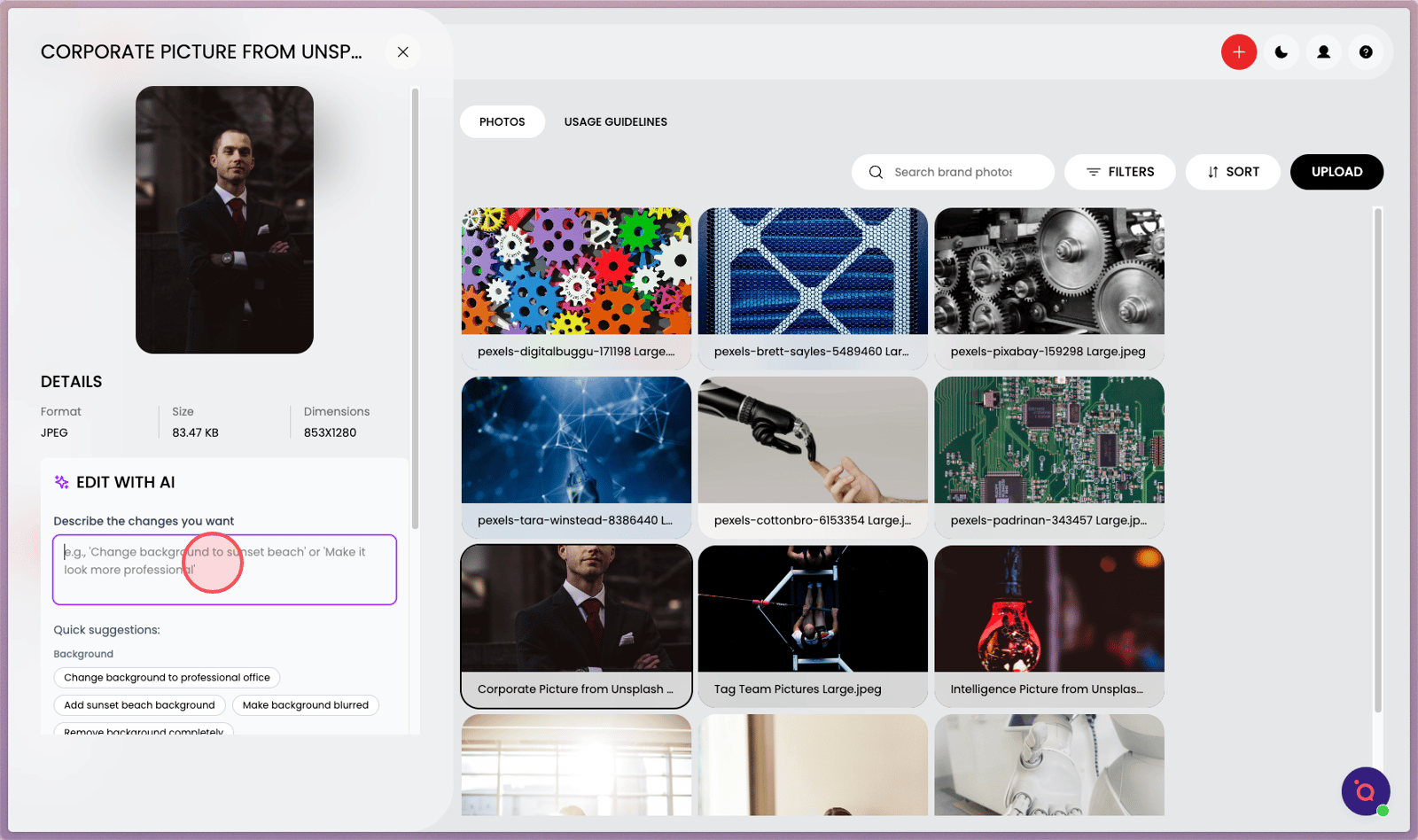
4. Describe your desired edits in the input field.
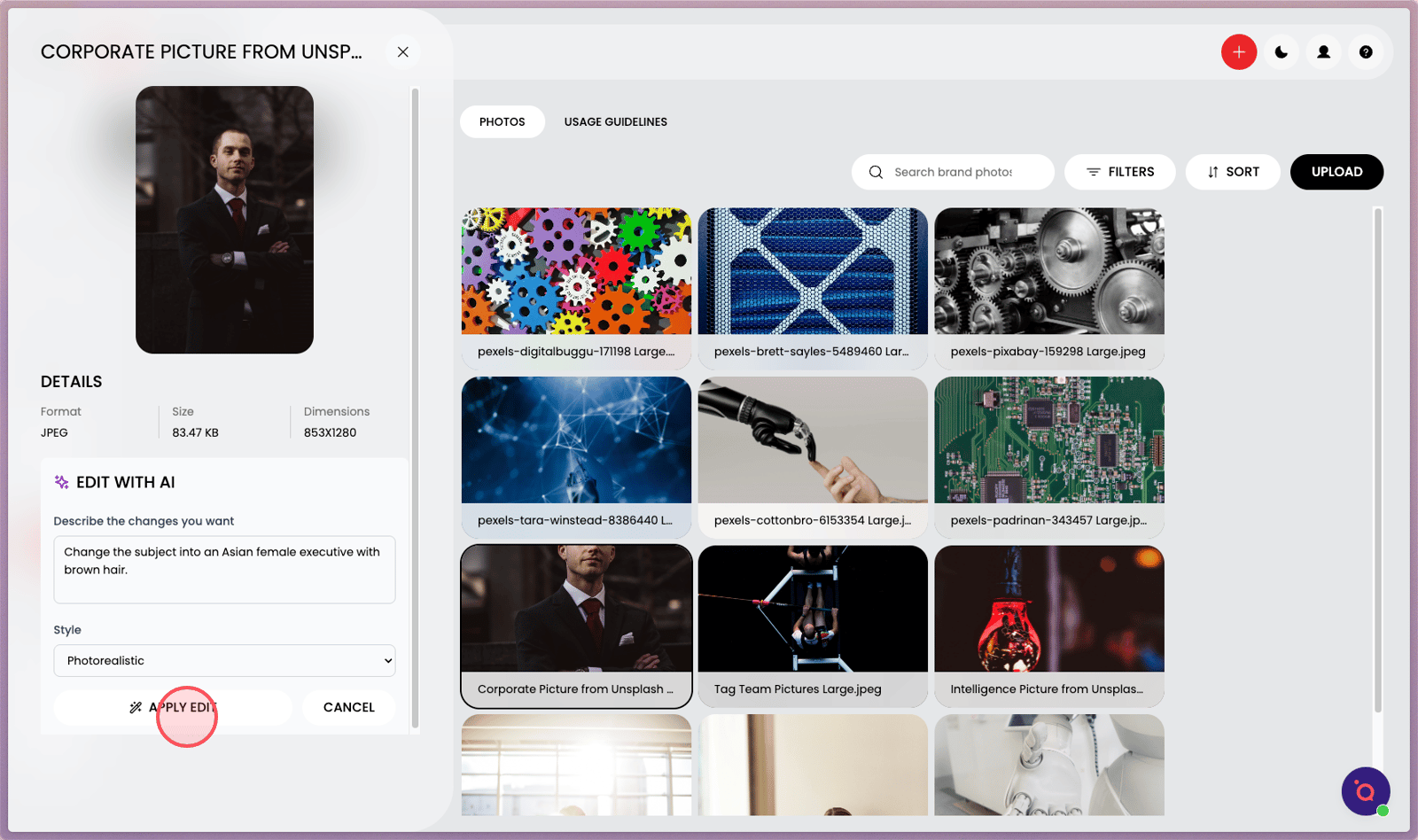
5. Click APPLY EDIT.
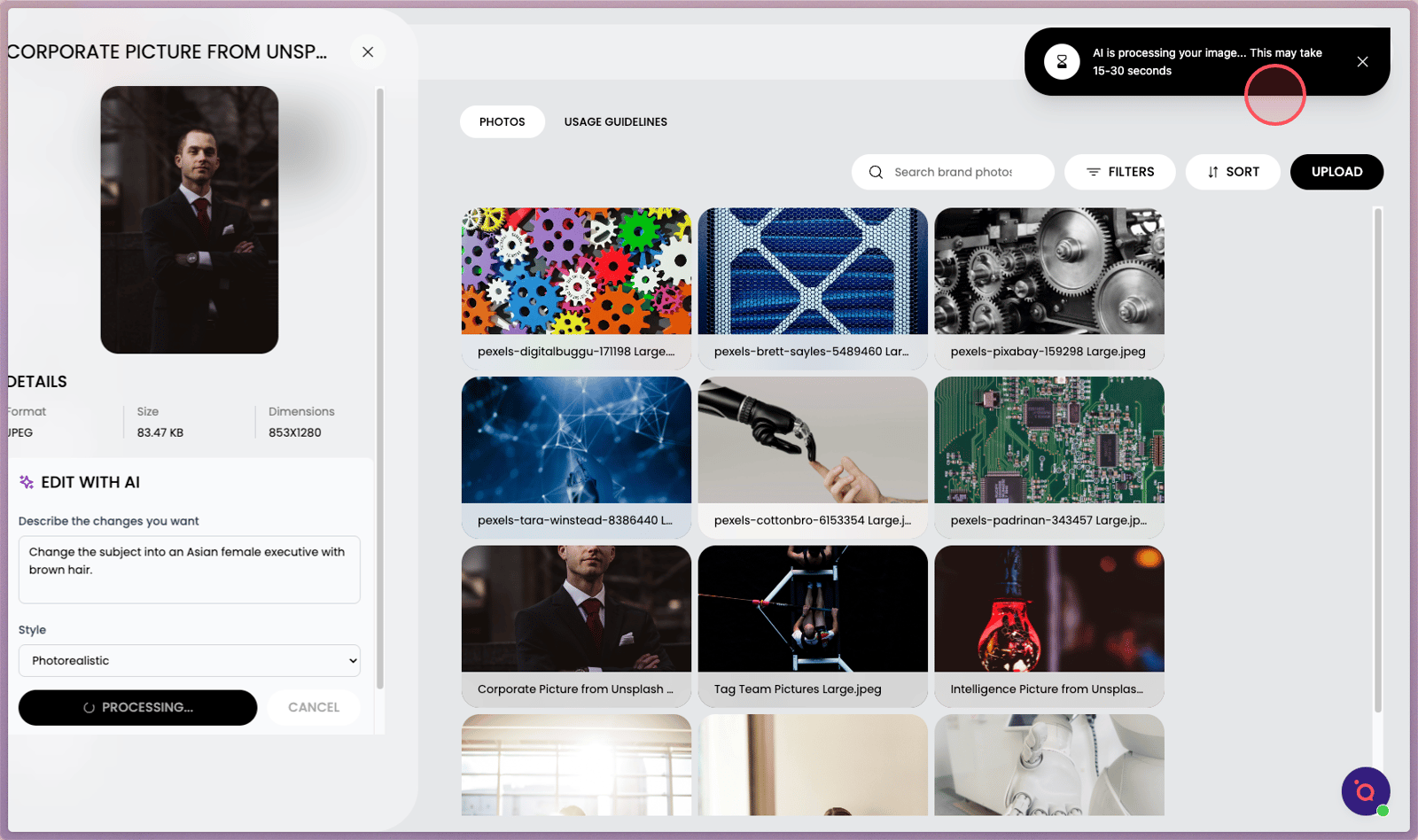
6. Wait a few seconds while our AI paints with pixie dust.
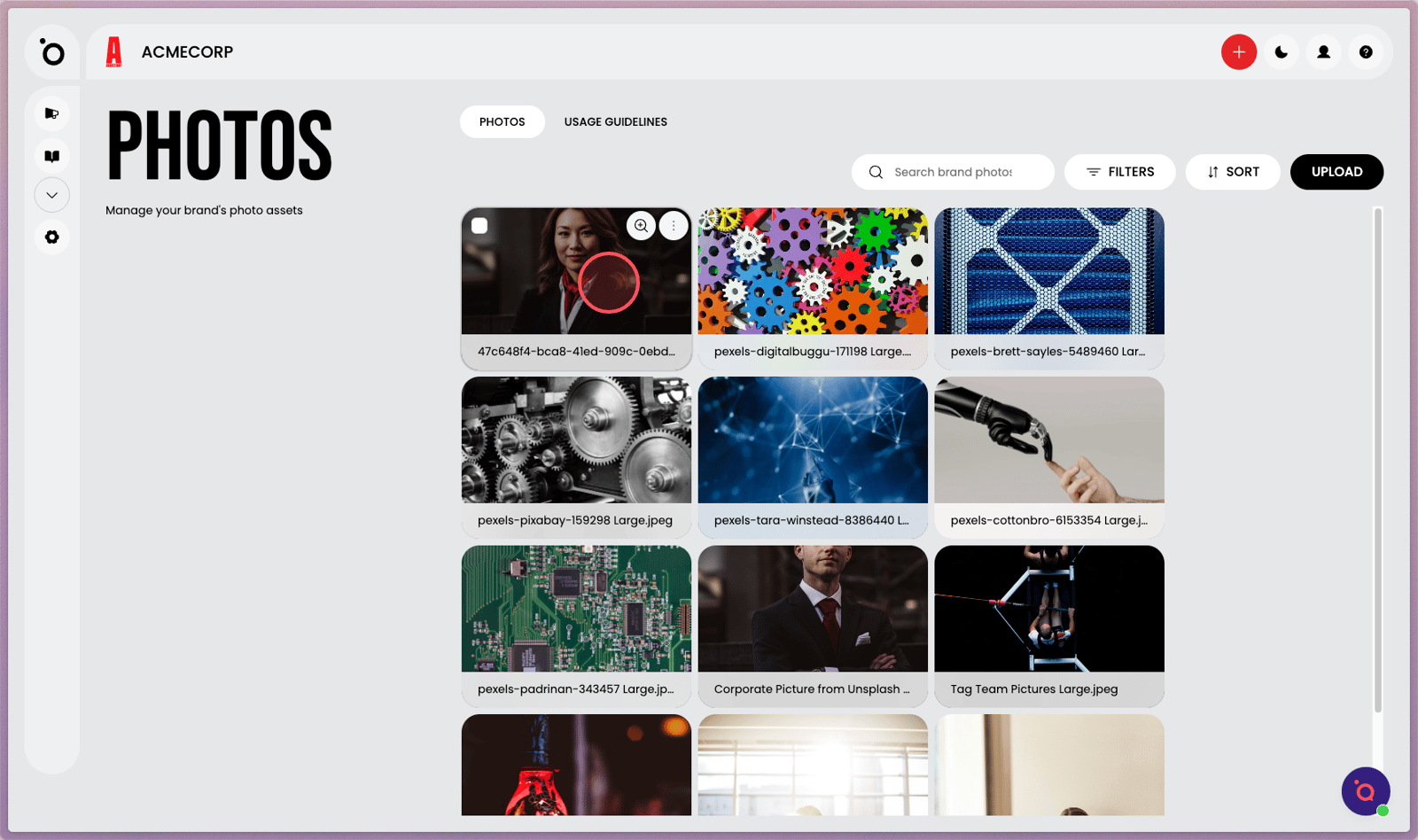
7. Your new AI-edited photo will be added to your gallery.
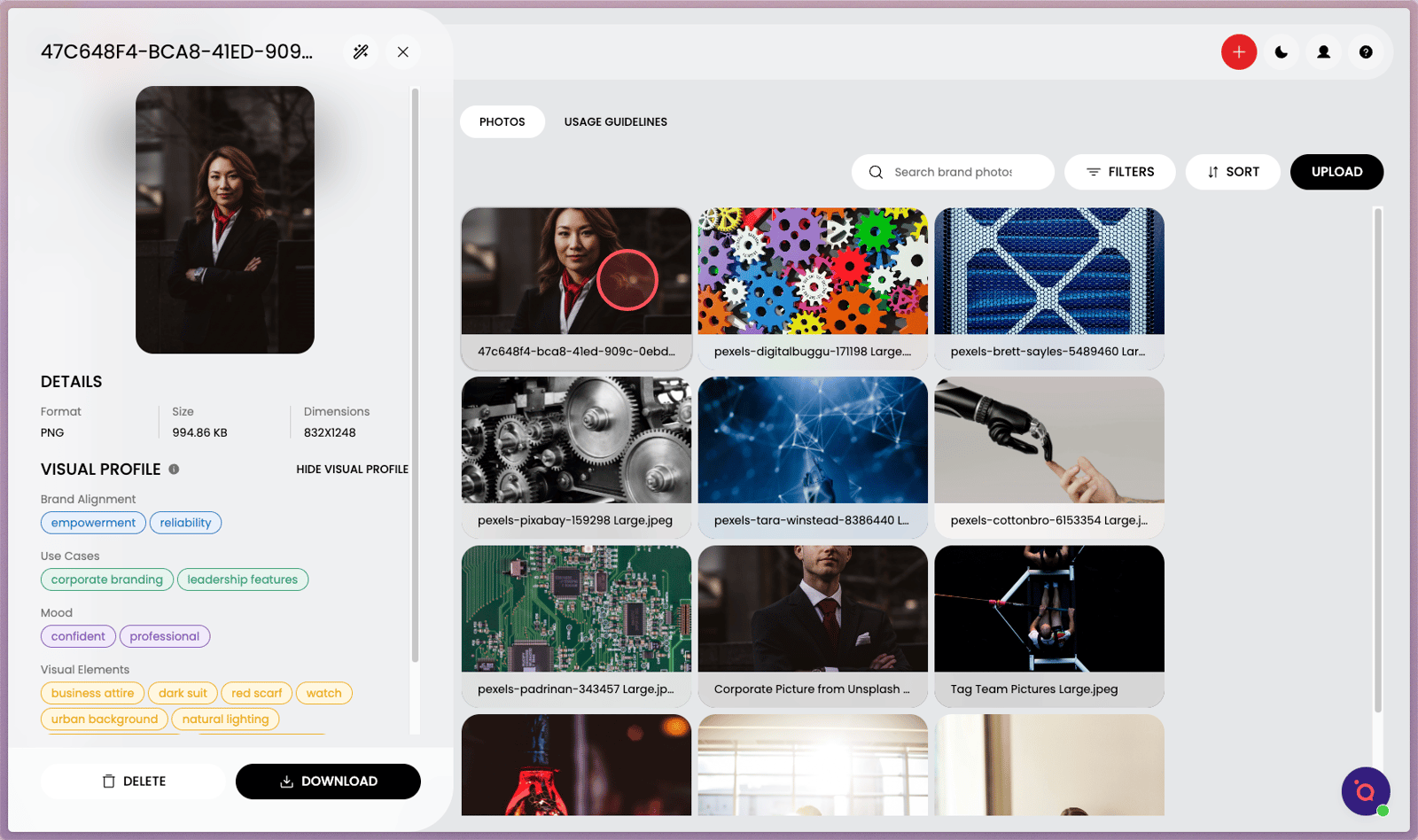
8. Click to inspect.
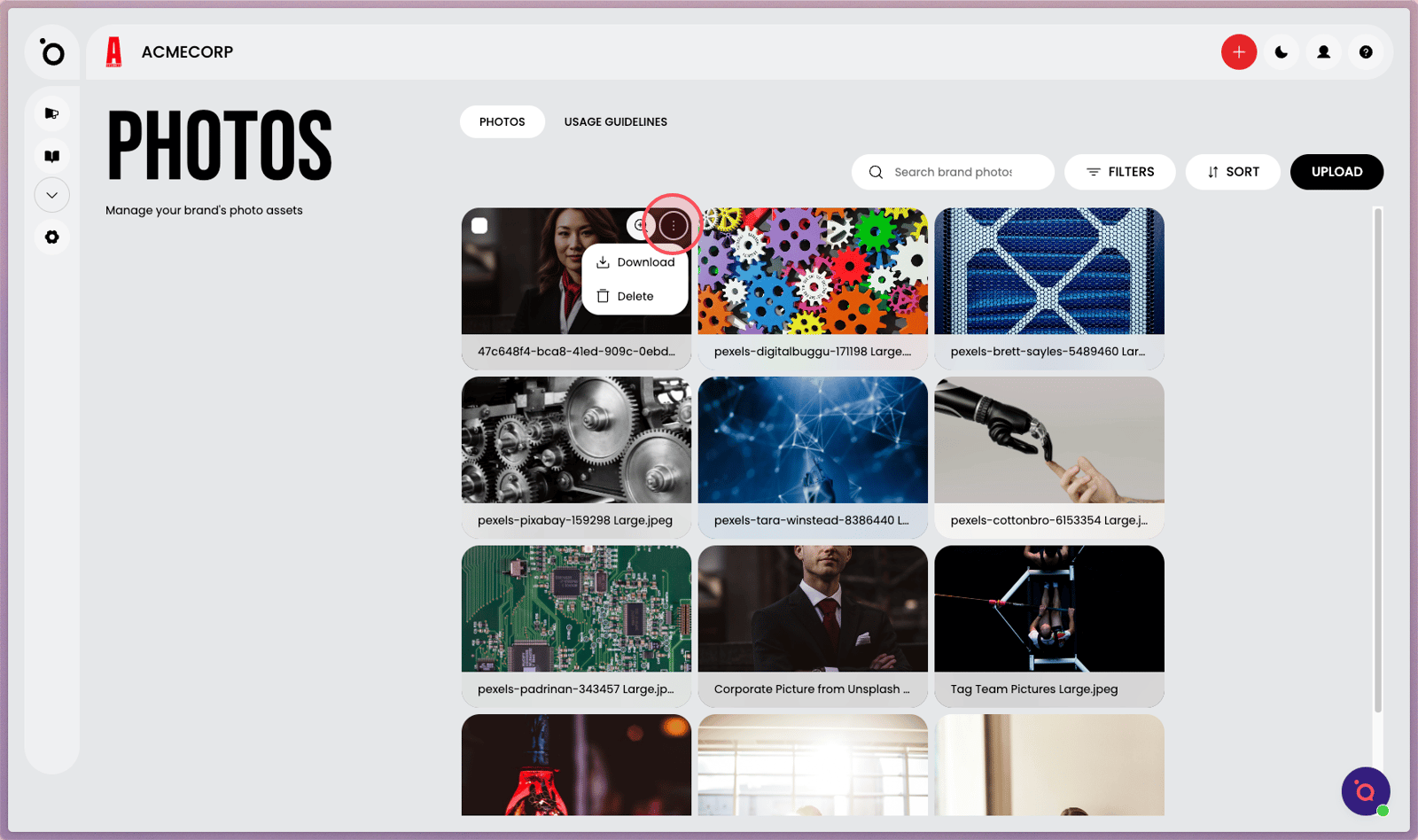
9. Use the more options menu to download or delete the photo.